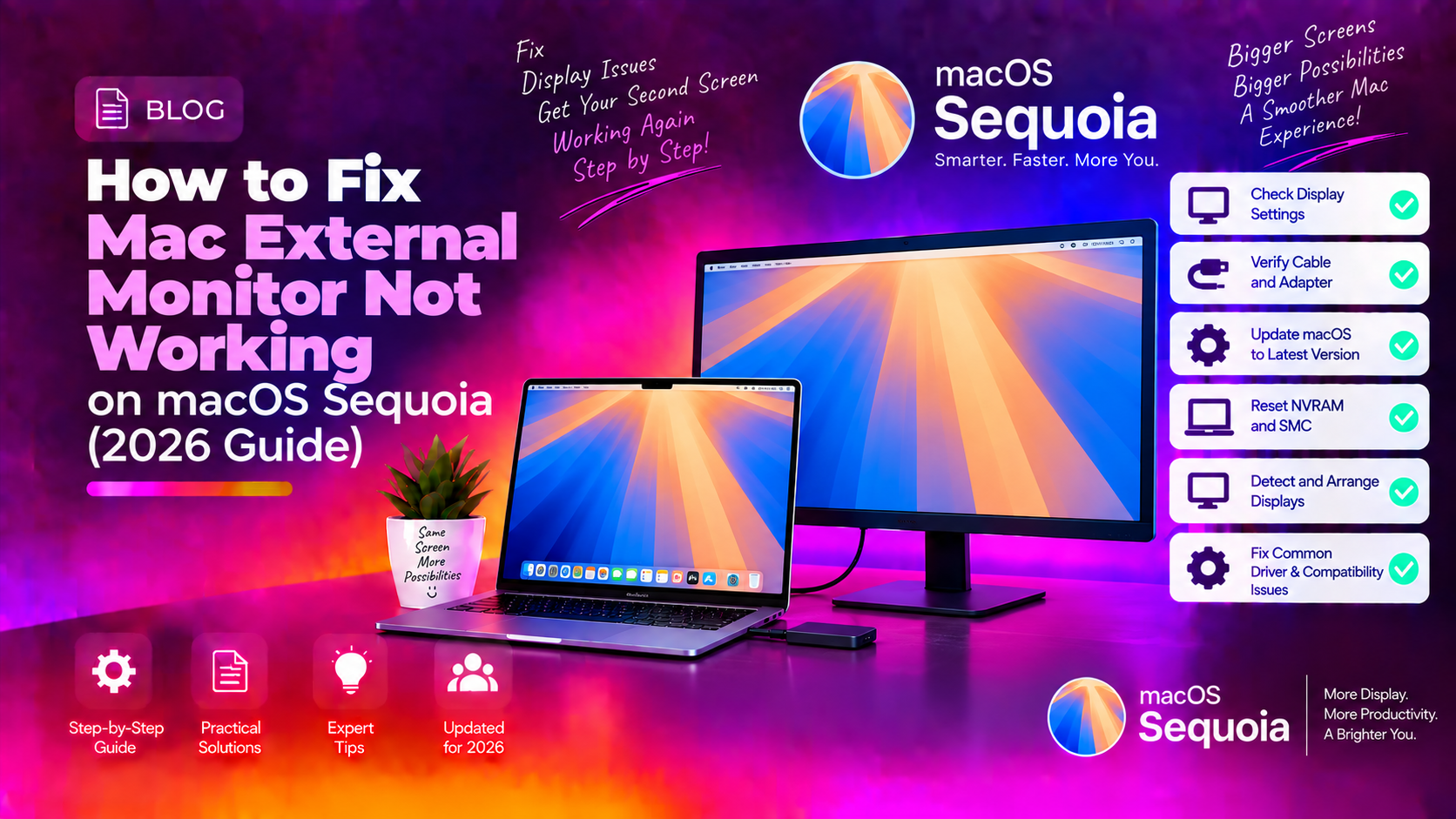
Why Is My Mac Not Detecting the External Monitor?
External display detection issues are among the most common hardware problems reported after macOS Sequoia updates. Apple's switch to USB-C and Thunderbolt, combined with the increasing variety of monitor connection standards (HDMI 2.0, HDMI 2.1, DisplayPort 1.4, USB-C Alt Mode), has created a complex web of compatibility issues — particularly when cheap adapters and docks are involved.
Common symptoms:
- External monitor shows a black screen or "No Signal" after connecting
- Mac doesn't detect the second display in System Settings → Displays
- Display flickers or disconnects randomly
- Resolution is limited (stuck at 1080p when the monitor supports 4K)
- Display worked before a macOS Sequoia update but has stopped working since
Fix 1: Use Detect Displays in System Settings
macOS doesn't always scan for new displays automatically. Force a rescan:
- Go to System Settings → Displays.
- Hold the Option key — a Detect Displays button should appear at the bottom right.
- Click it. macOS will scan all connected ports and re-enumerate displays.
- Also try: click Advanced… (without Option key) and look for the Detect Displays option in newer Sequoia builds.
If your display appears after this, the issue was simply that macOS missed the hotplug event. Try disconnecting and reconnecting the cable firmly — the connector should seat fully to establish a reliable signal.
Fix 2: Try a Different Cable and Connection Type
macOS Sequoia has known compatibility issues with HDMI, especially through USB-C to HDMI adapters and docks. The signal conversion adds a layer where handshake failures frequently occur.
Best connection priority for Mac:
- Thunderbolt / USB-C direct — if your monitor has a USB-C input that supports DisplayPort Alt Mode, connect directly with a Thunderbolt 4 or USB4 cable. This is the most reliable path.
- USB-C to DisplayPort cable — more reliable than HDMI adapters. Get a cable rated for DisplayPort 1.4 for 4K@144Hz or higher.
- USB-C to HDMI 2.1 adapter — acceptable for 4K, but buy a reputable adapter (Cable Matters, Anker, or Apple's own). Generic cheap adapters from unknown brands frequently cause handshake failures with macOS.
Try bypassing any dock or hub by connecting directly from your Mac's port to the monitor.
Fix 3: Perform a Hardware Handshake Reset
Sometimes the HDCP (High-bandwidth Digital Content Protection) handshake between your Mac and monitor gets into a bad state. A full power-cycle fixes this:
- Unplug the cable from both the Mac and the monitor.
- Turn the monitor off completely using its power button (not just standby).
- Wait 60 seconds.
- Reconnect the cable to the monitor first, then to the Mac.
- Turn the monitor on.
- Wait 30 seconds for macOS to detect it.
This resolves the issue in many cases where the display was previously working and stopped after a sleep/wake cycle or macOS update.
Fix 4: Adjust Resolution and Refresh Rate
Some monitors — particularly 4K panels connected via HDMI — fail to display a signal if macOS tries to output at a resolution or refresh rate the monitor claims to support but can't actually handle over the current connection.
- If the display shows at all but looks wrong, go to System Settings → Displays → select the external display.
- Hold Option and click Scaled to see all available resolutions.
- Try dropping from native 4K to 1440p, or reduce the refresh rate from 75Hz/144Hz to 60Hz.
- HDMI 2.0 cables and adapters cannot do 4K at 60Hz with full colour depth (4:4:4) — they may only support 4K@30Hz or 4K@60Hz with reduced chroma subsampling (4:2:0). If image quality looks washed out, switch to DisplayPort.
Fix 5: Reset Display NVRAM
NVRAM on Intel Macs stores display resolution and arrangement settings. Resetting it can resolve cases where macOS is sending incorrect signal parameters to the monitor.
Intel Mac:
- Shut down your Mac.
- Power on and immediately hold Option + Command + P + R for 20 seconds.
- Release and let your Mac boot normally.
- Go to System Settings → Displays and reconfigure your arrangement.
Apple Silicon Mac (M1/M2/M3/M4): There is no NVRAM reset shortcut. Perform a complete shutdown, wait 30 seconds, power on. If the issue persists, try creating a new user account to test — if the display works under the new account, your user's display preferences are corrupted.
To reset display preferences for your user account:
rm ~/Library/Preferences/com.apple.windowserver.plist
rm ~/Library/ByHost/com.apple.windowserver.*.plist
Log out and log back in after running these commands.
Fix 6: Update macOS to the Latest Sequoia Version
Apple has released multiple display-related patches in Sequoia point releases. macOS Sequoia 15.3.x and 15.4.x included specific fixes for external display detection regression introduced in 15.2. If you're running an older Sequoia version, update immediately:
- Go to System Settings → General → Software Update.
- Install any available updates.
- Retest external display after rebooting.
Fix 7: Check Thunderbolt/USB Controller in System Report
If you're using a Thunderbolt dock, verify that macOS is actually recognising it:
- Hold Option and click the Apple menu → System Information.
- In the left sidebar, click Thunderbolt/USB4.
- Verify your dock appears in the device tree. If it doesn't appear at all, the dock may have a firmware issue or the Thunderbolt port on your Mac may need service.
Also check USB in System Information — USB-C hubs connected via USB 3.x (not Thunderbolt) appear here.
Fix 8: Test With a Known-Good Monitor
If none of the above fixes work, test your Mac with a different monitor, and test your original monitor with a different computer. This isolates whether the problem is:
- The Mac's port — if no monitor works on that port, the Thunderbolt/HDMI port needs service
- The monitor — if the monitor doesn't work with another computer, the monitor itself may be faulty
- The cable/adapter — if everything works with direct connections but not through your adapter, replace the adapter
If the Mac's Thunderbolt port is suspected to be faulty, get professional Mac hardware diagnosis — Thunderbolt port repairs typically require logic board service.
Frequently Asked Questions
Why does my Mac external monitor work sometimes but not after sleep?
This is a common macOS Sequoia bug where the display doesn't re-detect after sleep/wake. Workarounds: enable the display to not sleep independently (System Settings → Displays → select external display → uncheck "Prevent display from sleeping"), or plug the cable into a different Thunderbolt port. Apple addressed some sleep/wake display issues in Sequoia 15.4.
Can my M1/M2 MacBook only support one external monitor?
Yes — M1 and M2 MacBooks (Air and Pro) support only one external display natively due to the chip's display engine limitations. The exception is MacBook Pro M2 Pro/Max/Ultra which supports multiple displays. To use two monitors on an M1/M2 MacBook Air, you need a DisplayLink dock (which uses software rendering) — but this comes with performance trade-offs.
Why is my 4K monitor only showing 1080p on my Mac?
This usually means the cable or adapter doesn't support the bandwidth required for 4K. HDMI 1.4 cables are limited to 4K@30Hz; HDMI 2.0 supports 4K@60Hz; DisplayPort 1.4 and Thunderbolt support 4K@144Hz. Check your cable's specification and replace with a higher-bandwidth cable if needed.
How many external monitors can my Mac support?
M1 Mac mini and iMac: up to 2 external displays. M2 Mac mini: up to 2 (one via Thunderbolt, one via HDMI). M3/M4 Mac mini: up to 3. MacBook Air M1/M2: 1 (or 2 with DisplayLink dock). MacBook Pro M3/M4 Pro/Max: up to 3-4 depending on configuration. Check Apple's specifications for your exact model.
Should I use a hub or connect directly to my Mac?
For best display reliability, always try a direct connection first (Mac port to monitor via USB-C/Thunderbolt cable). Hubs and docks add complexity and compatibility variables. If you need a hub, buy a Thunderbolt-certified dock from a reputable manufacturer — not a generic USB-C hub, which often lacks the bandwidth for high-resolution displays.