
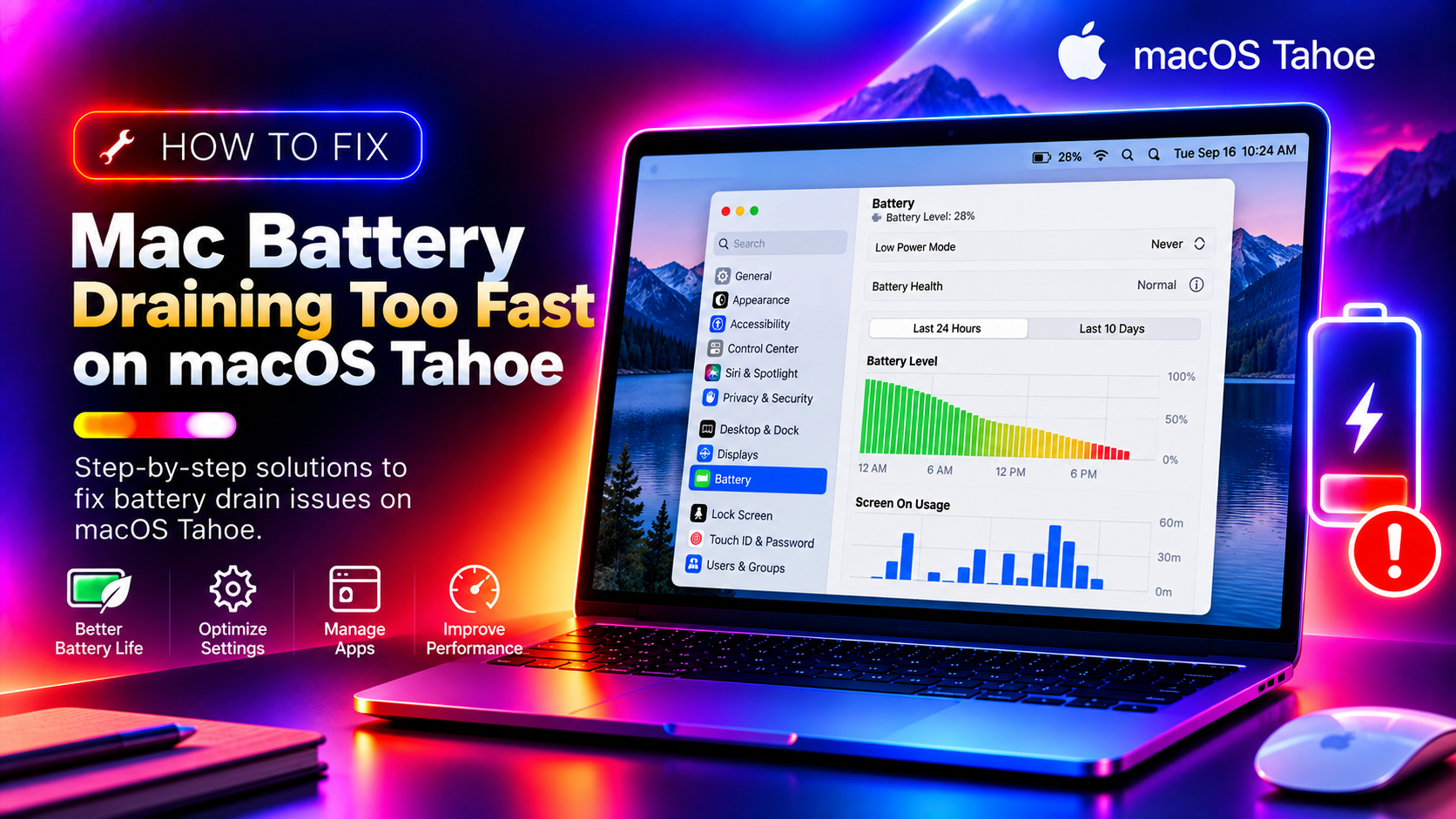
Your MacBook lasted all day on a single charge — until macOS Tahoe. Now you're watching the battery percentage fall in real time, your Mac runs warm, and you're tethered to a charger before lunch. You're not alone.
macOS Tahoe introduced new AI features, an enhanced Spotlight engine, Always-On Display capabilities, and background processing improvements that — while powerful — can wreak havoc on battery life if not configured correctly. This guide walks you through every fix, from finding the rogue app draining your battery to resetting the SMC on Intel Macs.
Why Is Your Mac Battery Draining So Fast?
Before diving into fixes, it helps to understand the most common causes of fast battery drain on macOS Tahoe:
- Background apps hogging CPU: Browsers, Electron apps (Slack, Teams, VS Code), and cloud sync services (Dropbox, OneDrive, iCloud Drive) can consume 30–80% CPU even when idle.
- macOS Tahoe's new AI features: On-device AI processing for enhanced Spotlight, Live Captions, and Intelligent Writing Tools runs continuously on supported Macs, adding significant background CPU load.
- Spotlight re-indexing after upgrade: After upgrading to macOS Tahoe, Spotlight re-indexes your entire drive — this can last 2–6 hours and significantly drains battery.
- Always-On Display (Apple Silicon MacBooks): macOS Tahoe's new Always-On Display keeps a dim screen active even when the lid is open and idle, consuming battery continuously.
- Aging battery with low health: Batteries degrade over time. A battery at 75% maximum capacity will drain 25% faster than a new one under identical workloads.
- macOS Tahoe bugs: Some users on initial Tahoe releases report abnormal drain caused by software bugs — Apple typically releases a patch within 2–4 weeks.
Now let's fix it.
Method 1 – Find Apps Draining Battery (Activity Monitor)
Activity Monitor is your first stop. It shows exactly which apps are consuming CPU and energy right now.
Step 1. Open Finder → Applications → Utilities → Activity Monitor (or press Command + Space, type "Activity Monitor", press Enter).
Step 2. Click the Energy tab at the top of the Activity Monitor window.
Step 3. Click the Energy Impact column header to sort processes from highest to lowest energy consumption.
Step 4. Look for any app with an Energy Impact above 20–30 with no obvious reason to be running. Common offenders include:
- Google Chrome / Chromium browsers (especially with many tabs or extensions)
- Microsoft Teams, Zoom, Slack — even when not in a call
- Dropbox, OneDrive, Google Drive — during large sync operations
- mds_stores, mdsworker — Spotlight indexing (temporary post-upgrade)
- kernel_task — can spike due to thermal management when the Mac overheats
Step 5. To force-quit an offending app, select it and click the X button in the top-left of Activity Monitor, then click Force Quit.
Step 6. Also check the CPU tab and sort by % CPU to catch processes consuming processor cycles without high energy scores.
If mds_stores is at the top, Spotlight is still indexing after your Tahoe upgrade. Leave your Mac plugged in for 4–6 hours and the indexing will complete automatically.
Method 2 – Check Battery Health and Cycle Count
Your battery's health tells you whether hardware — not software — is the root cause. A degraded battery loses charge capacity and drains faster under any load.
Check via System Settings:
Step 1. Click the Apple menu () → System Settings.
Step 2. Click Battery in the left sidebar.
Step 3. Click the ⓘ (info) icon next to Battery Health.
Step 4. You'll see:
- Maximum Capacity: Percentage of original battery capacity remaining. Below 80% means significant degradation.
- Condition: Normal (good), Service Recommended (replace soon), or Service Required (replace now).
Check via Terminal (more detail):
Open Terminal (Command + Space → "Terminal") and run:
system_profiler SPPowerDataType | grep -A5 "Health Information"This returns the cycle count, condition, and maximum capacity percentage. Most MacBook batteries are rated for 1000 full charge cycles. If your cycle count is approaching or exceeding 1000, the battery is at end of life.
If battery health is below 80% or the condition shows "Service Recommended", skip to the "When to Replace the Mac Battery" section at the bottom of this guide.
Method 3 – Disable Features That Drain Battery on macOS Tahoe
macOS Tahoe introduced several features that are convenient but battery-hungry. Disabling or limiting them can dramatically extend battery life.
Disable Always-On Display:
Step 1. Go to System Settings → Battery.
Step 2. Toggle off Always On Display (available on Apple Silicon MacBooks with macOS Tahoe).
Enable Low Power Mode:
Step 1. Go to System Settings → Battery.
Step 2. Set Low Power Mode to Always or Only on Battery. This reduces CPU performance by up to 20% but can extend battery life by 1–2 hours.
Disable Continuous Video (macOS Tahoe):
Step 1. Go to System Settings → Privacy & Security → Analytics & Improvements.
Step 2. Turn off Share Mac Analytics and Share with App Developers — these trigger periodic background uploads.
Disable Intelligent Writing Tools background processing:
Step 1. Go to System Settings → Apple Intelligence & Siri.
Step 2. If you don't use Apple Intelligence features, toggle off Apple Intelligence entirely. On older Macs that support a limited version, this eliminates significant background AI processing.
Method 4 – Reduce Display Brightness and Enable Auto-Brightness
The display is typically the single largest power consumer on a MacBook — often 30–40% of total power draw. Reducing brightness has an immediate and significant impact on battery life.
Step 1. Press F1 to reduce display brightness, or drag the brightness slider in Control Center. For battery savings, aim for 50% brightness or less.
Step 2. Enable Auto-Brightness so the display adjusts based on ambient light:
- Go to System Settings → Displays.
- Toggle on Automatically adjust brightness.
Step 3. Enable True Tone (System Settings → Displays → True Tone) — this uses the ambient light sensor to match colour temperature and works in tandem with Auto-Brightness.
Step 4. Reduce the display sleep timeout when on battery:
- Go to System Settings → Battery.
- Under Options, set Turn display off after to 2 minutes when on battery power.
Dropping from full brightness to 50% can add 45–90 minutes of battery life on most MacBook models.
Method 5 – Disable Background App Refresh and Location Services
Apps running invisibly in the background — checking for updates, syncing data, or polling your location — consume battery even when you're not using them.
Limit Location Services:
Step 1. Go to System Settings → Privacy & Security → Location Services.
Step 2. Review each app. Set apps that don't need real-time location to Never or While Using. Pay attention to apps set to Always — these poll your location constantly.
Step 3. Disable Location-Based Suggestions and Significant Locations under System Services at the bottom of the list.
Manage Login Items and Background Tasks:
Step 1. Go to System Settings → General → Login Items & Extensions.
Step 2. Under Open at Login, remove any app you don't need starting automatically.
Step 3. Under Allow in Background, toggle off apps that don't need to run in the background (e.g., Adobe Creative Cloud, Dropbox if you don't need real-time sync).
Pause iCloud Drive Sync temporarily:
If iCloud is syncing a large file transfer, it will pin your CPU and network adapter. Go to System Settings → Apple ID → iCloud → iCloud Drive → Manage to review what's syncing.
Method 6 – Reset SMC to Fix Battery Calibration (Intel Macs)
The System Management Controller (SMC) on Intel-based MacBooks manages power delivery, battery charging, and thermal management. A corrupted SMC can cause the battery percentage to drop rapidly or jump unexpectedly. Resetting it is safe and takes under a minute.
Note: Apple Silicon Macs (M1, M2, M3, M4) do not have an SMC. For these Macs, restart the Mac instead (Apple menu → Restart). The equivalent of an SMC reset on Apple Silicon is a full shutdown for 30 seconds, then power on.
Intel MacBook (with Touch ID, 2018 and later):
Step 1. Shut down your Mac completely (Apple menu → Shut Down).
Step 2. Press and hold Control + Option + Shift (all on the left side) for 7 seconds. The Mac may turn on — keep holding.
Step 3. While still holding those three keys, also press and hold the Power button. Hold all four keys for another 7 seconds.
Step 4. Release all keys. Wait 5 seconds, then press the Power button to turn on your Mac normally.
Intel MacBook (non-Touch ID, 2017 and earlier):
Step 1. Shut down your Mac.
Step 2. Hold Shift + Control + Option on the left side of the keyboard and press the Power button simultaneously.
Step 3. Hold for 10 seconds, then release all keys.
Step 4. Press the Power button to start your Mac.
After an SMC reset, monitor your battery percentage for a few charge cycles. If it was a calibration issue, the drain rate should normalise.
Method 7 – Update macOS Tahoe to Get Battery Fix Patches
Apple releases point updates (e.g., macOS Tahoe 16.1, 16.2) that often include battery and performance fixes identified after the initial release. If you installed macOS Tahoe on day one, you may be running a version with known battery drain bugs that are already patched.
Step 1. Go to Apple menu → System Settings → General → Software Update.
Step 2. If an update is available, click Update Now. Your Mac will download and install the update (keep it plugged in during this process).
Step 3. After updating, go to System Settings → General → Software Update → Automatic Updates and enable Install macOS Updates to stay current automatically.
After updating, allow your Mac to settle for 1–2 hours. Spotlight may re-index briefly, and the system may optimise in the background. Drain should improve within a few hours of normal use.
If you've tried all seven methods above and battery drain continues, our CloudHouse expert Mac support team can remotely diagnose persistent drain issues, identify hidden background processes, and optimise your MacBook's power profile.
When to Replace the Mac Battery
Sometimes the fix isn't a setting — it's hardware. Here's how to know when it's time for a new battery:
- Maximum Capacity below 80%: Your battery is retaining less than 80% of its original charge. A MacBook that once lasted 10 hours now lasts 8 hours at best — and this will continue to decline.
- Condition shows "Service Recommended": Apple's own diagnostic has flagged the battery as needing replacement. Don't ignore this warning.
- Cycle count over 1000: Most MacBook models are rated for 1000 charge cycles. Beyond this, degradation accelerates. Check with:
system_profiler SPPowerDataType | grep -A5 "Health Information" - Battery swelling: If your trackpad feels raised, the Mac rocks on a flat surface, or you notice any bulging near the bottom case, stop using the Mac immediately and seek service. A swollen lithium battery is a safety hazard.
- Sudden shutdowns at 20–40%: If your Mac powers off unexpectedly at seemingly high battery levels, the battery can no longer hold voltage under load — it needs replacement.
Battery replacement options:
- Apple Authorised Service Provider: $129–$199 depending on model. Genuine Apple battery, maintains warranty.
- Independent repair shops: Often $80–$150 with third-party batteries. Verify they use quality replacement cells.
- Apple Trade-In: If your Mac is several generations old, Apple's trade-in credit toward a new MacBook may make more financial sense than a battery replacement.
FAQ
Why is my MacBook battery draining so fast on macOS Tahoe?
Fast battery drain on macOS Tahoe is usually caused by one or more background apps using excessive CPU (check Activity Monitor → Energy tab), new macOS features like Always-On Display or on-device AI processing, an aging battery with low health, or a macOS Tahoe bug that can be fixed via a software update.
How do I check which app is draining my Mac battery?
Open Activity Monitor (Applications → Utilities → Activity Monitor), click the Energy tab, and sort by "Energy Impact". Apps at the top are consuming the most battery. Common culprits include web browsers, video conferencing apps, and cloud sync services like Dropbox or OneDrive.
How do I check MacBook battery health on macOS?
Go to System Settings → Battery → Battery Health (click the info icon). This shows your battery's Maximum Capacity and condition (Normal, Service Recommended). Alternatively, run: system_profiler SPPowerDataType | grep -A5 "Health Information" in Terminal to see cycle count and condition.
Does macOS Tahoe drain more battery than Sequoia?
macOS Tahoe introduced new features like Advanced AI processing, enhanced Spotlight, and Always-On Display that can increase battery usage. Some users report faster drain immediately after upgrading — this is often caused by Spotlight re-indexing (which completes in a few hours) or a bug fixed in subsequent Tahoe point releases.
When should I replace my MacBook battery?
Replace your MacBook battery when Battery Health shows "Service Recommended", the Maximum Capacity is below 80%, or the cycle count exceeds 1000 (for most MacBook models). Apple authorized service typically charges $129–$199 for MacBook battery replacement, and most repair shops offer lower prices.