Why Is the Mac App Store Not Working?
The Mac App Store can fail to download or update apps for several reasons in 2026 — from Apple server outages and Apple ID authentication problems to corrupted App Store cache files and insufficient storage. The most common symptoms are:
- App download stuck at "Waiting..." or a progress bar that never moves
- Updates available but clicking "Update" does nothing
- App Store shows a blank white or grey screen
- Error messages like "An error has occurred" or "Cannot connect to the App Store"
- Apps say "Purchased" but won't download again
Step 1: Check Apple's System Status Page
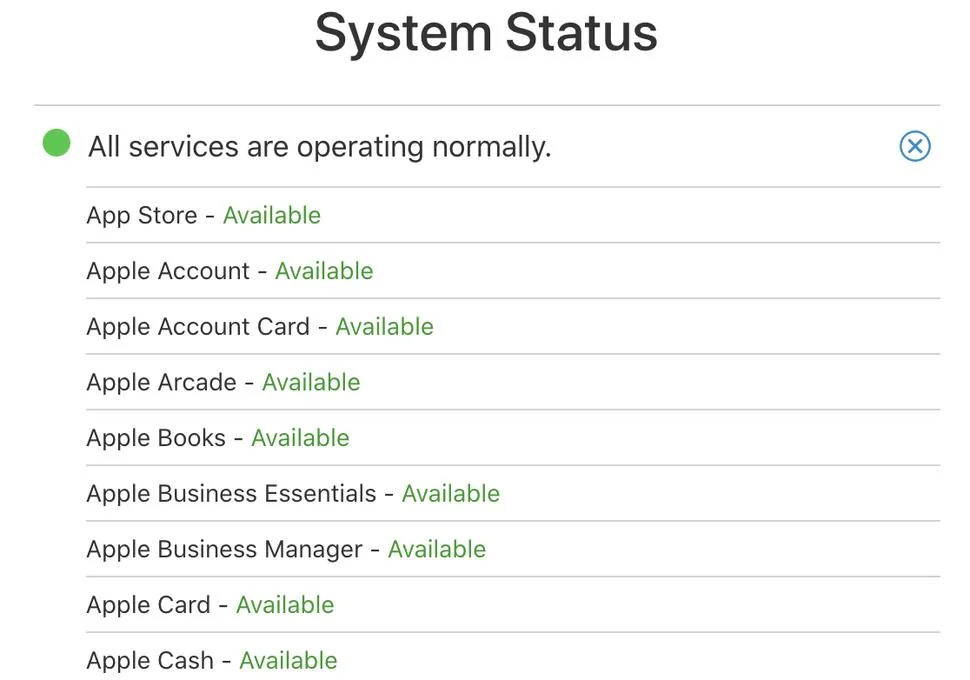
Before troubleshooting your Mac, confirm whether Apple's servers are down.
1. Visit Apple's System Status page at apple.com/support/systemstatus — check if "Mac App Store" shows a green dot or a yellow/red indicator
2. If the App Store is listed as an incident: wait until Apple resolves it — no local fix will help during a server outage
3. If all systems are green: continue with the steps below — the issue is on your Mac
Step 2: Sign Out and Back into Your Apple ID
App Store authentication token issues are one of the most common causes of download failures.
1. Open the App Store → click your name/profile icon at the bottom-left
2. Click "Sign Out"
3. Restart your Mac
4. Open App Store again → sign back in with your Apple ID and password
5. Try downloading or updating the app that was failing
Step 3: Clear the App Store Cache
Corrupted App Store cache files are a frequent cause of blank screens, stalled downloads, and frozen update progress bars.
1. Quit the App Store completely (Command + Q)
2. Open Finder → Go → Go to Folder (Shift + Command + G)
3. Type ~/Library/Caches/com.apple.appstore → press Enter
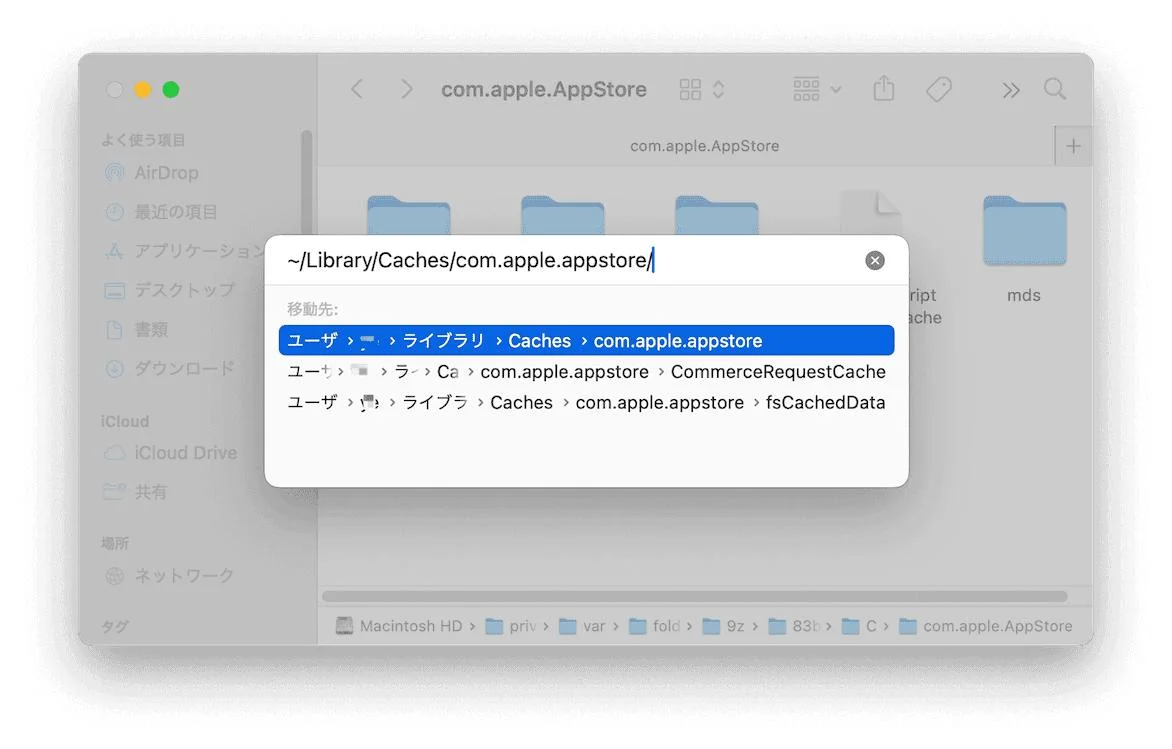
4. Select all files in that folder and move them to Trash
5. Also clear: ~/Library/Caches/com.apple.StoreKit and /var/folders/ (search for App Store related cache folders)
6. Empty Trash → reopen App Store and try again
Step 4: Pause and Resume the Download
Downloads stuck at "Waiting..." or frozen at a percentage can often be unstuck with a simple pause/resume.
1. In the App Store → go to your profile → click the download progress circle next to the stuck app
2. Click the pause button (the X or pause icon)
3. Wait 10 seconds, then click the download button again to resume
4. If this doesn't work: hold Option and click the pause button — this sometimes forces the App Store to restart the download from scratch
Step 5: Check Available Storage Space
macOS requires free storage to download and install apps. Even if the app itself is small, the installer needs temporary workspace.
1. Go to System Settings → General → Storage
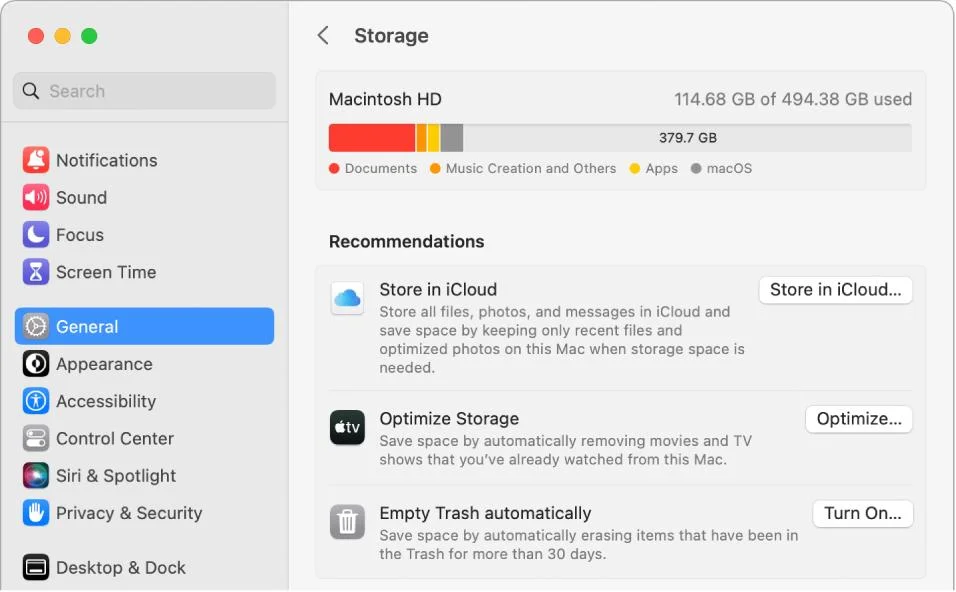
2. If you have less than 5 GB free: free up space by emptying Trash, deleting old downloads, and removing unused apps
3. After freeing space: try the download again
4. Terminal command to check free space quickly: df -h /
Step 6: Check Your Internet Connection
Slow or unstable Wi-Fi can cause App Store downloads to stall, especially for large apps.
1. Run a speed test — you need at least 5 Mbps to download large apps reliably
2. Switch to Ethernet if possible — this eliminates Wi-Fi as a variable
3. Restart your router: unplug power for 30 seconds, then plug back in
4. Check DNS settings: System Settings → Wi-Fi → Details (next to your network) → DNS → try adding 8.8.8.8 (Google) or 1.1.1.1 (Cloudflare) as a secondary DNS
5. Flush DNS cache: open Terminal and run: sudo dscacheutil -flushcache; sudo killall -HUP mDNSResponder
Step 7: Reset the App Store
If the App Store itself is the problem (blank screen, constant crashes), resetting its preferences often fixes it.
1. Quit App Store (Command + Q)
2. Open Finder → Go to Folder → type: ~/Library/Preferences
3. Find and delete: com.apple.appstore.plist and com.apple.storeagent.plist
4. Also delete: com.apple.commerce.plist
5. Restart your Mac and reopen the App Store — sign back in with your Apple ID
Step 8: Reinstall macOS (Last Resort)
If App Store still doesn't work after all the above steps, a system file required by the App Store process (storedownloadd or storeassetd) may be corrupt. A macOS reinstall from Recovery Mode refreshes all system files without deleting user data.
1. Boot to Recovery: Intel = Command + R at startup; Apple Silicon = hold Power until recovery options appear
2. Select "Reinstall macOS"
3. Follow the prompts — your files and apps are preserved
4. After reinstall: open App Store → verify downloads work
App Store Not Working on Business Macs?
If multiple Macs in your organisation are experiencing App Store issues simultaneously, the cause is likely an MDM (Mobile Device Management) policy restriction or Apple Business Manager configuration. CloudHouse Technologies provides remote Mac IT support — our engineers can diagnose App Store access issues caused by MDM profiles, Apple ID restrictions, and enterprise licensing problems.