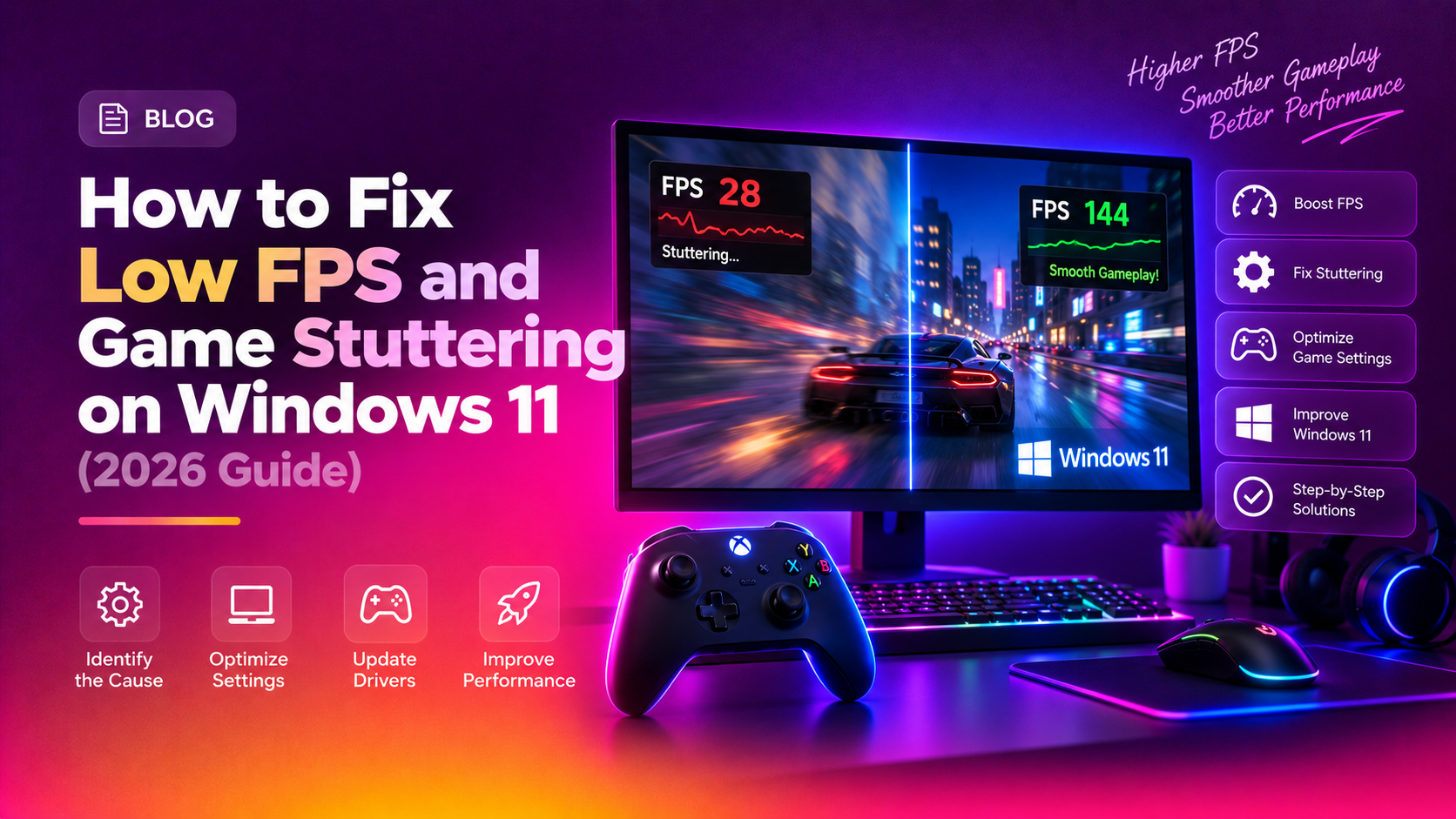
If you've upgraded to Windows 11 and noticed your favourite games running at lower FPS, stuttering, or dropping frames mid-session, you're not alone. Millions of gamers have reported degraded gaming performance after moving to Windows 11 in 2025 and 2026. The good news: most of these issues are fixable with the right settings changes — no hardware upgrade required.
This guide covers every proven fix for Windows 11 low FPS and game stuttering, with exact settings paths and step-by-step instructions.
Why Windows 11 Causes Low FPS and Game Stuttering
Windows 11 ships with several security and compatibility features that were not present in Windows 10 — and some of them significantly impact gaming performance:
- Virtualization-Based Security (VBS) and Memory Integrity — These kernel-level security features add CPU overhead and can reduce GPU performance by 5–15% in GPU-bound games.
- Background services and Xbox integration — Game Bar, background recording, and the Xbox services run automatically and consume CPU and RAM.
- Default Balanced power plan — Windows 11 defaults to Balanced power, which throttles CPU frequency between loads, causing microstutters during sudden in-game events.
- Hardware-Accelerated GPU Scheduling (HAGS) disabled by default — On compatible GPUs, enabling HAGS reduces frame latency.
- Outdated or incompatible GPU drivers — Windows Update sometimes installs older generic drivers instead of the latest game-optimised versions from NVIDIA, AMD, or Intel.
The fixes below address each of these root causes in order of impact.
Quick Fix: Enable Game Mode and Hardware-Accelerated GPU Scheduling
Before diving into deep fixes, start with these two quick settings that should be enabled on every gaming PC running Windows 11 in 2026.
Enable Game Mode
- Press
Windows + Ito open Settings. - Navigate to Gaming > Game Mode.
- Toggle Game Mode to On.
Game Mode tells Windows to prioritise the active game process and reduce background activity while gaming.
Enable Hardware-Accelerated GPU Scheduling (HAGS)
- Open Settings (
Windows + I). - Go to System > Display > Graphics.
- Click Change default graphics settings.
- Toggle Hardware-Accelerated GPU Scheduling to On.
- Restart your PC.
HAGS moves GPU scheduling from the CPU to the GPU itself, reducing latency and improving frame pacing. It requires Windows 11, a WDDM 2.7+ driver, and a supported GPU (NVIDIA RTX/GTX 10-series+, AMD RDNA, or Intel Arc).
Fix 1: Update GPU Drivers (NVIDIA/AMD/Intel)
Outdated GPU drivers are the single most common cause of FPS drops on Windows 11. Windows Update often installs a generic Microsoft display driver — not the latest gaming-optimised driver from your GPU manufacturer.
For NVIDIA GPUs
- Download NVIDIA App (successor to GeForce Experience) from nvidia.com/en-us/software/nvidia-app/.
- Open the app and go to Drivers.
- Click Check for Updates.
- Select Game Ready Driver (not Studio Driver unless you do creative work).
- Choose Custom Install and tick Perform a clean installation.
- Restart after installation.
For AMD GPUs
- Download AMD Software: Adrenalin Edition from amd.com/en/support.
- Open AMD Software and go to Home > Recommended.
- Install the latest driver and restart.
For Intel Arc GPUs
- Download Intel Arc Control or use the Intel Driver and Support Assistant from intel.com/content/www/us/en/support/intel-driver-support-assistant.html.
- Install the recommended driver update and restart.
Pro tip: If a new driver causes stuttering or crashes, use Display Driver Uninstaller (DDU) in Safe Mode to fully remove the driver before installing the previous stable version.
Fix 2: Disable Xbox Game Bar and Background Recording
Xbox Game Bar and its background recording feature (formerly DVR) run hidden capture services that consume GPU memory bandwidth — causing stutters in GPU-intensive scenes.
Disable Game Bar
- Open Settings (
Windows + I) > Gaming > Xbox Game Bar. - Toggle Enable Xbox Game Bar to Off.
Disable Background Recording
- In Settings, go to Gaming > Captures.
- Set Record what happened to Off.
Disable the Game DVR via Registry (for full removal)
- Press
Windows + R, typeregedit, press Enter. - Navigate to:
HKEY_CURRENT_USER\Software\Microsoft\Windows\CurrentVersion\GameDVR - Double-click AppCaptureEnabled and set the value to 0.
- Navigate to:
HKEY_CURRENT_USER\System\GameConfigStore - Double-click GameDVR_Enabled and set the value to 0.
- Restart your PC.
Fix 3: Set Power Plan to High Performance or Ultimate Performance
The default Balanced power plan in Windows 11 dynamically reduces CPU clock speeds during low-load moments — like between frames or during level loads. This causes microstutters when the CPU needs to ramp back up quickly.
Switch to High Performance
- Press
Windows + R, typepowercfg.cpl, press Enter. - Select High Performance. If it doesn't appear, click Show additional plans.
Enable Ultimate Performance (Hidden Plan)
- Right-click the Start button and select Windows Terminal (Admin) or PowerShell (Admin).
- Run this command:
powercfg -duplicatescheme e9a42b02-d5df-448d-aa00-03f14749eb61
- Open
powercfg.cplagain — Ultimate Performance now appears. - Select it and close the window.
Ultimate Performance eliminates all processor power-saving states. Best for desktop gaming PCs — avoid on laptops running on battery.
Fix 4: Disable Memory Integrity (Core Isolation)
Memory Integrity (part of Core Isolation / Virtualization-Based Security) is a Windows 11 security feature that runs driver code in a protected virtual environment. While it improves security, it creates measurable overhead — particularly in CPU-bound games and on older hardware.
Steps to Disable Memory Integrity
- Open Settings (
Windows + I) > Privacy & Security > Windows Security. - Click Device Security.
- Under Core Isolation, click Core isolation details.
- Toggle Memory integrity to Off.
- Restart your PC when prompted.
Performance impact: Disabling Memory Integrity can improve FPS by 5–15% in CPU-bound scenarios and reduce stutters caused by VBS overhead. This is a recommended trade-off for a dedicated gaming PC.
Security note: Only disable this if your PC is used primarily for gaming and doesn't store sensitive corporate data. Re-enable it if you notice suspicious activity or before using the PC in a high-security environment.
Fix 5: Configure NVIDIA or AMD Settings for Max Performance
Your GPU's control panel has settings that directly affect in-game FPS. Here are the key changes to make in 2026.
NVIDIA Control Panel Settings
- Right-click the desktop and open NVIDIA Control Panel.
- Go to Manage 3D Settings > Global Settings.
- Set Power management mode to Prefer maximum performance.
- Set Texture filtering – Quality to High performance.
- Set Vertical sync to Off (use in-game V-Sync or G-Sync instead).
- Set Low Latency Mode to Ultra for better frame timing.
- If you have a G-Sync monitor: go to Set up G-Sync and ensure it's enabled for full-screen mode.
- Click Apply.
AMD Radeon Software Settings
- Open AMD Software: Adrenalin Edition.
- Go to Gaming > Global Graphics.
- Set Radeon Anti-Lag to Enabled.
- Set Radeon Boost to Enabled (dynamically lowers resolution during fast motion for higher FPS).
- Set Wait for Vertical Refresh to Off, unless application specifies.
- Under Tuning, set Power Tuning to the maximum TDP slider position.
Fix 6: Turn Off Mouse Pointer Precision (Raw Input)
Enhanced Pointer Precision (mouse acceleration) adds variable input latency that can make mouse movement feel inconsistent in games. Most modern games benefit from raw input with pointer precision disabled.
- Open Settings (
Windows + I) > Bluetooth & devices > Mouse. - Click Additional mouse settings (opens the classic Mouse Properties window).
- Go to the Pointer Options tab.
- Uncheck Enhance pointer precision.
- Click Apply then OK.
With this disabled and in-game raw input enabled, your mouse cursor will move at a fixed rate per inch — eliminating input stutter that feels like micro-lag during aiming.
Fix 7: Manage Background Apps and Services
Background apps eat CPU, RAM, and sometimes GPU resources — directly stealing frames from your game. Windows 11 in 2026 ships with more background telemetry and update processes than ever before.
Disable Startup Apps
- Press
Ctrl + Shift + Escto open Task Manager. - Click the Startup apps tab.
- Right-click any app you don't need at login (Discord, Spotify, OneDrive, Teams, etc.) and select Disable.
Stop Resource-Heavy Background Services
- Press
Windows + R, typeservices.msc, press Enter. - Locate and double-click SysMain (Superfetch). Set Startup type to Disabled and click Stop. This reduces HDD thrashing on SSDs (it's unnecessary on NVMe).
- Locate Windows Search. If you rarely use the indexing feature, set Startup type to Manual.
Disable Background App Permissions
- Open Settings > Apps > Installed apps.
- For apps like Spotify, Teams, OneDrive — click the three-dot menu > Advanced options.
- Set Background apps permissions to Never.
Use High Priority for Your Game (Optional)
- Open Task Manager (
Ctrl + Shift + Esc) while the game is running. - Go to the Details tab.
- Right-click your game's .exe process > Set priority > High.
Note: Do not set priority to Realtime — this can lock up your system entirely.
If you've tried all of the above and still experience FPS drops or stuttering on Windows 11, the issue may be deeper — corrupted system files, driver conflicts, thermal throttling, or a failing storage drive. Our certified Windows engineers can diagnose and fix it remotely in a single session. CloudHouse Pay-Per-Ticket Support — no subscription, pay only for the fix you need.
FAQ
Why is my FPS so low on Windows 11?
Low FPS on Windows 11 is commonly caused by outdated GPU drivers, background apps consuming resources, Game Mode being disabled, the power plan set to Balanced instead of High Performance, or Memory Integrity (Core Isolation) adding CPU overhead. Work through the fixes in this guide starting with GPU driver updates and power plan changes — these have the highest impact.
Does Windows 11 affect gaming performance?
Yes, Windows 11 introduced several changes that impact gaming. Positive additions include DirectStorage (faster game loading from NVMe), Auto HDR, and improved DirectX 12 Ultimate support. On the negative side, Virtualization-Based Security (VBS) and Memory Integrity can reduce GPU/CPU headroom by 5–15% in some titles. Disabling VBS-related features restores that performance headroom while keeping you on Windows 11.
How do I enable Hardware-Accelerated GPU Scheduling in Windows 11?
Go to Settings > System > Display > Graphics > Change default graphics settings, then toggle on Hardware-Accelerated GPU Scheduling (HAGS). Restart your PC after enabling it. This feature requires a WDDM 2.7 or later driver and a supported GPU — NVIDIA GeForce GTX 10-series or newer, AMD RDNA-based GPUs, or Intel Arc.
Should I disable Core Isolation for gaming on Windows 11?
Disabling Memory Integrity (Core Isolation) can improve gaming FPS by 5–15% in CPU-bound games on some systems, because it removes the virtualisation layer that kernel-mode drivers run inside. The trade-off is reduced protection against kernel-level exploits. For a dedicated gaming PC that doesn't store sensitive data, this is a reasonable performance optimisation. Re-enable it if you use the machine for work or banking.
What power plan is best for gaming on Windows 11?
Ultimate Performance is the best power plan for desktop gaming PCs. To enable it, open PowerShell as Admin and run: powercfg -duplicatescheme e9a42b02-d5df-448d-aa00-03f14749eb61. Then select Ultimate Performance in Power Options. It eliminates all CPU power-saving states, ensuring the processor is always running at full speed — preventing the microstutters caused by frequency ramping under the Balanced plan.