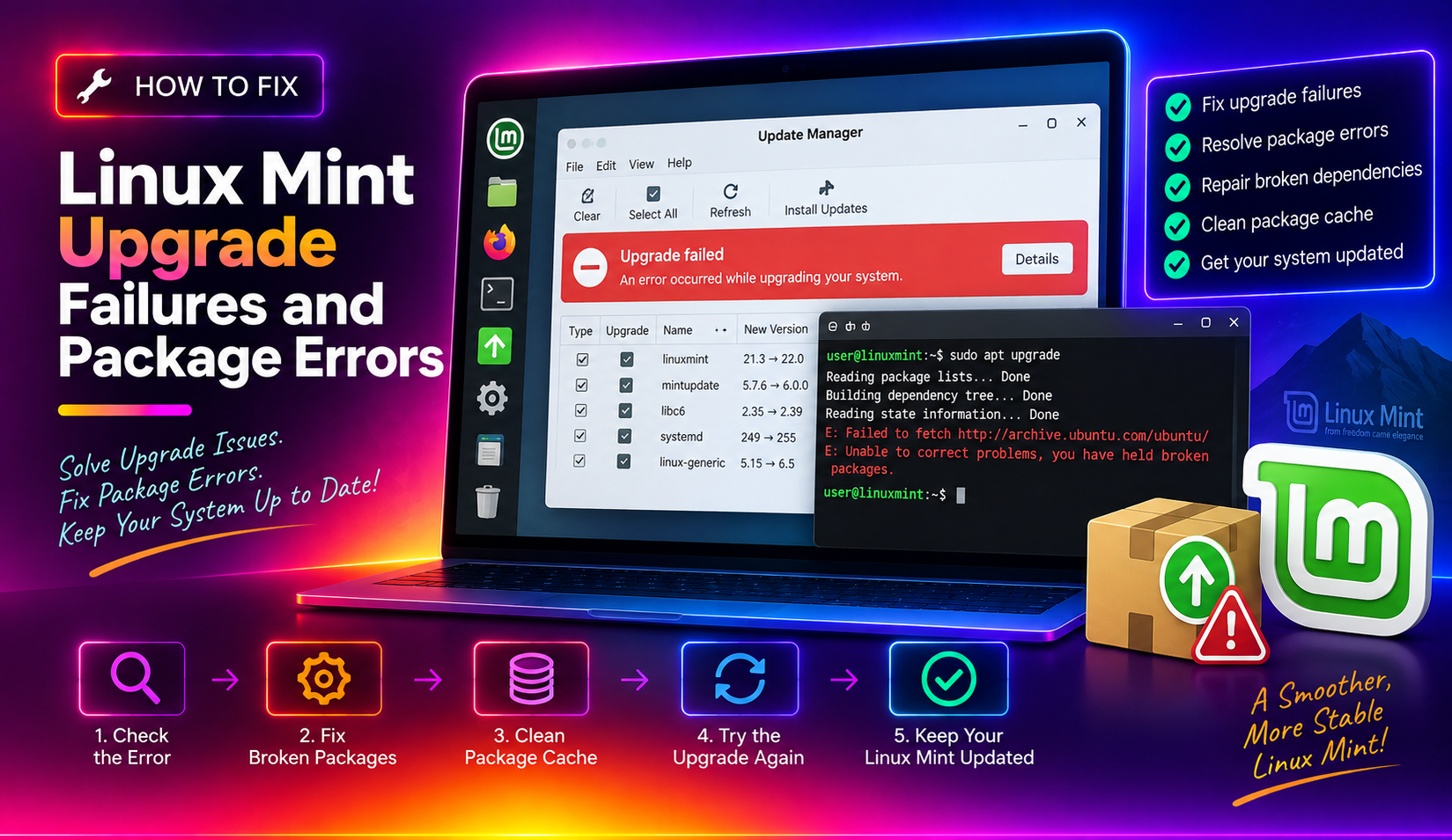
Why Does Linux Mint Upgrade Fail?
Upgrading Linux Mint — whether applying cumulative updates or moving to a new major version (e.g., Mint 21.3 to Mint 22) — can fail for several reasons. The most common causes in 2026 are: incompatible third-party repositories that don't match the new Ubuntu base version, corrupted APT package cache, kernel header dependency failures, and PPAs pointing to older Ubuntu codenames (like Jammy vs Noble).
This guide covers 8 systematic fixes for Linux Mint upgrade and package errors, covering both Update Manager failures and mintupgrade CLI failures.
Understanding Linux Mint Upgrades
Linux Mint uses two different upgrade paths:
- Minor releases (e.g., 22.0 → 22.1 → 22.2): Use the Update Manager — it's a simple, safe in-place update.
- Major releases (e.g., 21.x → 22.x): Use the mintupgrade tool — it migrates the Ubuntu base (e.g., Jammy 22.04 → Noble 24.04) and requires more preparation.
Most upgrade failures happen with major version upgrades because third-party software was installed for the old Ubuntu base and is incompatible with the new one.
Fix 1: Update Your Package Cache First
Before attempting any upgrade, ensure your package cache is current and uncorrupted.
sudo apt update
sudo apt upgrade
sudo apt autoremove
If apt update returns errors about specific repositories, those repos are the problem. Note which ones fail and proceed to Fix 2.
Fix 2: Remove or Fix Incompatible Third-Party Repositories
This is the #1 cause of mintupgrade failures. Third-party PPAs (like Wine, graphics drivers, or Spotify) that were added for Ubuntu Jammy (22.04) won't work on Ubuntu Noble (24.04).
- Open Software Sources (Menu → Administration → Software Sources).
- Click Additional Repositories (PPAs).
- Disable all third-party PPAs — you can re-enable them after the upgrade.
Alternatively, from Terminal:
sudo ls /etc/apt/sources.list.d/Edit each .list file and comment out (#) any lines referencing jammy that should now reference noble, or remove the files entirely:
sudo mv /etc/apt/sources.list.d/wine-staging.list /tmp/Then run sudo apt update again. All errors should clear.
Fix 3: Fix Broken Package Dependencies
If the upgrade was partially applied, you may have broken package dependencies.
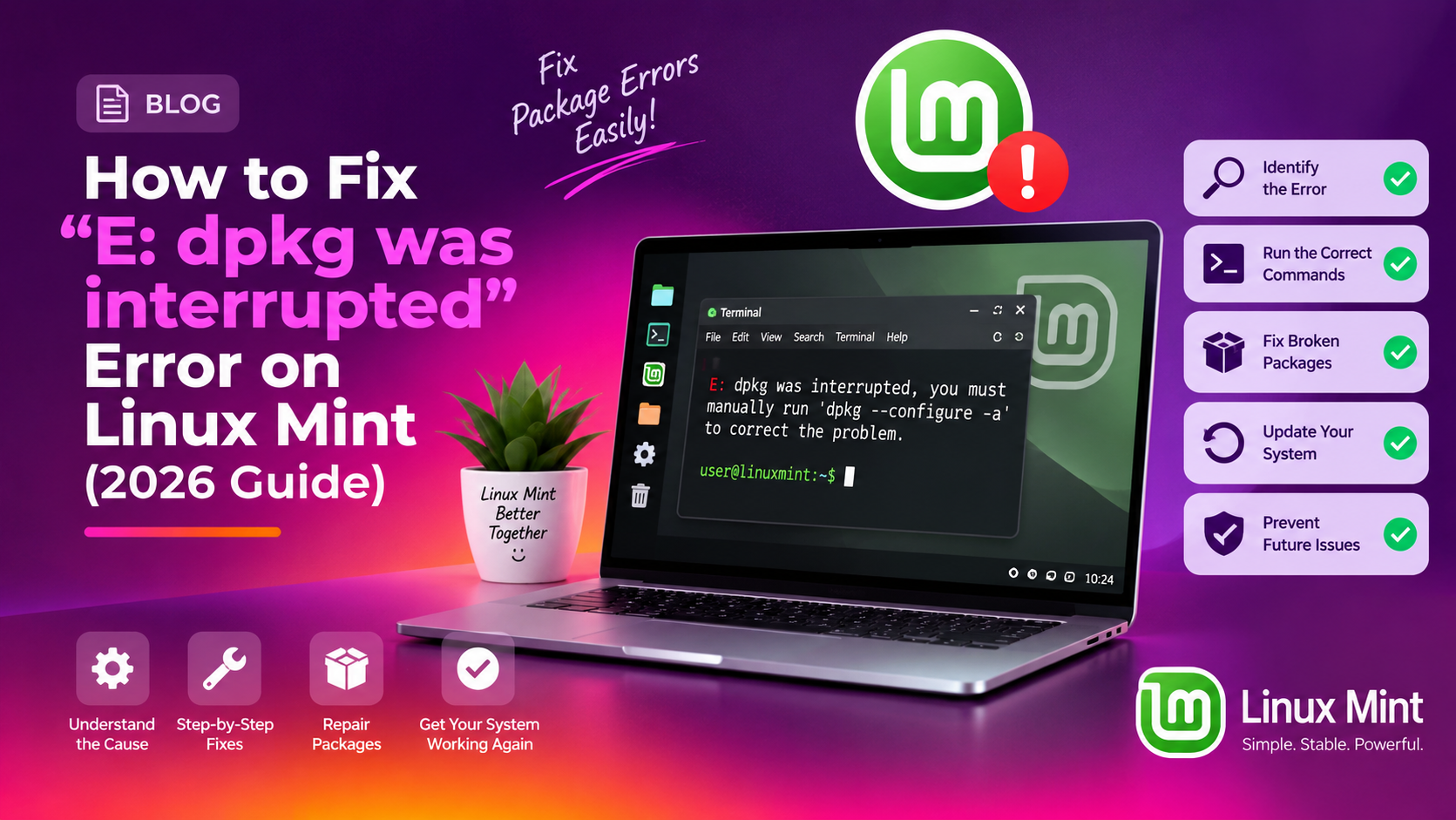
sudo dpkg --configure -a
sudo apt-get install -f
sudo apt-get clean
sudo apt-get update
sudo apt-get upgrade
The first command finishes configuring any half-installed packages. The second resolves unfulfilled dependencies automatically.
Fix 4: Use Timeshift Before Upgrading (Create a Restore Point)
If you haven't created a Timeshift snapshot before upgrading, do it now — before trying any further fixes. This lets you roll back to a working state if the upgrade corrupts your system.
- Open Menu → Administration → Timeshift.
- Click Create to take a snapshot of your current system state.
- Wait for it to complete before proceeding.
If the upgrade has already failed and left the system in a broken state, boot from a live USB, mount your drive, and use Timeshift from the live environment to restore.
Fix 5: Run mintupgrade from Terminal for Detailed Errors
The graphical upgrade tool doesn't always show the full error. Running mintupgrade from Terminal gives you the complete error output.
sudo mintupgradeCommon error patterns and what they mean:
- "The following packages cannot be authenticated" → A repo's GPG key is missing. Import the key or remove the repo.
- "You have held broken packages" → Run
sudo apt-get install -ffirst. - "E: Unable to fetch some archives" → Mirror issue. Change your mirror in Software Sources → Mirrors.
- "Package linux-headers-X.X.X-XX not available" → Kernel header mismatch. See Fix 6.
Fix 6: Fix Kernel Header Dependency Failures
Kernel header installation failures are common when upgrading to a new Linux Mint version that ships a different kernel series.
sudo apt install linux-headers-$(uname -r)
sudo apt-get install -f
If that fails because the exact kernel version headers aren't available for the new Ubuntu base, install the generic headers instead:
sudo apt install linux-headers-generic linux-image-generic
sudo update-grub
Then reboot into the new kernel before reattempting the upgrade.
Fix 7: Change Your Mirror
Download failures during the upgrade are often caused by a slow or temporarily offline mirror server, not a real package error.
- Open Software Sources → Mirrors.
- Click the dropdown for Main (linuxmint) and Base (ubuntu).
- Select a mirror with high speed and ✓ status (click the speed test button).
- Apply changes, then retry the upgrade.
Fix 8: Perform a Clean Install If Upgrade Is Badly Broken
If the system is in a half-upgraded state and apt commands produce cascading errors, a clean install may be faster and safer than trying to repair.
- Back up your home folder to an external drive.
- Download the latest Linux Mint ISO from linuxmint.com.
- Create a bootable USB using Startup Disk Creator or Etcher.
- Install fresh, choosing to keep your home partition if you want to preserve your files.
This gives you a clean base while preserving your personal files.
Need Expert Linux Help?
Linux Mint upgrades can be tricky, especially on systems with many third-party packages. If your system is stuck in a broken upgrade state, CloudHouse Technologies offers Pay-Per-Ticket Linux support — get a technician to walk through your specific error messages and get your system back to a working state.
FAQs
Why does my Linux Mint upgrade keep failing?
The most common cause is third-party PPAs or repositories added for the old Ubuntu base version (e.g., Jammy) that conflict with the new base (Noble). Disable all third-party repos before upgrading and re-enable them after.
How do I fix broken packages in Linux Mint?
Run: sudo dpkg --configure -a followed by sudo apt-get install -f. These two commands finish configuring partially-installed packages and resolve dependency chains automatically.
Can I use mintupgrade to go from Linux Mint 21 to 22?
Yes — mintupgrade is the official tool for major version upgrades. Run sudo mintupgrade in a terminal. Ensure all third-party PPAs are disabled and a Timeshift snapshot exists before starting.
What happens if my Linux Mint upgrade fails halfway through?
Don't reboot immediately. Run sudo dpkg --configure -a and sudo apt-get install -f to attempt recovery. If those fail, boot from a live USB and use Timeshift to restore the pre-upgrade snapshot.
Do I need to back up before upgrading Linux Mint?
Yes — always create a Timeshift snapshot before any major upgrade. It's your insurance policy if the upgrade corrupts the system or leaves it in an unbootable state.