Why Does Linux Mint Update Manager Show Errors?
Linux Mint Update Manager errors fall into four main categories: broken package dependencies (a package requires a version that conflicts with what's installed), locked package databases (another process is using apt), corrupted repository lists (a PPA or source URL is invalid or unreachable), and interrupted upgrades (a previous update was stopped mid-way, leaving packages in a half-configured state).
These fixes apply to Linux Mint 21.x (Ubuntu Jammy base) and Linux Mint 22.x (Ubuntu Noble base) in 2026. Work through them in sequence — most Update Manager errors are resolved by Fix 1 or Fix 2.
Fix 1: Refresh Package Lists and Try Again
The simplest fix first. Open a terminal (Ctrl + Alt + T) and run:
sudo apt updateThis refreshes the package index from all configured repositories. Read the output carefully — error messages here identify which repository or package is causing the problem. Common outputs and what they mean:
- "E: Could not get lock /var/lib/dpkg/lock" — another apt process is running, see Fix 2
- "E: The repository 'http://...' does not have a Release file" — a repository URL is broken, see Fix 5
- "W: GPG error" or "NO_PUBKEY" — missing signing key, see Fix 6
- "E: Unmet dependencies" — dependency conflict, see Fix 3
Fix 2: Remove Stale apt Lock Files
When an apt process is interrupted (by a crash, a force-close, or a system shutdown mid-update), it leaves lock files that prevent any subsequent apt operation from running.
Step 1. Check if any apt process is actually running:
ps aux | grep aptIf a real apt/dpkg process is running, wait for it to finish. If no apt process is shown but you still get lock errors, the lock file is stale.
Step 2. Remove the lock files:
sudo rm /var/lib/dpkg/lock
sudo rm /var/lib/dpkg/lock-frontend
sudo rm /var/cache/apt/archives/lock
sudo rm /var/lib/apt/lists/lock
Step 3. Reconfigure any partially configured packages:
sudo dpkg --configure -aStep 4. Run sudo apt update again.
Fix 3: Fix Broken Package Dependencies
Broken dependencies occur when a package requires a specific version of another package that conflicts with what's currently installed — common after mixing packages from different Ubuntu releases or adding PPAs.
Step 1. Run the automatic dependency fixer:
sudo apt --fix-broken installThis resolves most dependency conflicts automatically by downloading missing dependencies or removing conflicting packages.
Step 2. If that fails with unresolvable conflicts, try:
sudo apt-get install -fStep 3. For conflicts involving a specific package, force remove it:
sudo dpkg --remove --force-remove-reinstreq PACKAGE_NAMEReplace PACKAGE_NAME with the conflicting package name shown in the error output.
Step 4. After resolving, run:
sudo apt update && sudo apt upgradeFix 4: Fix Half-Installed and Half-Configured Packages
An interrupted upgrade leaves packages in a "half-installed" or "half-configured" state. These packages block all subsequent updates until resolved.
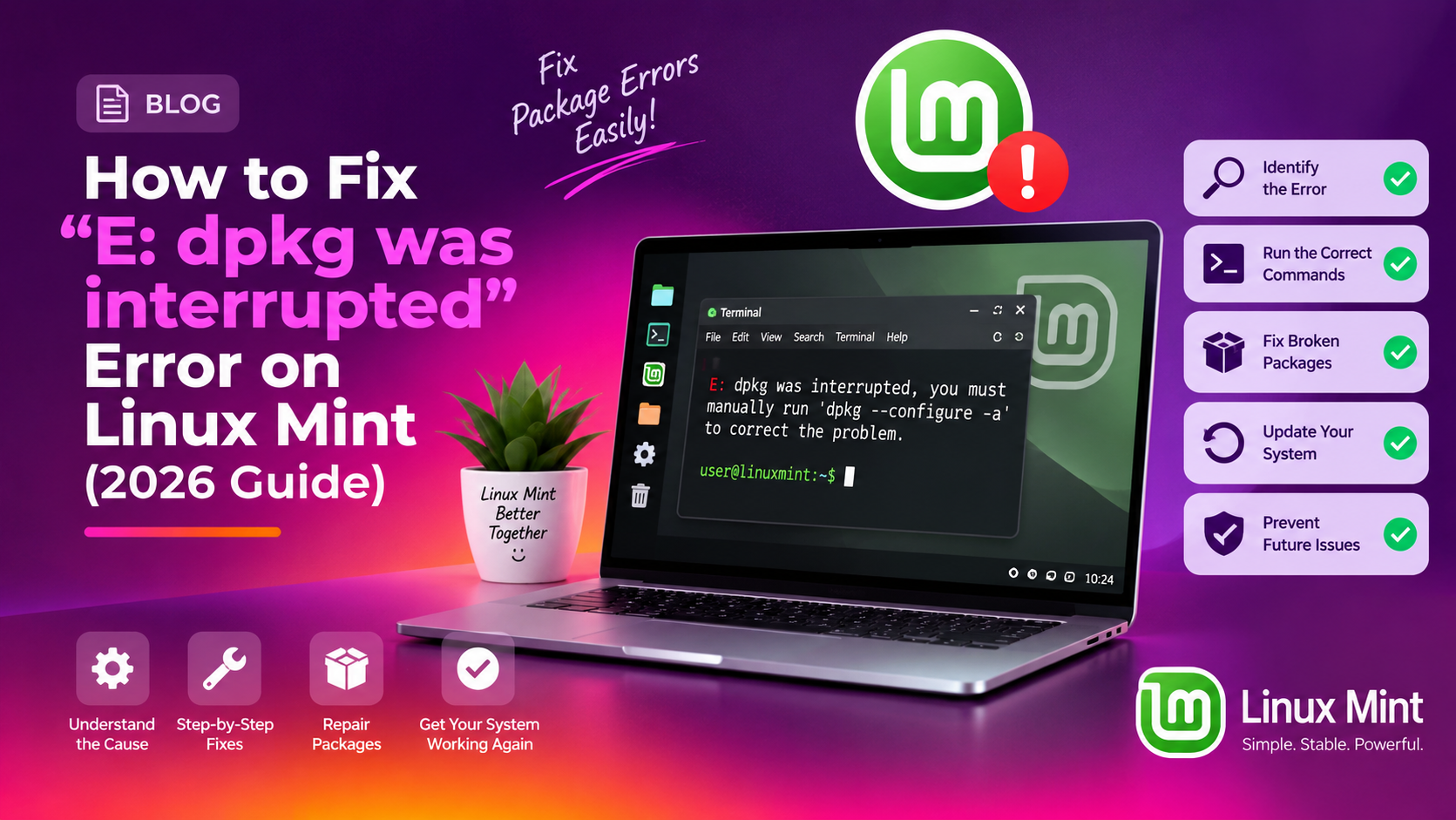
sudo dpkg --configure -a
sudo apt --fix-broken install
sudo apt update && sudo apt dist-upgrade
If dpkg --configure -a fails with an error about a specific package:
sudo dpkg --remove --force-all PACKAGE_NAME
sudo apt --fix-broken install
Fix 5: Fix Broken or Unreachable Repositories
Third-party PPAs and custom repository sources frequently become unavailable — the maintainer removes them, changes the URL, or they become incompatible with a new Ubuntu base version.
Step 1. Open Update Manager → Edit menu → Software Sources.
Step 2. Go to the PPAs and Additional Repositories tabs.
Step 3. Disable all third-party repositories temporarily by unchecking them.
Step 4. Run sudo apt update. If this now succeeds, re-enable repositories one at a time to find the broken one.
Step 5. To remove a broken PPA permanently:
sudo add-apt-repository --remove ppa:OWNER/PPANAMEOr manually remove its file from /etc/apt/sources.list.d/:
ls /etc/apt/sources.list.d/
sudo rm /etc/apt/sources.list.d/BROKEN_PPA_NAME.list
Fix 6: Fix Missing GPG Keys (NO_PUBKEY Error)
Repository authentication uses GPG keys. If a key is missing or expired, apt shows a "NO_PUBKEY" or "GPG error: The following signatures couldn't be verified" warning.
Step 1. Identify the missing key ID from the error message (it's the 16-character hex string after NO_PUBKEY).
Step 2. Import the key:
sudo apt-key adv --keyserver keyserver.ubuntu.com --recv-keys KEY_IDReplace KEY_ID with the actual key ID from the error message.
Step 3. Run sudo apt update again.
Fix 7: Clear the apt Cache
A corrupted apt cache can cause download failures and package verification errors. Cleaning it forces apt to re-download all package lists and archives fresh.
sudo apt clean
sudo apt autoclean
sudo apt autoremove
sudo apt update
apt clean removes all cached package files (.deb files). apt autoclean removes only packages that can no longer be downloaded (obsolete). apt autoremove removes packages that were installed as dependencies but are no longer needed.
Fix 8: Use Synaptic Package Manager for Visual Debugging
Synaptic is Linux Mint's graphical package manager with more diagnostic capability than the Update Manager. It visually shows broken packages, held-back packages, and dependency conflicts in a way that's easier to navigate.
Step 1. Open Synaptic (Menu → Administration → Synaptic Package Manager).
Step 2. Click Edit → Fix Broken Packages.
Step 3. Click Apply. Synaptic will resolve and install the fix.
Step 4. Filter by "Broken" in the left panel to see all packages with dependency problems.
Fix 9: Fix "Package Operation Failed" Error
This specific Update Manager error appears when apt encounters an error during the actual installation phase (not the download or dependency resolution). Common causes: full /boot partition, insufficient disk space, or a post-install script failure.
Check disk space:
df -hIf / or /boot is at 100%, free space first:
sudo apt autoremove
sudo apt clean
To clear old kernels from /boot (safe to remove all but the current and one previous):
sudo dpkg -l 'linux-image-*' | grep '^ii'Remove old kernels with: sudo apt remove linux-image-OLD_VERSION
Fix 10: Run mintupgrade for Major Version Upgrades
For upgrading between major Linux Mint releases (e.g., Mint 21 to Mint 22), never use the regular Update Manager — use the dedicated mintupgrade tool which handles the release-specific package changes.
sudo apt install mintupgrade
mintupgrade
Follow the on-screen prompts. The tool checks your system's readiness, disables incompatible PPAs, and upgrades packages in the correct order.
Still Getting Update Errors? Get Expert Linux Help
Some dependency conflicts — particularly those involving conflicting library versions from mixed Ubuntu/Mint releases or corrupted dpkg databases — require manual package database repair. CloudHouse Technologies offers remote Linux Mint support — our certified engineers diagnose and resolve update failures in a single session.