
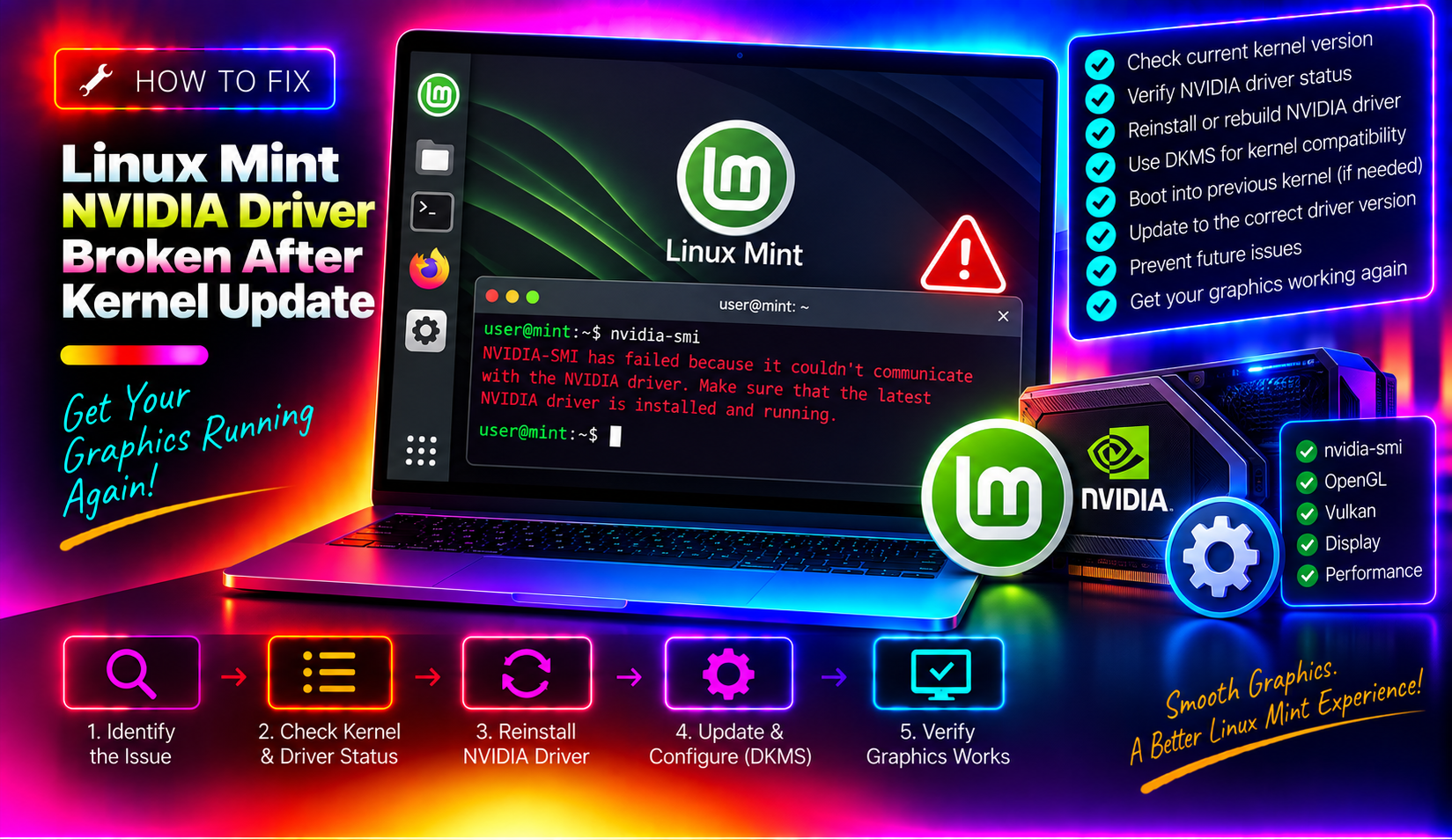
You just applied routine updates in Linux Mint's Update Manager, rebooted, and now you're staring at a black screen — or worse, a fallback desktop running on software rendering at 800x600. Your NVIDIA GPU has gone dark. This is one of the most frustrating things a Linux Mint user can experience, and it happens more often than it should.
The good news: this is a well-understood problem with reliable fixes. This guide walks you through exactly why it happens, how to diagnose it, and — most importantly — how to fix it fast and prevent it from recurring. Most existing guides only tell you to add nomodeset or run a single reinstall command. We go further: we explain the DKMS mechanism, show you how to verify the rebuild actually succeeded, and teach you how to manage kernels safely going forward.
Why NVIDIA Drivers Break After a Linux Mint Kernel Update
Unlike open-source drivers baked into the kernel, the proprietary NVIDIA driver is an out-of-tree kernel module. It cannot ship as part of the kernel itself. Instead, it relies on a system called DKMS (Dynamic Kernel Module Support) to automatically recompile its kernel module every time a new kernel is installed.
Here is what is supposed to happen:
- Update Manager downloads and installs a new kernel (e.g.,
6.8.0-60-generic). - The package manager triggers DKMS to rebuild all registered modules — including the NVIDIA driver — against the new kernel headers.
- On next boot, the kernel loads the freshly compiled
nvidia.komodule and your GPU works normally.
Here is what breaks this chain:
- Missing kernel headers — DKMS cannot compile without
linux-headers-$(uname -r). If they are not installed (or not yet installed when DKMS ran), the build fails silently. - Driver version too old for the new kernel — NVIDIA 390.x and 470.x series drivers have documented incompatibilities with kernels from 6.8 onward due to API removals.
- Compressed module files not loaded — Kernels from 6.8.0-50 onward generate
.ko.zst(zstd-compressed) module files. Older initramfs hooks do not decompress them, so the module is present on disk but the kernel cannot load it. - Secure Boot blocking unsigned modules — If Secure Boot is enabled in your UEFI, the kernel will refuse to load unsigned proprietary modules.
- Interrupted or partial upgrade — A network drop or power interruption during the upgrade can leave the DKMS build incomplete.
How to Tell If DKMS Is the Problem (Diagnosing the Error)
Before applying any fix, confirm that DKMS is actually the culprit. If you can reach a terminal — either via Ctrl+Alt+F2 at the black screen or through Recovery Mode — run the following commands.
Check DKMS status
dkms statusHealthy output looks like this:
nvidia/550.120, 6.8.0-60-generic, x86_64: installedA broken system will show built instead of installed, or no entry at all for the new kernel.
Read the DKMS build log
sudo cat /var/lib/dkms/nvidia/550.120/build/make.log | tail -40Replace 550.120 with your driver version from dkms status. Common errors to look for:
No such file or directory: linux/version.h— Missing kernel headers.implicit declaration of function— Driver incompatible with this kernel version.Bad return status for module build on kernel— General build failure; check the lines above it.
Check if the module is currently loaded
lsmod | grep nvidiaIf this returns nothing, the NVIDIA module is not loaded. Cross-reference with:
journalctl -b | grep -i nvidia | head -30Fix 1: Boot Into Recovery Mode and Rebuild DKMS Modules
This is the most direct fix when you cannot reach the desktop at all.
Step 1 — Enter Recovery Mode
- Power on and hold Shift (BIOS systems) or tap Esc (UEFI systems) to open the GRUB menu.
- Select Advanced options for Linux Mint.
- Choose the latest kernel entry ending in (recovery mode).
- At the recovery menu, select root — Drop to root shell prompt.
- Remount the filesystem as read-write:
mount -o remount,rw /
Step 2 — Install missing kernel headers
apt update
apt install linux-headers-$(uname -r) linux-headers-generic
Step 3 — Force DKMS to rebuild
# Check installed NVIDIA driver version
dkms status

# Remove and rebuild (replace 550.120 with your version)
dkms remove nvidia/550.120 --all
dkms install nvidia/550.120 -k $(uname -r)
Step 4 — Handle compressed .ko.zst modules (kernel 6.8+)
If your kernel is 6.8.0-50 or newer and DKMS reports success but the driver still does not load, the module files may be compressed with zstd. Decompress them manually:
find /usr/lib/modules/$(uname -r)/updates/dkms/ -name "nvidia*.ko.zst" -exec sudo unzstd {} \;
sudo update-initramfs -u -k $(uname -r)
Step 5 — Reboot
rebootFix 2: Reinstall the NVIDIA Driver via Driver Manager or CLI
If you can reach a terminal (even via Ctrl+Alt+F2 at the login screen), a full driver reinstall is often the cleanest resolution.
Via the command line
# Identify the recommended driver for your card
ubuntu-drivers devices

# Purge the current installation
sudo apt purge nvidia-driver-* libnvidia-* nvidia-* --autoremove

# Reinstall (replace 550 with the recommended version from above)
sudo apt install nvidia-driver-550

# Rebuild initramfs
sudo update-initramfs -u

sudo reboot
Via Driver Manager (GUI)
- Open Menu → Administration → Driver Manager.
- Wait for it to scan your hardware.
- If the currently selected driver shows an error, click a different driver version (or the same one to re-select it).
- Click Apply Changes and reboot when prompted.
Driver Manager triggers a fresh DKMS build for the currently running kernel. Make sure you are booted into the kernel you actually want to use before running this step.
Fix 3: Switch Kernels Using Update Manager's Kernel Selector
Sometimes the simplest fix is to boot into a kernel version your NVIDIA driver already supports — or to roll back to the previous kernel where everything worked.
Access the kernel selector
- Open Update Manager.
- Go to View → Linux Kernels.
- You will see all installed kernels. The currently running one is highlighted.
- To install an older kernel, click it and choose Install.
- Reboot and select that kernel in GRUB's Advanced Options menu.
Booting an older kernel from GRUB
- At the GRUB menu, select Advanced options for Linux Mint.
- Choose the previous kernel — the one that worked before the update.
- Once booted, verify your NVIDIA driver is working:
nvidia-smi - If it works, use this kernel until the driver is updated to support the newer one.
Do not remove the broken kernel yet — keep it installed so DKMS can eventually target it once the driver version is updated.
Fix 4: Use the nomodeset Parameter as a Temporary Workaround
If none of the above fixes are immediately available, nomodeset will at minimum get you to a working desktop so you can diagnose and fix properly.
Apply nomodeset at boot (temporary)
- At the GRUB menu, highlight your Linux Mint entry and press E to edit.
- Find the line starting with
linuxand ending inquiet splash. - Replace
quiet splashwithquiet splash nomodeset. - Press Ctrl+X or F10 to boot with this parameter.
This tells the kernel not to switch video modes early in boot, allowing the NVIDIA module (or the fallback nouveau driver) to initialise later. Performance will be reduced and you may lose hardware acceleration, but you will reach your desktop.
Make nomodeset permanent (stopgap only)
sudo nano /etc/default/grub
# Change:  GRUB_CMDLINE_LINUX_DEFAULT="quiet splash"
# To:      GRUB_CMDLINE_LINUX_DEFAULT="quiet splash nomodeset"

sudo update-grub
Important: Remove nomodeset once you have fixed the NVIDIA driver. Running with it permanently disables kernel mode setting and significantly reduces GPU performance.
Prevent It Happening Again: DKMS Best Practices and Kernel Management Tips
Fixing the immediate problem is only half the job. Here is how to make sure a kernel update does not blindside you again.
1. Always verify DKMS after a kernel update
Before rebooting after any kernel update, open a terminal and run:
dkms statusEvery installed kernel should show installed next to your NVIDIA driver version. If any show built or nothing at all, rebuild before rebooting.
2. Keep kernel headers installed automatically
sudo apt install linux-headers-genericThis meta-package tracks the current kernel and ensures headers are always present for DKMS builds.
3. Do not jump kernel series when using proprietary drivers
Linux Mint's Update Manager labels kernels by series (5.15, 6.1, 6.8, etc.). If you are on NVIDIA 470.x or older, check NVIDIA's release notes before upgrading to a higher series. The 470.x driver dropped official support for kernel 6.8+ as of late 2024.
4. Use the recommended kernel, not the latest
In Update Manager → Linux Kernels, the recommended kernel is marked with a star. It is the most stable and most widely tested combination for NVIDIA users on Linux Mint.
5. Enroll your NVIDIA driver's MOK for Secure Boot
If Secure Boot is enabled, unsigned kernel modules will be blocked. After installing or reinstalling the NVIDIA driver, enroll the Machine Owner Key:
sudo mokutil --import /var/lib/shim-signed/mok/MOK.derYou will be prompted to set a password, then reboot and confirm the enrollment in the MOK Manager screen.
If you are regularly hitting NVIDIA driver issues and need a guaranteed resolution without troubleshooting at the command line, our team offers professional desktop support with same-day remote fixes — no subscription required.
Frequently Asked Questions
Q: Why does my Linux Mint show a black screen only after a kernel update, not after a driver update?
A: The NVIDIA driver is tied to the kernel version, not just the driver package version. When a new kernel installs, DKMS must recompile the driver for that specific kernel. A successful driver update does not automatically mean the driver will work on future kernels — each new kernel triggers a fresh DKMS build.
Q: How do I check which NVIDIA driver version is currently installed?
A: Run nvidia-smi if the driver is loaded, or dpkg -l | grep nvidia-driver to check installed packages. If neither works because the driver is not loaded, use dkms status to see what version DKMS has registered.
Q: What is the difference between "built" and "installed" in dkms status output?
A: "Installed" means the module was compiled and correctly placed into the kernel's module directory — it is ready to load. "Built" means it was compiled but not yet installed (copied into place), which usually indicates the installation step failed or was interrupted. Run dkms install nvidia/VERSION -k KERNEL to complete the installation step.
Q: Can I run two different kernels with the same NVIDIA driver on Linux Mint?
A: Yes. DKMS compiles a separate module for each installed kernel. If you have kernels 6.5 and 6.8 both installed, DKMS maintains a compiled module for each. Run dkms status to verify both kernels show the driver as "installed."
Q: Will purging the NVIDIA driver lose my display settings and customizations?
A: Display resolution and refresh rate settings stored in /etc/X11/xorg.conf or ~/.config/monitors.xml are not removed by purging the driver package. However, any NVIDIA X Server Settings profiles saved under /etc/X11/xorg.conf.d/ will be deleted. Back up that directory before purging if you have custom multi-monitor configurations.