
Why Is the Microphone Not Working on Linux Mint?
Microphone issues on Linux Mint are more common than they should be, and they surface in several distinct ways: the microphone shows in the sound settings but records only silence, the system defaults to the wrong input device, a headset microphone is detected as unplugged, or the mic works in one app but not another.
Linux Mint 21 and 22 both use a mix of PipeWire and PulseAudio (or pure PipeWire on newer installations). Getting the audio stack to recognise and route microphone input correctly requires checking the right settings at each layer — hardware (ALSA), sound server (PipeWire/PulseAudio), and application permissions.
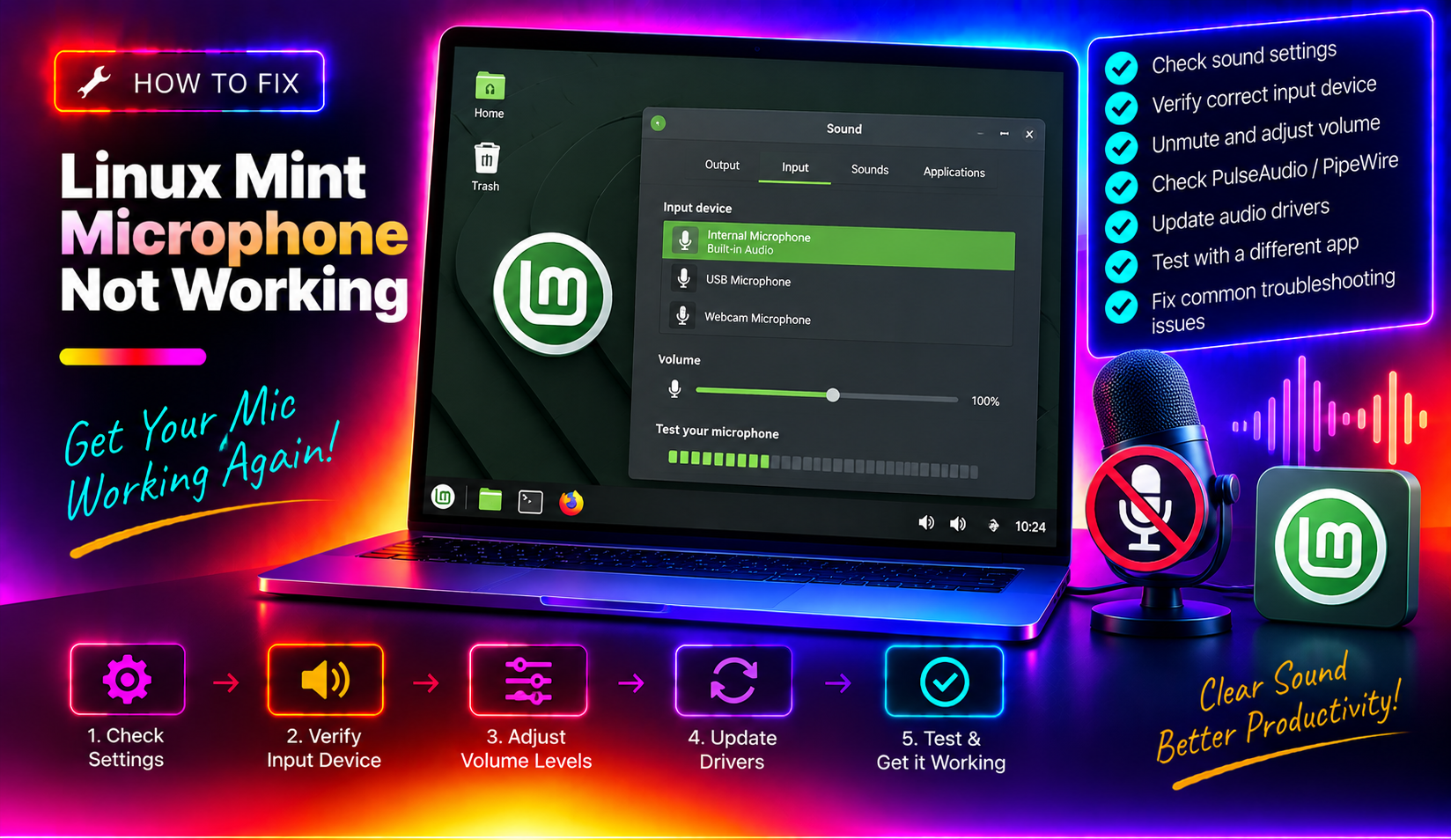
Fix 1: Check the Input Device in Sound Settings
The most common cause of a silent microphone is that Linux has selected the wrong input device — for example, the HDMI output's audio-in, a disabled onboard mic, or a Bluetooth device that is no longer connected.
- Click the sound icon in the system tray and open Sound Settings.
- Click the Input tab.
- Check the dropdown — make sure your microphone (headset, USB mic, or built-in) is selected, not another device.
- Speak into the microphone and watch the input level meter. If it moves, the mic is detected and working at the OS level.
If the meter moves but recording apps show silence, the issue is in the application (see Fix 6).
Fix 2: Unmute the Microphone in ALSA Mixer
ALSA (the kernel audio layer beneath PipeWire/PulseAudio) has its own independent mute settings. The microphone can be muted at the ALSA level even if it appears active in Sound Settings.
Open Terminal and run:
alsamixerPress F4 to switch to Capture (input) devices. Use the arrow keys to navigate to your microphone channel. If the channel shows MM at the bottom, it is muted. Press M to unmute it. Press the Up arrow to raise the capture volume. Press Esc to exit, then test the microphone.
To save the ALSA settings so they persist across reboots:
sudo alsactl storeFix 3: Restart PipeWire
PipeWire (the audio server in modern Linux Mint installations) sometimes loses track of input devices, particularly after a suspend/resume cycle or after connecting/disconnecting a USB microphone.
Restart the audio stack without rebooting:
systemctl --user restart pipewire pipewire-pulse wireplumberWait 5 seconds and test the microphone. This fixes transient detection failures without affecting other running applications.
Fix 4: Install Missing PipeWire Packages
On fresh Linux Mint 22 installations or after an upgrade, some PipeWire packages may not be installed, causing incomplete audio support — especially for microphone input.
Install the full PipeWire stack:
sudo apt install pipewire pipewire-pulse pipewire-alsa wireplumberAfter installation, restart PipeWire:
systemctl --user restart pipewire pipewire-pulse wireplumberOpen Sound Settings and check whether the microphone now appears and shows input levels.
Fix 5: Fix Headset Microphone Not Detected (Realtek Codec Issue)
Many laptops use Realtek audio codecs that default the 3.5mm combo jack to headphone-out mode. When you plug in a headset (combined headphone + mic), the system sees headphones but ignores the microphone channel.
Check if this is the case by running:
arecord -lIf your headset microphone does not appear in the list, install ALSA firmware and force codec re-detection:
sudo apt install alsa-firmware-loaders alsa-utils
sudo alsactl init
Alternatively, install the sof-firmware package which includes updated firmware for Intel and Realtek audio controllers:
sudo apt install firmware-sof-signedReboot after installation and check whether the headset microphone is now detected.
Fix 6: Grant Microphone Permission to Specific Apps
Some applications (particularly browser-based apps and Electron apps like Slack and Teams) manage their own audio device access. If your microphone works in the Sound Settings test but not in a specific app, the app may be blocked.
For Firefox: Click the padlock icon in the address bar > Permissions > Use the Microphone > Allow.
For Chromium/Chrome: Go to chrome://settings/content/microphone and ensure the correct microphone is selected and the site is not blocked.
For Flatpak apps: Flatpak apps run in a sandbox and need explicit permissions. Grant microphone access:
flatpak override --user --device=all com.app.NameReplace com.app.Name with the actual Flatpak app ID (find it with flatpak list).
Fix 7: Check for Conflicting PulseAudio Installation
On some Linux Mint systems upgraded from older versions, both PulseAudio and PipeWire are running simultaneously, causing input routing conflicts.
Check what audio server is running:
pactl info | grep "Server Name"If it shows PulseAudio rather than PipeWire, and you are on Linux Mint 22, you may have a legacy PulseAudio installation. Switch cleanly to PipeWire:
sudo apt remove --purge pulseaudio pulseaudio-utils
sudo apt install pipewire-pulse wireplumber
sudo reboot
After rebooting, confirm PipeWire is active: pactl info | grep "Server Name" should now show PipeWire.
If microphone issues persist after all these fixes, CloudHouse Technologies offers per-ticket Linux support — we diagnose audio stack issues remotely, including complex ALSA/PipeWire configuration problems.
Frequently Asked Questions
Why does Linux Mint show my microphone but record only silence?
The microphone is likely muted at the ALSA layer. Run alsamixer, press F4 to switch to Capture view, and check whether your mic channel shows 'MM' (muted). Press M to unmute. Also check that the input volume level is raised (not at zero).
How do I test if my microphone is working in Linux Mint?
Open Sound Settings and speak into the mic — the input level meter should move. For a more precise test, run in Terminal: arecord -d 5 /tmp/test.wav && aplay /tmp/test.wav. This records 5 seconds and plays it back.
Why doesn't my headset microphone work on Linux Mint?
Most laptops use Realtek codecs that default the combo jack to headphone-only mode. Install firmware-sof-signed and alsa-firmware-loaders, then run sudo alsactl init and reboot. Also check that Sound Settings > Input shows your headset input device (not just the built-in mic).
How do I restart PipeWire on Linux Mint without rebooting?
Run: systemctl --user restart pipewire pipewire-pulse wireplumber. This restarts the audio stack cleanly without affecting other running applications. Wait 5 seconds before testing.
Does Linux Mint 22 use PipeWire or PulseAudio?
Linux Mint 22 uses PipeWire with a PulseAudio compatibility layer (pipewire-pulse). This means PulseAudio applications work unchanged, but the underlying audio server is PipeWire. Run pactl info | grep "Server Name" to confirm — it should show PipeWire.