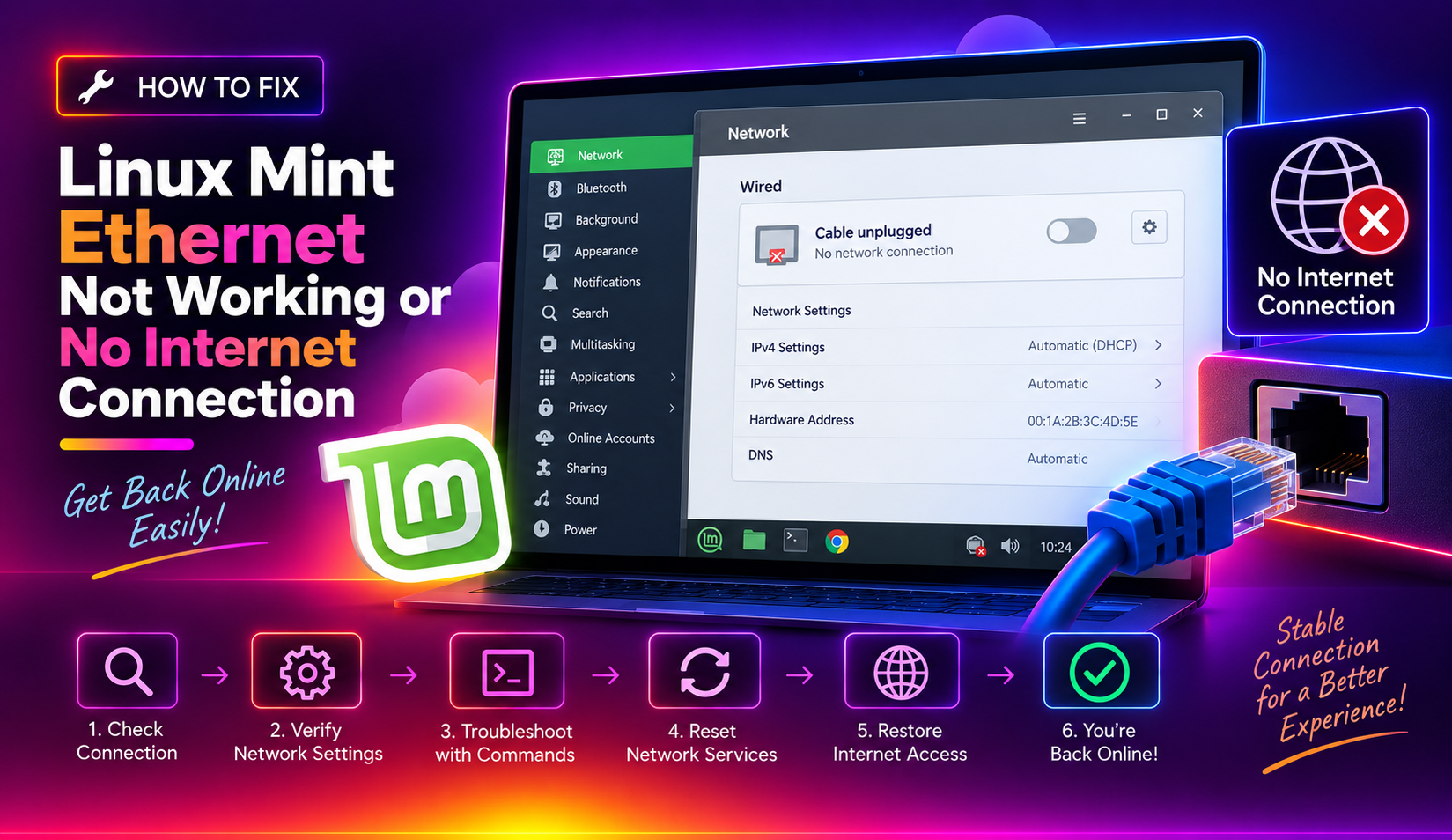
Why Is My Linux Mint Ethernet Not Working?
Ethernet issues on Linux Mint typically fall into four categories: the network interface isn't detected, the driver isn't loaded, NetworkManager has a configuration error, or a kernel update broke driver compatibility. The good news is that most of these are fixable entirely from the terminal — even without internet access — once you know where to look.
This guide walks you through 8 targeted fixes for Linux Mint wired (Ethernet) connection issues, covering Linux Mint 21.x and 22.x.
Fix 1: Check If the Interface Is Detected
Before anything else, verify that Linux Mint can see your Ethernet adapter at all.
- Open a Terminal (Ctrl + Alt + T).
- Run:
ip link show
You should see an interface like eth0, enp3s0, or eno1. If it appears but shows DOWN, the interface exists but isn't activated. If no Ethernet interface shows at all (only lo), there's likely a driver or hardware issue.
Also run: lspci -nnk | grep -iA3 ethernet — this shows whether a driver is loaded for your NIC.
Fix 2: Bring the Interface Up Manually
If the interface shows as DOWN, you can activate it directly:
sudo ip link set enp3s0 upReplace enp3s0 with your actual interface name from Fix 1. Then try to get an IP address via DHCP:
sudo dhclient enp3s0If this gives you an IP, the issue is with NetworkManager's auto-connect setting. Skip to Fix 4.
Fix 3: Restart NetworkManager
NetworkManager sometimes gets stuck in a bad state, especially after suspend/resume cycles or kernel updates.
sudo systemctl restart NetworkManagerWait 10 seconds, then check connectivity:
ping -c 4 8.8.8.8If ping succeeds but websites don't load, skip to Fix 7 (DNS). If ping fails entirely, continue with the next fix.
Fix 4: Reinstall NetworkManager
A corrupted NetworkManager installation can cause persistent Ethernet failures. Reinstalling it resets the service cleanly.
sudo apt-get install --reinstall network-manager
sudo dpkg-reconfigure network-manager
sudo systemctl restart NetworkManager
Then reboot: sudo reboot
Fix 5: Check and Install Ethernet Drivers
Some Ethernet controllers — especially Realtek cards — require proprietary drivers that aren't included in the default Linux Mint installation.
- Identify your NIC chipset:
lspci -nnk | grep -iA3 ethernet - Note the module listed under "Kernel driver in use."
- Open Driver Manager (Menu → Administration → Driver Manager) and check for available drivers.
For Realtek r8169 issues specifically, try installing the out-of-tree driver:
sudo apt update && sudo apt install r8168-dkms
sudo modprobe r8168
Then reboot.
Fix 6: Boot an Older Kernel
Kernel updates occasionally break Ethernet driver compatibility — a well-documented issue with kernels 5.19, 6.2, and 6.5 on certain hardware.
- Reboot your machine.
- At the GRUB menu (hold Shift during boot if it doesn't appear), select Advanced options for Linux Mint.
- Choose the previous kernel version (one line up from the current).
- Test if Ethernet works under the older kernel.
If it works on the older kernel, the new kernel has a driver regression. Report it on the Linux Mint forums and stay on the older kernel until a fix is patched.
Fix 7: Fix DNS Resolution (Internet Loads Slowly or Not at All)
If ping 8.8.8.8 works but ping google.com fails, DNS is broken — not the Ethernet connection itself.
- Check current DNS:
cat /etc/resolv.conf - If it's pointing to an internal DNS (e.g., 192.168.x.x) that's not responding, manually set a public DNS:
sudo nano /etc/resolv.confAdd or replace nameserver lines with:
nameserver 8.8.8.8
nameserver 1.1.1.1
Save with Ctrl + O, exit with Ctrl + X.
To make this permanent via NetworkManager, edit your connection in Network Settings and set DNS manually under the IPv4 tab.
Fix 8: Disable Secure Boot
Secure Boot in UEFI can prevent unsigned drivers from loading on Linux Mint, including some Ethernet drivers.
- Reboot and enter BIOS/UEFI (typically F2, Del, or F12 during boot).
- Navigate to Security → Secure Boot.
- Set Secure Boot to Disabled.
- Save and exit.
After disabling Secure Boot, boot back into Linux Mint and test your Ethernet connection.
When Nothing Else Works
If none of the above fixes resolve your Ethernet issue, the NIC hardware itself may be failing, or you may need a firmware package that isn't in the standard repos. CloudHouse Technologies' Pay-Per-Ticket Support covers Linux network troubleshooting — a technician will work through your specific hardware configuration with you directly.
FAQs
Why did my Linux Mint Ethernet stop working after an update?
Kernel updates can introduce driver regressions. Check if booting an older kernel from the GRUB menu restores Ethernet connectivity — if so, the issue is a kernel driver conflict. Stay on the older kernel until a patch is released.
How do I check if my Ethernet driver is loaded in Linux Mint?
Run lspci -nnk | grep -iA3 ethernet in a terminal. Look for the "Kernel driver in use" line — if it's blank, no driver is loaded and you'll need to install one manually.
Ethernet shows connected but no internet on Linux Mint — why?
This usually means DNS is broken. Run ping 8.8.8.8 — if that works but ping google.com fails, set your DNS manually to 8.8.8.8 and 1.1.1.1 in NetworkManager or /etc/resolv.conf.
How do I restart NetworkManager in Linux Mint?
Open Terminal and run sudo systemctl restart NetworkManager. This resets the network service without rebooting your machine.
Can I install Ethernet drivers without internet access on Linux Mint?
Yes — if you have the driver package as a .deb file on a USB stick, install it with sudo dpkg -i filename.deb. For Realtek adapters, the r8168-dkms package is often available in the offline install media.