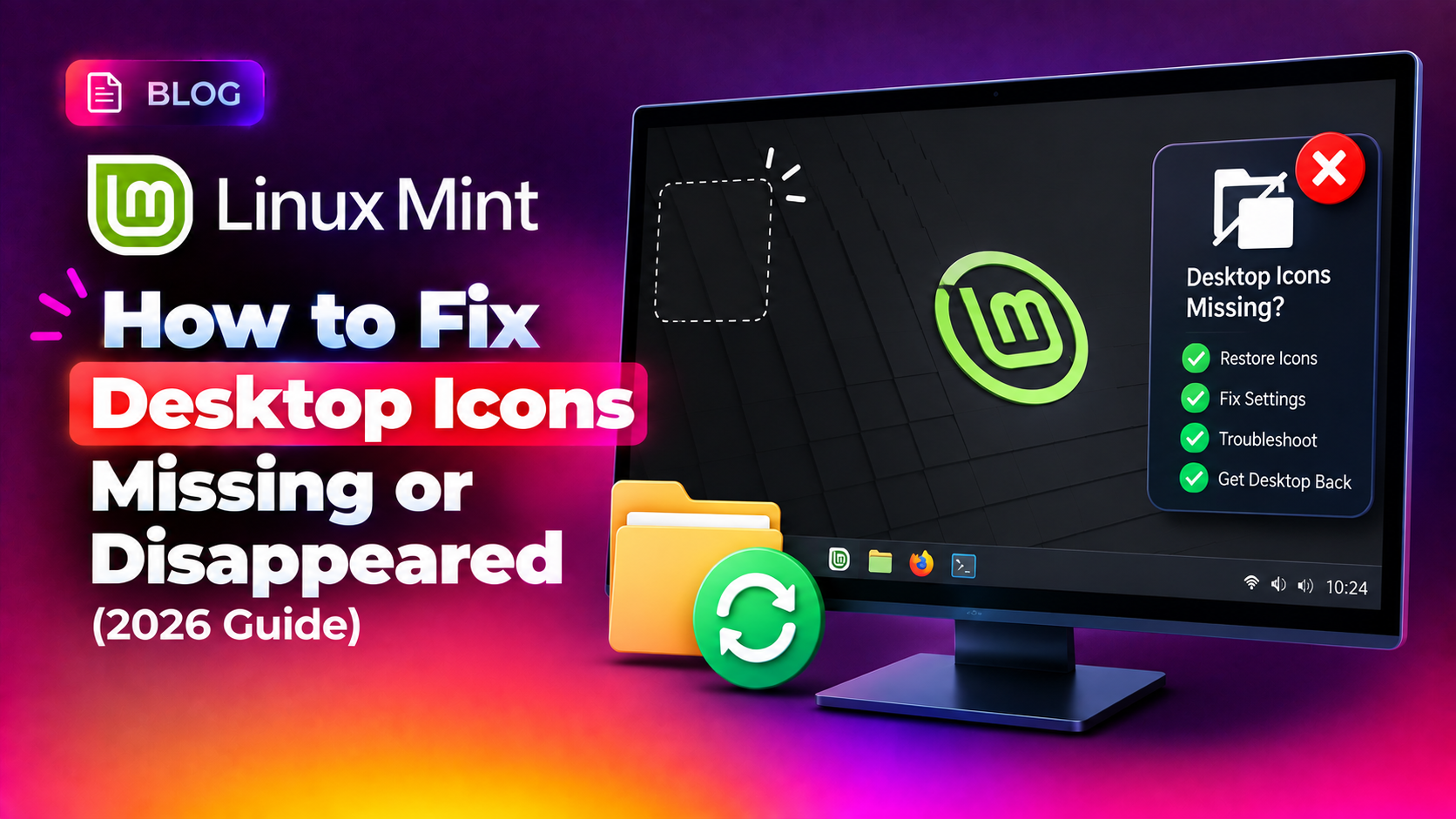
If you've booted into Linux Mint Cinnamon and found your desktop completely bare — no Computer, no Home, no Trash icon, no file shortcuts — you're dealing with one of the most common Cinnamon annoyances. The good news is that Linux Mint desktop icons missing is almost always a software glitch, not a hardware or data problem, and it's fixable in a few minutes once you know where to look.
This 2026 guide walks through the exact causes of vanished desktop icons on Linux Mint 21.x and 22.x with Cinnamon, and gives you working commands to restore them — from a quick process restart to a full settings reset.
Why Desktop Icons Disappear on Linux Mint Cinnamon
Cinnamon doesn't draw desktop icons itself — that job belongs to a background process called nemo-desktop, which is part of the Nemo file manager. When this process crashes, is manually killed, or fails to start at login, your desktop background stays visible but every icon on it disappears.
The most common triggers in 2026 are:
- The
nemo-desktopprocess crashing or not launching after a system update - A corrupted
~/.config/nemo/desktop-metadatafile that stores icon positions - The
org.nemo.desktop show-desktop-iconssetting being toggled off, sometimes by a theme or extension - A broken Cinnamon session after a driver or kernel update that prevents startup applications from launching properly
- Removing "Nemo Desktop" from Startup Applications by accident while cleaning up autostart entries
The fixes below are ordered from fastest to most thorough, so start at the top and only move down if the previous step doesn't work.
💡 None of these worked? Skip the guesswork.
Get Expert Help →Quick Fix: Restart nemo-desktop
In most cases, the desktop icons come back the moment you restart the nemo-desktop process. Open a terminal with Ctrl+Alt+T and run:
Run killall nemo-desktop to make sure no broken instance is still hanging around in the background.
Run nohup nemo-desktop &disown so the process detaches from the terminal and keeps running after you close the window. Your icons should reappear within a second or two.
Run pgrep -a nemo-desktop to confirm the process is active. If nothing is returned, the process failed to start and you should move to the next section.
Run cp ~/.config/nemo/desktop-metadata ~/.config/nemo/desktop-metadata.bak in case you want to inspect it later.
Run rm ~/.config/nemo/desktop-metadata. This only resets icon positions — it does not delete any files, folders, or desktop shortcuts themselves.
Run killall nemo-desktop && nohup nemo-desktop &disown. Nemo will regenerate a fresh metadata file and re-add the default Computer, Home, and Trash icons, though custom positions will reset to the default grid.
Go to Menu → Startup Applications and check whether "Nemo Desktop" is listed and enabled.
Click Add, then set Name to Nemo Desktop, Command to nemo-desktop, and add a short comment. Save and log out, then log back in to confirm icons load automatically.
You can also check cat /etc/xdg/autostart/nemo-desktop.desktop or ~/.config/autostart/nemo-desktop.desktop to confirm the entry exists and isn't disabled with X-GNOME-Autostart-enabled=false. If it says false, change it to true or delete the override file entirely so the system default applies.
Run dconf reset -f /org/cinnamon/. This clears panel layouts, applet configs, and desktop preferences, restoring Cinnamon to its default state.
Run dconf reset -f /org/nemo/ to clear any broken Nemo preferences, including desktop icon visibility flags.
A fresh Cinnamon session will rebuild its configuration from scratch, and nemo-desktop should launch cleanly with default icons visible.
If your desktop is still bare after a full dconf reset, there may be a deeper GPU driver or Xorg session issue causing Cinnamon to fall back to a limited mode. At that point, checking your graphics driver version and Cinnamon session logs (cat ~/.xsession-errors or journalctl --user -b) is the next diagnostic step — and if you'd rather not dig through logs yourself, CloudHouse's pay-per-ticket Linux desktop support can get your Cinnamon session diagnosed and fixed without a subscription.
Conclusion
Missing desktop icons on Linux Mint almost always trace back to the nemo-desktop process — whether it crashed, was never started, or is being blocked by a corrupted metadata file or a disabled setting. Working through the steps above in order — restart the process, check the gsettings flags, clear the metadata file, fix Startup Applications, and finally reset dconf — resolves the issue in nearly every real-world case without needing a reinstall.