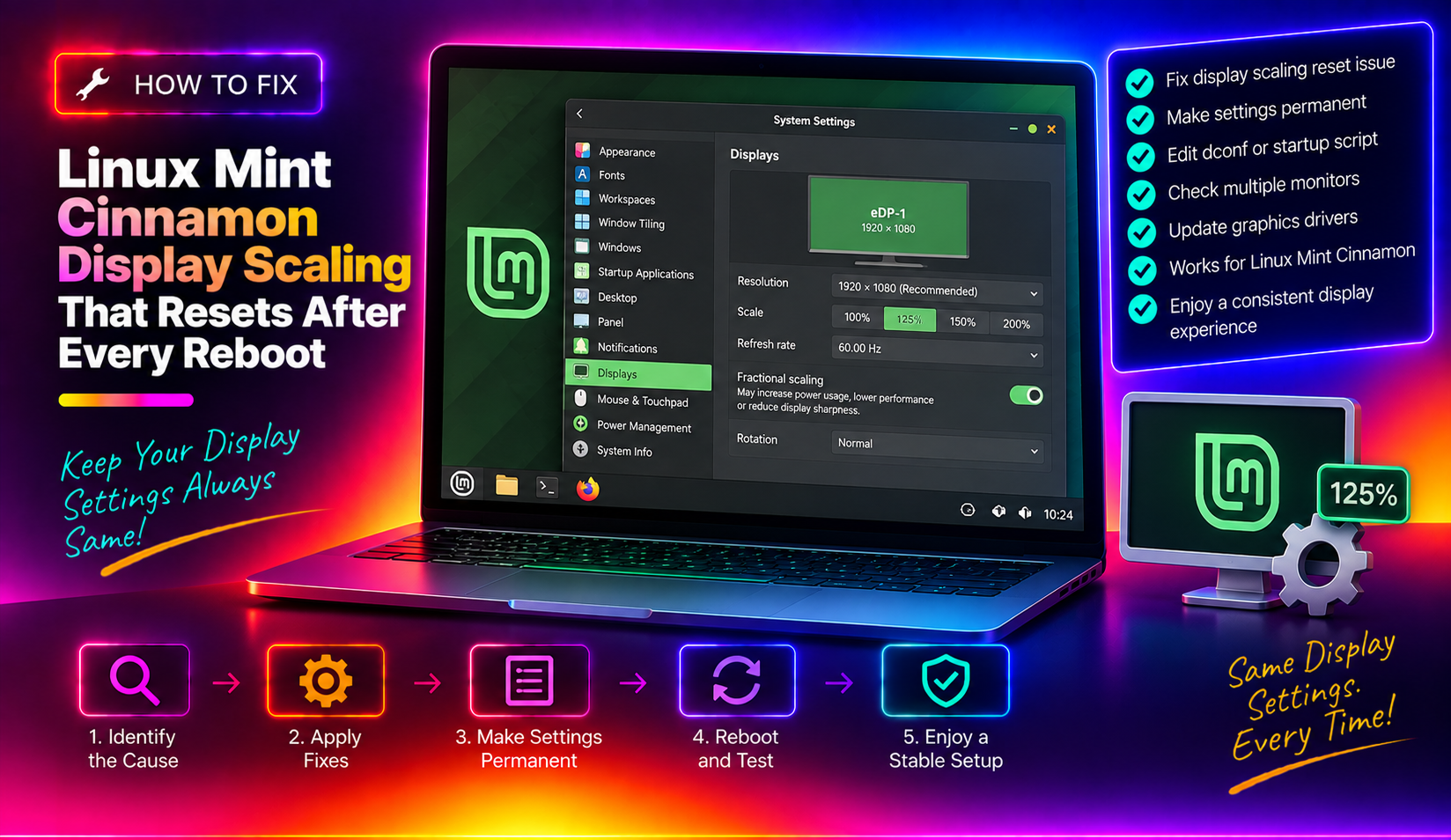
You carefully set your display scaling to 125% or 150% in Linux Mint Cinnamon's Display Settings, everything looks crisp — then you reboot and it's back to 100%. Sound familiar? This frustrating loop affects thousands of Linux Mint users, especially those on HiDPI laptops, high-resolution external monitors, and 4K display setups. The good news: the fix is reliable, and this guide covers three proven methods to make your scaling stick permanently in Linux Mint 21 and 22 (2026).
Why Cinnamon Display Scaling Resets After Reboot (Root Cause)
Understanding why this happens helps you pick the right fix. Cinnamon stores your display configuration — including scaling — in a file called ~/.config/monitors.xml (or sometimes ~/.local/share/gnome-settings-daemon/xrandr/monitors.xml). When Cinnamon starts, it reads this file and tries to apply it.
The reset happens for several common reasons:
- Monitor detection timing: The display server (X.Org) enumerates connected monitors before Cinnamon finishes loading. If your monitor is reported with slightly different EDID data on each boot (common with USB-C docks and some HDMI adapters), Cinnamon treats it as a "new" or "unknown" display and falls back to 100% defaults.
- Corrupted or mismatched monitors.xml: If the XML references an output name (e.g.,
eDP-1,HDMI-1) that doesn't exactly match what the kernel reports, Cinnamon silently ignores the saved config. - dconf write vs. GUI conflict: Fractional scaling set via
dconf writecan be overwritten at session start by Cinnamon's own display compositor, particularly on Cinnamon 5.6+ (a known upstream bug tracked at GitHub issue #10755). - Autorandr interference: If
autorandris installed and managing profiles, it can race with Cinnamon's own display manager and reset scaling to 100%.
All three fix methods below address these causes directly. Start with Method 1 (quickest), and move to Methods 2 or 3 if needed.
Fix Method 1: Create a Persistent xrandr Autostart Script
This is the most reliable and widely confirmed fix in the Linux Mint community. You create a small shell script that uses xrandr to set your scaling after every login, and add it to Cinnamon's autostart so it runs automatically.
Step 1 — Find your display output name
Open a terminal and run:
xrandr --listmonitorsYou'll see output like:
Monitors: 2
 0: +*eDP-1 2560/344x1440/194+0+0  eDP-1
 1: +HDMI-1 1920/527x1080/296+2560+0  HDMI-1
Note your output name(s) — in this example eDP-1 (internal display) and HDMI-1 (external).
Step 2 — Create the scaling script
Create the file:
nano ~/.config/set-display-scale.shAdd the following, replacing eDP-1 with your actual output name and adjusting the scale factor (e.g., 1.25 for 125%, 1.5 for 150%, 2 for 200%):
#!/bin/bash
# Wait for the display manager to fully initialise
sleep 3
xrandr --output eDP-1 --scale 1x1 --mode 2560x1440
# If you also have an external monitor:
# xrandr --output HDMI-1 --scale 1x1 --mode 1920x1080
Note: For HiDPI screens where you want the display to appear larger (effectively lower DPI), use --scale 1x1 combined with Cinnamon's font scaling instead of xrandr scaling. If you specifically need xrandr fractional scale (e.g., for an external non-HiDPI monitor alongside a HiDPI internal display), use:
xrandr --output HDMI-1 --scale 2x2Make it executable:
chmod +x ~/.config/set-display-scale.shStep 3 — Add to Cinnamon autostart
Go to Menu → Preferences → Startup Applications, click Add, then Custom command, and enter:
bash /home/YOUR_USERNAME/.config/set-display-scale.shAlternatively, create the autostart entry from the terminal:
mkdir -p ~/.config/autostart
cat > ~/.config/autostart/set-display-scale.desktop << EOF
[Desktop Entry]
Type=Application
Name=Set Display Scale
Exec=bash /home/$USER/.config/set-display-scale.sh
Hidden=false
NoDisplay=false
X-GNOME-Autostart-enabled=true
EOF
Reboot and verify the scaling persists.
Fix Method 2: Write a Permanent xorg.conf.d Display Rule
If you use fractional scaling that the GUI simply won't retain — or if you prefer a system-level fix that applies before any desktop environment loads — an xorg.conf.d rule is the right approach. This is particularly effective for single fixed-resolution HiDPI displays.
Step 1 — Identify your display and resolution
xrandr | grep " connected"Example output:
eDP-1 connected primary 2560x1440+0+0 (normal left inverted right x axis y axis) 344mm x 194mmStep 2 — Create the xorg config file
sudo nano /etc/X11/xorg.conf.d/90-monitor.confAdd the following (adjust Driver to match your GPU — intel, amdgpu, or modesetting):
Section "Monitor"
    Identifier "eDP-1"
    Option "DPI" "144 x 144"
EndSection

Section "Screen"
    Identifier "Screen0"
    Monitor "eDP-1"
    DefaultDepth 24
    SubSection "Display"
        Depth 24
        Modes "2560x1440"
    EndSubSection
EndSection
For a 2x (200%) HiDPI scale equivalent, setting DPI to 192 is common for a 1920×1080 display that you want to use at effective 960×540 resolution. Adjust the DPI value to match your desired visual scale:
- 96 DPI = 100% (default)
- 120 DPI ≈ 125%
- 144 DPI ≈ 150%
- 192 DPI = 200%
Save and reboot. X.Org will apply this DPI at every startup, before Cinnamon loads.
Optional: Force DPI in Xresources
You can also pin DPI via ~/.Xresources as a belt-and-suspenders approach:
echo "Xft.dpi: 144" >> ~/.Xresources
xrdb -merge ~/.Xresources
Fix Method 3: Repair the cinnamon-monitors.xml Configuration File
Cinnamon reads monitor configuration from ~/.config/monitors.xml. If this file is missing, malformed, or references outdated output names, Cinnamon ignores it on startup and resets to defaults. This method fixes it directly.
Step 1 — Apply your desired scaling via the GUI
Go to Menu → Preferences → Display, set your scaling exactly as you want it, and click Apply. This writes the current state to monitors.xml.
Step 2 — Inspect the file
cat ~/.config/monitors.xmlLook for the <output name="..."> tags. The name here must exactly match what xrandr --listmonitors reports. A common mismatch is HDMI1 vs HDMI-1, or DP-1-2 vs DP1-2.
Step 3 — Fix mismatched output names
If you find a mismatch, edit the file and correct the output names:
nano ~/.config/monitors.xmlChange any incorrect output name to match exactly what xrandr reports. Save the file.
Step 4 — Lock the file permissions (optional nuclear option)
If Cinnamon keeps overwriting your monitors.xml with wrong values, you can make it immutable temporarily to test:
sudo chattr +i ~/.config/monitors.xmlTo undo: sudo chattr -i ~/.config/monitors.xml
Warning: Only use this as a diagnostic tool. Immutable monitors.xml will prevent Cinnamon from saving any future display changes.
Step 5 — Check scaling in dconf
Cinnamon also stores scaling in dconf. Verify the value is set correctly:
dconf read /org/cinnamon/desktop/interface/scaling-factorIf it returns 0 or nothing, write it explicitly:
dconf write /org/cinnamon/desktop/interface/scaling-factor "uint32 2"Values: 1 = 100%, 2 = 200% (integer only — Cinnamon's scaling-factor key accepts only integers; fractional scaling uses the xrandr method instead).
How to Prevent Scaling from Resetting in the Future
Once you have one of the above fixes working, follow these practices to avoid regression:
- Back up monitors.xml: After getting scaling right, copy the file:
cp ~/.config/monitors.xml ~/.config/monitors.xml.bak. If an update breaks things, restore it withcp ~/.config/monitors.xml.bak ~/.config/monitors.xml. - Avoid mixing dconf and xrandr methods: Setting scaling via GUI writes dconf and monitors.xml. Using xrandr scripts on top can conflict. Pick one approach and stick to it.
- Check autorandr is not installed or configured: Run
which autorandr. If present and you're not using it intentionally, it may be overriding your settings. Remove withsudo apt remove autorandror delete its profiles from~/.config/autorandr/. - Pin Cinnamon version updates: Cinnamon 5.8+ changed how fractional scaling is stored. After a major Cinnamon update, recheck your scaling setup and re-apply your fix if needed.
- Consider Wayland on Linux Mint 22.1+: Cinnamon now has an experimental Wayland session. Wayland handles per-monitor fractional scaling natively at the compositor level — no xrandr workarounds needed. Select "Cinnamon (Wayland)" at the login screen to try it.
If you've tried all three methods and scaling still resets, or if you're dealing with a complex multi-monitor or GPU driver scenario, consider reaching out to professional PC support — our certified Linux technicians can diagnose and permanently fix display configuration issues remotely.
FAQ: Linux Mint Cinnamon Display Scaling Reset Issues
Why does my Linux Mint display scaling keep resetting to 100% after reboot?
The most common cause is that Cinnamon detects your monitor as "new" due to slight EDID variations (common with USB-C docks and HDMI adapters), causing it to reset to 100% defaults. A persistent xrandr autostart script bypasses this by reapplying your scaling after every login, regardless of what Cinnamon's monitor detection does.
What is the best way to set persistent HiDPI scaling on Linux Mint?
For integer scaling (100%, 200%), use Cinnamon's Display Settings GUI combined with the dconf key /org/cinnamon/desktop/interface/scaling-factor. For fractional scaling (125%, 150%), use an xrandr autostart script (Method 1 above) since Cinnamon's GUI only supports integer values via dconf.
Does Linux Mint 22 fix the display scaling reset bug?
Linux Mint 22 (based on Ubuntu 24.04 LTS) includes Cinnamon 6.x, which improved monitors.xml handling. However, the reset issue persists for users with USB-C docks, multi-monitor setups, and external GPU configurations. The xrandr autostart workaround remains the most reliable fix as of 2026.
How do I set 125% or 150% fractional scaling in Linux Mint Cinnamon?
Go to Menu → Preferences → Display. Under "Scale", if only 100% and 200% are shown, enable fractional scaling by running: gsettings set org.cinnamon.muffin experimental-features "['scale-monitor-framebuffer']" then reopen Display Settings. Alternatively, use an xrandr script with --scale 0.8x0.8 (for 125% effective size) or font/UI scaling via Accessibility settings.
Will the xrandr scaling fix work after a Linux Mint system update?
Yes. The autostart .desktop file and shell script are stored in your home directory (~/.config/autostart/ and ~/.config/set-display-scale.sh) and are not affected by system or Cinnamon updates. The only exception is if a major Cinnamon update changes how the compositor handles xrandr output — in that case, re-test and adjust your scale values if needed.