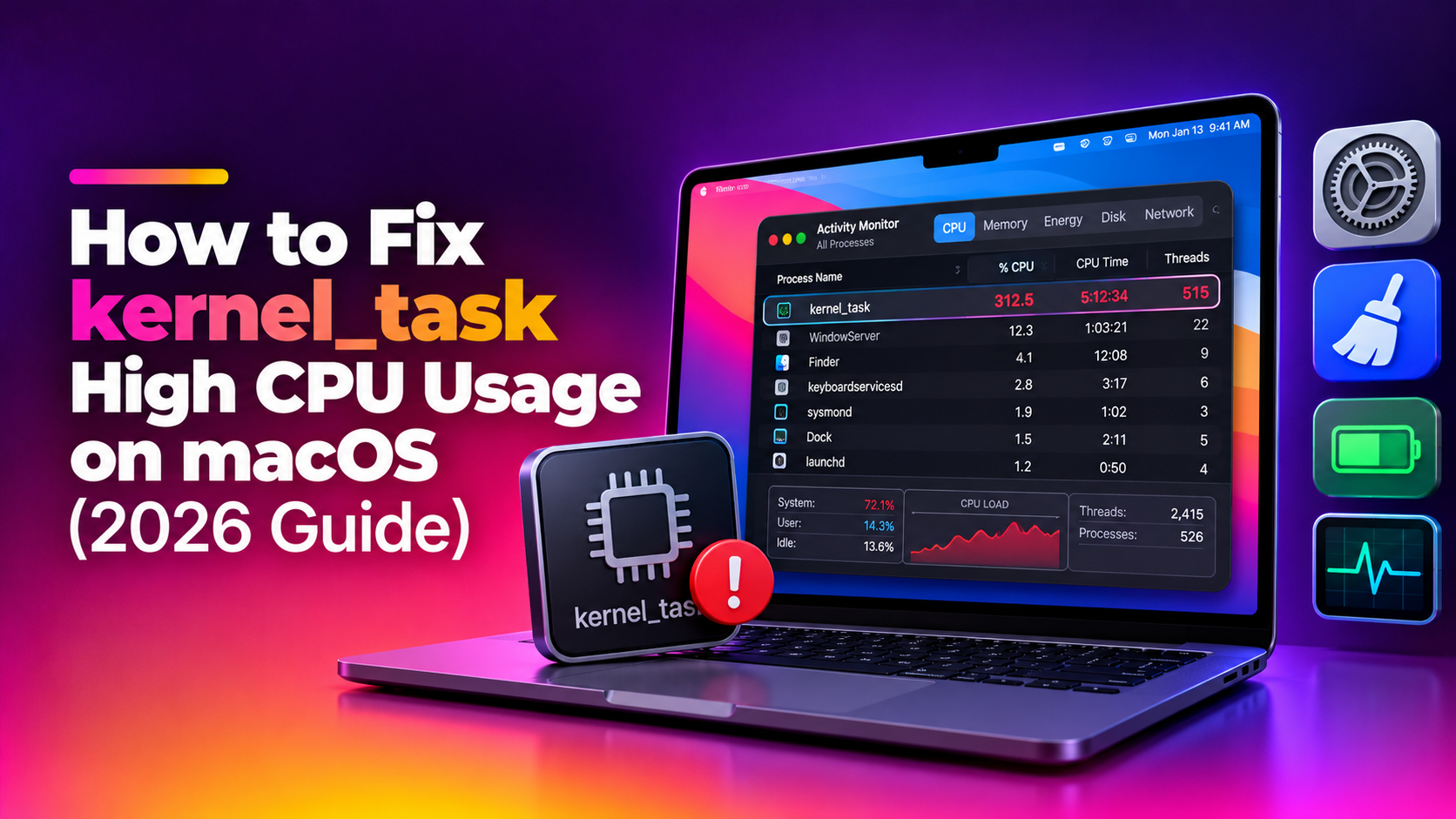
You open Activity Monitor and there it is — kernel_task consuming 200%, 400%, sometimes even 800% CPU. Your Mac's fans are screaming, everything is sluggish, and no matter how many apps you close, this mysterious process keeps hogging your processor. If this sounds familiar, you're not alone. kernel_task high CPU usage is one of the most searched Mac problems in 2026 — and the good news is it's almost always fixable without reinstalling macOS.
This guide covers every proven method, including fixes specific to M1, M2, M3 Macs and macOS Sequoia/Tahoe issues that older articles completely miss.
What Is kernel_task and Why Does It Spike on Mac
kernel_task is not a virus or malware. It is a core macOS system process — essentially the heart of the operating system kernel. Unlike regular apps, kernel_task manages low-level hardware operations: memory allocation, CPU scheduling, I/O requests, and critically, thermal throttling.
When your Mac's CPU temperature climbs too high, kernel_task deliberately consumes CPU cycles to slow down the processor and prevent damage. Think of it as your Mac's thermal safety valve. It doesn't cause overheating — it responds to it.
Common triggers for kernel_task CPU spikes in 2026 include:
- Blocked vents or a dusty fan causing heat build-up
- A faulty or incompatible USB-C/Thunderbolt cable or dongle (especially on MacBooks)
- Third-party kernel extensions (kexts) from apps like antivirus software or VPN clients
- macOS Tahoe/Sequoia bugs with specific hardware configurations
- A corrupt SMC (System Management Controller) state on Intel Macs
- Heavy browser tabs (particularly Chrome with hardware acceleration) or runaway background processes
Quick Fix: Restart and Cool Down Your Mac
Before anything else, try the simplest intervention:
Step 1: Shut down completely
Go to Apple menu () > Shut Down. Do not just sleep the Mac — a full power-off clears cached kernel states.
Step 2: Let it cool for 5–10 minutes
Place the Mac on a hard, flat surface. If it's a MacBook, make sure the bottom vents are not blocked by a pillow, lap, or soft case.
Step 3: Disconnect all peripherals
Unplug every USB-C hub, dongle, external drive, and HDMI adapter before restarting. A faulty third-party cable can fool the SMC into triggering thermal throttling even when the Mac is cool. This is one of the most commonly overlooked kernel_task fixes.
Step 4: Power on and check Activity Monitor
Open Activity Monitor (Spotlight: Cmd + Space, type "Activity Monitor"). Click the CPU column header to sort by CPU usage. If kernel_task is now below 10–20%, the peripheral or thermal issue was the culprit.
Method 2: Reset SMC to Fix kernel_task on Intel Macs
The System Management Controller (SMC) handles thermal management on Intel-based Macs. A corrupted SMC state is a top cause of persistent kernel_task spikes. Note: Apple Silicon (M1/M2/M3) Macs do not have a user-accessible SMC — skip to Method 3 if you have one of these.
MacBook with non-removable battery (most models 2015–2020)
- Shut down the MacBook
- Hold Shift + Control + Option on the left side of the keyboard, then press the Power button simultaneously
- Hold all four keys for 10 seconds
- Release all keys, then press Power to turn on
Mac mini, iMac, Mac Pro (Intel)
- Shut down and unplug the power cable
- Wait 15 seconds
- Reconnect the power cable, wait 5 more seconds, then power on
For Apple Silicon Macs (M1/M2/M3) — SMC equivalent reset
- Shut down the Mac
- Close the lid (MacBook) or wait 30 seconds (desktop)
- Power back on normally
Apple Silicon automatically resets SMC-equivalent functions at startup, so there's no manual key combination needed.
Method 3: Close Resource-Heavy Apps and Browser Tabs
kernel_task ramps up when anything pushes the CPU hard. Identify and kill the culprit app before the thermal throttling cascade begins.
Find the real CPU hog
- Open Activity Monitor (Cmd + Space → "Activity Monitor")
- Click the CPU tab and sort descending
- Look for processes above 30–50% CPU — often Chrome Helper, Safari Web Content, Zoom, or a runaway app
- Select the offending process and click the X (Stop) button in the toolbar, then choose Force Quit
Tame Safari and Chrome
In Safari: Go to Safari > Settings > Advanced and enable "Show features for web developers." Then use Develop > Show Web Inspector on suspicious tabs to identify heavy scripts.
In Chrome: Open Chrome's built-in task manager with Search + Esc (or go to Menu > More Tools > Task Manager) to see which tab or extension is consuming the most CPU.
Disable Chrome hardware acceleration (often triggers kernel_task)
- Open Chrome Settings → System
- Toggle off "Use hardware acceleration when available"
- Relaunch Chrome
Method 4: Update macOS to Patch Known kernel_task Bugs
Apple regularly ships bug fixes that address thermal management and kernel_task behavior. In 2025–2026, several macOS Sequoia and Tahoe point releases specifically patched kernel_task CPU spikes tied to:
- External display connections via USB-C on M2/M3 MacBook Pro
- Bluetooth audio routing conflicts
- Background app refresh loops in certain App Store apps
How to update
- Go to Apple menu > System Settings > General > Software Update
- Install all available updates, including any listed under "More Info"
- Restart when prompted
After updating, also update all third-party apps — especially antivirus, VPN clients, and cloud-sync tools like Dropbox or OneDrive, as these frequently install kernel extensions that can conflict with macOS updates.
Method 5: Check for Overheating and Ventilation Issues
If kernel_task keeps spiking, your Mac may genuinely be running hot. Here's how to diagnose and address thermal issues.
Check temperatures via Terminal
On Intel Macs, you can read sensor data with:
sudo powermetrics --samplers smc -i1 -n1This outputs CPU die temperature and fan speed. A sustained CPU temperature above 90°C (194°F) at idle indicates a real thermal problem.
On Apple Silicon, use:
sudo powermetrics --samplers cpu_power -i1000 -n1Look for the CPU Power field — values consistently above 25–30W on a MacBook Air suggest thermal throttling is in effect.
Clean the vents
Use a can of compressed air to blow through the MacBook's bottom vent slots or iMac's rear vent for 10–15 seconds. Do this with the Mac powered off. Dust buildup is the number one physical cause of chronic kernel_task high CPU on Macs over two years old.
Check and remove problematic kernel extensions
Third-party kernel extensions (kexts) from older software can conflict with modern macOS and trigger continuous kernel_task activity. To identify them:
kextstat | grep -v com.appleAny result here is a non-Apple kext. Research each one. Common offenders include legacy versions of antivirus apps (Avast, McAfee), old VPN drivers, and obsolete display drivers.
To boot without third-party kexts and verify they're the cause, start in Safe Mode:
- Intel Mac: Restart while holding Shift
- Apple Silicon: Shut down → hold Power button until startup options appear → select disk → hold Shift → click "Continue in Safe Mode"
If kernel_task is normal in Safe Mode, a third-party kext or startup item is the culprit. Use System Settings > General > Login Items & Extensions to review and remove suspicious entries.
Prevention Tips to Stop kernel_task from Spiking Again
- Use Apple-certified cables and hubs. A cheap USB-C hub can feed incorrect voltage signals to the SMC, triggering thermal throttling. Always use MFi-certified accessories.
- Never block the vents. Use a laptop stand that lifts the MacBook off flat surfaces, improving airflow by up to 30%.
- Limit login items. Go to System Settings > General > Login Items and remove any app you don't need launching at startup — especially cloud sync clients.
- Run maintenance scripts periodically. Open Terminal and run:
sudo periodic daily weekly monthly— this clears system caches and log files that can cause background CPU spikes. - Monitor with iStatMenus or Stats (free, open-source). Set CPU temperature alerts above 85°C so you catch thermal issues before they cascade into kernel_task events.
- Keep macOS and all apps updated. Enable automatic updates under System Settings > General > Software Update > Automatic Updates.
Need expert help? CloudHouse Technologies offers Pay-Per-Ticket Support — get a specialist to fix this for you.
Frequently Asked Questions
Is kernel_task a virus or malware?
No. kernel_task is a legitimate core macOS system process located at /System/Library/CoreServices/kernel_task. It is part of the macOS kernel and cannot be removed or disabled. If you're concerned, verify it in Activity Monitor — its parent process should be listed as "kernel" with a PID of 0. Malware scanners like Malwarebytes for Mac can confirm no infection is present.
Why does kernel_task spike when I plug in a USB-C charger or hub?
The SMC reads voltage and thermal data from USB-C ports. A faulty or non-compliant USB-C cable, hub, or charger can send incorrect signals that fool the SMC into thinking the system is overheating, causing kernel_task to throttle the CPU defensively. Try a different cable or Apple's own charger to rule this out.
How do I reset NVRAM on an Apple Silicon Mac?
On M1, M2, and M3 Macs, you do not manually reset NVRAM. Apple Silicon Macs automatically validate and restore NVRAM at every startup. Simply performing a full shutdown and restart achieves the same effect as an Intel Mac NVRAM reset. There is no key combination required.
Can kernel_task high CPU usage cause permanent damage to my Mac?
No — kernel_task high CPU usage is actually your Mac protecting itself from damage. It is a symptom of thermal stress, not a cause of hardware failure. However, the underlying cause (overheating, blocked vents, faulty peripherals) should be addressed promptly. Sustained high temperatures over long periods can degrade battery health and component lifespan.
My Mac runs fine in Safe Mode but kernel_task spikes normally. What do I do?
This definitively points to a third-party kernel extension, login item, or background process. In Safe Mode, open System Settings > General > Login Items & Extensions and note every entry. Back in normal mode, disable items one by one — restarting after each — until you identify the culprit. Pay special attention to antivirus apps, VPN clients, and cloud storage utilities, as these most commonly install kernel extensions that conflict with macOS.