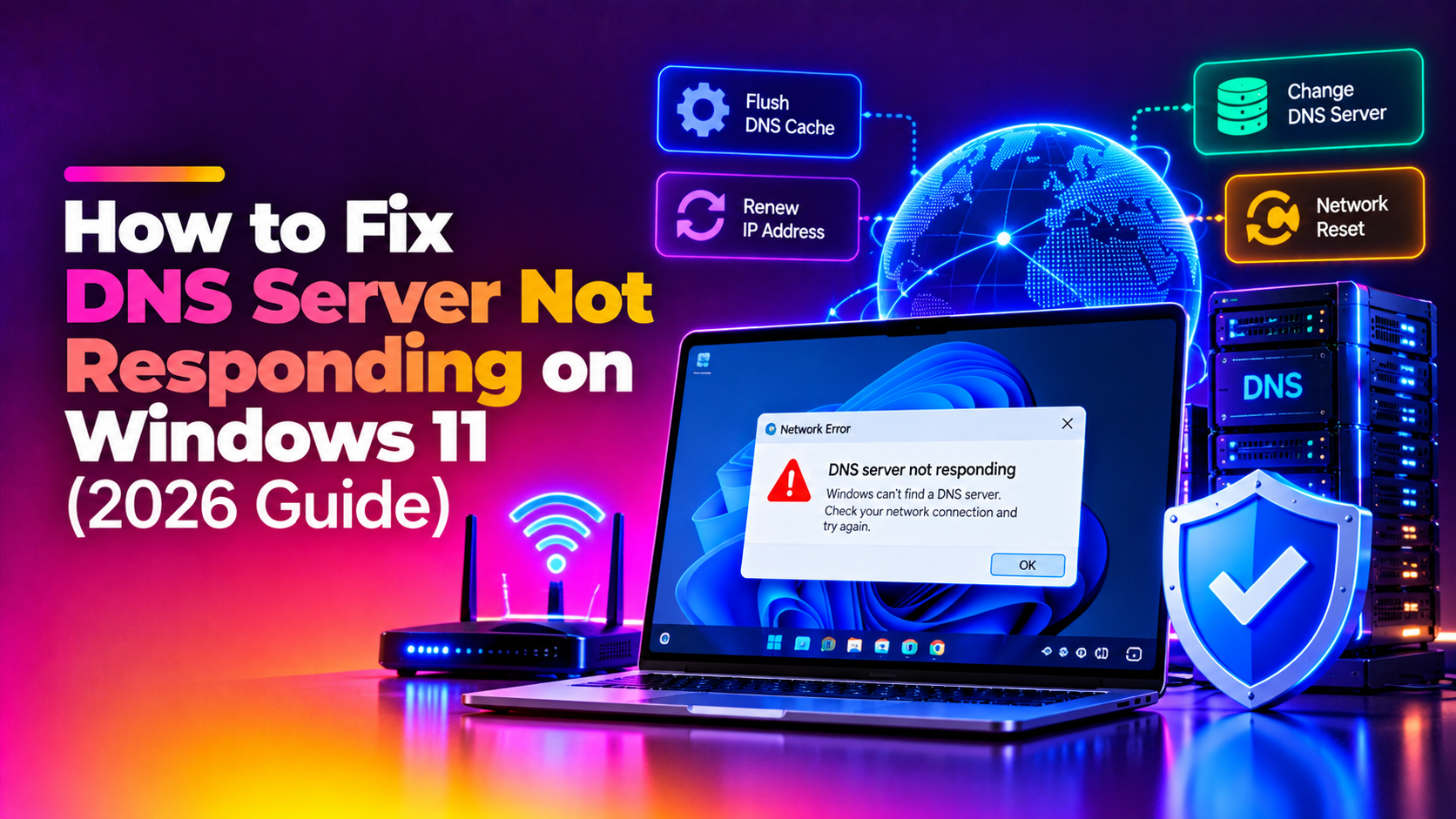
You are connected to Wi-Fi or Ethernet, the signal bars are full, yet every browser tab greets you with DNS_PROBE_FINISHED_BAD_CONFIG or the message "DNS server not responding." This is one of the most frustrating Windows 11 issues — especially because it started appearing far more often after cumulative updates released in late 2025 and early 2026. The good news: the problem is almost always fixable in minutes once you know which layer has broken. This guide walks you through every method in the right order, from the quick one-liner fixes to the deeper TCP/IP stack repair that most other articles skip entirely.
What Does "DNS Server Not Responding" Mean on Windows 11?
DNS (Domain Name System) translates human-readable domain names like google.com into IP addresses your computer can route to. When that translation fails, your browser cannot reach any website even though your internet connection itself is fine. Windows 11 surfaces this as:
- DNS_PROBE_FINISHED_BAD_CONFIG in Chrome or Edge
- "DNS server not responding" in the Windows Network Troubleshooter
- "Your DNS server might be unavailable" in Network Diagnostics
- ERR_NAME_NOT_RESOLVED in Chromium-based browsers
Root causes in 2026 include: a stale or corrupted DNS cache, a DNS Client service that crashed after a Windows update, a corrupted Winsock or TCP/IP stack, IPv6 conflicts on your adapter, or your ISP's DNS servers going down. Work through the methods below in order — most users fix the issue by Method 3.
Method 1: Flush and Reset DNS Cache (ipconfig /flushdns)
The fastest fix. Corrupted cache entries cause Windows to keep trying a bad IP for a domain.
Steps
- Press Windows + S, type
cmd, right-click Command Prompt, and choose Run as administrator. - Run each command in order, pressing Enter after each:
ipconfig /flushdns
ipconfig /registerdns
ipconfig /release
ipconfig /renew
You should see: "Successfully flushed the DNS Resolver Cache." Restart your browser and test. If pages still fail, continue to Method 2.
Method 2: Change DNS Server to Google or Cloudflare
Your ISP's DNS servers may be slow or down. Switching to a public DNS resolver (Google: 8.8.8.8 / 8.8.4.4 or Cloudflare: 1.1.1.1 / 1.0.0.1) fixes the problem immediately when the ISP is the culprit.
Steps (Windows 11 Settings)
- Go to Settings > Network & internet > Wi-Fi (or Ethernet) > click your connection name > Hardware properties.
- Next to DNS server assignment, click Edit.
- Change the dropdown from Automatic (DHCP) to Manual.
- Enable IPv4 and enter:
- Preferred DNS:
8.8.8.8 - Alternate DNS:
8.8.4.4
- Preferred DNS:
- Click Save, then flush DNS again:
ipconfig /flushdns
Alternative: Set DNS via PowerShell (Admin)
Set-DnsClientServerAddress -InterfaceAlias "Wi-Fi" -ServerAddresses ("8.8.8.8","8.8.4.4")Replace Wi-Fi with Ethernet if you are on a wired connection. Run Get-NetAdapter to list adapter names.
Method 3: Reset TCP/IP Stack and Winsock Catalog
This is the fix most articles miss — and it is the most common root cause after a Windows 11 cumulative update in 2025-2026. A failed update can corrupt the Winsock catalog or TCP/IP stack, causing all DNS resolution to silently fail even though ipconfig shows a valid IP address.
Steps
- Open Command Prompt as administrator (see Method 1).
- Run these commands one by one:
netsh winsock reset
netsh int ip reset
netsh int tcp reset
netsh int ipv6 reset- Restart your PC — this step is mandatory. The reset does not take effect until reboot.
- After restart, flush DNS:
ipconfig /flushdns
If you see "Resetting , OK!" for each command, the stack was intact. If you see "Access is denied", ensure you opened CMD as administrator.
For a more thorough reset, you can also run in PowerShell (Admin):
Get-NetAdapter | Reset-NetAdapterAdvancedProperty -DisplayName "*"Method 4: Disable IPv6 on Your Network Adapter
Windows 11 prefers IPv6 for DNS queries. If your router or ISP does not fully support IPv6, DNS lookups time out silently, causing the "not responding" error.
Steps
- Press Windows + R, type
ncpa.cpl, and press Enter. - Right-click your active network adapter (Wi-Fi or Ethernet) and choose Properties.
- Uncheck Internet Protocol Version 6 (TCP/IPv6).
- Click OK and restart your PC.
Alternative: Disable IPv6 via PowerShell
Disable-NetAdapterBinding -Name "Wi-Fi" -ComponentID ms_tcpip6To re-enable later: replace Disable with Enable in the command above.
Method 5: Restart the DNS Client Service
The DNS Client service (also called dnscache) caches DNS query results. After certain Windows 11 updates, this service can enter a hung state where it stops resolving names but does not report an error. Restarting it fixes the issue without a reboot.
Steps via Services
- Press Windows + R, type
services.msc, press Enter. - Scroll to DNS Client, right-click it, and choose Restart.
- If Restart is greyed out, use the PowerShell method below.
Steps via PowerShell (Admin)
Stop-Service -Name dnscache -Force
Start-Service -Name dnscache
Verify the service is running:
Get-Service -Name dnscache | Select-Object Status, StartTypeExpected output: Status: Running, StartType: Automatic. If StartType shows Disabled, fix it with:
Set-Service -Name dnscache -StartupType Automatic
Start-Service -Name dnscache
Method 6: Roll Back or Uninstall Recent Windows Update
If your DNS issues started immediately after Windows Update ran, a specific cumulative update may have introduced the regression. Microsoft released several networking-related patches in 2025-2026 that were later revised.
Steps to Uninstall a Recent Update
- Go to Settings > Windows Update > Update history.
- Click Uninstall updates at the top.
- Sort by Installed On and identify updates installed around the time the DNS error started.
- Click the update and choose Uninstall, then restart.
Check Which Update is Installed via PowerShell
Get-HotFix | Sort-Object InstalledOn -Descending | Select-Object -First 10This lists the 10 most recent patches with their KB numbers and install dates — useful for cross-referencing with Microsoft's known-issues page at aka.ms/WindowsReleaseHealth.
Pause Updates Temporarily
After uninstalling, go to Settings > Windows Update > Advanced options > Pause updates and pause for 1–4 weeks while waiting for a fixed patch.
Prevention Tips to Avoid DNS Errors in Future
- Use a reliable public DNS: Keep Google DNS (
8.8.8.8 / 8.8.4.4) or Cloudflare (1.1.1.1 / 1.0.0.1) set permanently instead of relying on DHCP-assigned DNS from your ISP. - Enable DNS over HTTPS (DoH): In Settings > Network & internet > Wi-Fi > Hardware properties > DNS server assignment, set DNS encryption to Encrypted only (DNS over HTTPS). This both secures and stabilises resolution.
- Keep a network reset script handy: Save the
netsh winsock reset+netsh int ip resetcommands in a.batfile run as administrator so you can apply the fix in 30 seconds next time. - Delay Windows Updates by 1–2 weeks: Go to Settings > Windows Update > Advanced options > Receive updates for other Microsoft products and set the feature update deferral to 14 days. This lets early adopters catch regressions first.
- Create a System Restore point before major updates: Search for Create a restore point in the Start menu and click Create before running any large update.
Need expert help? CloudHouse Technologies offers Pay-Per-Ticket Support — get a specialist to fix this for you.
Frequently Asked Questions
Why does my DNS server keep not responding even after flushing DNS?
Flushing DNS only clears the cache. If the underlying DNS Client service is crashed, the TCP/IP stack is corrupted, or your adapter is stuck on a broken IPv6 path, the cache flush alone will not help. Work through Methods 3–5 in this guide — specifically the Winsock reset and DNS Client service restart — to address the deeper causes.
Is it safe to switch to Google DNS or Cloudflare DNS on Windows 11?
Yes, completely safe. Google DNS (8.8.8.8) and Cloudflare DNS (1.1.1.1) are public resolvers used by hundreds of millions of devices worldwide. They are faster and more reliable than most ISP-provided DNS servers and do not filter or block legitimate traffic.
Will disabling IPv6 break anything on my Windows 11 PC?
For most home users, disabling IPv6 has no noticeable effect. Some corporate VPNs and Microsoft 365 features prefer IPv6, but they automatically fall back to IPv4. If you notice issues after disabling it, re-enable IPv6 via the same adapter Properties screen or with the PowerShell Enable-NetAdapterBinding command.
How do I know which Windows Update caused my DNS problem?
Run Get-HotFix | Sort-Object InstalledOn -Descending | Select-Object -First 10 in PowerShell to list recent patches. Cross-reference KB numbers at aka.ms/WindowsReleaseHealth under the Windows 11 known issues tab. If a DNS-related regression is listed, Microsoft usually provides a workaround or out-of-band fix.
My DNS is fixed but keeps breaking again every few days. What should I do?
Recurring DNS failures usually point to either automatic Windows Updates repeatedly reverting your settings, an unstable ISP DNS server, or a router firmware bug. Permanently set a public DNS (Google or Cloudflare), enable DNS over HTTPS in Windows 11 Settings, and check whether your router firmware has an available update from the manufacturer's website.