How to Fix 'Display Driver Stopped Responding and Has Recovered' on Windows 10 (2026 Guide)
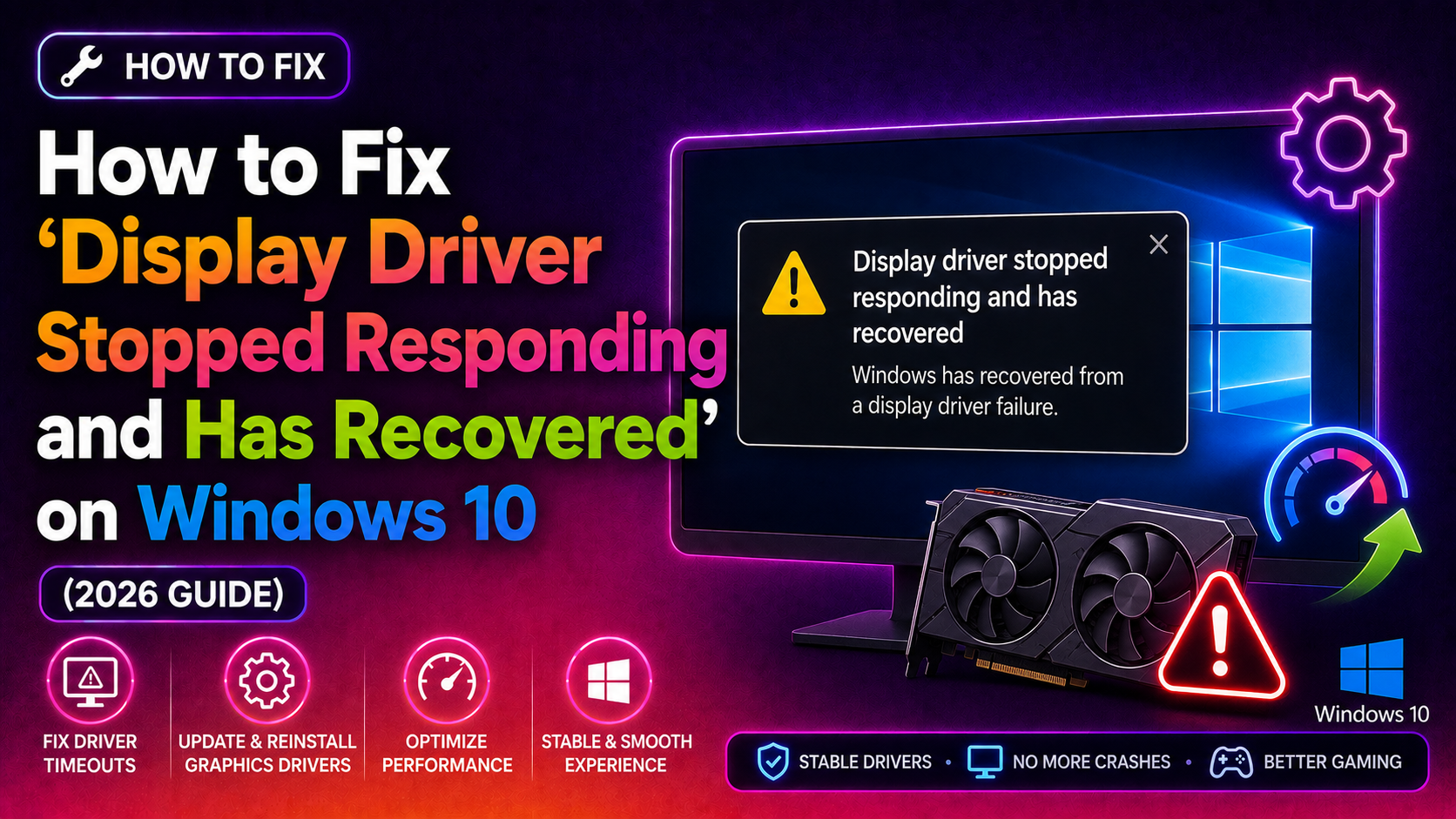
You're in the middle of a gaming session, video edit, or just browsing, when your screen goes black for a few seconds. Then Windows flashes a notification in the bottom-right corner: "Display driver stopped responding and has recovered." In worse cases, the system crashes entirely with a Blue Screen of Death (BSOD) referencing atikmpag.sys (AMD) or nvlddmkm.sys (NVIDIA).
This guide covers every fix — from the quick driver update to the TDR registry tweak, power plan adjustments, thermal checks, and RAM diagnostics — so you can stop the crashes for good in 2026.
What Does 'Display Driver Stopped Responding' Mean on Windows 10?
Windows monitors your GPU through a feature called Timeout Detection and Recovery (TDR). If the graphics driver takes longer than approximately 2 seconds to respond to a command, Windows forcibly resets the GPU, restores the display, and logs the event. You see the pop-up notification when recovery succeeds; you see a BSOD when it does not.
The TDR error codes you may encounter include:
- VIDEO_TDR_FAILURE — the most common BSOD stop code for this issue
- atikmpag.sys — AMD/ATI GPU kernel driver
- nvlddmkm.sys — NVIDIA display kernel-mode driver
- igdkmd64.sys — Intel integrated graphics driver
Understanding the root cause points you to the right fix. Let's look at the most common triggers.
Common Causes: Outdated Drivers, TDR Timeout, Overheating, and Power Settings
- Outdated or corrupted GPU drivers — the most frequent culprit, especially after a Windows Update.
- TDR timeout set too low — the default 2-second window is too short for GPU-intensive tasks like 3D rendering or 4K video playback.
- GPU overheating — temperatures above 85 °C cause the driver to stall and trigger TDR.
- Aggressive power saving settings — PCI Express Link State Power Management can cut GPU power unexpectedly.
- Faulty or overclocked RAM — bad memory causes GPU command buffer corruption, leading to driver timeouts.
- Hardware seating issues — a partially unseated GPU or dirty PCIe slot creates intermittent signal loss.
Fix 1: Update or Clean-Install Your GPU Driver (NVIDIA and AMD)
Before anything else, ensure you have the latest driver — but use a clean install, not an upgrade on top of an old driver. Leftover driver files are a known cause of persistent TDR failures.
For NVIDIA GPUs
- Download Display Driver Uninstaller (DDU) from Guru3D.
- Boot into Safe Mode (hold Shift while clicking Restart → Troubleshoot → Advanced Options → Startup Settings → Safe Mode with Networking).
- Run DDU and select Clean and Restart.
- After reboot, go to nvidia.com/drivers, find your GPU model, and download the latest Game Ready or Studio driver.
- During installation, choose Custom and tick Perform a clean installation.
For AMD GPUs
- Download DDU and run it in Safe Mode as above.
- Visit amd.com/support and download the latest Adrenalin driver for your GPU.
- Run the installer and select Factory Reset when prompted.
After a clean driver install, test your system for at least 30 minutes under load. If the error persists, move to Fix 2.
Fix 2: Increase TDR Delay via Registry Editor
The default TDR timeout is 2 seconds. For high-end GPUs under sustained load — gaming at 4K, rendering, machine learning — 2 seconds is simply not enough. Increasing it to 8 seconds gives your GPU the breathing room it needs without disabling TDR entirely.
- Press Win + R, type
regedit, and press Enter. - Navigate to:
HKEY_LOCAL_MACHINE\SYSTEM\CurrentControlSet\Control\GraphicsDrivers - Right-click an empty area in the right pane → New → DWORD (32-bit) Value.
- Name the new value TdrDelay.
- Double-click TdrDelay, select Decimal, and enter 8 as the value data.
- Click OK and close Registry Editor.
- Restart your PC.
Optional — also create TdrDdiDelay: In the same registry key, create another DWORD named TdrDdiDelay and set it to 8. This separately controls the DDI-level timeout.
Note: Do not set TdrDelay to 0, as this disables TDR entirely and can cause Windows to become unresponsive during actual GPU crashes.
Fix 3: Adjust Power Plan and GPU Performance Settings
Windows power-saving features can starve the GPU of power during peak demand, triggering the TDR mechanism. Two settings are critical here.
Set High Performance Power Plan
- Open Control Panel → Power Options.
- Select High Performance. If not visible, click Show additional plans.
- Click Change plan settings → Change advanced power settings.
Disable PCI Express Link State Power Management
- In the Advanced Power Settings window, expand PCI Express → Link State Power Management.
- Set it to Off for both On battery and Plugged in.
- Click Apply → OK, then restart.
NVIDIA Control Panel — Maximum Performance
- Right-click the desktop → NVIDIA Control Panel.
- Go to Manage 3D Settings → Global Settings.
- Set Power management mode to Prefer maximum performance.
- Click Apply.
For AMD users, open AMD Radeon Software → Performance → Tuning and set the profile to Default or Custom with power limit at 0%.
Fix 4: Check for Overheating and Reseat the GPU
A GPU running above 85 °C under load will stall, causing TDR events. Before assuming a software problem, verify temperatures.
Monitor GPU Temperature
- Download HWiNFO64 (free) or use MSI Afterburner.
- Run a GPU stress test (FurMark or 3DMark) for 10 minutes while watching temperatures.
- If temperatures hit 90 °C or higher, thermal throttling is likely causing driver timeouts.
Clean the GPU and Case
- Shut down and unplug the PC.
- Use compressed air to blow dust from GPU fans, heatsink fins, and case vents.
- If the GPU is more than 3–4 years old, consider replacing the thermal paste on the GPU die.
Reseat the GPU
- Power off and unplug.
- Remove the GPU from the PCIe x16 slot.
- Clean the gold contacts on the GPU with a dry eraser.
- Re-insert the GPU firmly until the PCIe latch clicks.
- Re-connect all PCIe power cables (6-pin / 8-pin / 16-pin).
A loose GPU or dirty PCIe contacts cause intermittent signal loss that the TDR mechanism interprets as a GPU hang. If you still need assistance after trying these steps, you can get expert help from CloudHouse Technologies.
Fix 5: Run Windows Memory Diagnostic and Check for Faulty RAM
Bad RAM causes corrupted GPU command buffers, which forces TDR resets. This is an underdiagnosed cause of persistent display driver crashes.
Run Windows Memory Diagnostic
- Press Win + R, type
mdsched.exe, and press Enter. - Choose Restart now and check for problems.
- Windows will reboot and run a memory test. Results appear after the next login.
Run MemTest86 for a Thorough Check
For a deeper test, download MemTest86 (free), write it to a USB drive, and boot from it. Let it run at least two full passes. Any errors indicate faulty RAM that should be replaced.
Test RAM Sticks Individually
If you have multiple RAM sticks, remove all but one and test stability. Rotate sticks until you identify the faulty module. Also try reseating RAM in the slots recommended by your motherboard manual (usually A2/B2 for dual-channel).
Run SFC and DISM to Repair System Files
Corrupted system files can also cause driver instability. Open Command Prompt as Administrator and run:
sfc /scannowAfter completion, run:
DISM /Online /Cleanup-Image /RestoreHealthRestart when finished.
FAQ
Why does my screen go black for a few seconds and then come back?
This is Windows' Timeout Detection and Recovery (TDR) mechanism at work. When the GPU fails to respond within the timeout window (default 2 seconds), Windows resets the driver. The brief black screen is the GPU reinitialising. The pop-up message confirms a successful recovery. If TDR cannot recover the driver, a full BSOD occurs instead.
Is the 'display driver stopped responding' error dangerous for my GPU?
Occasional occurrences are not harmful, but frequent crashes — especially those caused by overheating — can shorten GPU lifespan over time. Persistent TDR failures also indicate an underlying problem (overheating, bad drivers, failing hardware) that should be resolved promptly.
What is the TdrDelay registry fix and is it safe?
TdrDelay is a Windows registry value that controls how many seconds Windows waits for a GPU response before triggering a driver reset. The default is 2 seconds. Setting it to 8 is widely recommended and safe — it gives the GPU more time to complete heavy operations without disabling the recovery mechanism entirely.
What's the difference between atikmpag.sys and nvlddmkm.sys errors?
Both are GPU kernel-mode driver files that Windows names in TDR-related BSODs. atikmpag.sys belongs to AMD/ATI graphics hardware, while nvlddmkm.sys belongs to NVIDIA hardware. The underlying fix process — clean driver install, TDR delay, power settings — is the same for both, but you must download drivers from the correct vendor's website.
I've tried everything and the error still occurs — what next?
If all software and configuration fixes have been exhausted, the GPU itself may be failing. Test the GPU in another PC or try a known-good GPU in your machine. Also test with the integrated GPU if available. If the issue disappears with a different GPU, it is a hardware fault and the card likely needs replacement. For a fast diagnosis, CloudHouse Technologies offers same-day expert support with no-fix, no-fee guarantee.