
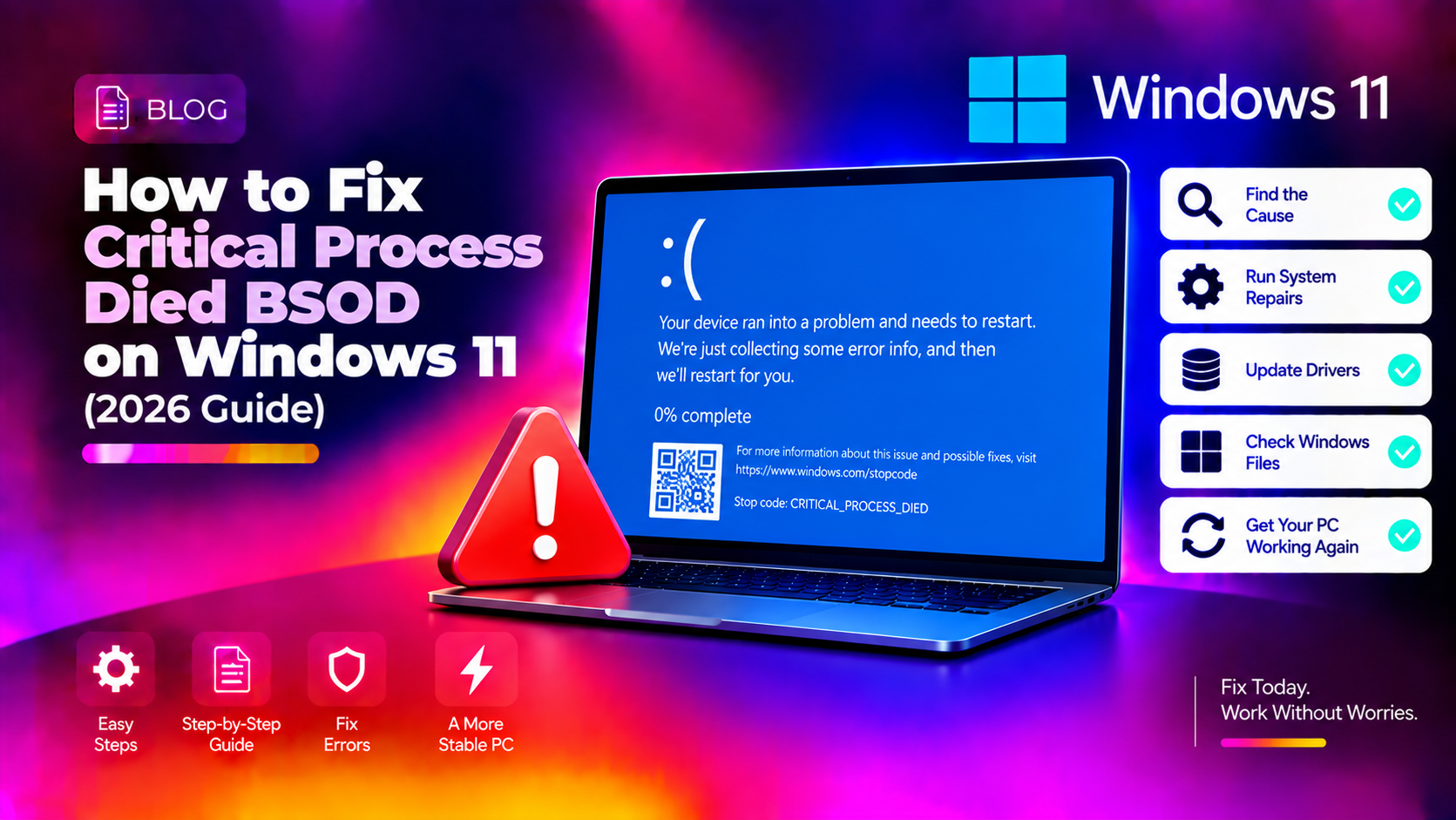
What Is the "Critical Process Died" BSOD Error?
The CRITICAL_PROCESS_DIED blue screen (stop code 0x000000EF) occurs when Windows 11 detects that a critical system process has terminated unexpectedly. Unlike a simple application crash, this is a kernel-level failure — Windows cannot recover and forces a restart to prevent data corruption. In 2026, this error has been frequently triggered by KB5094126 (HP systems) and KB5083769 cumulative updates, as well as corrupted drivers and malware.
Method 1: Boot Into Safe Mode
If your PC is stuck in a BSOD loop, access Safe Mode first — most fixes require a working Windows environment.
Force Advanced Startup: Hold the power button during boot three times in a row. On the fourth attempt, Windows opens Advanced Startup Options. Navigate to: Troubleshoot → Advanced Options → Startup Settings → Restart → Press 4 for Safe Mode.
Method 2: Run SFC and DISM (Fix Corrupted System Files)
Open Command Prompt as Administrator (right-click Start → Windows Terminal Admin) and run in this exact order:
sfc /scannowWait for it to complete. Then:
DISM /Online /Cleanup-Image /CheckHealth
DISM /Online /Cleanup-Image /ScanHealth
DISM /Online /Cleanup-Image /RestoreHealth
Run SFC again after DISM:
sfc /scannowRestart after completion. DISM+SFC fixes corrupted system files that cause Critical Process Died in about 40% of cases.
Method 3: Uninstall the Problematic Windows Update
If the BSOD started after a Windows Update, remove it. In Settings:
Settings → Windows Update → Update History → Uninstall Updates
Or from Command Prompt:
wusa /uninstall /kb:5094126 /quiet /norestartReplace 5094126 with the KB number of the update installed just before the error started. You can find this in Update History. After uninstalling, pause Windows Update temporarily to prevent automatic re-installation.
Method 4: Update or Roll Back Drivers
Corrupted or incompatible drivers — especially GPU, NIC, and security software drivers — are a top cause. Check the crash dump first to identify the culprit driver:
Get-WinEvent -LogName System | Where-Object {$_.Id -eq 41} | Select-Object -First 10 | Format-ListOr use WinDbg to analyze the minidump at C:\Windows\Minidump\.
To roll back a driver: Open Device Manager → find the device → Properties → Driver tab → Roll Back Driver.
To update all drivers at once, run Windows Update and check Optional Updates.
Method 5: Run Windows Memory Diagnostic
Bad RAM causes Critical Process Died more often than people expect. Test it:
mdsched.exeChoose "Restart now and check for problems". Windows will run a memory test before loading. If errors are found, reseat your RAM sticks or replace the faulty module.
Method 6: Check Disk Health
chkdsk C: /f /rSchedule the check for next reboot when prompted. Also check SMART data:
wmic diskdrive get statusIf the status shows "Pred Fail" or the check reports bad sectors, your drive is failing and needs replacement.
Method 7: Remove Recently Installed Security Software or VPN Clients
Third-party antivirus programs, VPN clients, and backup software that hook into the Windows kernel are a major source of Critical Process Died crashes in 2026. If you installed any new security software before the crashes started, uninstall it:
Settings → Apps → Installed Apps → Search for the program → Uninstall
Known problematic software in 2026: older versions of Malwarebytes, CrowdStrike Falcon (the July 2024 incident's aftermath), some NordVPN TAP drivers, and Acronis backup agents.
Method 8: Run an Antivirus Scan
Rootkits and kernel-level malware directly cause Critical Process Died by corrupting system processes. Boot into Safe Mode with Networking and run Windows Defender offline scan:
Start-MpScan -ScanType 3Or use Windows Security → Virus & threat protection → Scan options → Microsoft Defender Offline scan.
Method 9: Perform a System Restore
If the error started recently and you have a restore point from before:
Control Panel → Recovery → Open System Restore
Choose a restore point dated before the crashes began. System Restore rolls back system files, drivers, and registry settings without deleting personal files.
Method 10: Reset Windows 11 (Last Resort)
Settings → System → Recovery → Reset this PC. Choose Keep my files to preserve personal data. This reinstalls Windows 11 while keeping Documents, Pictures, and Downloads intact — but removes installed applications.
Need Expert Help?
If your Windows 11 PC keeps hitting Critical Process Died after trying all these fixes, CloudHouse Technologies' Pay-Per-Ticket Support can analyze your minidump, identify the exact failing driver or process, and fix it remotely.