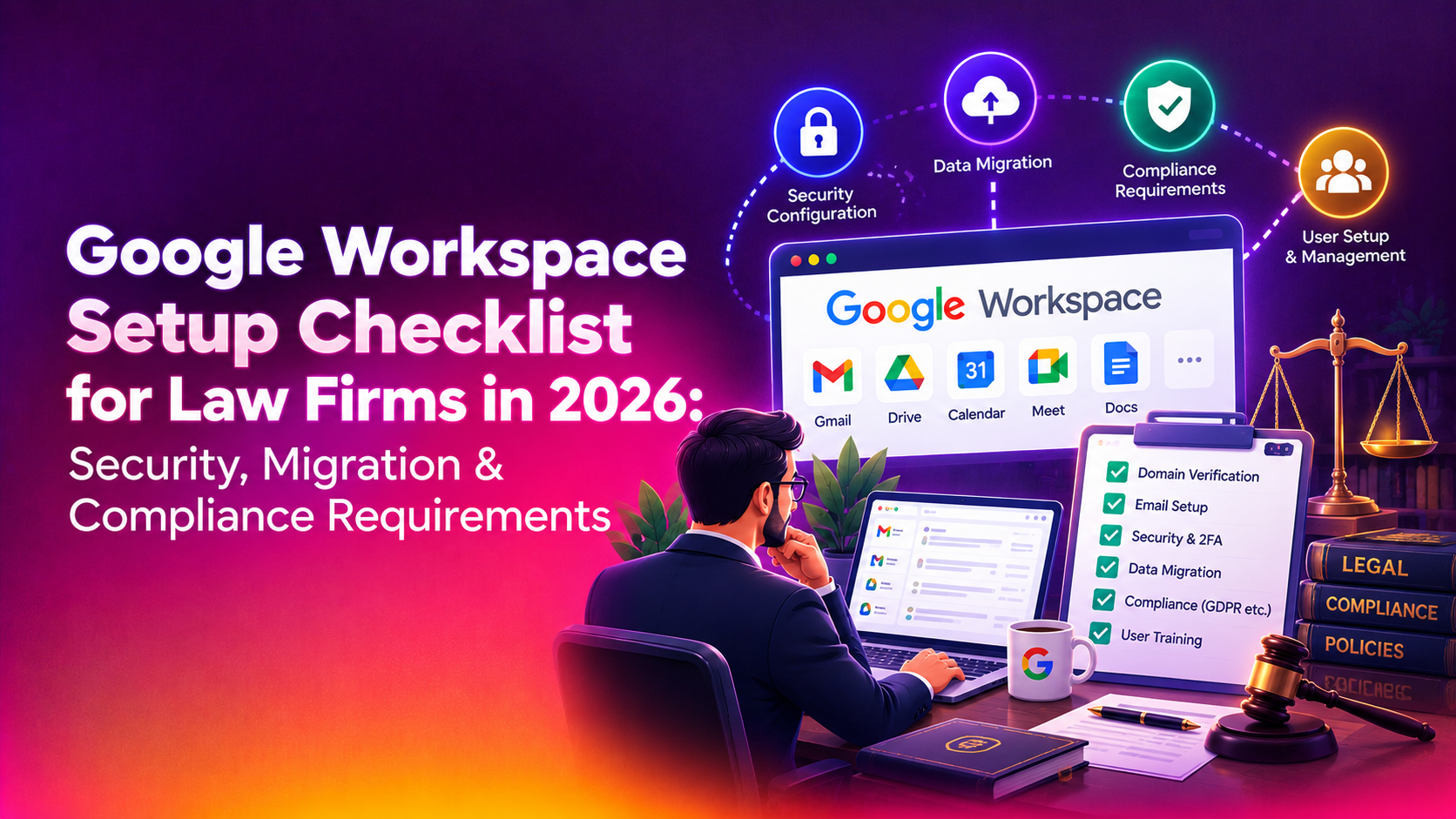
Migrating a law firm to Google Workspace is not the same project as migrating a retail shop or a marketing agency. Every mailbox may contain privileged client communications, every deleted email could later matter in an e-discovery request, and every misconfigured sharing setting is a potential ethics complaint waiting to happen. This Google Workspace setup checklist for law firms walks through the exact sequence -- migration, retention, security, admin controls, and staff training -- that keeps a firm compliant and defensible from day one, not scrambling to fix gaps six months later.
Most generic "how to set up Google Workspace" guides skip the parts that matter most to legal practices: matter-based retention holds, bar-association confidentiality obligations, and audit trails that survive a malpractice inquiry. This guide fills those gaps.
Why Law Firms Can't Use a Generic Setup Checklist
A standard business Google Workspace rollout assumes IT can delete old data whenever it likes, that any staff member can share any file, and that "we'll figure out retention later" is an acceptable answer. None of that holds for a law firm. Retention schedules are often dictated by state bar rules, malpractice insurance requirements, or active litigation holds -- and getting this wrong before migration day means rebuilding your entire setup after the fact.
💡 None of these worked? Skip the guesswork.
Get Expert Help →Pre-Migration Checklist: What to Audit Before You Touch a Single Mailbox
List every attorney, paralegal, and admin mailbox in the legacy system (Exchange, Office 365, or an on-prem mail server), plus any shared intake or billing mailboxes. Note total storage per mailbox -- this determines migration time and whether you need Business Standard, Business Plus, or Enterprise licensing.
Before migration, flag any mailbox or folder subject to a litigation hold, subpoena, or bar-mandated retention period. These need to be preserved bit-for-bit during migration and mapped to Google Vault retention rules immediately after cutover -- not "sometime this quarter."
You'll need access to your domain registrar to update MX, SPF, DKIM, and DMARC records. Law firms frequently discover the person who registered the domain left the firm years ago -- resolve registrar access before scheduling a migration date.
Map who currently has access to which client files and shared drives. This becomes your baseline for configuring Shared Drive permissions correctly in Workspace instead of copying over years of permission sprawl.
For firms under roughly 50 mailboxes, Google Workspace Migration for Microsoft Exchange (GWMME) or a third-party IMAP migration tool is usually sufficient. Larger firms should use Google's Data Migration Service or a managed migration partner who can run parallel syncs and reconcile mailbox counts before and after.
Never migrate the managing partner's mailbox first. Pilot with a paralegal or admin account, verify message counts, folder structures, and calendar entries match exactly, then scale up.
This is the step most DIY migrations skip -- and the one that causes the most panic. Export a pre-migration count of messages per mailbox and compare it against the post-migration count in Gmail. Any discrepancy needs to be investigated and re-synced before you decommission the old system.
Do not delete or decommission your old email server the day migration finishes. Keep it accessible in read-only mode for a minimum of 30 days as a safety net while staff confirm nothing is missing.
When moving documents into Shared Drives, map old folder permissions to new Shared Drive membership rather than defaulting everyone to firm-wide access. Client matter folders should be restricted to the assigned matter team by default.
Enable 2-Step Verification as an organization-wide enforced policy in the Admin Console, not an opt-in setting. Attorney and partner accounts are high-value phishing targets specifically because compromising one can expose privileged client data across dozens of matters.
Under Admin Console > Apps > Gmail > Safety, enable the pre-delivery message scanning options, attachment protection, and external reply warnings. Law firms are disproportionately targeted by wire-fraud and business email compromise scams impersonating opposing counsel or title companies.
Restrict access to firm data based on device security status and location where the license tier allows it, especially for attorneys accessing client files from courthouse Wi-Fi or personal devices.
Change the default so new Shared Drives cannot be shared outside the domain without explicit admin approval. Client confidentiality obligations under most state bar rules require you to control -- and be able to prove you controlled -- who had access to matter files at any point in time.
Turn on the Admin Console audit log for Drive, Gmail, and login activity. Configure alerts for mass downloads, external sharing of client folders, and logins from unrecognized locations -- this is often the first evidence requested if a confidentiality breach is ever alleged.
Google Vault is included in Business Plus and Enterprise plans but requires explicit per-user licensing and setup -- it is not automatically capturing data the moment you migrate.
Most jurisdictions require client file retention for a minimum period after matter closure (commonly five to seven years, longer for trust accounting records). Configure Vault retention rules to match these periods per practice area rather than applying one blanket rule firm-wide.
When a hold applies to a specific matter, apply it to the relevant custodians and date range in Vault rather than placing a firm-wide hold that balloons storage costs and makes searches unmanageable.
Run a practice Vault search and export for a closed, non-sensitive matter to confirm your team knows how to produce records under deadline pressure. The first time anyone touches Vault export should not be during an actual discovery deadline.
Create separate OUs for partners, associates, paralegals, and administrative staff so that security policies, app access, and mobile device rules can differ by role -- partners often need broader Drive access; admin staff usually don't need Vault access at all.
Require device screen locks, enable remote wipe for lost or stolen devices, and set minimum OS version requirements before attorneys start syncing firm email to personal phones -- retrofitting MDM after adoption is far harder than requiring it at rollout.
Most firms run Clio, MyCase, or similar practice management tools alongside Workspace. Configuring SSO reduces password fatigue and, more importantly, reduces the number of separate credential sets that could be phished or reused.
Review and restrict which third-party apps can request OAuth access to Drive and Gmail data. Unreviewed app access is one of the most common ways client data leaks out of an otherwise well-secured Workspace tenant.
Partners need training on Vault holds and Shared Drive permissions; paralegals need training on document version control and client folder structure; admin staff need training on calendar and intake mailbox management. A single all-staff webinar rarely sticks.
Agree on matter-folder naming conventions in advance so migrated files land in a structure attorneys can actually navigate, rather than replicating years of inconsistent legacy folder sprawl.
Staff will hit edge cases -- missing calendar invites, permission questions, mobile setup issues -- for weeks after go-live. Budget for a defined support period rather than assuming the migration is "done" the day mailboxes move.
Firms that migrate all attorneys and staff simultaneously lose the ability to isolate problems. If message counts don't reconcile for one department, you want to know that before 40 other mailboxes have the same issue. Stagger migration by practice group over one to two weeks so any sync errors are caught early and fixed before they compound.
Retention schedules should be signed off by whoever handles the firm's risk and compliance obligations -- often the managing partner or general counsel -- before Vault rules are configured, not decided unilaterally by whoever is running the migration. A retention period that's too short can violate bar rules; one that's too long increases storage costs and expands the scope of any future discovery request.
Solo practitioners and small firms sometimes try to save money by using personal Gmail accounts instead of a licensed Business or Enterprise plan. Consumer accounts lack admin console controls, Vault, enforced 2FA policies, and audit logging -- all of which are difficult to defend as adequate safeguards if a confidentiality issue is ever raised with a bar association or malpractice carrier.
Many bar associations and cyber-insurance policies now expect firms to have a documented data handling policy referencing where client data is stored and how it's protected. Once Workspace is configured, write a short internal policy document describing your retention rules, 2FA enforcement, and Shared Drive access model -- this becomes evidence of due diligence if it's ever needed.
Google Workspace Plan Comparison for Law Firms
| Plan | Approx. Price/User/Month | Google Vault Included | Best Fit |
|---|---|---|---|
| Business Starter | $7 | No | Solo practitioners with minimal e-discovery exposure |
| Business Standard | $14 | No | Small firms without active litigation holds |
| Business Plus | $22 | Yes | Most law firms -- Vault, enhanced security, and eDiscovery |
| Enterprise | Custom pricing | Yes, advanced | Larger firms needing DLP, advanced endpoint management, and S/MIME encryption |
For most firms handling any litigation work, Business Plus is the practical minimum because it is the first tier that includes Google Vault for retention and e-discovery.
Why Law Firms Choose CloudHouse for Google Workspace Setup
CloudHouse configures Google Workspace and Vault specifically around bar-association retention rules and litigation-hold workflows, rather than treating a law firm rollout like any other small-business migration. Our team reconciles every mailbox count before and after migration, hardens Admin Console settings against phishing and business email compromise, and documents the entire configuration so your firm can demonstrate compliance if a client confidentiality question ever comes up. If you're planning a move, our Google Workspace setup service handles the full checklist above end-to-end, with a fixed scope and timeline agreed before work starts.
Get Your Firm's Workspace Set Up Correctly the First Time
A rushed Google Workspace setup creates problems that surface months later -- during an audit, a malpractice claim, or a discovery deadline. Working through this checklist in order, or handing it to a partner who has done it for other law firms, is the difference between a smooth transition and a compliance headache. Talk to CloudHouse about a fixed-scope Google Workspace setup for your firm and get a migration plan, security configuration, and Vault retention schedule built around your practice areas before you move a single mailbox.
Ready to move forward? Request a free Google Workspace setup consultation and get a written migration timeline within 48 hours.