Why Force Quit Stops Working on macOS (Root Causes Explained)
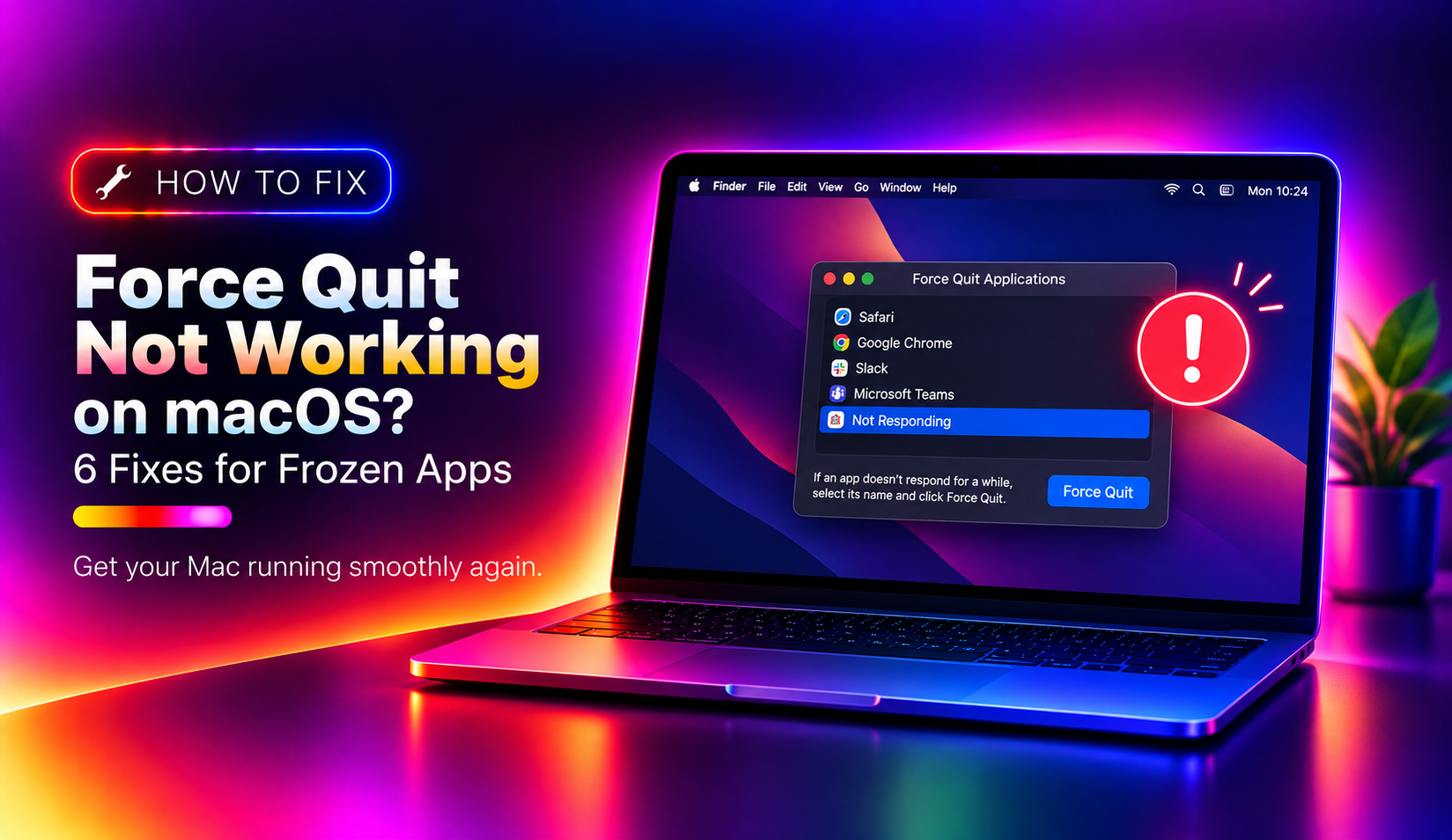
Force Quit is one of macOS's most essential recovery tools. When an app freezes and the spinning beach ball appears, pressing Command + Option + Esc should open the Force Quit Applications window and let you close the offending process. But in 2026, users on macOS Sequoia and the newly released macOS Tahoe are reporting that this shortcut either does nothing, opens a grayed-out dialog, or lists the frozen app as "(Not Responding)" with no way to close it.
Understanding why this happens is the first step to fixing it. Here are the most common root causes:
- System-level freeze: When the macOS kernel itself or a core system process hangs, the Force Quit dialog cannot receive input events — it opens but is unresponsive.
- Corrupted app cache or preferences: Bloated or malformed
~/Library/Cachesentries and.plistpreference files can cause an app to spin up indefinitely at launch or during a task. - Insufficient RAM or swap pressure: macOS uses compressed memory (swap), but when physical RAM and SSD swap are both exhausted, processes stall waiting for memory pages — Force Quit may appear to hang because the OS itself is under extreme pressure.
- Stuck kernel extension or driver: Third-party kernel extensions (kexts) or audio/USB drivers that crash can deadlock the entire event system, making keyboard shortcuts non-functional.
- Runaway background process: A background daemon (such as a cloud sync agent, antivirus scanner, or backup utility) consuming 100% CPU can starve the UI thread, making Force Quit appear frozen.
- macOS Sequoia/Tahoe-specific regression: Several users on Apple's Developer Forums have reported that Stage Manager interactions and new windowing APIs introduced in Sequoia can cause the window server (
WindowServer) to deadlock, fully blocking Force Quit.
With the root causes in mind, let's go through every proven fix — from the least disruptive to the most aggressive.
Fix 1: Use Activity Monitor to Kill the Frozen Process
When Command + Option + Esc fails, Activity Monitor is your next best tool. It operates at a lower level than the Force Quit dialog and can terminate processes the dialog cannot reach.
- Open Spotlight Search with Command + Space, type Activity Monitor, and press Enter.
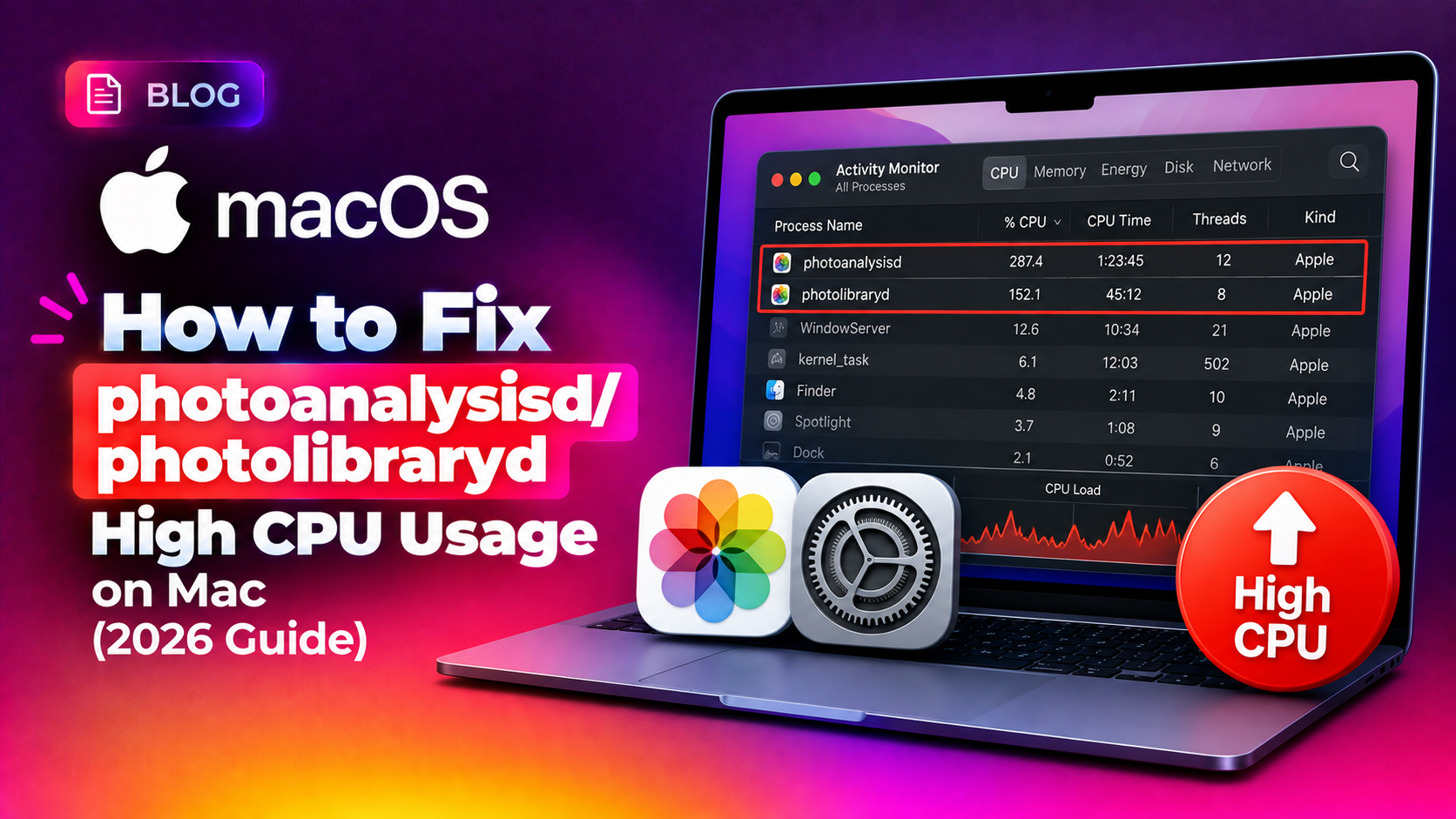
- In the CPU tab, click the % CPU column header to sort by CPU usage in descending order. A frozen app often sits at the top consuming 99–100% CPU.
- Locate the frozen application in the list. It may show a status of (Not Responding) highlighted in red.
- Select the process row and click the Stop (X) button in the toolbar at the top-left of the window.
- A dialog will ask whether to Quit or Force Quit. Click Force Quit.
- If the app spawned child processes (common with Electron apps like VS Code or Slack), repeat the step for any remaining child processes bearing the same name.
Pro tip: Switch to the Memory tab and check the Memory Pressure graph at the bottom. If it is solid red, your Mac is under severe memory pressure — closing other apps and restarting is the right next step even after killing the frozen process.
Fix 2: Kill the App via Terminal with the kill or killall Command
The macOS Terminal gives you direct access to the Unix process management layer, bypassing the graphical Force Quit system entirely. This method works even when the entire Dock and menu bar are unresponsive, as long as you can open a Terminal window.
Method A — killall (easiest, use the app name)
Open Terminal (Spotlight → Terminal) and run:
killall "App Name"Replace App Name with the exact process name. For example:
killall "Safari"
killall "Finder"
killall "Slack"
If a graceful kill does not work, send the SIGKILL signal (signal 9), which cannot be ignored by any process:
killall -9 "Safari"Method B — kill with PID (for precise targeting)
First, find the Process ID (PID) of the frozen app:
ps aux | grep -i "AppName"The second column in the output is the PID. Then terminate it:
kill -9 <PID>For example, if Safari's PID is 4821:
kill -9 4821Method C — pkill (pattern-based matching)
pkill -9 -f "Safari"This matches any process whose full command line contains the string "Safari", making it useful when you are unsure of the exact process name.
Important: Never run kill -9 1 or killall -9 launchd — killing PID 1 (launchd) will cause an immediate kernel panic and force a hard reboot.
Fix 3: Log Out or Force Restart to Clear System-Level Freezes
When individual process kills do not resolve the problem — particularly when the Dock is frozen, the menu bar is unresponsive, or the entire screen appears stuck — you are likely dealing with a system-level freeze involving WindowServer, loginwindow, or a kernel-level deadlock. In these cases, a log out or force restart is the correct fix.
Option A — Log Out via keyboard shortcut
Press Command + Shift + Option + Q to immediately log out without a confirmation dialog. This kills all user-space processes and restarts loginwindow, often clearing the freeze without a full system reboot.
Option B — Restart from the Apple menu
If the menu bar is responsive, click the Apple logo () → Restart. Uncheck "Reopen windows when logging back in" to prevent the frozen app from relaunching automatically.
Option C — Force restart (last resort)
If the screen is completely frozen and no keyboard shortcuts work:
- MacBook or iMac: Hold the Power button for 10 seconds until the screen goes black, then press it again to start.
- Mac with Apple Silicon: Hold the Power button until "Loading startup options" appears, then select your startup disk and restart normally.
After a force restart, macOS will offer to send a crash report to Apple. Submitting it helps Apple identify patterns in Sequoia/Tahoe freezes.
Note: A force restart risks losing unsaved work in any open application. Always try graceful methods (log out, Terminal kill) before reaching for the power button.
Fix 4: Repair App Permissions and Clear Corrupted Cache Files
If the same app freezes repeatedly and force quit does not resolve the underlying issue, the problem is almost certainly corrupted cache files or a malformed preference file. Clearing these often permanently resolves the freeze.
Step 1 — Delete app cache files
Open Finder, press Command + Shift + G, and navigate to:
~/Library/CachesFind the folder named after the problematic application (e.g., com.apple.Safari, com.tinyspeck.slackmacgap) and move it to the Trash. Restart the app — macOS will recreate a fresh cache automatically.
Step 2 — Remove corrupted preference files
Navigate to:
~/Library/PreferencesFind .plist files matching the app bundle ID and move them to the Trash. For example, for Safari:
com.apple.Safari.plist
com.apple.SafariServices.plist
Or do it via Terminal:
defaults delete com.apple.Safari
killall cfprefsd
Step 3 — Reset app permissions with tccutil
Broken permission grants can cause apps to hang waiting for access to Camera, Microphone, or Contacts. Reset them with:
tccutil reset All com.apple.SafariReplace the bundle ID with the one matching your frozen app. You can find the bundle ID by running:
osascript -e 'id of app "Safari"'Step 4 — Run First Aid on your startup disk
Open Disk Utility (Spotlight → Disk Utility), select your startup volume, and click First Aid. This repairs directory corruption and permission mismatches at the filesystem level — a common cause of persistent app freezes on macOS Sequoia.
If you are still experiencing persistent freezes with multiple apps, consider reaching out to professional PC support for a deeper system diagnostic.
Prevention: Stop macOS App Freezes Before They Start
Fixing a frozen app is reactive. Here is how to prevent the spinning beach ball from appearing in the first place on macOS Sequoia and Tahoe in 2026:
- Keep macOS and apps updated: Apple pushes point releases (e.g., macOS Sequoia 15.x) specifically to fix kernel-level deadlocks and WindowServer crashes. Check System Settings → General → Software Update weekly.
- Restart your Mac at least once a week: macOS accumulates memory leaks, zombie processes, and stale kernel state over long uptimes. A weekly restart clears all of this. Open the Apple menu → Restart, and uncheck "Reopen windows" to start fresh.
- Monitor memory pressure proactively: Open Activity Monitor → Memory tab and keep an eye on the Memory Pressure graph. If it regularly turns yellow or red, consider upgrading RAM (on Intel Macs) or reducing open app count on Apple Silicon.
- Avoid beta macOS releases on production machines: macOS Tahoe beta builds shipped in mid-2026 with known WindowServer instability. Stay on the latest stable release unless you need beta features.
- Manage login items: Too many startup agents degrade boot performance and consume background CPU. Go to System Settings → General → Login Items and remove anything you do not actively need.
- Clear the system-wide cache periodically: In Terminal, run
sudo purgeto flush inactive memory, or use a maintenance tool to clear system caches monthly. - Remove problematic kernel extensions: Third-party kexts from older apps (audio interfaces, VPNs, legacy antivirus) can deadlock the system. Check System Settings → Privacy & Security → System Extensions and remove those from apps you no longer use.
FAQ: Force Quit and Unresponsive App Questions Answered
Q1: Why does Command + Option + Esc do nothing on my Mac?
The most common reason is that the keyboard shortcut event is not being received by the system — this happens when WindowServer is deadlocked or when another application has captured the keyboard (such as a full-screen game or a remote desktop session). Try clicking the Desktop first to give focus back to the Finder, then press the shortcut. If that fails, use Terminal's killall command instead.
Q2: Can I force quit an app without using the keyboard?
Yes. Right-click (or Control-click) the frozen app's icon in the Dock, hold the Option key, and the "Quit" option transforms into Force Quit. Click it. Alternatively, open Activity Monitor via Spotlight and use the Stop button there — no keyboard shortcut required.
Q3: What is the spinning beach ball (SBBOD) and why does it appear?
The Spinning Wait Cursor (informally called the "spinning beach ball of death" or SBBOD) appears when an application's main thread is blocked for more than a few seconds — typically waiting on a disk read, a network response, or a locked resource. macOS displays it automatically to indicate the app is not processing input events. If it persists beyond 30 seconds, the app is almost certainly frozen and should be force-quit.
Q4: Will force quitting an app delete my unsaved work?
Yes — any unsaved changes in the frozen app will be lost when you force quit. Many modern macOS apps (Pages, Numbers, Keynote, TextEdit) use the Auto Save and Versions system, which periodically saves your document automatically. When you reopen the app after a force quit, macOS often offers to restore your last auto-saved version. Check for an "Autosave" or "Recovered" document in the app's recent files list.
Q5: My Mac freezes completely — even the mouse cursor stops. What should I do?
A fully frozen cursor usually indicates a kernel panic or a WindowServer crash rather than a single app freeze. Wait 30–60 seconds to see if the system recovers on its own. If it does not, perform a force restart by holding the Power button for 10 seconds. After reboot, open the Console app (Applications → Utilities → Console) and check Crash Reports and System Logs to identify the responsible process. Recurring kernel panics may indicate failing hardware (RAM or SSD) and should be diagnosed with Apple Diagnostics (hold D at startup).