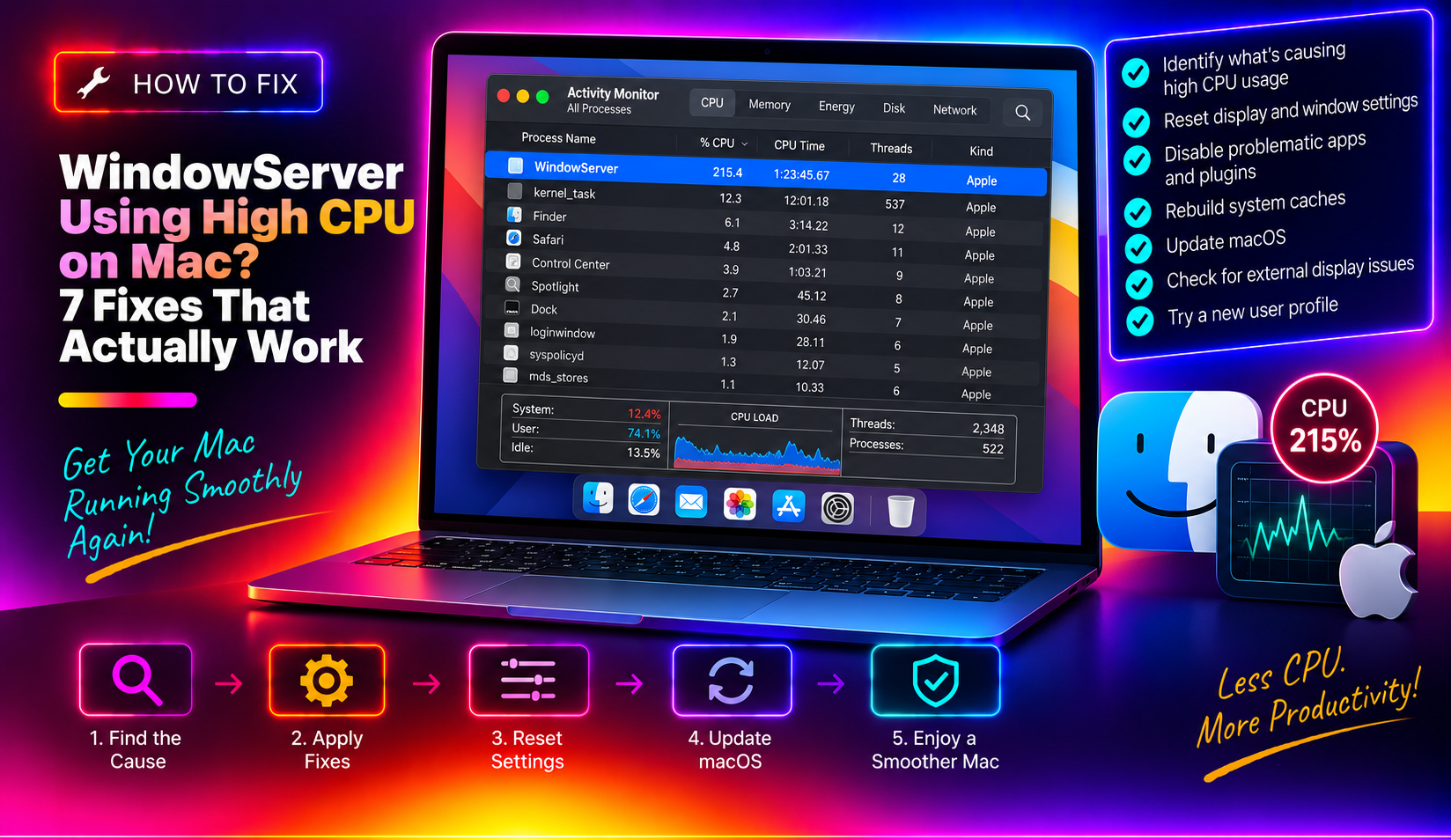
What Is WindowServer and Why Is It Eating Your CPU?
If you've opened Activity Monitor on your Mac and noticed a process called WindowServer sitting near the top of the CPU or memory list, you're not alone. In 2026, this is one of the most common performance complaints from Mac users — especially those who upgraded to macOS Tahoe.
WindowServer is the core system process responsible for drawing everything you see on screen. Every window, menu, animation, transparency blur, shadow, and icon is rendered by WindowServer. It acts as the bridge between your apps and your display hardware. Without it, your Mac would show nothing at all.
Under normal conditions, WindowServer is lightweight. But several factors cause it to spike and hog CPU or RAM:
- macOS Tahoe's Liquid Glass interface — Apple's new design language in macOS 26 Tahoe introduced a heavily layered transparency and shadow rendering pipeline. This dramatically increases compositing work for WindowServer, especially on older or mid-range Macs.
- Desktop clutter — Every file on your desktop is treated as its own window object that WindowServer must track, composite, and render. 200 files on the desktop = 200 extra render targets.
- Multiple external displays — Each display creates an independent compositor context. Ultra-wide or high-refresh-rate monitors multiply WindowServer's workload significantly.
- Browser GPU compositing — Chrome and Firefox push GPU compositing tasks that interact directly with WindowServer. Heavy tab usage can cause a feedback loop between the browser and WindowServer.
- Electron app rendering bugs in Tahoe — A known bug in macOS Tahoe caused Electron-based apps (Slack, Discord, Figma, VS Code) to override macOS's native corner rendering, creating an endless redraw loop in WindowServer. Updated builds from these apps resolve the issue.
- Long uptime and memory pressure — Over time, WindowServer accumulates memory it doesn't release. Users report memory pressure rising sharply after 3–5 days without a restart on macOS Tahoe.
The good news: most WindowServer high CPU issues are fixable with software changes — no hardware upgrades needed. Below are 7 proven fixes ordered from quickest to most thorough.
7 Fixes for WindowServer High CPU and Memory on Mac
Fix 1 – Reduce Transparency and Motion Effects
This is the single fastest fix available and the most effective for macOS Tahoe users. Transparency blur effects are rendered entirely by WindowServer. Disabling them can cut WindowServer CPU usage by 30–50% on Liquid Glass-heavy interfaces.
Steps to disable Reduce Transparency and Reduce Motion:
- Click the Apple menu in the top-left corner of your screen.
- Select System Settings.
- In the left sidebar, click Accessibility.
- Click Display from the list.
- Toggle on Reduce transparency.
- Also toggle on Reduce motion to eliminate transition animations.
These two toggles together remove the most resource-intensive visual effects macOS renders. The interface will look slightly less polished but will respond noticeably faster — and WindowServer will breathe again.
Fix 2 – Clean Up Your Desktop Icons
macOS treats every single item on your desktop as an individual window object that WindowServer must track, composite, and render. A desktop with 150 files is effectively asking WindowServer to manage 150 extra layers at all times.
Steps to declutter your desktop:
- Open a Finder window and create a new folder (e.g., "Desktop Dump").
- Select all items on your desktop with Cmd + A.
- Drag them into the new folder, or right-click and use Use Stacks to auto-group files by kind, date, or tag.
- Move the folder to your Documents or an external drive.
To enable Stacks quickly, right-click any empty area of the desktop and choose Use Stacks. This collapses all loose files into grouped stacks, dramatically reducing the number of objects WindowServer must track.
Fix 3 – Limit Open Windows, Spaces, and Browser Tabs
Every open window and virtual desktop (Space) that macOS maintains requires WindowServer to keep a compositor context alive for it. The more Spaces and windows you have, the more rendering work WindowServer does even when those windows are hidden.
Steps to reduce Spaces and window count:
- Open System Settings → Desktop & Dock.
- Scroll to the Mission Control section.
- Disable Automatically rearrange Spaces based on most recent use.
- Disable Displays have separate Spaces if you use multiple monitors.
- Open Mission Control and close any Spaces you're not actively using.
- In Chrome, go to Settings → Performance and enable Memory Saver to discard inactive tabs.
Fix 4 – Disconnect or Reconfigure External Displays
External monitors — particularly ultra-wide displays, 4K panels, or high-refresh-rate screens — significantly increase WindowServer's rendering workload. Each display requires its own compositor pass.
Steps to test and reconfigure external displays:
- Temporarily disconnect all external displays and check Activity Monitor to see if WindowServer CPU drops.
- If a display is the culprit, open System Settings → Displays.
- Select the external display and lower the Refresh Rate from 120Hz to 60Hz.
- Reduce the display Resolution to a scaled setting to reduce compositor pixel load.
Fix 5 – Disable GPU Compositing in Chrome or Firefox
Both Chrome and Firefox use hardware GPU compositing that hands off rendering work to macOS's window compositor — which runs through WindowServer. When this pipeline misbehaves, WindowServer CPU spikes even when you aren't actively using the browser.
To disable GPU compositing in Chrome:
- In Chrome's address bar, type
chrome://flagsand press Enter. - Search for GPU compositing and set it to Disabled.
- Click Relaunch.
Or launch Chrome from Terminal:
open -a "Google Chrome" --args --disable-gpu-compositingTo disable hardware acceleration in Firefox:
- Open Firefox → Settings → General → Performance.
- Uncheck Use recommended performance settings.
- Uncheck Use hardware acceleration when available.
- Restart Firefox.
Fix 6 – Restart WindowServer Without Rebooting
If WindowServer has spiked and your Mac feels sluggish, you can kill and restart the WindowServer process from Terminal. This logs you out of your current session and restarts the display compositor.
Important: Save all open work before running this command. All open windows will close.
sudo killall WindowServerSteps:
- Open Terminal (Applications → Utilities → Terminal).
- Type the command above and press Enter.
- Enter your administrator password when prompted.
- Your screen will go black for a few seconds and return to the login screen.
- Log back in. WindowServer restarts fresh with cleared compositor state.
Fix 7 – Update macOS and Reset Display Preferences
Several confirmed bugs in macOS Tahoe directly affect WindowServer performance. A rendering bug in Electron-based applications (Slack, Discord, Figma, VS Code) caused WindowServer to enter a continuous redraw loop for app window shadows. Apple and app developers have shipped fixes.
Steps:
- Open System Settings → General → Software Update and install available updates.
- Update all apps via the App Store → Updates tab, especially Slack, Discord, Figma, and VS Code.
- Reset display preferences via Terminal:
sudo rm -rf /Library/Preferences/com.apple.windowserver.plist sudo rm -rf ~/Library/Preferences/com.apple.windowserver.plist - Restart your Mac. macOS regenerates the preference files with safe defaults.
If you've tried all 7 fixes and WindowServer is still causing problems, you can get expert Mac support from CloudHouse Technologies — our certified Mac technicians diagnose and resolve WindowServer and macOS performance issues remotely.
FAQ
Is WindowServer a virus or malware?
No. WindowServer is a legitimate, essential macOS system process responsible for all graphical rendering on your Mac. High CPU usage from WindowServer is a performance issue, not a security threat. Verify it is genuine by checking that it runs as the _windowserver user in Activity Monitor.
Why did WindowServer start using high CPU after updating to macOS Tahoe?
macOS Tahoe's Liquid Glass design uses heavily layered transparency, dynamic shadows, and blur effects that significantly increase WindowServer's workload. A bug in Electron-based apps (Slack, Discord, Figma) also caused a WindowServer redraw loop in early Tahoe builds. Installing the latest macOS and app updates resolves the Electron-specific issue.
Will killing WindowServer with sudo killall WindowServer damage my Mac?
No, it will not damage your Mac or the operating system. However, all open applications will force-close, so any unsaved work will be lost. Always save your work before running the command. Your Mac returns to the login screen within seconds and resumes normal operation after logging back in.
How do I know if WindowServer high CPU is caused by my browser?
Open Activity Monitor and check if Chrome Helper (Renderer) or Firefox processes are also using high CPU alongside WindowServer. Quit your browser entirely and watch whether WindowServer CPU drops within 30 seconds. If it does, the browser's GPU compositing pipeline is the cause.
Can too many external monitors permanently damage WindowServer performance?
No, the impact is not permanent. Disconnecting extra displays or lowering their refresh rate returns WindowServer CPU to normal immediately. For persistent multi-monitor setups, consider a Mac with dedicated GPU resources such as the MacBook Pro M-series or Mac Studio.