
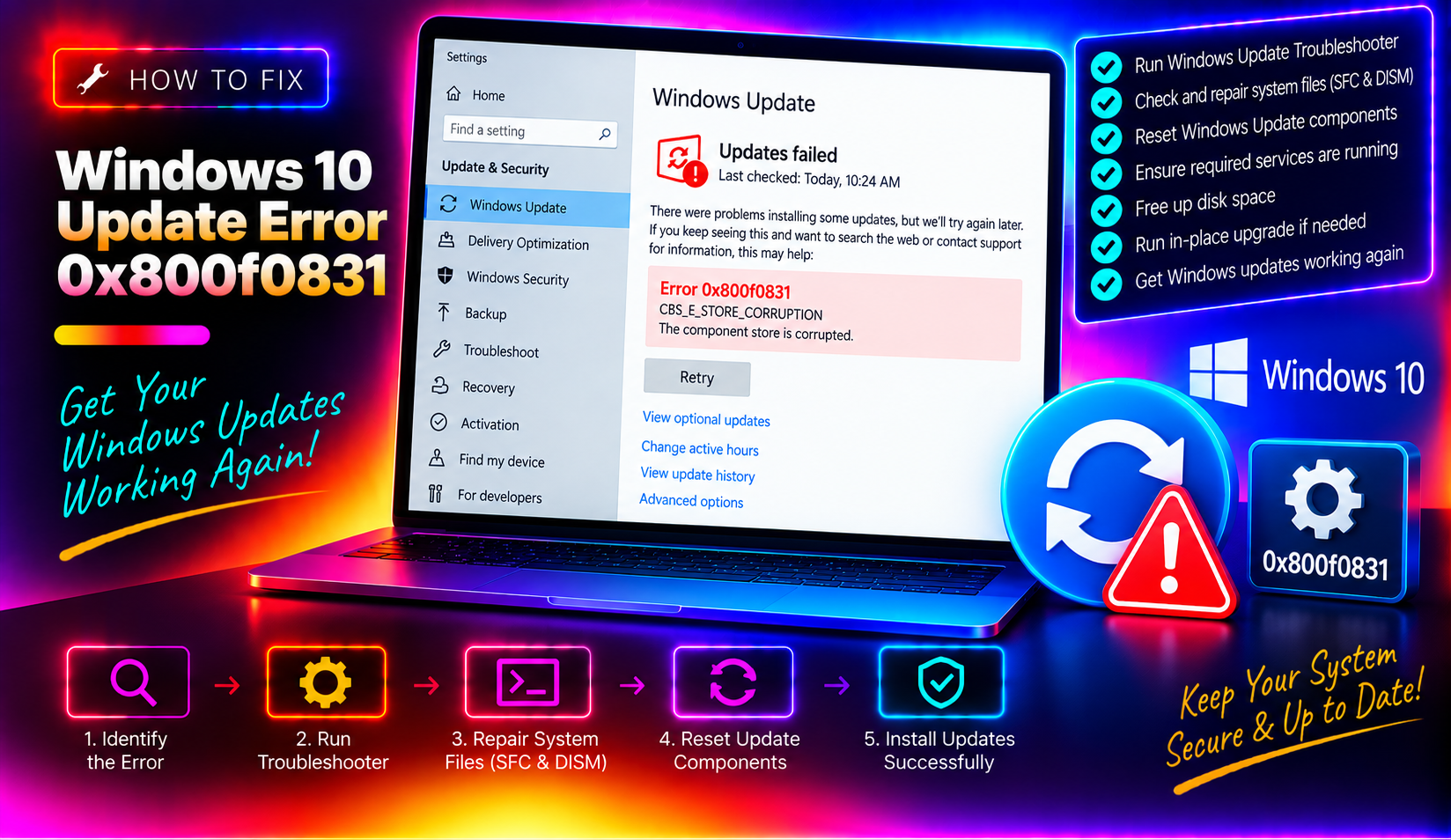
What Is Windows 10 Update Error 0x800f0831 and Why It Happens in 2026
If you've tried to install the latest Windows 10 cumulative update and been greeted with the cryptic error code 0x800f0831, you're not alone. Thousands of users hit this wall every month — and in 2026, reports spiked sharply following the May and June patch cycles.
Officially, 0x800f0831 maps to CBS_E_STORE_CORRUPTION — meaning the Windows Component Store (the internal database that tracks every installed Windows component) has become corrupted or is missing a required manifest from a prior update. In plain English: Windows can't figure out what was last installed, so it refuses to stack the new patch on top.
Common triggers in 2026 include:
- A previous cumulative update (such as KB5058379 or KB5060533) that half-installed before a forced shutdown or power cut
- An interrupted download leaving corrupt
.cabor.esdfiles in the SoftwareDistribution cache - Third-party security software that quarantined an update file mid-extraction
- Missing or disabled .NET Framework 3.5, which some KB updates depend on as a prerequisite
- Accumulated manifest drift — each skipped or failed monthly patch makes the component store a little less coherent
The frustrating part? The error reappears month after month because none of these guides address the root cause: the component store stays broken until you actively repair it. Every new cumulative update tries to reference the same missing manifest and fails again. The fixes below work through the problem in order of effort — start at the top and stop as soon as one works.
Quick Fix: Run the Windows Update Troubleshooter First
Before touching the command line, let Windows try to diagnose itself. The built-in troubleshooter catches the most common causes — stale lock files, paused services, and partial downloads — in about two minutes.
- Press Win + I to open Settings.
- Go to Update & Security > Troubleshoot > Additional troubleshooters.
- Click Windows Update, then Run the troubleshooter.
- Let it complete, then click Apply this fix if prompted.
- Restart your PC and check Windows Update again.
If the troubleshooter reports "no problems found" or the error returns on the next update attempt, move to Fix 1.
Fix 1: Repair Corrupted System Files with DISM and SFC
This is the highest-yield fix for 0x800f0831 and should be the first thing you try from an elevated command prompt. DISM reaches out to Windows Update servers to pull down fresh copies of any corrupted component store files; SFC then sweeps the entire system to verify and restore protected OS files.
Open Command Prompt as Administrator (search cmd, right-click, Run as administrator) and run the following commands in order, waiting for each to finish before running the next:
DISM /Online /Cleanup-Image /CheckHealthDISM /Online /Cleanup-Image /ScanHealthDISM /Online /Cleanup-Image /RestoreHealthsfc /scannowThe /RestoreHealth step can take 15–30 minutes and may briefly stall at 20% — this is normal. Once complete, restart your PC and run Windows Update again.
If DISM fails with "source files could not be found"
DISM needs internet access to reach Windows Update. If you're behind a proxy or the server is unreachable, mount a Windows 10 ISO and point DISM at it:
DISM /Online /Cleanup-Image /RestoreHealth /Source:D:\sources\install.wim /LimitAccessReplace D: with the drive letter of your mounted ISO.
Fix 2: Clear the SoftwareDistribution Folder and Restart Update Services
The SoftwareDistribution folder is Windows Update's download cache. If a partially downloaded update file is sitting there, Windows will keep trying to use it — and keep failing. Deleting the folder forces a fresh download.
In an Administrator Command Prompt, run these commands one line at a time:
net stop wuauserv
net stop cryptSvc
net stop bits
net stop msiserver
ren C:\Windows\SoftwareDistribution SoftwareDistribution.old
ren C:\Windows\System32\catroot2 catroot2.oldnet start wuauserv
net start cryptSvc
net start bits
net start msiserverRestart your PC, then open Windows Update and check for updates. Windows will recreate the SoftwareDistribution folder automatically and re-download any pending patches.
Note: The renamed SoftwareDistribution.old folder can be deleted later to reclaim disk space — usually 1–5 GB.
Fix 3: Manually Download and Install the Failed KB Update
If the automated update pipeline keeps failing, bypass it entirely. Microsoft's Update Catalog lets you download any KB package as a standalone installer.
- Open Windows Update (Win + I > Update & Security > Windows Update) and note the KB number shown in the error — for example, KB5058379.
- Visit catalog.update.microsoft.com and search for that KB number.
- Download the version matching your system type (x64-based for most modern PCs, ARM64 for Surface Pro X and similar).
- Double-click the downloaded
.msufile and follow the installation wizard. - Restart when prompted.
This approach sidesteps the broken component store lookup that triggers 0x800f0831, because the standalone installer uses a different code path to apply the update.
Fix 4: Enable .NET Framework 3.5 and Check Optional Features
Several cumulative updates — particularly those that include servicing stack updates — require .NET Framework 3.5 to be present. If it's disabled in Windows Features, the update fails silently with 0x800f0831.
- Press Win + R, type
optionalfeatures, and press Enter. - In the Windows Features dialog, expand .NET Framework 3.5 (includes .NET 2.0 and 3.0).
- Check the top-level box and click OK.
- Windows will download and enable the feature — allow it to complete, then restart.
Also verify that Windows Process Activation Service and Internet Information Services (if applicable) are not in a partially-enabled state, as these can cause manifest mismatches in the component store.
Disable antivirus real-time protection temporarily
Some endpoint security products intercept Windows Update's file extraction and quarantine files they misidentify as threats. Before your next update attempt, temporarily disable real-time protection in your security software (re-enable it immediately after the update completes). In Windows Security: Virus & Threat Protection > Manage settings > Real-time protection: Off.
Fix 5: Perform an In-Place Upgrade Repair (When All Else Fails)
If every command-line fix has failed, the component store is too far gone for DISM to patch. An in-place upgrade reinstalls Windows 10 over itself — preserving your files, apps, and settings — while completely rebuilding the component store from scratch. This is the nuclear option, but it resolves even the most stubborn cases of 0x800f0831.
- Download the Windows 10 Media Creation Tool from microsoft.com/software-download/windows10.
- Run it, choose Upgrade this PC now.
- When asked what to keep, select Keep personal files and apps.
- Proceed through the wizard — the upgrade takes 30–60 minutes.
After the in-place upgrade, Windows Update will work normally again. The component store is rebuilt clean, and subsequent monthly patches install without the 0x800f0831 error.
Important: Ensure you have at least 20 GB of free space on your C: drive before starting the upgrade. If disk space is tight, run Disk Cleanup (including system files) first.
Still Stuck? When to Get Expert Help
The fixes above resolve 0x800f0831 for the vast majority of users. But some systems have deeper issues — UEFI/Secure Boot misconfigurations, OEM-installed bloatware that hooks into the update process, or hardware storage errors causing silent write failures — that prevent even an in-place upgrade from completing cleanly.
Signs you need professional assistance:
- DISM consistently reports errors and cannot connect to Windows Update servers even with an active internet connection
- The in-place upgrade rolls back partway through with a different error code
- The error returns after every monthly patch cycle despite completing the fixes above
- Your PC is part of a corporate domain and Group Policy may be restricting update sources
In these situations, our professional desktop support team can remote into your system, run advanced diagnostics against the CBS log (C:\Windows\Logs\CBS\CBS.log), identify the exact missing or corrupted manifest, and apply a targeted fix — without a factory reset or data loss. We resolve Windows Update issues like this daily, typically within the same session.
Frequently Asked Questions
Q: What exactly does Windows 10 update error 0x800f0831 mean?
A: The error code 0x800f0831 corresponds to CBS_E_STORE_CORRUPTION, meaning the Windows Component Store — the internal database that tracks every installed Windows component and update — has become corrupted or is missing a manifest file from a previous update. Windows cannot safely apply new patches until the store is repaired.
Q: Why does the 0x800f0831 error keep coming back every month after I think I've fixed it?
A: Most generic fixes clear the symptom but not the root cause. If the component store's underlying corruption or the missing manifest from a prior update is not properly repaired using DISM RestoreHealth or an in-place upgrade, each new cumulative update will reference the same broken baseline and fail with the same error. Permanently resolving it requires repairing the component store, not just clearing the update cache.
Q: Is it safe to delete the SoftwareDistribution folder?
A: Yes, after stopping the relevant services first (wuauserv, bits, cryptSvc, msiserver). The folder contains only cached update downloads — no personal data. Windows recreates it automatically on next startup and re-downloads whatever is needed. Renaming it to SoftwareDistribution.old (rather than deleting) is recommended so you can restore it if something unexpected happens.
Q: Will an in-place upgrade repair delete my files or apps?
A: No. When you select "Keep personal files and apps" during the Media Creation Tool upgrade process, all your documents, photos, installed programs, and Windows settings are preserved. Only Windows system files are replaced. However, it is always good practice to back up important data before any major system operation.
Q: How do I find out which KB update is failing with error 0x800f0831?
A: Go to Settings > Update & Security > Windows Update and look at the update history — failed updates show the KB number alongside the error code. You can also check the CBS log at C:\Windows\Logs\CBS\CBS.log and search for "0x800f0831" to find the exact component or manifest that is missing.