
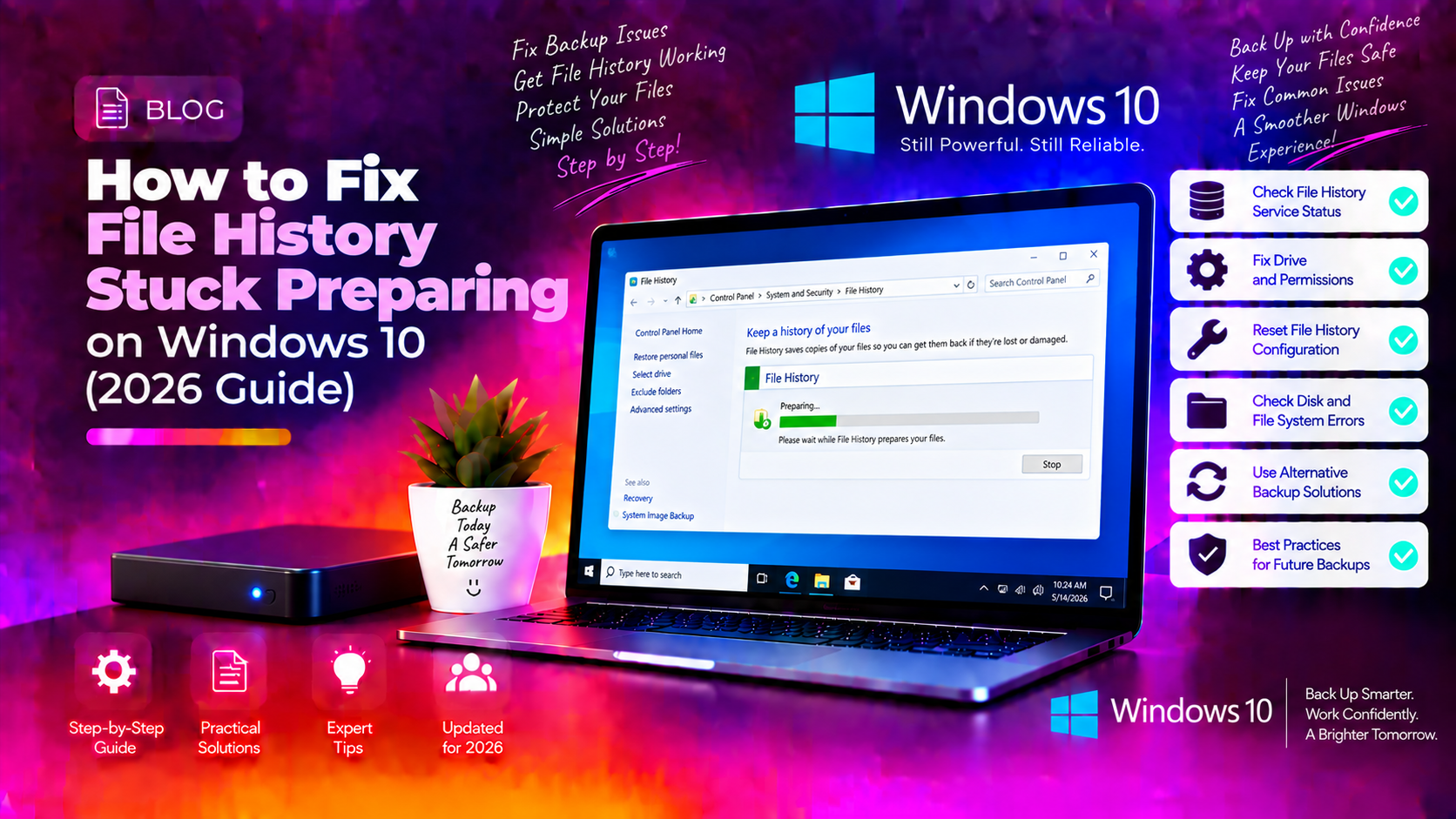
What Causes File History to Get Stuck
File History is one of Windows 10's most reliable built-in backup tools — when it works. But many users encounter a frustrating situation where File History appears to hang indefinitely on the message "Preparing your files for backup." Understanding the root causes is the first step to fixing it for good.
The most common culprits include:
- Corrupted File History index (catalog): The catalog database that tracks which files have been backed up can become corrupted after a system crash, update, or abrupt disconnection of the backup drive.
- Full or stale cache: Windows stores temporary backup metadata in
%LocalAppData%\Microsoft\Windows\FileHistory. When this cache grows too large or becomes corrupted, the backup process stalls. - File History Service not running: The File History Service (fhsvc) may have stopped or failed to start, causing backups to silently freeze.
- Drive connection or format issues: File History requires an NTFS-formatted drive. An incorrectly formatted, disconnected, or failing external drive triggers the stuck state.
- Windows Update conflicts: Cumulative updates in early 2026 introduced a bug where the
ProtectedUpToTimeregistry value becomes empty, breaking backup continuity. - Too many small files: Libraries containing millions of tiny files (like developer node_modules folders) can cause File History to appear stuck while it is actually scanning.
Now let's go through each proven fix step by step.
Fix 1: Clear the File History Cache
A corrupted or oversized File History cache is the single most common reason backups hang at the "preparing" stage. Clearing it forces Windows to rebuild the index from scratch.
- Press Win + R, type
services.msc, and press Enter. - Scroll down to File History Service, right-click it, and select Stop. Leave the Services window open.
- Press Win + R again and run:
%LocalAppData%\Microsoft\Windows\FileHistory - Delete (or rename as a backup) the Configuration and Data sub-folders inside that directory.
- Return to Services, right-click File History Service, and select Start.
- Open Settings > Update & Security > Backup and run a new backup.
You can also do this entirely from PowerShell (run as Administrator):
Stop-Service -Name fhsvc -Force
Remove-Item "$env:LOCALAPPDATA\Microsoft\Windows\FileHistory\Configuration" -Recurse -Force -ErrorAction SilentlyContinue
Remove-Item "$env:LOCALAPPDATA\Microsoft\Windows\FileHistory\Data" -Recurse -Force -ErrorAction SilentlyContinue
Start-Service -Name fhsvc
After the cache is cleared, File History will re-scan your files on the next backup cycle. The first backup after clearing may take longer than usual — that is normal.
Fix 2: Restart the File History Service
Sometimes the File History Service (fhsvc) enters a stuck or error state without fully stopping. A clean restart resolves this without any data loss.
- Right-click the Start button and select Windows PowerShell (Admin).
- Run the following commands one by one:
Stop-Service -Name fhsvc -Force
Start-Service -Name fhsvc
Get-Service -Name fhsvc
The last command should show Status: Running. If it shows Stopped or StartPending indefinitely, check the event log for errors:
Get-EventLog -LogName Application -Source "Microsoft-Windows-FileHistory-Core" -Newest 20You can also set the service to restart automatically after failures:
- In services.msc, double-click File History Service.
- Go to the Recovery tab.
- Set First failure, Second failure, and Subsequent failures all to Restart the Service.
- Click Apply then OK.
Fix 3: Check External Drive Connection and Format
File History has strict requirements for its backup destination. If the drive does not meet them, File History will appear to prepare indefinitely and never start.
Requirements checklist:
- The drive must be formatted as NTFS (exFAT and FAT32 are not supported).
- The drive must have at least a few GB of free space remaining.
- The drive must not be the same drive as your Windows system drive (C:).
- USB hubs can cause intermittent disconnections — connect the drive directly to the PC.
To check and fix the drive format from PowerShell (Admin):
# List all drives and their file systems
Get-Volume | Select-Object DriveLetter, FileSystem, SizeRemaining, Size

# If your backup drive (e.g. E:) shows FAT32 or exFAT, reformat it:
Format-Volume -DriveLetter E -FileSystem NTFS -NewFileSystemLabel "FileHistoryBackup" -Confirm:$false
Warning: Formatting the drive erases all existing data on it. Back up any important files on that drive before running the format command.
After reformatting, go to Settings > Update & Security > Backup > Add a drive and re-select the newly formatted drive.
Fix 4: Run Windows Backup Troubleshooter
Windows 10 includes a built-in troubleshooter that can detect and automatically fix common File History issues, including service misconfigurations and permission problems.
- Press Win + I to open Settings.
- Go to Update & Security > Troubleshoot > Additional troubleshooters.
- Scroll down and click Windows Backup, then click Run the troubleshooter.
- Follow the on-screen prompts and apply any fixes suggested.
You can also launch the troubleshooter directly from PowerShell (Admin):
msdt.exe /id WindowsBackupDiagnosticIf the troubleshooter finds a VSS (Volume Shadow Copy Service) error, fix it with:
net stop vss
net start vss
vssadmin list writers
All VSS writers should show State: [1] Stable. If any writer shows a failed state, restart its associated service (for example, SQL Server VSS Writer or IIS VSS Writer).
Fix 5: Disable and Re-enable File History
A full toggle of File History — turning it completely off and back on — clears configuration flags, resets the backup schedule, and forces Windows to re-establish a fresh connection to the backup drive. This is particularly effective when previous fixes have not resolved the stuck state.
- Go to Settings > Update & Security > Backup.
- Under Back up using File History, click More options.
- Scroll to the bottom and click Stop using this drive. Confirm if prompted.
- Close and reopen Settings.
- Return to Backup and click Add a drive. Select your backup drive.
- Toggle Automatically back up my files to On.
- Click Back up now to trigger an immediate backup.
To do this via PowerShell (Admin):
# Disable File History
fhmanagew.exe -cleanup 0

# Reset and re-enable (adjust drive letter as needed)
$fhConfig = "$env:LOCALAPPDATA\Microsoft\Windows\FileHistory\Configuration\Config"
Remove-Item $fhConfig -Force -ErrorAction SilentlyContinue
Start-Service fhsvc
If File History was previously pointed at a network share or a drive that no longer exists, this reset is mandatory before pointing it at a new destination.
Prevention Tips
Once you have resolved the stuck backup issue, keep File History running reliably with these best practices:
- Use a dedicated backup drive: A drive used only for File History avoids fragmentation and space conflicts.
- Exclude large developer folders: Add folders like
node_modules,.git, and virtual machine disk files to the File History exclusion list under More options > Exclude these folders. These can contain millions of tiny files that inflate scan times dramatically. - Set a retention policy: Under More options, change Keep my backups from Forever to 1 month or 3 months to prevent the backup drive from filling up.
- Monitor drive health: Run
chkdsk E: /f /r(replace E: with your backup drive letter) every few months to catch early drive failures. - Keep Windows updated: Microsoft regularly patches File History bugs. Stay current with cumulative updates via Settings > Windows Update.
- Check backup logs regularly: Open Event Viewer > Applications and Services Logs > Microsoft > Windows > FileHistory-Core to catch silent failures before they become a problem.
If you have been struggling with backup failures across multiple machines or need to set up a more robust enterprise backup strategy, Get Expert Windows 10 Support from our certified technicians — we resolve most issues remotely in under 60 minutes.
FAQ
Why does File History say "preparing your files for backup" for hours?
This usually means File History is scanning a very large number of files, or its internal catalog (index) database has become corrupted. Clearing the cache folder at %LocalAppData%\Microsoft\Windows\FileHistory and restarting the File History Service (fhsvc) resolves the issue in most cases.
Does clearing the File History cache delete my existing backups?
No. The cache folder contains only temporary index and configuration data used by Windows to track what has been backed up. Your actual backed-up files are stored on your external or network drive and are not affected by clearing the cache.
Can File History back up to a USB flash drive?
Yes, but only if the flash drive is formatted as NTFS. Most USB flash drives ship formatted as FAT32 or exFAT, which File History does not support. Reformat the drive to NTFS first using Disk Management or the Format-Volume PowerShell command.
File History is turned on but no backup has ever completed — what should I check?
Start with three checks: (1) confirm the backup drive is NTFS-formatted and has free space, (2) verify the File History Service is running in services.msc, and (3) open Event Viewer and look for errors under Applications and Services Logs > Microsoft > Windows > FileHistory-Core. A VSS error or a "catalog corrupted" event in those logs points directly to the root cause.
Is File History still available in Windows 11?
Yes. File History is available in Windows 11, though Microsoft has been nudging users toward OneDrive and the newer Windows Backup app. File History remains fully functional in Windows 11 and can be accessed via Control Panel > System and Security > File History. The same fixes described in this guide apply to both Windows 10 and Windows 11.