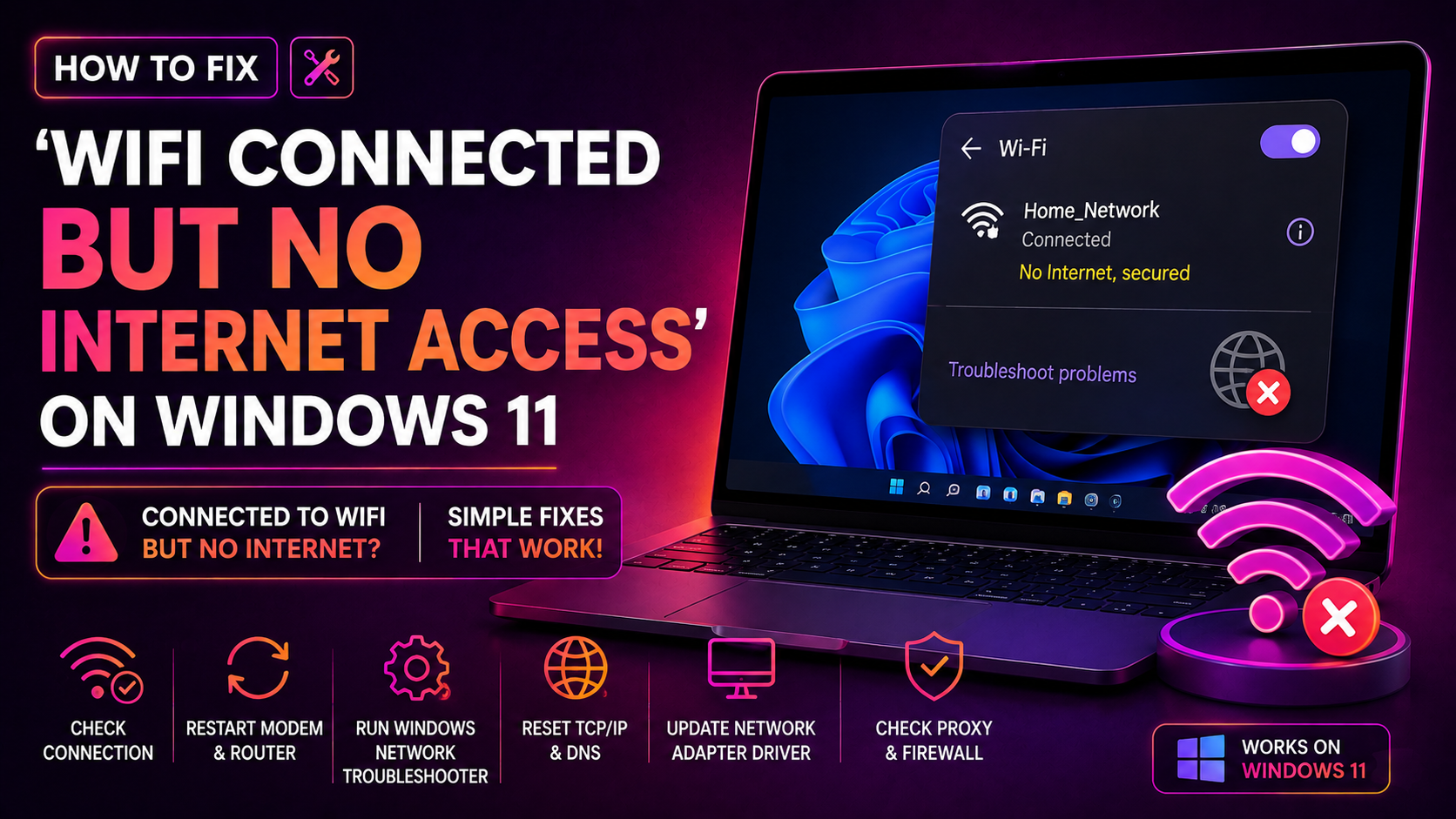
You glance at the taskbar and see the WiFi icon showing a connection — yet every browser tab times out and apps refuse to load. The tooltip reads "No Internet, Secured" or "Connected, no internet access." Your phone works fine on the same network. So what is going on with your Windows 11 PC?
This is one of the most common Windows 11 networking complaints in 2026, spiking especially after recent cumulative updates (KB5066835 and KB5065789). The good news: in the vast majority of cases, you can fix it yourself in under ten minutes using the step-by-step methods below — no reinstallation required.
What Does 'WiFi Connected But No Internet Access' Mean on Windows 11?
When Windows 11 shows a yellow exclamation mark on the WiFi icon or displays the message "No Internet, Secured," it means your PC has successfully associated with the wireless router and established an encrypted link — but it cannot reach the open internet beyond your router.
Windows performs a background connectivity check by contacting www.msftconnecttest.com. If that request fails, Windows marks the connection as having no internet access even though your hardware link is intact. Common underlying causes include:
- Corrupt or stale DNS cache — old DNS records point to dead IP addresses
- IP address conflict or DHCP failure — your PC received a self-assigned 169.x.x.x address instead of a valid one from the router
- Corrupted TCP/IP or Winsock stack — usually triggered by a Windows Update or third-party software
- Wrong or unreachable DNS server — your ISP's DNS server may be down
- VPN or proxy misconfiguration — a stuck VPN tunnel intercepts all traffic
- Outdated or corrupted Wi-Fi adapter driver — particularly after Windows feature updates
Quick Fixes to Try First (Restart, Toggle WiFi, Reboot Router)
Before reaching for the command line, work through these 60-second checks. They resolve the problem far more often than you might expect.
- Restart Windows 11 — Press Start > Power > Restart (not Shut Down, which can leave drivers in a partially cached state on fast-startup machines).
- Toggle Airplane Mode — Open Action Center (Win + A), enable Airplane Mode for five seconds, then disable it. This forces the wireless adapter to re-associate with the router.
- Forget and reconnect to the WiFi network — Go to Settings > Network & Internet > Wi-Fi > Manage known networks, select your network, click Forget, then reconnect and re-enter the password.
- Power-cycle your router and modem — Unplug both devices from the wall, wait 30 seconds, plug the modem in first, wait for it to sync, then plug in the router. Give it another 60 seconds before retesting.
- Check for other affected devices — If every device on the network is offline, the problem is with your ISP or router, not Windows 11 specifically.
If the quick fixes do not resolve the issue, proceed to the targeted fixes below.
Fix 1: Run the Windows Network Troubleshooter
Windows 11's built-in troubleshooter can automatically detect and repair common network problems including missing default gateways, DNS failures, and adapter issues.
- Press Win + I to open Settings.
- Go to System > Troubleshoot > Other troubleshooters.
- Find Internet Connections and click Run.
- Follow the on-screen prompts. If it detects a problem, click Apply this fix.
- Also run Network Adapter troubleshooter from the same list — it specifically checks driver and adapter configuration issues.
The troubleshooter logs its findings even when it cannot auto-fix the issue. Note any error codes shown — they are useful if you need to escalate to professional desktop support.
Fix 2: Flush DNS Cache and Renew IP Address
A stale or corrupt DNS cache is the single most common cause of the "connected but no internet" symptom on Windows 11. Flushing it takes about 30 seconds.
- Press Win + S, type cmd, right-click Command Prompt, and select Run as administrator.
- Run the following commands in order, pressing Enter after each one:
ipconfig /release
ipconfig /flushdns
ipconfig /renew
ipconfig /release— drops the current IP lease from the DHCP serveripconfig /flushdns— clears all cached DNS records from memoryipconfig /renew— requests a fresh IP address from the router
After the commands complete, open a browser and test connectivity. If you see a valid IP (e.g. 192.168.x.x) after ipconfig /renew but still have no internet, move to Fix 3. If you receive a 169.254.x.x (APIPA) address, your router's DHCP service may be failing — reboot the router and retry.
Fix 3: Change DNS Server to Google or Cloudflare
If your ISP's DNS servers are slow, unresponsive, or returning incorrect results, switching to a public DNS provider like Google (8.8.8.8) or Cloudflare (1.1.1.1) often restores internet access instantly.
- Press Win + I, go to Network & Internet > Wi-Fi, click on your connected network, then click Edit next to IP assignment — or scroll down and click the network name, then View.
- Click on your active Wi-Fi connection and select Properties.
- Select Internet Protocol Version 4 (TCP/IPv4) and click Properties.
- Choose Use the following DNS server addresses and enter:
Preferred DNS server:  8.8.8.8
Alternate DNS server:  8.8.4.4
For Cloudflare DNS (often faster), use 1.1.1.1 and 1.0.0.1 instead.
- Click OK, close the dialogs, then open Command Prompt as administrator and run
ipconfig /flushdnsone more time to clear any cached entries pointing to the old DNS server. - Test your browser.
You can also set DNS via the modern Settings interface: Settings > Network & Internet > Wi-Fi > [Your Network] > DNS server assignment > Edit > Manual.
Fix 4: Reset Network Adapter and TCP/IP Stack
If the problem persists, the TCP/IP stack or Winsock catalog may be corrupted — a known side-effect of certain Windows 11 cumulative updates and third-party security software. A full network stack reset clears these corruptions.
- Open Command Prompt as administrator (Win + S > cmd > Run as administrator).
- Run each command below, pressing Enter after each:
netsh winsock reset
netsh int ip reset
netsh int tcp reset
ipconfig /release
ipconfig /flushdns
ipconfig /renew- Restart your PC — the Winsock and TCP/IP resets only take full effect after a reboot.
After rebooting, Windows rebuilds the network stack from scratch. This resolves issues caused by KB5066835 (Windows 11 25H2) and KB5065789 (24H2) that broke adapter bindings in early 2026.
Optional: Full Network Reset via Settings
For a more thorough reset that reinstalls all network adapters:
- Go to Settings > Network & Internet > Advanced network settings > Network reset.
- Click Reset now and confirm.
- Windows will remove all network adapters and reinstall them, then restart your PC.
Note: This removes saved Wi-Fi passwords, VPN configurations, and any custom network settings. Have your Wi-Fi password ready before proceeding.
Fix 5: Disable VPN, Proxy, or Security Software Temporarily
VPN clients, proxy configurations, and overzealous antivirus firewalls can intercept network traffic in a way that breaks the Windows connectivity check — making a working connection appear offline.
Disable VPN
- Right-click the VPN client in the system tray and select Disconnect or Exit.
- If you use Windows' built-in VPN, go to Settings > Network & Internet > VPN and disconnect.
- Test connectivity without the VPN active.
Remove Proxy Settings
- Go to Settings > Network & Internet > Proxy.
- Under Manual proxy setup, ensure Use a proxy server is toggled Off.
- Under Automatic proxy setup, disable Automatically detect settings if it is enabled (it can cause delays and failures on some networks).
Temporarily Disable Third-Party Antivirus Firewall
- Right-click your antivirus icon in the system tray.
- Select Disable protection or Turn off firewall for 10 minutes.
- Test connectivity. If it works, add an exception in your antivirus for your browser and network adapter, then re-enable protection.
Do not leave security software disabled permanently. Use this step only to confirm whether it is the cause, then configure exceptions rather than disabling the software entirely.
Update or Reinstall the Wi-Fi Adapter Driver
- Press Win + X and select Device Manager.
- Expand Network adapters.
- Right-click your Wi-Fi adapter (e.g. Intel Wi-Fi 6E AX211) and select Update driver > Search automatically for drivers.
- If no update is found, try Uninstall device, then restart Windows — the driver reinstalls automatically on boot.
- Alternatively, download the latest driver directly from the manufacturer's website (Intel, Qualcomm, Realtek) and install it manually.
Frequently Asked Questions
Why does my Windows 11 PC say 'No Internet, Secured' when WiFi is connected?
"No Internet, Secured" means Windows 11 has a valid, encrypted Wi-Fi link to your router but cannot reach the internet beyond it. Windows confirms internet access by contacting www.msftconnecttest.com — if that request fails (due to DNS failure, IP conflict, or ISP outage), it shows this status even though your local network connection is intact.
Will flushing the DNS cache delete anything important?
No. The DNS cache is a temporary store of recent hostname-to-IP lookups. Flushing it simply forces Windows to perform fresh DNS lookups the next time you visit a website. No saved passwords, bookmarks, or personal data are affected. It is one of the safest troubleshooting steps you can take.
My IP address starts with 169.254 — what does that mean?
A 169.254.x.x address is an Automatic Private IP Address (APIPA), assigned by Windows when it cannot get a valid IP from your router's DHCP server. This indicates a problem between your PC and the router — often a router reboot, running ipconfig /release followed by ipconfig /renew, or disabling and re-enabling the Wi-Fi adapter will resolve it.
How do I check if a recent Windows Update broke my internet connection?
Go to Settings > Windows Update > Update history and note the most recently installed update. If the connectivity problem started immediately after an update, you can uninstall it: go to Settings > Windows Update > Update history > Uninstall updates, find the update by KB number, and remove it. Known problematic 2026 updates include KB5066835 (25H2) and KB5065789 (24H2).
None of the fixes worked — what should I do next?
If all five fixes have been attempted without success, the issue may involve a deeper driver corruption, a router firmware bug, or an ISP-side problem. At this point, contact your ISP to rule out service outages, try connecting via Ethernet to isolate whether the problem is specific to Wi-Fi, or reach out to a certified technician for remote diagnosis. CloudHouse Technologies offers pay-per-ticket remote support — a technician can usually diagnose and resolve network issues in a single session.