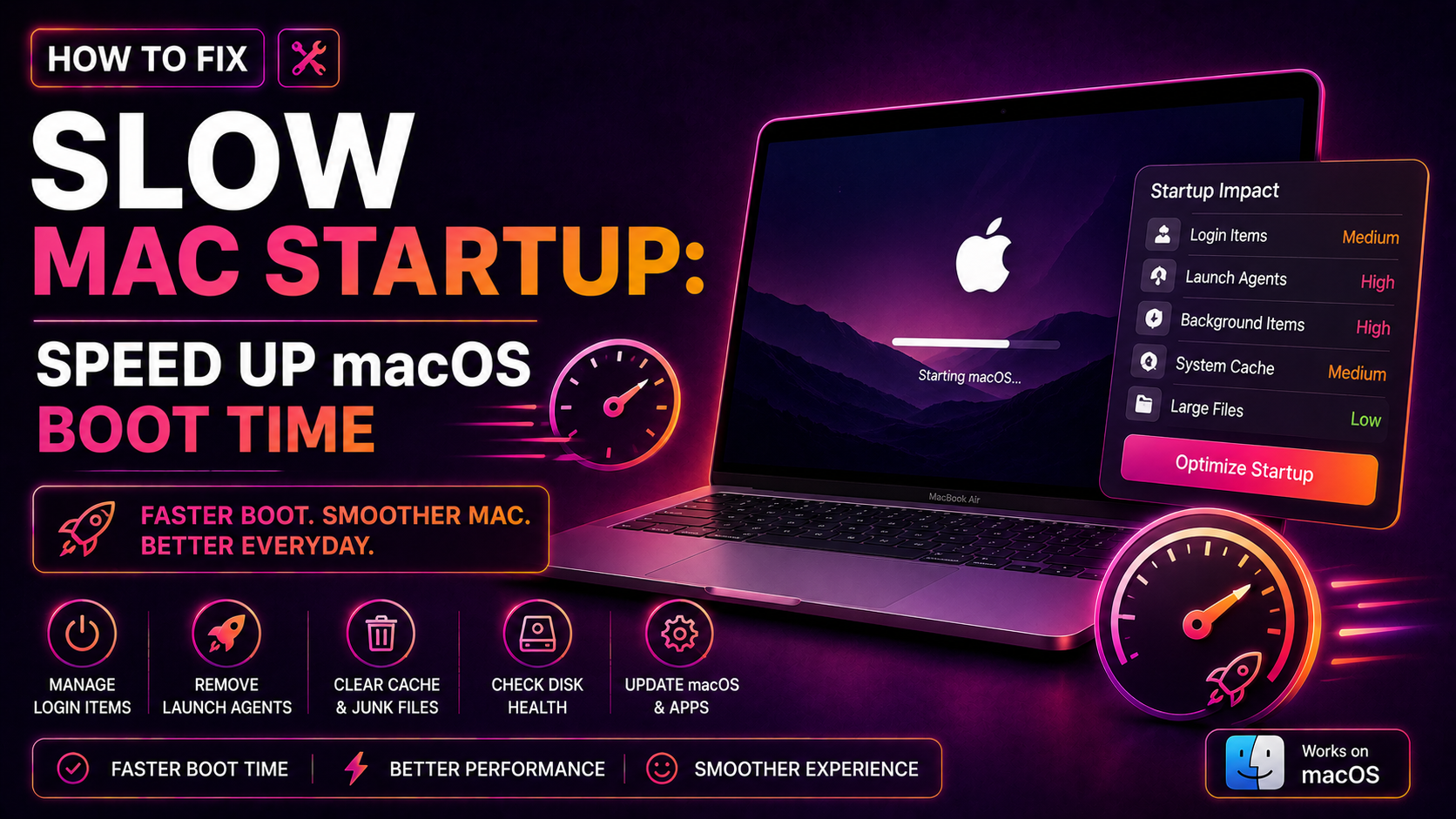
Your Mac was once lightning-fast at startup. Now it sits at the Apple logo for what feels like an eternity — spinning, thinking, doing nothing obvious. You're not alone. Mac slow startup is one of the most common complaints from macOS users in 2026, especially after a software update or once a machine has been in daily use for a couple of years.
The good news? In the vast majority of cases, a slow boot is caused by something software-related — login items stacking up, a nearly-full SSD, or a corrupted cache — and it can be fixed without spending a penny. This guide walks you through every proven fix, step by step.
Why Is Your Mac So Slow to Start Up?
Before reaching the desktop, macOS has to complete a sequence of tasks: load the kernel, mount file systems, decrypt volumes (if FileVault is on), start background daemons, and launch every app you've set to open at login. Each stage can stall if something goes wrong.
The most common culprits behind macOS slow boot time are:
- Too many login items — each one delays the usable desktop by 2–10 seconds
- A near-full startup disk — macOS needs free space for swap, caches, and temporary files
- Corrupted system caches — stale or broken cache files force the OS to rebuild them at boot
- File system errors — minor APFS or HFS+ catalog issues that slow every read at startup
- FileVault mid-encryption — if encryption is still in progress, every boot is slower
- Misconfigured NVRAM or SMC — firmware-level settings that can get out of sync after updates
- Pending macOS updates — an unfinished update can leave the system in a half-patched state
Work through the steps below in order. Most users find the problem is resolved by Step 2 or 3.
Step 1: Remove Unnecessary Login Items and Startup Apps
This is the single highest-impact fix for a Mac that takes a long time to start. Every app that launches automatically at login — Spotify, Dropbox, Slack, Teams, Steam, Zoom — runs its initialisation code before your desktop is interactive.
On macOS Ventura, Sonoma, and Sequoia (2023–2026)
- Open System Settings from the Apple menu.
- Click General, then Login Items & Extensions.
- Under Open at Login, select each app you don't need at startup and click the minus (–) button to remove it.
- Scroll down to Allow in the Background. Toggle off any background helpers you don't recognise or actively use — this is where Zoom helpers, Discord, and browser update daemons tend to hide.
On macOS Monterey and Earlier
- Open System Preferences → Users & Groups.
- Click your username, then select the Login Items tab.
- Highlight each item you don't need and click the minus (–) button.
Aim to leave only your most essential tools — a password manager, maybe your primary communication app. Remove everything else. Restart your Mac and measure the difference. Most users see boot time drop by 30–60 seconds after this step alone.
Clear Launch Agents via Terminal
Some third-party apps install background launch agents that don't appear in System Settings. To list them:
ls ~/Library/LaunchAgents/
To disable a specific agent (replace the filename with the one you want to remove):
launchctl unload ~/Library/LaunchAgents/com.example.app.plist
Then move the .plist file to the Trash. Only remove files from apps you've deliberately uninstalled or no longer use.
Step 2: Free Up Disk Space on Your Mac
macOS uses your startup drive for virtual memory (swap), system caches, and temporary files generated at boot. When your drive is more than 85–90% full, the OS has to perform extra work just to find free clusters — and that directly extends macOS startup time.
Target: keep at least 15–20 GB free at all times.
Check your current disk usage
df -h /
The output shows total size, used space, and available space for your startup volume.
Free up space quickly
- Empty the Trash — open Finder, right-click the Trash icon, select Empty Trash.
- Remove large unused files — go to Apple Menu → About This Mac → Storage → Manage, and use the built-in recommendations to offload files to iCloud, remove large files, or empty caches.
- Clear system caches manually — open Terminal and run:
sudo periodic daily weekly monthly— this runs the macOS maintenance scripts that clear logs, rotate caches, and clean temporary files. - Uninstall unused apps — drag them to Trash from Applications, or use a dedicated uninstaller if the app has one.
After freeing space, restart your Mac and check whether boot time has improved before moving to the next step.
Step 3: Run Disk Utility First Aid
Invisible file system errors — mismatched directory counts, orphaned extents, inconsistent metadata — can slow every file read during the boot sequence. macOS's built-in Disk Utility First Aid catches and repairs the vast majority of these without erasing any data.
- Open Disk Utility (Applications → Utilities → Disk Utility).
- In the left panel, select your startup disk (usually labelled Macintosh HD or similar).
- Click First Aid at the top of the window, then click Run.
- Wait for the scan to complete. If errors are found and repaired, you'll see a green summary. If it reports errors it could not repair, you may need to boot into macOS Recovery.
Running First Aid from macOS Recovery (for severe errors)
If First Aid couldn't complete while booted normally:
- Intel Mac: Restart and hold Command + R until the Recovery screen appears.
- Apple Silicon Mac: Shut down, then press and hold the power button until startup options appear, then select Options.
From Recovery, open Disk Utility and run First Aid on the main volume. This gives the tool full access to the disk without OS interference.
Step 4: Reset SMC and NVRAM / PRAM
The SMC (System Management Controller) manages low-level hardware functions including power states, fan control, and boot behaviour. The NVRAM/PRAM stores firmware settings like startup disk selection, display resolution, and time zone. If either gets corrupted after an update or unexpected shutdown, the result can be a sluggish or stalled boot sequence.
Reset NVRAM / PRAM
Intel Mac:
- Shut down your Mac completely.
- Press the power button, then immediately hold Option + Command + P + R.
- Keep holding for about 20 seconds (you may hear the startup chime twice on older models).
- Release and allow the Mac to boot normally.
Apple Silicon Mac (M1 / M2 / M3 / M4):
Apple Silicon Macs automatically validate and reset NVRAM during every startup. A manual reset is not required — simply shut down fully, wait 30 seconds, and power on again.
Reset SMC
MacBook with T2 chip (2018–2020 Intel models):
- Shut down completely.
- On the built-in keyboard, hold Right Shift + Left Control + Left Option, then press and hold the power button simultaneously.
- Hold all four keys for 10 seconds, then release.
- Press the power button normally to start.
Apple Silicon Macs: There is no SMC on Apple Silicon — equivalent power management is handled automatically by the chip. A full shutdown (not restart) for 30 seconds achieves the same effect.
Step 5: Disable FileVault or Check Encryption Progress
FileVault encrypts your entire startup disk, which is great for security — but if encryption is still in progress (common after a fresh macOS install or upgrade), every boot is noticeably slower while the process runs in the background.
Check FileVault status
Open Terminal and run:
fdesetup status
You'll see one of these responses:
FileVault is On.— encryption is complete; performance should be normal on modern MacsEncryption in progress...— this is why your Mac is slow; let it complete before troubleshooting furtherFileVault is Off.— encryption is not a factor
When to consider disabling FileVault
On pre-2018 Intel Macs without a T2 chip, FileVault uses CPU-based encryption without hardware acceleration. This can add 15–30 seconds to every boot. If your Mac is older and you're comfortable with the security trade-off, you can turn off FileVault:
- Go to System Settings → Privacy & Security → FileVault.
- Click Turn Off FileVault.
- Allow the decryption process to complete (this may take several hours — keep your Mac plugged in).
On Apple Silicon or T2-equipped Macs, FileVault has virtually no performance impact and should be kept enabled.
If you've worked through all five steps and your Mac is still booting slowly, the issue may be hardware-related — a failing SSD, degraded RAM, or a logic board fault that requires professional diagnosis. Our team at CloudHouse Technologies offers professional desktop support with remote sessions available 24/7, so you can get an expert diagnosis without leaving home.
Frequently Asked Questions
Why is my Mac suddenly slow to start up after a macOS update?
macOS updates sometimes trigger background processes — Spotlight re-indexing, system cache rebuilds, and iCloud sync — that run heavily for the first few boots after installation. Give your Mac 2–3 full restarts after any major update. If it's still slow after that, check login items and run Disk Utility First Aid, as updates occasionally register new background helpers without asking.
How long should a Mac take to boot?
A healthy Mac with an SSD should reach the login screen in 15–30 seconds from pressing the power button. Apple Silicon Macs (M1 and later) typically boot in under 20 seconds. If yours is taking 60 seconds or more, there is a diagnosable problem — the steps in this guide will resolve it in the majority of cases.
Does Safe Mode help fix slow Mac startup?
Yes — booting in Safe Mode forces macOS to skip third-party login items and kernel extensions, run a basic disk check, and flush system caches. If your Mac boots significantly faster in Safe Mode, the cause is almost certainly a login item or launch agent. To enter Safe Mode: on Intel Macs, hold Shift while booting; on Apple Silicon Macs, hold the power button until startup options appear, select your startup disk, then hold Shift and click Continue in Safe Mode.
Can too many browser extensions slow down Mac startup?
Browser extensions themselves don't typically delay the initial boot sequence, but browser apps set to launch at login absolutely do. Chrome, Firefox, and Safari can each add 5–15 seconds if they're in your login items. Remove your browser from login items — you can open it manually in seconds — and you'll notice an immediate improvement in how quickly your Mac becomes usable after startup.
Will reinstalling macOS fix a slow startup?
A clean macOS reinstall via Recovery Mode can fix slow startup caused by deeply corrupted system files or a botched update — but it should be a last resort, not a first step. Work through login items, disk space, Disk Utility First Aid, and SMC/NVRAM resets first. If none of those work, a reinstall (which preserves your data when done via the standard Recovery reinstall option) is a reasonable next step before concluding there's a hardware fault.