Safari Not Loading Pages — What Is Happening?
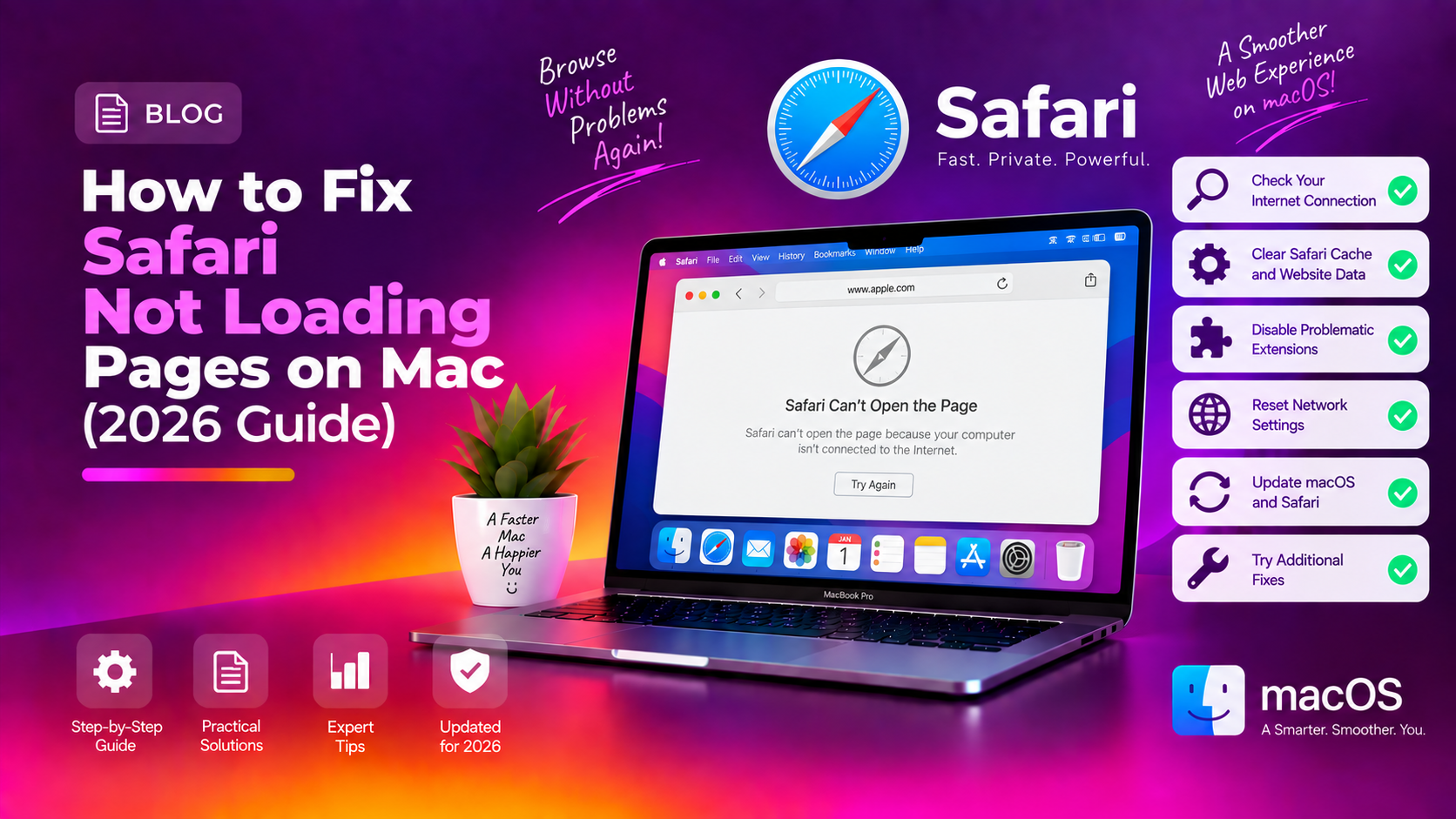
Safari refusing to load pages — spinning endlessly, showing a blank white screen, or returning 'Safari can't open the page because the server stopped responding' — is one of the most common macOS complaints in 2026.
The problem can be caused by a DNS issue, corrupt cache data, a conflicting browser extension, an incorrect proxy setting, or a Safari process that has gotten into a stuck state. The good news: almost all cases are resolved without reinstalling anything.
Work through these fixes in order. Most users are fixed by Fix 3 or Fix 4.
Fix 1 — Reload the Page and Quit Safari
Start with the basics:
- Press Command + R to force a page reload
- If that fails, press Command + Q to quit Safari completely
- Reopen Safari and try the page again
If Safari is frozen and won't quit normally: Apple menu - Force Quit - Safari - Force Quit. Then reopen it.
Fix 2 — Check Your Internet Connection
Confirm the issue is Safari-specific and not your internet:
- Open Terminal and run:
ping 8.8.8.8— if you get replies, your connection is working - Try loading the same page in Chrome or Firefox — if it loads there, the issue is Safari-specific
- Try a different website — if only one site fails, that site may be down
Fix 3 — Clear Safari Cache and Website Data
Corrupt cache data is the most common cause of Safari page-loading failures:
- In Safari, go to Safari - Settings - Privacy
- Click Manage Website Data
- Click Remove All, then confirm
- Also go to Develop - Empty Caches (enable Develop menu first: Settings - Advanced - Show Develop menu in menu bar)
- Restart Safari
Fix 4 — Disable Safari Extensions
Ad blockers, VPN extensions, and privacy tools commonly interfere with Safari page loading:
- Go to Safari - Settings - Extensions
- Uncheck all extensions to disable them
- Try loading the failing page
- If it now loads, re-enable extensions one by one to find the culprit
Fix 5 — Check and Fix Proxy Settings
An incorrect or stale proxy configuration blocks all page loading in Safari:
- Open System Settings - Network
- Select your active connection (Wi-Fi or Ethernet) and click Details
- Click the Proxies tab
- If any proxy protocols are enabled that you did not set up, uncheck them
- Click OK and test Safari again
Fix 6 — Change Your DNS Server
If Safari times out on some sites but not others, your ISP's DNS may be failing. Switch to a reliable public DNS:
- System Settings - Network - select your connection - Details
- Click the DNS tab
- Click + and add:
8.8.8.8(Google) and1.1.1.1(Cloudflare) - Move them above your existing DNS entries
- Click OK and test Safari
Also flush the DNS cache in Terminal:
sudo dscacheutil -flushcache; sudo killall -HUP mDNSResponderFix 7 — Reset Safari's Preferences File
A corrupted Safari preferences file can cause persistent page loading issues:
- Quit Safari fully (Command + Q)
- Open Finder and press Command + Shift + G
- Navigate to:
~/Library/Preferences/ - Find and move com.apple.Safari.plist to your Desktop (as a backup)
- Reopen Safari — it will create a fresh preferences file
If Safari now works, the old prefs were corrupt. If not, you can move the file back.
Fix 8 — Check macOS Date and Time Settings
An incorrect system date causes SSL certificate verification to fail, which makes Safari refuse to load HTTPS sites:
- System Settings - General - Date and Time
- Enable Set time and date automatically
- Confirm the date, time, and timezone are correct
- Quit and restart Safari
Fix 9 — Update macOS and Safari
- System Settings - General - Software Update
- Install any available macOS or Safari updates
- Restart your Mac after updating
macOS point updates frequently include Safari stability fixes that resolve known rendering and networking bugs.
Fix 10 — Reset Network Settings
If nothing else works, resetting network preferences removes all corrupted TCP/IP, DNS, and VPN configs:
# Renew DHCP leasesudo ipconfig set en0 DHCP# Flush all DNS cachessudo dscacheutil -flushcache; sudo killall -HUP mDNSResponderThen navigate to System Settings - Network, delete your Wi-Fi interface, and re-add it. For more complex network issues or if Safari remains broken across updates, CloudHouse remote support can diagnose the root cause.
FAQ
Why does Safari show a blank white page instead of loading?
A blank white page in Safari usually indicates a page rendering failure — either a corrupt cache, a JavaScript conflict, or a CSS resource failing to load. Try Fix 3 (clear cache) and Fix 4 (disable extensions). Also try loading the page with JavaScript disabled: Develop menu - Disable JavaScript - reload.
Safari works on my iPhone but not on my Mac — why?
This confirms the issue is Mac-specific, not your internet. The most likely causes are a corrupted Safari cache (Fix 3), a broken extension (Fix 4), or a proxy setting conflict (Fix 5). Start with those three fixes.
Why does Safari say 'cannot verify server identity' on every site?
This error means your Mac's date or time is incorrect, causing SSL certificate validation to fail. Fix 8 (set date/time automatically) resolves this immediately.
Can a VPN cause Safari to stop loading pages?
Yes. VPN apps can intercept Safari's network requests or push proxy settings that conflict with standard DNS resolution. Disconnect your VPN and test Safari. If it works, the VPN configuration is the cause — check the VPN app's macOS proxy settings.
Should I try Chrome if Safari is not working?
Testing Chrome or Firefox is useful as a diagnostic step — if the same page loads in another browser, the problem is Safari-specific. But switching browsers permanently is not necessary. The fixes in this guide resolve Safari loading issues for the vast majority of Mac users.