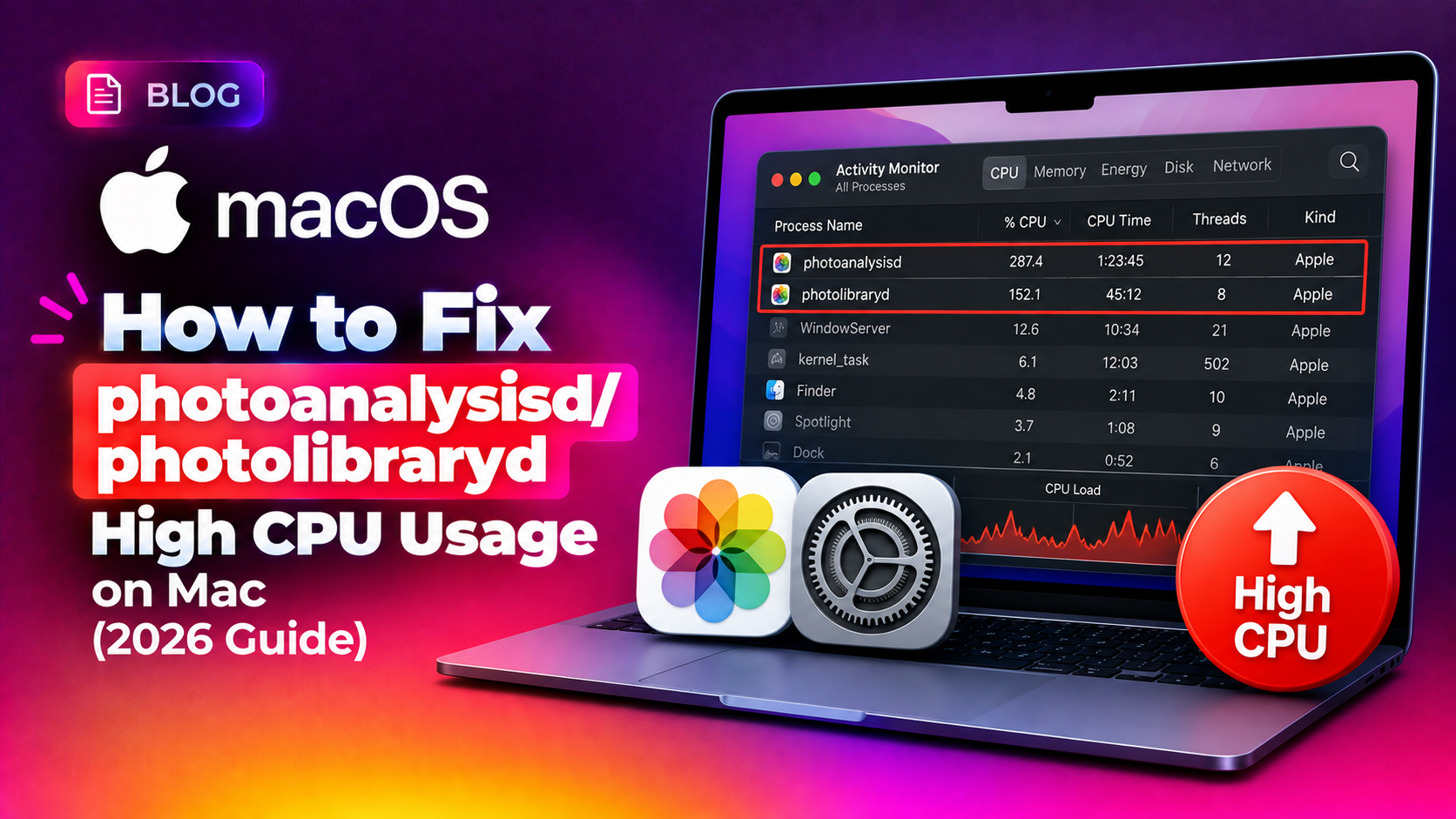
If your Mac's fans suddenly kick into high gear after you import a batch of photos, turn on iCloud Photos, or install a macOS update, the culprit is almost always one of two background processes: photoanalysisd and photolibraryd. Both are legitimate parts of the Photos app, but they can peg one or more CPU cores for hours, drain battery fast, and make your whole system feel sluggish. This guide explains exactly what these processes do, how to check what they're doing in real time, and how to fix photoanalysisd high CPU issues on macOS — whether you want to let the job finish safely or force it to slow down.
What Are photoanalysisd and photolibraryd?
photoanalysisd (Photo Analysis Daemon) is the background agent responsible for scanning every photo and video in your Photos library to power features like facial recognition, scene detection, object search, Live Text, and Memories. Whenever you add new photos, upgrade macOS, or open Photos for the first time after a big library change, macOS queues a full re-analysis pass.
photolibraryd is the library management daemon. It handles indexing, thumbnail generation, metadata updates, and — critically — the sync engine that keeps your local Photos library in step with iCloud Photo Library. When it's busy uploading or downloading originals, or reconciling changes across devices, it can consume significant CPU, memory, and network bandwidth.
Both processes run as part of the macOS Photos framework (not the Photos app window itself), which is why you may see high CPU usage from them even when Photos.app isn't open.
Why Do These Processes Spike CPU Usage?
There are a handful of common triggers behind photolibraryd high CPU and photoanalysisd high CPU mac complaints:
- Importing a large batch of photos — from an iPhone, SD card, or external drive — queues thousands of images for face detection and scene analysis.
- Enabling iCloud Photos for the first time triggers a full library upload/download and re-indexing pass.
- A macOS update (including point releases) often resets or re-triggers the analysis database, forcing photoanalysisd to redo work it already completed.
- Memories generation — macOS periodically scans your library to build new "Memories" collections, which involves scene and face clustering.
- A corrupted or oversized Photos library can cause photolibraryd to loop or retry indexing repeatedly instead of completing normally.
- Optimize Mac Storage being off means your Mac holds full-resolution originals locally, increasing the amount of data photoanalysisd has to churn through.
In most cases this is temporary and expected — but if it persists for days rather than hours, something is stuck.
💡 None of these worked? Skip the guesswork.
Get Expert Help →How to Check CPU Usage in Activity Monitor and Terminal
Go to Applications > Utilities > Activity Monitor, click the CPU tab, and click the % CPU column header to sort descending. Look for photoanalysisd and photolibraryd near the top of the list.
Open Terminal and run:
top -o cpuThis sorts all running processes by CPU usage in real time. You can also isolate the specific processes with:
ps aux | grep -E "photoanalysisd|photolibraryd"Open the Photos app, click on Library or an album, and look for a status banner near the top such as "Analyzing Photos" or "Syncing with iCloud." If you see progress that changes over time (a percentage or count going up), it's working as intended. If the same message sits unchanged for more than 24-48 hours, it's likely stuck.
Plug your Mac into power, close lid-sleep interruptions with caffeinate, and let the analysis run uninterrupted:
caffeinate -i -t 28800This keeps the Mac awake (but not the display) for 8 hours (28,800 seconds), giving photoanalysisd time to finish without your Mac going to sleep mid-scan.
If you need to use your Mac normally while analysis runs in the background, reduce its scheduling priority so foreground apps get CPU time first:
PID=$(pgrep -x photoanalysisd)
sudo renice +20 -p "$PID"
This "renices" the process to the lowest priority (+20) without stopping it — analysis continues, just more slowly and with less impact on responsiveness.
If you need immediate relief — for example, during a video call or presentation — you can disable and stop the daemon temporarily:
launchctl disable gui/$UID/com.apple.photoanalysisd
launchctl kill -TERM gui/$UID/com.apple.photoanalysisd
To resume it later, re-enable it:
launchctl enable gui/$UID/com.apple.photoanalysisdWarning: Repeatedly running killall photoanalysisd without disabling it just causes macOS to relaunch the process and restart the analysis queue, which can make the problem last far longer overall. Use disable/enable, not repeated kills, if you need to pause it.
Go to System Settings > Apple ID > iCloud > Photos and choose Optimize Mac Storage instead of "Download Originals to this Mac." This keeps space-saving, lower-resolution versions locally and downloads full-resolution originals only when needed, reducing the amount of data photoanalysisd and photolibraryd have to process at once.
In the same System Settings > Apple ID > iCloud > Photos pane, confirm iCloud Photos is enabled only if you actually want continuous sync. If you're migrating a huge library from another device, consider doing so overnight while the Mac is plugged in.
Open the Photos app, go to Photos > Settings (or Preferences on older macOS versions), and under the General tab you can disable "Show Featured Photos" and "Show Holiday Events" style content. This won't fully stop scene analysis, but it reduces how often the Memories engine re-scans your library for new collections.
If analysis seems permanently stuck, hold Command + Option while launching Photos to bring up the repair dialog, then choose Repair Library. This can resolve loops caused by database corruption.
Apple regularly ships performance fixes for the Photos analysis engine in point updates. Check System Settings > General > Software Update periodically, since an outdated macOS build can be more prone to repeated or inefficient re-analysis passes.
When to Seek Professional Help
Most photoanalysisd and photolibraryd CPU spikes resolve on their own within a few hours to a couple of days, especially for large libraries. However, you should consider getting expert help if:
- CPU usage from these processes remains pegged above 50-80% for more than 3-4 days with no visible progress in Photos.
- Your Mac repeatedly overheats, shuts down, or the fan runs at maximum speed continuously.
- Repairing the Photos library doesn't resolve a persistent stuck-analysis loop.
- You suspect a deeper issue such as failing storage, a corrupted iCloud Photos sync state, or conflicting third-party photo management software.
If you've tried the fixes above and your Mac is still struggling, CloudHouse Technologies' engineers can remotely diagnose the exact cause — including corrupted library databases, storage-related bottlenecks, and iCloud sync conflicts — and get your system back to normal. You can get one-off, no-subscription help through our pay-per-ticket Mac support service without committing to a long-term plan.
Frequently Asked Questions
Is it safe to force quit photoanalysisd?
Yes, force quitting it via Activity Monitor or killall photoanalysisd won't harm your Mac or your photo library. However, macOS will typically relaunch the process automatically and it will often restart the analysis from where it left off or from the beginning, so repeated force quits can actually prolong high CPU usage rather than fix it.
How long does photoanalysisd take to finish analyzing photos?
It depends heavily on library size and Mac hardware. A library of a few thousand photos might finish in under an hour on Apple Silicon, while a library with tens of thousands of photos and videos can take anywhere from several hours to a few days, especially on older Intel Macs.
Does turning off iCloud Photos stop photolibraryd from running?
Turning off iCloud Photos stops the sync-related portion of photolibraryd's workload, but the process itself still runs to manage your local library, generate thumbnails, and support search and Memories features. It should use noticeably less CPU without active iCloud syncing, though.
Can I permanently disable facial recognition and scene analysis on my Mac?
There's no fully supported toggle in System Settings to permanently disable photo analysis, since it powers core Photos search and Memories features. Advanced users can use launchctl disable to stop the daemon, but this is not officially supported by Apple and may need to be reapplied after macOS updates.
Why does photoanalysisd start again after every macOS update?
Major and even minor macOS updates sometimes reset or migrate the Photos analysis database schema, which forces a fresh (or partial) re-scan of your library to rebuild face, scene, and object data compatible with the new version.