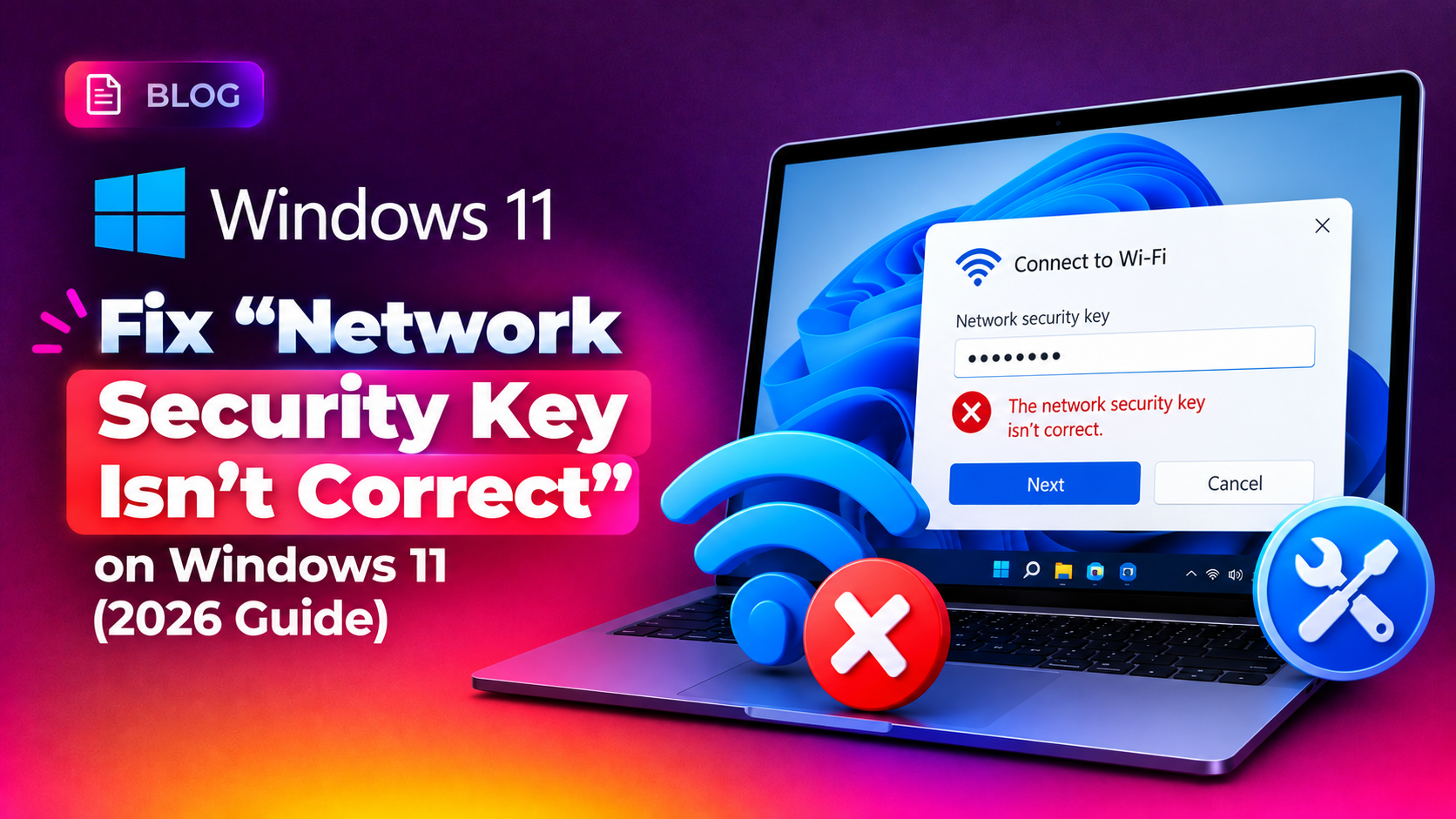
If Windows 11 keeps rejecting your WiFi password with the error "The network security key isn't correct. Please try again" — even though you're 100% sure you're typing the right password — you're dealing with one of the most common and frustrating WiFi connection problems on Windows 11 in 2026. The good news: this error is almost never actually about a "wrong" password. It's usually caused by a corrupted network profile, an outdated WiFi driver, a WPA2/WPA3 encryption mismatch, or interference from third-party security software.
This guide walks through every real fix for the network security key mismatch error on Windows 11, using the exact netsh commands, Device Manager steps, and router settings that resolve it — in the order most likely to work first.
Why Windows 11 Says the Network Security Key Isn't Correct
Before jumping into fixes, it helps to understand what's actually happening. Windows 11 stores a cached "network profile" for every WiFi network you've ever connected to, including the SSID, encryption type, and a hashed version of the password. When any of the following change, Windows throws the security key error instead of a more helpful message:
- You changed your WiFi password on the router but Windows is still trying the old cached one
- The router's encryption standard changed (e.g., from WPA2 to WPA3, or "WPA2/WPA3 Transitional")
- The saved network profile on your PC has become corrupted
- Your WiFi adapter driver is outdated, buggy, or was recently updated by Windows Update
- Third-party antivirus or firewall software is intercepting the network handshake
- The router itself has a temporary glitch, requiring a restart
💡 None of these worked? Skip the guesswork.
Get Expert Help →Fix 1: Double-Check the Password Itself
It sounds obvious, but this is the single most common cause. WiFi passwords are case-sensitive, and easy-to-confuse characters (like 0 vs O, or 1 vs l) cause more failed connections than any software bug.
Check the sticker on the back of your router, or log into the router's admin panel (usually 192.168.1.1 or 192.168.0.1) and look under Wireless Settings.
Copy-paste can carry invisible characters or trailing spaces from notes apps. Type the password directly into the Windows prompt.
Click the eye icon in the password field to visually confirm every character before hitting connect.
Go to Settings > Network & Internet > WiFi > Manage known networks.
Click the affected network name and select Forget.
Click the WiFi icon in the taskbar, select the network again, and enter the password fresh when prompted.
Right-click Start and select Terminal (Admin).
netsh wlan show profilesnetsh wlan delete profile name="YourWiFiName"netsh wlan delete profile name=*Restart your PC, then reconnect to the WiFi network and enter the password when Windows asks for it. This creates a completely fresh profile with no leftover corrupted data.
Right-click Start and choose Device Manager.
Find your WiFi adapter (e.g., "Intel Wi-Fi 6E AX211" or "Realtek RTL8852BE").
Right-click the adapter, select Update driver > Search automatically for drivers.
Right-click the adapter, select Uninstall device, check Attempt to remove the driver, then restart your PC — Windows will reinstall a clean driver automatically.
Visit your laptop manufacturer's support page (Dell, HP, Lenovo, ASUS) and download the latest WiFi driver specifically for your model rather than relying on Windows Update.
Navigate to Wireless Security settings.
If it's currently set to WPA3-only, change it to WPA2/WPA3 Mixed Mode or WPA2 only, then save and reboot the router.
Forget the network on your PC first, then reconnect and enter the password again under the new security mode.
Unplug it for 30 seconds, then plug it back in and wait for it to fully restart.
Programs like McAfee, Norton, or Avast sometimes intercept the WiFi authentication handshake. Disable real-time protection temporarily and try reconnecting.
Go to Settings > System > Troubleshoot > Other troubleshooters > Network & Internet and let Windows auto-detect and fix common WiFi issues.
netsh winsock reset
netsh int ip reset
ipconfig /release
ipconfig /renew
ipconfig /flushdns
Restart your PC after running these commands for the changes to take effect.
When to Call in Professional IT Support
If you've tried every fix above and Windows 11 still won't accept your correct WiFi password, the issue could point to a failing wireless adapter, a corrupted Windows network stack, or a router-side firmware bug that needs deeper diagnostics. Rather than losing hours guessing, CloudHouse Technologies' engineers can remotely diagnose and resolve the exact cause of persistent WiFi authentication failures. Get a fast, reliable fix through our pay-per-ticket IT support service — no long-term contract required, just the fix you need.
Conclusion
The "network security key isn't correct" error on Windows 11 is almost always fixable without reinstalling Windows. Start with the password itself, move on to forgetting and rebuilding the network profile, then check drivers and router encryption settings. Using the netsh wlan delete profile command combined with a driver update resolves the vast majority of cases reported in 2026. If the problem keeps coming back, it's worth having a professional check your adapter hardware and router configuration together.