What Is mds_stores and Why Is It Using So Much CPU?
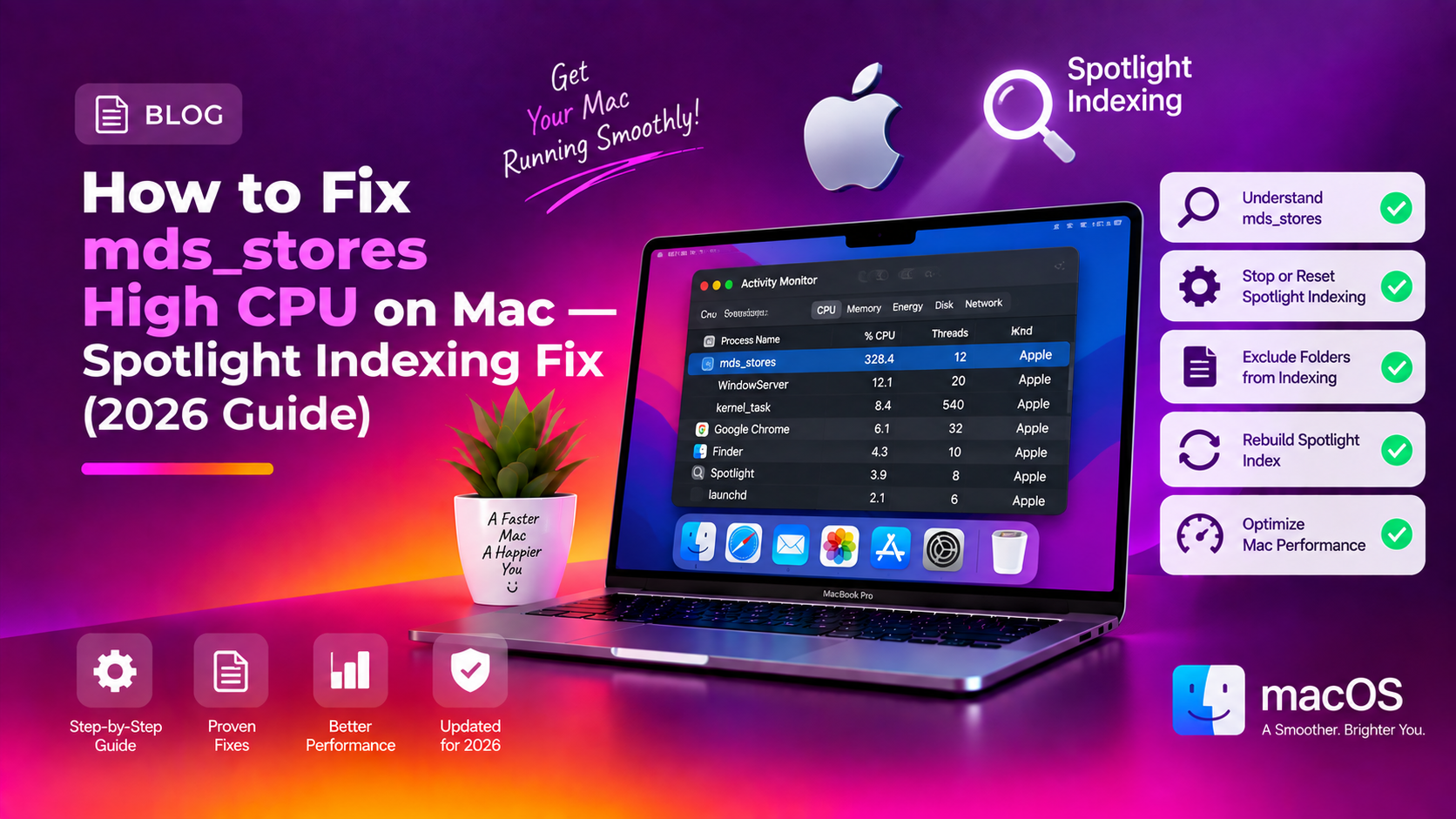
If you've opened Activity Monitor and spotted mds_stores or corespotlightd sitting at 80–150% CPU, you're not alone. This is one of the most searched macOS performance complaints in 2026 — particularly on MacBooks running macOS Sequoia.
mds_stores stands for Metadata Server Store. It's the background process that powers Spotlight Search by building and maintaining an index of every file, email, message, and document on your Mac. Without it, ⌘+Space searches would be useless.
The problem? It doesn't always know when to stop.
When Does mds_stores Run High?
- Immediately after a macOS upgrade (Sequoia re-indexes everything)
- When you copy large folders, photo libraries, or developer projects
- After adding an external drive or Time Machine backup disk
- When the Spotlight index becomes corrupted
- If a background app is constantly modifying files in watched folders
In most cases, mds_stores will settle down within a few hours once indexing is complete. But when it refuses to stop — especially on M1 or M2 MacBooks — you need to step in manually.
Method 1 — Wait It Out (Try This First)
If you just updated to macOS Sequoia or transferred a large batch of files, the simplest fix is patience. Spotlight needs to re-index all new content before it backs off.
Steps:
- Plug your Mac into power (do not run on battery while indexing — it's slow and drains fast)
- Leave your Mac awake and idle for 2–4 hours, or overnight for large storage volumes
- Open Activity Monitor (Spotlight → "Activity Monitor") and watch the CPU column for mds_stores — it should steadily drop
If it's still pegged at 100% after 12 hours, move to the fixes below.
Method 2 — Check Spotlight Indexing Progress
You can see exactly how far Spotlight has gotten:
- Click the Spotlight icon (🔍) in the menu bar, or press ⌘ + Space
- Type anything — you should see a message like "Indexing — Spotlight is searching while it indexes" at the bottom of the results
- Alternatively, open System Settings → Siri & Spotlight → Spotlight Privacy — indexing progress appears here too
If indexing is shown as complete but CPU is still high, the index is likely corrupted. Continue to Method 4.
Method 3 — Remove External Drives and Time Machine Disks
Spotlight automatically indexes external drives by default. If you have a 4TB Time Machine backup or a large external hard drive connected, Spotlight will attempt to index it — sometimes indefinitely.
Fix: Exclude the drive from Spotlight
- Open System Settings → Siri & Spotlight
- Click Spotlight Privacy
- Click the + button and add your external drive or Time Machine volume
- Confirm — Spotlight will stop indexing that drive
Alternatively, if you don't need the drive right now, eject it properly. mds_stores CPU usage should drop within a few minutes.
Method 4 — Rebuild the Spotlight Index
A corrupted or incomplete index is the most common cause of permanently-elevated mds_stores CPU. Forcing a full rebuild from Terminal usually resolves it.
Option A — GUI method:
- Open System Settings → Siri & Spotlight → Spotlight Privacy
- Drag your Macintosh HD (your main drive) into the Privacy list — this removes the current index
- Wait 30 seconds, then remove it from the list again
- macOS will start a fresh index rebuild immediately
Option B — Terminal method:
# Erase the existing Spotlight index
sudo rm -rf /.Spotlight-V100

# Rebuild it from scratch
sudo mdutil -a -i on
Enter your password when prompted. The rebuild will run in the background and mds_stores will use high CPU temporarily — but it will finish cleanly this time.
Method 5 — Force Quit the Process (Temporary Relief)
If your Mac is completely sluggish right now and you need immediate relief:
- Open Activity Monitor (Applications → Utilities → Activity Monitor)
- Click the CPU column header to sort by usage
- Find mds_stores, corespotlightd, or mdworker
- Select it and click the ✕ (Force Quit) button in the toolbar
- Click Force Quit in the confirmation dialog
macOS will restart the process automatically. This is not a permanent fix, but it gives you breathing room while you apply a real solution.
Method 6 — Disable Spotlight Temporarily via Terminal
If you need your Mac to be responsive for an urgent task and can live without Spotlight search temporarily:
# Disable all Spotlight indexing immediately
sudo mdutil -a -i off

# Re-enable it when you're done
sudo mdutil -a -i on
This completely stops the mds_stores process. CPU usage drops to near zero within 30 seconds. Remember to re-enable Spotlight when you're done — otherwise ⌘+Space search stops working.
Method 7 — Add Developer Folders to the Privacy Exclusion List
If you're a developer or work with large data sets, Spotlight likely thrashes constantly because your code folders change hundreds of files per second during builds.
Excluding these folders from indexing prevents mds_stores from ever spinning up for them:
- Open System Settings → Siri & Spotlight → Spotlight Privacy
- Click + and add folders like:
- ~/Developer
- ~/node_modules
- ~/Library/Caches
- Any VM or Docker volume directories
- Large photo/video libraries if not needed in search
- Click Done
This is the best long-term fix for developers and power users who constantly see mds_stores spikes.
Bonus: Delete Spotlight Preferences File
If rebuilding the index doesn't help, the Spotlight preference file itself may be corrupted:
- Open Finder and press ⌘ + Shift + G
- Go to:
~/Library/Preferences/ - Find and delete com.apple.Spotlight.plist
- Restart your Mac — Spotlight will regenerate the preferences file with fresh defaults
When Should You Be Concerned?
mds_stores high CPU is almost never a sign of malware. However, there is one exception: some macOS malware variants deliberately trigger constant file writes to specific folders to disrupt normal system behaviour.
If mds_stores is consistently high even after a fresh Spotlight index rebuild, no external drives connected, and no large file transfers happening, run a quick malware check with CloudHouse support or a trusted tool like Malwarebytes for macOS.
FAQ
Is mds_stores a virus?
No. mds_stores is a legitimate Apple system process. However, malware has occasionally mimicked this process name. Verify it by right-clicking the process in Activity Monitor → "Inspect" and checking that the executable path is /System/Library/Frameworks/CoreServices.framework/....
How long does Spotlight indexing take on macOS Sequoia?
On an SSD Mac with a typical user library (under 500GB), indexing takes 1–3 hours. On a Mac with 2TB+ of files, it can take 12–24 hours. External drives add more time.
Will disabling Spotlight hurt my Mac?
Disabling Spotlight (mdutil -a -i off) stops ⌘+Space search from returning app and file results. Alfred, Raycast, and similar third-party launchers are unaffected. System functions do not depend on Spotlight indexing.
Why does mds_stores spike after every macOS update?
Apple changes the Spotlight index schema between major versions. When you upgrade to Sequoia, Sonoma, or any point release, macOS discards the old index and rebuilds from scratch. This is normal and expected — it just takes time.
Can I delete the mds_stores file?
You should not delete the mds_stores binary itself. What you can (and should) delete is the Spotlight index database using sudo rm -rf /.Spotlight-V100 and then immediately re-enable indexing with sudo mdutil -a -i on to rebuild cleanly.