
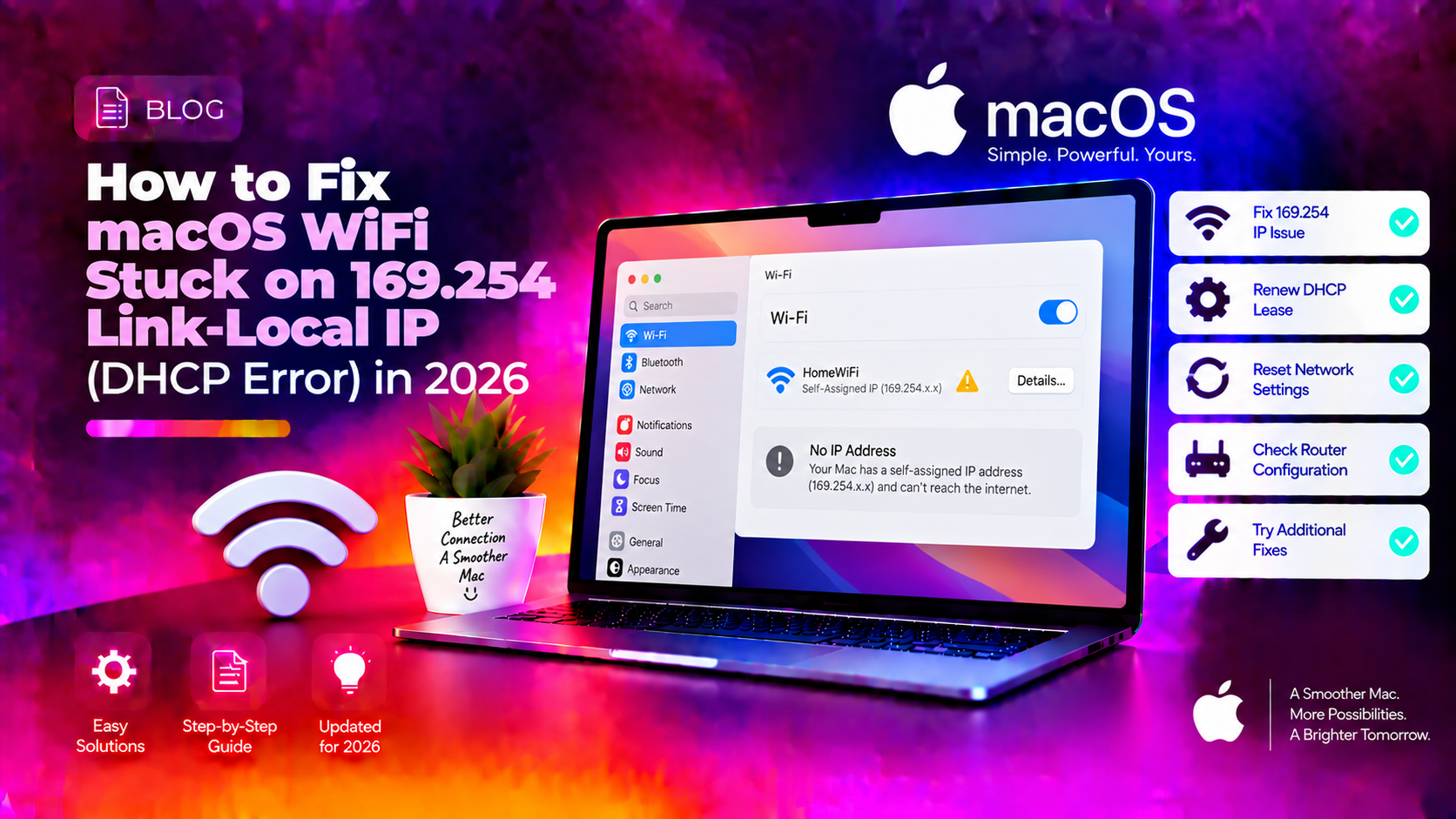
You open your MacBook, connect to WiFi, and everything looks fine — the menu bar shows the familiar arc of signal bars. But when you try to load a website, nothing happens. You check System Settings → WiFi and discover your Mac has been assigned an IP address like 169.254.45.12 instead of something sensible like 192.168.1.105. You have no internet. This is the Link-Local DHCP failure, and it is one of the most frustrating networking bugs in macOS Tahoe.
This guide walks you through exactly what causes it, how to diagnose it, and every fix — from the 30-second quick fix to full network stack resets.
What is a Link-Local 169.254 Address and Why It Happens
When your Mac joins a WiFi network, it broadcasts a DHCP Discover packet asking the router: "I'm here — please give me an IP address." Normally the router responds within milliseconds with a lease: your IP, subnet mask, gateway, and DNS servers.
If that DHCP handshake fails — because the router didn't respond in time, the lease expired, or a software bug interrupted the process — macOS falls back to APIPA (Automatic Private IP Addressing). It self-assigns an address in the 169.254.0.0/16 range. This is defined in RFC 3927 and is implemented on every major OS as a last resort.
The problem: a 169.254 address is link-local only. It cannot route traffic beyond your local network segment. Your Mac appears connected — WiFi is associated, signal is strong — but the device literally cannot reach your router, let alone the internet.
How to confirm you have this issue:
ifconfig en0 | grep inetIf the output shows inet 169.254.x.x, you have a Link-Local self-assigned address. A healthy result looks like inet 192.168.1.x or inet 10.0.0.x.
Root Causes in macOS Tahoe (DHCP Race Condition)
On macOS Tahoe 26 and Sequoia 15.4/15.5, a specific bug has been widely reported on Apple Developer Forums and Ubiquiti Community boards. The culprit is a kernel-level resource that is not cleaned up properly when a network interface tears down. When the interface is brought back up — after sleep, after roaming, or after a brief signal drop — the stale internal state causes the DHCP client (bootpd / IPConfiguration) to fail silently.
The result is a race condition: the interface announces itself as up before the DHCP state machine has fully reset, and the self-assignment timer fires first. The router may have responded correctly, but macOS was not ready to receive the offer.
Other common triggers include:
- Wake from Sleep with Wake for Network Access enabled — the NIC wakes before the OS WiFi stack is fully initialised
- Router DHCP lease table full — the router silently drops the Discover packet
- Corrupt DHCP preference files — stale plist entries in
/Library/Preferences/SystemConfiguration/ - VPN or transparent proxy software intercepting DHCP traffic
- Channel congestion causing packet loss during the 4-way DHCP handshake
Method 1: Renew DHCP Lease Manually
This is the fastest fix and works in the majority of cases. It forces macOS to send a fresh DHCP Discover without disconnecting from the access point.
Via System Settings:
- Open System Settings → Wi-Fi
- Click the Details button next to your connected network
- Select the TCP/IP tab
- Click Renew DHCP Lease
- Wait 10–15 seconds for a new IP to be assigned
Via Terminal (faster, more reliable):
sudo ipconfig set en0 DHCPReplace en0 with your actual WiFi interface. To find it:
networksetup -listallhardwareports | grep -A2 Wi-FiAfter running the command, verify the new IP:
ipconfig getifaddr en0If this returns a valid IP (not 169.254.x.x), you are back online. If it returns blank or still shows link-local, move to Method 2.
Method 2: Remove and Rejoin WiFi Network
If the DHCP lease renewal does not work, cached network credentials or a corrupt association state may be the issue. Forgetting the network clears all stored state.
- Open System Settings → Wi-Fi
- Click the Details button next to the network
- Click Forget This Network and confirm
- Turn WiFi off using the toggle at the top of the Wi-Fi pane
- Wait 15 seconds
- Turn WiFi back on
- Rejoin the network and enter the password
You can also do this entirely from Terminal:
# Turn WiFi off
networksetup -setairportpower en0 off

# Wait a moment, then turn it back on
sleep 5 && networksetup -setairportpower en0 on

# Rejoin a specific network (replace SSID and PASSWORD)
networksetup -setairportnetwork en0 "YourNetworkName" "YourPassword"
After rejoining, check your IP:
ipconfig getifaddr en0Method 3: Reset Network Settings and Restart Network Daemons
If the issue persists, the problem likely lies in the network configuration plists or the running network daemons. This method resets the entire network stack without requiring a full system reinstall.
Step 1: Remove corrupt SystemConfiguration files
cd /Library/Preferences/SystemConfiguration/
sudo rm -f com.apple.airport.preferences.plist
sudo rm -f com.apple.network.identification.plist
sudo rm -f NetworkInterfaces.plist
sudo rm -f preferences.plist
Step 2: Restart the network configuration daemon
sudo launchctl stop com.apple.configd
sudo launchctl start com.apple.configd
Step 3: Flush the DNS cache
sudo dscacheutil -flushcache
sudo killall -HUP mDNSResponder
Step 4: Reboot
After deleting the SystemConfiguration plists, a reboot is required. macOS will regenerate these files fresh on next boot. Rejoin your WiFi network after the restart and the DHCP negotiation should succeed cleanly.
If you are on macOS Sequoia 15.4 or 15.5 and see this issue consistently, consider checking for a system update — Apple issued a fix in 15.6 addressing the transparent proxy DHCP bug documented on the Apple Developer Forums.
Method 4: Fix Router Configuration and Wake-on-Network Issues
Sometimes the Mac is not the problem — the router is. A full DHCP lease table, overly aggressive lease times, or MAC address filtering can all cause DHCP failures.
Check your Mac's MAC address:
ifconfig en0 | grep etherOn your router (steps vary by brand):
- Log into your router admin panel (typically
192.168.1.1or192.168.0.1) - Navigate to DHCP Settings or LAN Settings
- Look for the DHCP client table — if it is full, increase the pool range
- Check for MAC address filtering — ensure your Mac's MAC address is not blocked
- Reduce the DHCP lease time to 2 hours instead of 24 hours to prevent stale lease conflicts
- Restart the router after making changes
For Ubiquiti UniFi users (this is a particularly common combination with macOS Tahoe):
Disable DHCP Guarding temporarily to rule it out. Go to Network → Settings → Networks → [Your Network] → DHCP Guarding and toggle it off. Reconnect your Mac and test.
Prevention: Disable Wake for Network Access
The most common trigger for repeated Link-Local address assignments is the Wake for Network Access feature. When enabled, the NIC can power up before the WiFi stack is fully ready, causing the DHCP race condition described earlier.
To disable it:
- Open System Settings → Battery (or Energy Saver on desktop Macs)
- Click Options
- Toggle Wake for network access to Off
Or via Terminal:
sudo pmset -a womp 0Verify the change:
pmset -g | grep wompThe output should show womp 0. This single change eliminates the wake-triggered DHCP race for the vast majority of users.
Additional preventive steps:
- Disable Private Wi-Fi Address (MAC randomisation) if your router has MAC-based DHCP reservations — go to Wi-Fi → Details → uncheck "Private Wi-Fi Address"
- Assign a static DHCP reservation on your router using your Mac's real MAC address — this ensures the router always has a lease ready immediately
- Keep macOS updated — the Tahoe and Sequoia DHCP bugs have ongoing patches in point releases
If you continue to face networking problems after trying all these methods, our team can remotely diagnose the exact failure point. Get Expert macOS Support — most issues resolved in under 60 minutes.
FAQ: Why This Happens After Updates
Q1: Why did my Mac suddenly start showing 169.254 addresses after a macOS update?
macOS updates can reset network-related kernel extensions and the IPConfiguration agent. If a new version introduces a bug in the DHCP state machine — as happened with Sequoia 15.4 and 15.5 — the self-assignment fallback fires more aggressively. Deleting the SystemConfiguration plists after an update is a reliable reset.
Q2: My WiFi shows full signal but I still have no internet. Is this a Link-Local issue?
Very likely yes. Run ifconfig en0 | grep inet in Terminal. If the result starts with 169.254, you have a Link-Local address and your Mac cannot reach the internet despite appearing connected. Start with Method 1 (renew DHCP lease).
Q3: Why does the 169.254 address come back every time my Mac wakes from sleep?
This is the Wake for Network Access race condition. Disable it with sudo pmset -a womp 0 or via System Settings → Battery → Options. This is the most common cause of persistent, recurring Link-Local assignments.
Q4: Can a router cause this problem even if other devices connect fine?
Yes. Other devices may have valid leases that have not expired, while your Mac is requesting a new lease that the router's full table cannot accommodate. Check the DHCP client list on your router and expand the address pool if it is at capacity.
Q5: Is it safe to delete the SystemConfiguration plists?
Yes. macOS regenerates all files in /Library/Preferences/SystemConfiguration/ automatically after a reboot. You will need to re-enter WiFi passwords for networks not stored in iCloud Keychain, but no other data is lost.