
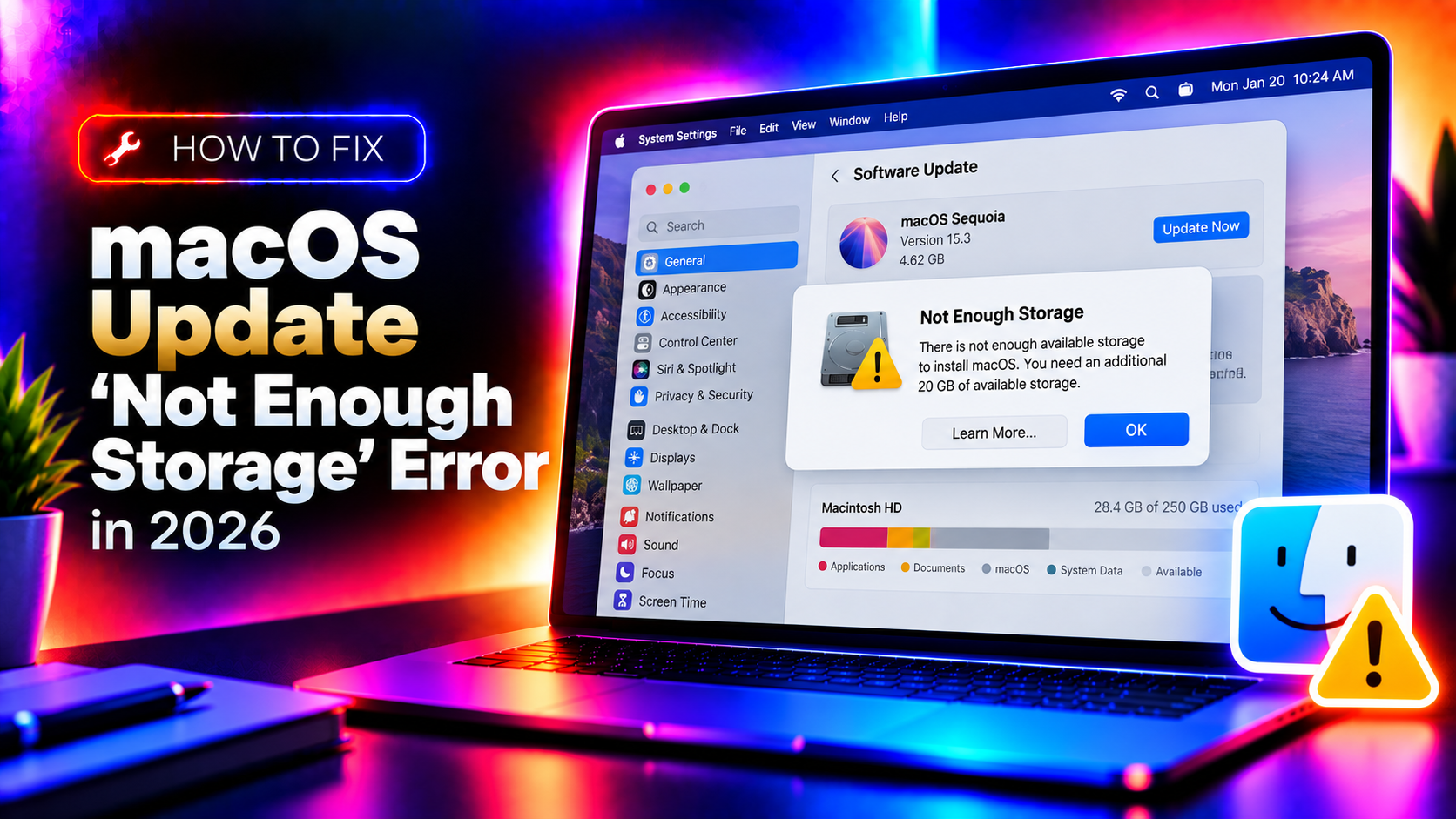
Why macOS Shows "Not Enough Storage" for an Update
You open System Settings → General → Software Update, click Update Now, and instead of progress — you get a blunt message: "macOS Tahoe requires 25 GB of available storage to install. You have X GB available." Frustrating, especially if Finder shows you have plenty of space.
Here's the reality: macOS distinguishes between available space and purgeable space. The storage indicator in About This Mac bundles both together, but the software update engine only counts truly free bytes — which is almost always less than the headline number. In 2026, macOS Tahoe installers are regularly 12–15 GB, and the engine needs double that working room to unpack, verify, and stage files. This guide walks through every proven fix, from quick wins to nuclear options.
Fix 1: Clear the Trash and Remove Large Files
This sounds obvious, but deleted files stay in Trash until you explicitly empty it — and macOS counts them as used space. Open Finder, right-click the Trash icon in the Dock, and select Empty Trash. Then hunt for large files:
- Open Finder → Go → Go to Folder and navigate to
~/Downloads. Sort by size (View → Show View Options → Sort By → Size). Delete anything you no longer need. - Go to Apple menu → About This Mac → More Info → Storage Settings. Click Review Files under each category to see what's consuming space.
- Run this Terminal command to list the 20 largest directories on your system volume:
sudo du -sh /* 2>/dev/null | sort -rh | head -20
After clearing obvious junk, try the update again. If you still get the error, move on.
Fix 2: Delete Time Machine Local Snapshots
macOS stores Time Machine local snapshots on your drive even when no external backup disk is connected. These can silently consume 10–30 GB without appearing in the standard storage view. To reclaim this space:
Open Terminal (Finder → Applications → Utilities → Terminal) and run:
# List all local snapshots
tmutil listlocalsnapshots /

# Delete all local snapshots (safe — your data is not affected)
sudo tmutil deletelocalsnapshots /
You can also temporarily turn off Time Machine under System Settings → General → Time Machine — macOS will automatically remove local snapshots within minutes. Re-enable it after the update completes.
Check how much space this reclaimed:
df -h /Fix 3: Clear App Caches and Purgeable Data
macOS marks browser caches, app logs, and derived data as "purgeable," meaning it can delete them but hasn't yet. The update engine doesn't count purgeable space as free. Force macOS to flush it:
- Restart your Mac. A restart triggers APFS to reclaim purgeable blocks. After reboot, check System Settings → Storage again — the available number often jumps by several gigabytes.
- Manually clear user cache:
rm -rf ~/Library/Caches/*
Then restart again. - If you use Xcode or Xcode Command Line Tools, derived data and simulator runtimes are notorious space hogs:
rm -rf ~/Library/Developer/Xcode/DerivedDataxcrun simctl delete unavailable - Clear Safari cache: Safari → Settings → Advanced → tick "Show features for web developers", then Develop → Empty Caches.
Fix 4: Use the softwareupdate Command in Terminal
When System Settings refuses to proceed, the softwareupdate command-line tool is often more forgiving — it handles space differently and can stage files incrementally. This works well on both Apple Silicon and Intel Macs.
# Check what updates are available
softwareupdate --list

# Download and install the latest macOS update
sudo softwareupdate --install --all --verbose

# To install a specific update by label (use the label shown by --list)
sudo softwareupdate --install "macOS Tahoe 26.5" --verbose
The --verbose flag shows real-time progress and error messages, which helps diagnose whether the failure is truly storage-related or something else (like a verification error).
If the download itself is failing, reset the update cache first:
sudo softwareupdate --reset-data
sudo rm -rf /Library/Updates/*
Then re-run the install command above.
Fix 5: Move Files to iCloud or an External Drive Temporarily
If your internal drive is genuinely full and you can't delete enough, the fastest solution is to temporarily offload large files:
- iCloud Drive: Go to System Settings → Apple Account → iCloud → iCloud Drive → Optimise Mac Storage. Enable this — macOS will upload files to iCloud and remove local copies, freeing real (not purgeable) space.
- External drive: Move your largest folders (Documents, Movies, Photos library) to an external USB or Thunderbolt drive. After the update, move them back.
- Check your Downloads folder:
du -sh ~/Downloads— it's commonly 5–20 GB of forgotten installers and archives.
After freeing enough space, attempt the update via System Settings or the softwareupdate command.
Fix 6: Boot into Safe Mode and Retry (Apple Silicon vs Intel)
Safe Mode prevents third-party kernel extensions and login items from loading, which can interfere with the update engine and cause it to overestimate storage requirements. The process differs by chip:
Apple Silicon (M1, M2, M3, M4 Macs)
- Shut down your Mac completely.
- Press and hold the power button until "Loading startup options" appears.
- Select your startup volume, then hold Shift and click Continue in Safe Mode.
- Log in, open System Settings → Software Update, and try the update.
Intel Macs
- Restart your Mac and immediately hold the Shift key.
- Release Shift when the login screen appears (it will show "Safe Boot" in the corner).
- Log in and attempt the update from System Settings.
In Safe Mode, caches are flushed automatically during boot — this alone sometimes reclaims several gigabytes and allows the update to proceed.
Fix 7: Install macOS from Recovery Mode
If all else fails, you can install macOS directly from the internet via Recovery Mode, bypassing the standard update mechanism entirely. This method doesn't require pre-staging the installer on your drive — it downloads and installs in one pass.
Apple Silicon
- Shut down, then hold the power button until you see the startup options screen.
- Click Options, then Continue to enter Recovery.
- Select Reinstall macOS — this upgrades to the latest version without erasing your data.
Intel Mac
- Restart and immediately hold Command (⌘) + R to enter Recovery.
- For the latest macOS (even if newer than what was originally installed), hold Command + Option + R instead.
- Select Reinstall macOS and follow the prompts.
Recovery Mode pulls macOS from Apple's servers, so you need a working internet connection. Your files, apps, and settings remain intact.
Still Stuck? Get Expert Help
If you've worked through all seven fixes and your Mac still won't update, the problem may run deeper — a corrupted APFS container, a failing drive with bad sectors, or a firmware issue that requires specialist tools to diagnose. Don't risk data loss trying increasingly aggressive workarounds.
The Mac specialists at CloudHouse remote support can diagnose and resolve macOS update storage errors remotely, typically within the same session. No need to visit a repair shop or wait for an appointment.
Frequently Asked Questions
How much free space do I actually need to update macOS Tahoe?
Apple's official minimum is around 12–16 GB for the installer alone, but the update engine needs working room to unpack and stage files. In practice, you should have at least 25–30 GB free before attempting a major macOS upgrade in 2026. For a minor point update (e.g., 26.4 → 26.5), 10–15 GB is usually sufficient.
Why does Finder show free space but macOS says there isn't enough?
macOS APFS combines "available" space and "purgeable" space into one number in Finder. However, the software update engine only counts genuinely free blocks — purgeable data (caches, Time Machine snapshots, iCloud-optimised files) doesn't count. Restarting your Mac or clearing caches forces macOS to flush purgeable blocks and convert them to truly free space.
Is it safe to delete Time Machine local snapshots?
Yes. Local snapshots are convenience copies stored on your drive for quick file recovery when your backup disk isn't connected. Deleting them does not affect your main Time Machine backup on your external drive, and it does not delete any of your actual files. You can safely run sudo tmutil deletelocalsnapshots / before an update.
Will installing macOS from Recovery Mode erase my files?
No. The Reinstall macOS option in Recovery Mode performs an in-place upgrade — it replaces system files but leaves your personal data, applications, and settings untouched. It is functionally identical to a standard software update, just delivered via a different mechanism. Always maintain a backup (Time Machine or otherwise) before any major OS operation as a precaution.
Can I update macOS if I have a 128 GB MacBook Air that's nearly full?
It's challenging but possible. Your best strategy is: (1) enable iCloud Drive optimised storage to push large files to iCloud, (2) delete Time Machine local snapshots, (3) clear caches with a restart, and (4) move your Downloads and largest folders to an external drive. These steps combined can free 15–25 GB even on a full 128 GB drive. Once the update is installed, you can move files back.