
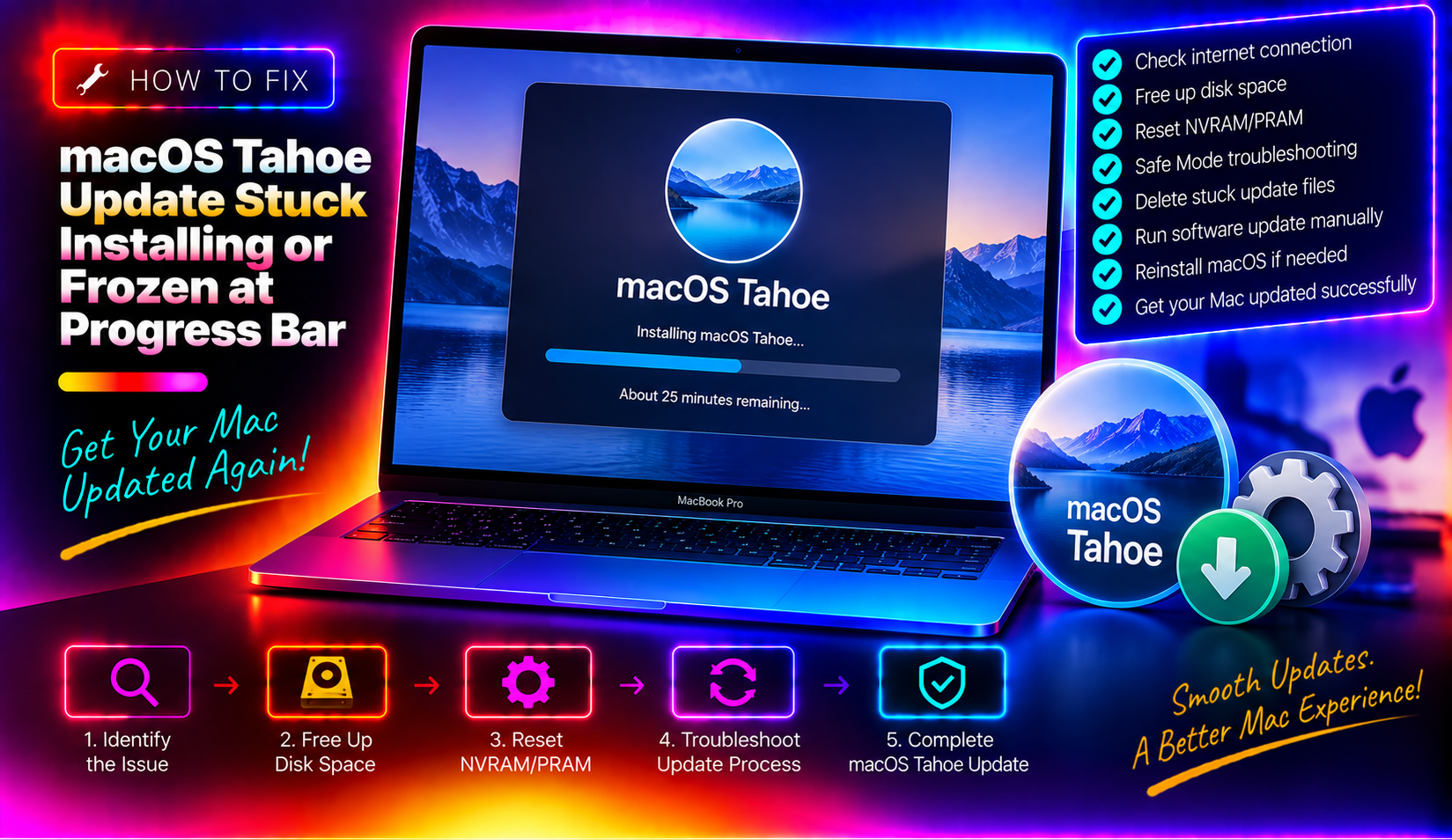
You clicked "Update Now," watched macOS Tahoe begin downloading, and then — nothing. The progress bar froze. Or your Mac rebooted and sat on the Apple logo for 45 minutes. Or the installer claimed "about 3 minutes remaining" for the past hour. You are not alone. macOS Tahoe (macOS 26) install freezes are among the most-reported Mac problems of 2026, and most guides miss the real reasons it happens at specific stages.
This guide explains why the update stalls at each stage and gives you a clear, ordered set of fixes — from the simple 30-second restart to full DFU firmware recovery for a completely unresponsive machine.
Why Does the macOS Tahoe Update Get Stuck? (Root Causes Explained)
Before you force-restart or wipe anything, it helps to know what is actually happening inside the installer. Three distinct stages are responsible for most freezes:
- Preparation stage (~"30 minutes remaining"): The installer is verifying the downloaded payload, expanding compressed files, and checking that your APFS volume has enough contiguous free space. On Macs with less than 20 GB free or spinning-disk external boot drives, this stage can appear frozen for 30–60 minutes while it is actually working.
- Progress bar stuck at ~98% / "About 2 minutes remaining": This often coincides with macOS Tahoe 26.4's new snapshot sealing step. The OS writes a cryptographic seal over the new system volume. On HDDs, older SATA SSDs, or drives with bad sectors, this disk verification pass stalls indefinitely.
- Apple logo loop after reboot (firmware write stage): Apple Silicon Macs (M2/M3 in particular) must rewrite the base firmware to NAND storage during a major update. If power is interrupted, the USB-C port is obstructed, or the SoC encounters a write error, the Mac can loop on the Apple logo or boot to a black screen.
Knowing which stage you are in determines whether you should wait, force-restart, or reach for Recovery Mode.
Fix 1: Force Restart and Let It Resume
If the progress bar has shown zero movement for more than 60 minutes and your Mac's storage light is not blinking, it is safe to force-restart. Shorter freezes — even 30–45 minutes — may simply be the snapshot sealing step described above.
- Press and hold the Power button for 10 seconds until the display goes black.
- Wait 15 seconds, then press the Power button once to restart.
- On Intel Macs: the installer often resumes automatically from where it left off.
- On Apple Silicon Macs: you may see "macOS installation could not be completed" — this is normal. Open System Settings → General → Software Update and click Retry.
What to watch for: If the Mac reboots normally into your existing macOS, the installer rolled back safely. If you see the Apple logo with a progress bar again, let it run — the resume can take another 20–40 minutes.
Fix 2: Free Up Disk Space Before Retrying the Update
macOS Tahoe requires a minimum of 20 GB free for a standard upgrade, but 25–30 GB is recommended to avoid mid-install failures caused by the installer running out of room during snapshot creation.
Check your available space:
diskutil info / | grep "Container Free Space"Or open Apple menu → About This Mac → More Info → Storage.
Quick ways to recover space:
- Delete the partial macOS installer if it is sitting in /Applications (it can be 13–14 GB).
- Empty Trash and clear Downloads folder.
- Run in Terminal to find large files:
sudo du -sh ~/* 2>/dev/null | sort -rh | head -20After freeing space, re-download the installer from System Settings → Software Update.
Fix 3: Check Apple Server Status and Retry on a Stable Network
A partial or corrupted download is a silent killer of macOS updates. The installer may begin unpacking a damaged package and hang indefinitely without an error message.
- Visit Apple System Status at apple.com/support/systemstatus and confirm "macOS Software Update" shows green.
- Switch from Wi-Fi to a wired Ethernet connection if possible.
- Delete the cached partial installer:
sudo rm -rf /Library/Updates/*
sudo rm -rf ~/Library/Caches/com.apple.SoftwareUpdate/*- Restart, then open Software Update and re-download.
Fix 4: Reset NVRAM/PRAM to Clear Boot Variables
NVRAM stores boot-time variables including the designated startup disk. A corrupted NVRAM entry can cause the system to attempt to boot a partially-installed volume and loop indefinitely.
On Intel Macs
Shut down, then press the Power button and immediately hold Option + Command + P + R for 20 seconds (you will hear the startup chime twice on older models). Release and let the Mac boot normally, then retry Software Update.
On Apple Silicon Macs
NVRAM resets differently — it happens automatically during a Shut Down (not restart). Perform a full shutdown, wait 30 seconds, then power on. Alternatively, reset from Terminal:
sudo nvram -c
sudo reboot
Fix 5: Boot into Safe Mode and Retry the Install
Safe Mode disables third-party kernel extensions, login items, and certain caches that can intercept and block the installer. Security tools (VPNs, endpoint protection, backup agents) are common culprits.
Intel Mac — Safe Mode
- Shut down your Mac completely.
- Power on and immediately hold the Shift key.
- Release Shift when the login window appears. You will see "Safe Boot" in the menu bar.
Apple Silicon Mac — Safe Mode
- Shut down completely.
- Press and hold the Power button until "Loading startup options" appears.
- Select your startup disk, then hold Shift and click Continue in Safe Mode.
Once in Safe Mode, open System Settings → Software Update and run the macOS Tahoe installer. Safe Mode dramatically increases success rates because it removes interference from third-party software.
Fix 6: Use macOS Recovery Mode to Reinstall macOS Tahoe
If your Mac boots to the Apple logo and stays there, or reboots in a loop, Recovery Mode lets you reinstall macOS without erasing your data.
Enter Recovery Mode
Intel Mac: Hold Command + R immediately after pressing the Power button.
Apple Silicon Mac: Hold the Power button until startup options appear, then click Options → Continue.
Run First Aid on your disk first
- In Recovery, open Disk Utility.
- Select Macintosh HD (the internal volume) from the sidebar.
- Click First Aid → Run. Let it complete — this can take 5–15 minutes.
- If First Aid reports errors it could not repair, the drive itself may be failing; see Fix 7.
Reinstall macOS
- Return to the Recovery main menu and click Reinstall macOS Tahoe.
- Follow the prompts. Your personal files and apps are preserved — this reinstalls only the system.
- Expect 45–90 minutes depending on your internet speed.
For Recovery to download the installer, you need an active internet connection. Connect to Ethernet or join a reliable Wi-Fi network before starting.
Fix 7: Use Apple Configurator 2 or DFU Mode for a Bricked Mac
If your Mac shows nothing — no Apple logo, no cursor, no response to key combinations — the firmware update may have failed mid-write. This is more common with macOS Tahoe 26.4 on M2 and M3 MacBooks, where errors 4013, 4014, and 4031 have been reported during firmware restoration.
What you need:
- A second healthy Mac running macOS Sequoia 15.7.2+ or macOS Tahoe 26.x
- Apple Configurator 2 (version 2.19 or later) from the Mac App Store — free
- A high-quality USB-C to USB-C cable (not a charge-only cable)
Put the affected Mac into DFU Mode
MacBook Air / MacBook Pro (Apple Silicon):
- Connect the USB-C cable from the second Mac to the left USB-C port of the affected Mac.
- With the affected Mac powered off, press and hold: Left Shift + Left Control + Left Option for 3 seconds.
- While still holding those keys, also press and hold the Power button for an additional 3 seconds.
- Release all keys except the Power button, hold for 10 more seconds, then release.
- The screen stays dark — this is correct. DFU mode has no visual indicator on Apple Silicon.
Revive in Apple Configurator 2
- On the healthy Mac, open Apple Configurator 2. The affected Mac should appear as a DFU device.
- Right-click the device icon and select Advanced → Revive Device.
- Revive reinstalls iBoot and recoveryOS while keeping your user data intact. Always try Revive before Restore.
- If Revive fails repeatedly (errors 4013/4014), choose Restore — this erases the Mac and installs a clean copy of macOS Tahoe.
If you do not have access to a second Mac, an Apple Store or Apple Authorised Service Provider can perform this procedure with their own equipment.
When to Call a Professional (and What to Tell Them)
Some situations genuinely require hands-on expertise:
- First Aid in Disk Utility reports unrepairable errors — the physical drive may be failing.
- DFU Restore completes but the Mac still will not boot — possible SoC or logic board damage from a power interruption during firmware write.
- The Mac was encrypted with FileVault and you have lost the recovery key — a reinstall will not grant access to your data.
- You are uncomfortable performing DFU recovery and have irreplaceable data on the drive.
When you contact support, tell them: the exact macOS version you were upgrading from, the Mac model and year, the exact stage where the update stalled (preparation, progress bar %, Apple logo loop), and any error codes shown (4013, 4014, 4031, or others).
Our team offers professional desktop support with same-day remote resolution for macOS update failures — including guided Recovery Mode reinstalls and DFU recovery walkthroughs for Apple Silicon Macs.
Frequently Asked Questions
Q: How long should I wait before assuming macOS Tahoe is genuinely stuck?
A: Wait at least 60 minutes with no visible progress before taking action. The snapshot-sealing step in macOS Tahoe 26.4 can hold the progress bar at 98% for 30–45 minutes on slower drives while the system is actively working. Check whether the storage indicator light on your Mac is blinking — activity means it is still working.
Q: Will force-restarting during a macOS Tahoe install corrupt my Mac?
A: On Apple Silicon Macs, the installer is designed to be interruptible during most stages. A force-restart before the firmware write phase is generally safe and the installer will roll back cleanly. If the restart happens during the firmware write (the final reboot stage), you may need Recovery Mode or DFU. Back up before updating whenever possible.
Q: My progress bar is stuck at exactly 98% — is there a specific fix?
A: The 98% stall is most commonly the APFS snapshot sealing step introduced in macOS Tahoe 26.4. If it has been there for less than 45 minutes, wait. If it has been there for over 90 minutes with no disk activity, force-restart, free up at least 25 GB of disk space, and retry the update in Safe Mode.
Q: Can I downgrade back to macOS Sequoia if macOS Tahoe keeps failing to install?
A: Yes. Boot into Recovery Mode (Command + R on Intel, hold Power on Apple Silicon), open Disk Utility, erase the main volume, then reinstall macOS via the "Reinstall macOS" option. Use Option + Command + R at startup to load the most recent compatible macOS from Apple's servers, or use a bootable macOS Sequoia USB installer if you have one prepared.
Q: I see error codes 4013 or 4014 in Apple Configurator 2 — what do they mean?
A: Error 4013 indicates a firmware communication failure between the DFU host Mac and the affected device, often caused by a poor USB-C cable or port. Error 4014 is a timeout during the restore. Try a different USB-C port on both Macs, use a certified Apple cable, and ensure both Macs have sufficient charge. If the errors persist, the SoC may require Apple Authorised Service.