How to Fix macOS App Permissions Not Working (Microphone, Camera & Screen Recording Blocked) in 2026
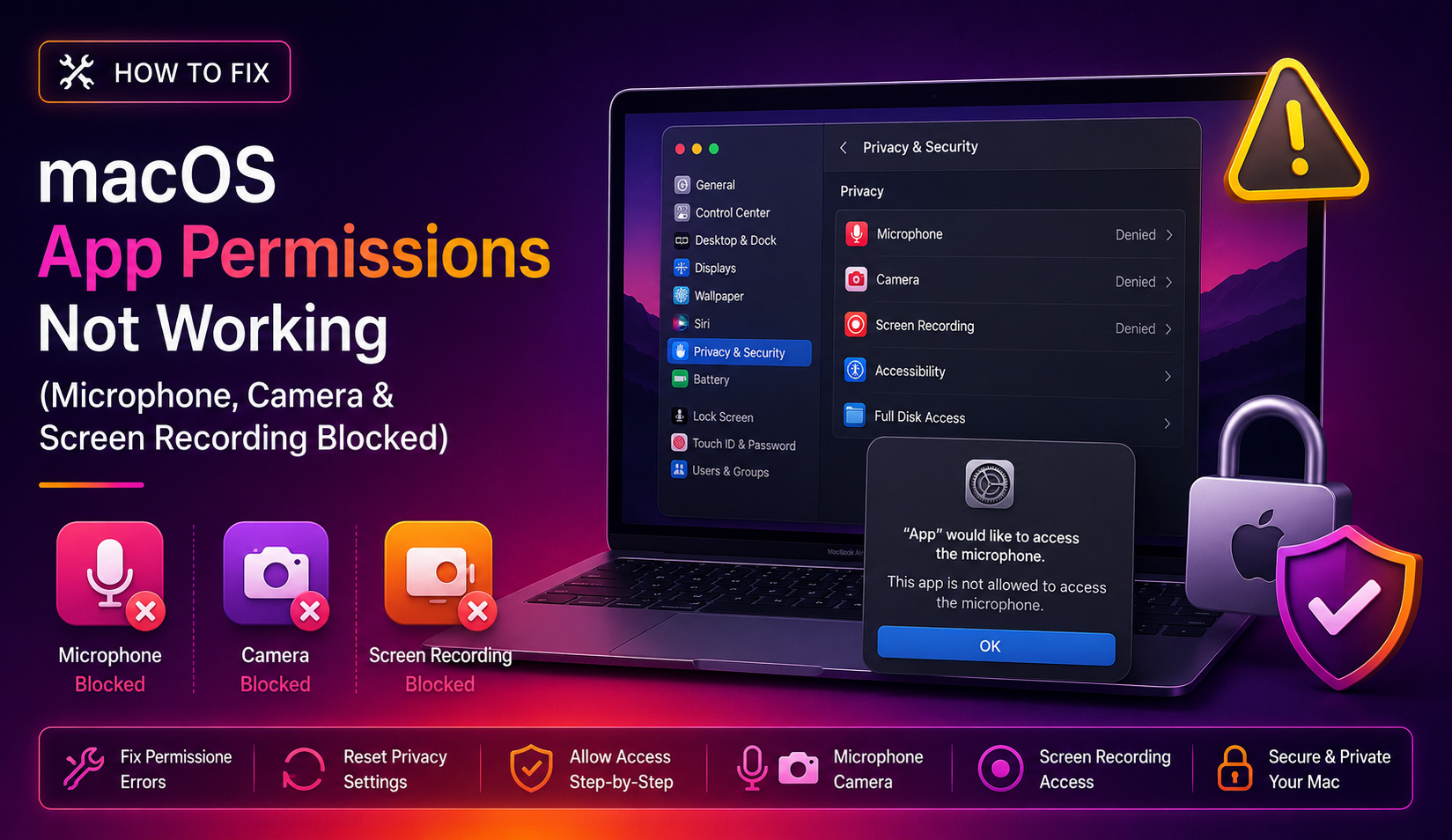
You updated to macOS Sequoia, opened Zoom for a team call, and the app told you it cannot access your microphone. You went to System Settings → Privacy & Security → Microphone, toggled the switch on — and the next morning it was off again. Sound familiar?
This is one of the most frustrating problems macOS users face after a major update. The toggles either don’t stick, apps don’t appear in the list at all, or the permissions silently reset on every reboot. In this guide you will learn why this happens and every fix available in 2026, from the simple System Settings toggle all the way to the tccutil command-line nuclear option that actually resolves the root cause.
Why macOS Resets App Permissions After an Update
macOS manages all privacy permissions through a framework called TCC — Transparency, Consent, and Control. Every time an app requests access to your camera, microphone, screen, or other protected resources, macOS records your decision in a SQLite database:
- User-level TCC database:
~/Library/Application Support/com.apple.TCC/TCC.db - System-level TCC database:
/Library/Application Support/com.apple.TCC/TCC.db
When you upgrade to macOS Sequoia, several things can go wrong with this database:
- Schema migration failure — The new OS version updates the TCC database schema. If the migration is interrupted (power loss, force-quit during update), entries become corrupted or are silently dropped.
- Bundle ID mismatch — A major app update can change the app’s internal bundle identifier. The old permission entry references the old ID and is never matched again.
- Race condition on boot — A known bug (present since Monterey 12.6.1 and still reported in Sequoia) causes a race condition where apps request permissions before macOS has finished loading the TCC daemon, making the system behave as if no permission was granted even though the toggle is on.
- Screen Time / Content & Privacy Restrictions — If Screen Time is enabled with restrictions, it can silently override your Privacy & Security settings and prevent toggles from saving.
Understanding the cause is half the battle. Now let’s fix it.
How to Manually Fix Microphone & Camera Permissions in Privacy & Security
Start with the simplest step before moving to advanced fixes.
Step 1 — Quit the app completely
Right-click the app in the Dock and choose Quit, or press Cmd + Q. Do not just close the window. Many macOS apps continue running in the background unless fully quit.
Step 2 — Open Privacy & Security Settings
- Click the Apple menu → System Settings
- Select Privacy & Security in the left sidebar
- Scroll to find Microphone, Camera, or Screen & System Audio Recording
- Toggle the switch on for the affected app
Step 3 — Check Screen Time restrictions
If the toggle appears greyed out or resets immediately:
- Go to System Settings → Screen Time
- Select Content & Privacy
- Choose App Restrictions
- Make sure Camera is set to Allow
Step 4 — Relaunch the app and test
Open the app again. If it still shows a permission error, proceed to the next section.
App Not Listed in Privacy Settings? How to Force the Permission Prompt
Sometimes an app never appears in the Privacy & Security list because it never triggered the permission prompt — or the prompt was dismissed before the app launched properly.
Force a fresh permission request
Open Terminal (use Spotlight: Cmd + Space, type Terminal) and run the following command, replacing com.example.appname with the app’s actual bundle ID:
# Reset microphone permission for a specific app
tccutil reset Microphone com.zoom.us

# Reset camera permission for a specific app
tccutil reset Camera com.zoom.us

# For screen recording
tccutil reset ScreenCapture com.zoom.us
Common bundle IDs you may need:
- Zoom:
com.zoom.us - Google Chrome:
com.google.Chrome - OBS Studio:
com.obsproject.obs-studio - Microsoft Teams:
com.microsoft.teams2 - Slack:
com.tinyspeck.slackmacgap
After running the command, relaunch the app. macOS will show the permission dialog again — click Allow. The app should now appear in Privacy & Security with the toggle on.
Find an app’s bundle ID
If you do not know the bundle ID, run this command (replace AppName with the actual app name):
osascript -e 'id of app "Zoom"'How to Fix Permissions That Keep Resetting (TCC Database Corruption Fix)
If you toggle the permission on, it works briefly, but resets after a reboot or after a few minutes, the TCC database itself is likely corrupted. Here is how to address that.
Step 1 — Run Disk Utility First Aid
- Open Disk Utility (via Spotlight)
- Select your startup disk on the left
- Click First Aid → Run
- Restart your Mac after it completes
A disk-level error can corrupt many system databases including TCC.db. First Aid repairs the volume structure before you attempt to reset the TCC database.
Step 2 — Reset the TCC database for the affected permission category
Open Terminal and run the appropriate reset for your situation:
# Microphone permissions
tccutil reset Microphone

# Camera permissions
tccutil reset Camera

# Screen Recording / Screen Capture
tccutil reset ScreenCapture

# Accessibility (if assistive tools are broken)
tccutil reset Accessibility

# Full Disk Access
tccutil reset SystemPolicyAllFiles
Important: These commands reset permissions for all apps in that category. Every app that needed microphone access will need to ask for it again. Reboot your Mac after running the commands.
Step 3 — Reboot and re-grant permissions
After restarting, open each affected app one at a time. macOS will show the native permission dialog. Click Allow. Return to Privacy & Security to confirm the toggles are on.
Nuclear Option: Reset All Privacy Permissions with tccutil
If individual category resets do not fix the problem — especially if you have multiple apps broken across multiple categories — you can reset the entire TCC database at once.
tccutil reset AllWhat this does: Wipes every stored privacy decision for every app. Every app on your Mac will need to request permission again the next time it tries to access a protected resource.
When to use this:
- After a major macOS version upgrade (e.g., Sonoma to Sequoia) where many permissions broke
- When the Privacy & Security panel itself crashes or fails to display toggles
- When permissions reset on every reboot regardless of other fixes
Steps:
- Quit all open apps
- Open Terminal and run:
tccutil reset All - Restart your Mac
- Open each app that needs permissions one by one and grant access when prompted
This resolves the vast majority of persistent permission-reset loops because it forces macOS to rebuild the TCC database from scratch with fresh, uncorrupted entries.
Still broken? Check SIP (System Integrity Protection)
In rare cases, SIP being disabled can prevent TCC from writing permission changes properly. Verify SIP status with:
csrutil statusIf it shows disabled and you did not intentionally disable it, re-enable it by booting into macOS Recovery (Cmd + R on Intel / hold Power on Apple Silicon), opening Terminal, and running csrutil enable, then reboot.
Need a faster resolution?
If you have tried every step above and permissions are still broken, the issue may be deeper — a corrupted user profile, a conflicting MDM policy, or a failed macOS Sequoia installation. You can get expert help from CloudHouse Technologies and have a certified macOS technician diagnose and fix it remotely, same day.
FAQ: macOS App Permissions Not Working
Why does macOS keep resetting my microphone permissions after every reboot?
This is most commonly caused by TCC database corruption or a race condition introduced in macOS Sequoia where apps request permissions before the TCC daemon finishes loading. Run tccutil reset Microphone in Terminal, reboot, and re-grant the permission. If it resets again, run tccutil reset All for a full database rebuild.
My app is not showing up in Privacy & Security at all. What should I do?
The app has never triggered a permission prompt, or the prompt was dismissed before access was requested. Run tccutil reset Microphone com.bundleid.ofapp in Terminal (replace with the correct bundle ID), then relaunch the app. It will show the permission dialog and appear in the list after you respond.
The toggle in Privacy & Security is greyed out and I cannot change it. Why?
Screen Time Content & Privacy Restrictions are most likely blocking the change. Go to System Settings → Screen Time → Content & Privacy → App Restrictions and set Camera and Microphone to Allow. If your Mac is managed by an organisation (MDM profile), an administrator may be enforcing the restriction remotely.
Does tccutil reset All delete my data or uninstall apps?
No. It only wipes the stored privacy permission decisions in the TCC database. Your apps, files, and settings are completely untouched. The only effect is that every app will need to ask for permission again the next time it tries to access the microphone, camera, screen, contacts, and similar protected resources.
Will these fixes work on macOS Sonoma as well as Sequoia?
Yes. The TCC database has been present since macOS Mojave and the tccutil command works on every macOS version from Mojave through Sequoia. The permission-reset race condition bug was first widely reported on Monterey 12.6.1 and has persisted through Ventura, Sonoma, and Sequoia, so all the steps in this guide apply to those versions too.