How to Fix Mac Memory Pressure High (Red or Yellow) in 2026
You open Activity Monitor, glance at the Memory tab, and there it is — a yellow or blazing red Memory Pressure graph. Your Mac feels sluggish, apps take a beat too long to respond, and switching between windows has that unmistakable stutter. You are not imagining it. High memory pressure is one of the most common performance complaints on macOS, and it is almost always fixable without buying a new machine.
This guide goes deeper than the usual "restart and close some tabs" advice. You will learn what memory pressure actually measures, how Apple Silicon's unified memory changes the picture, and how to use Activity Monitor's sort columns to pinpoint the exact process killing your performance — then squash it.
What Is Memory Pressure on Mac and What Do the Colors Mean?
Memory Pressure is a composite metric, not a simple RAM percentage. macOS calculates it from four signals simultaneously:
- Available free RAM — physical memory not currently in use
- Memory compression ratio — how hard the OS is squashing pages to reclaim space
- Swap usage — how much data has been pushed from RAM onto your SSD as virtual memory
- Overall system demand — the rate at which new memory is being requested
The color thresholds roughly map like this:
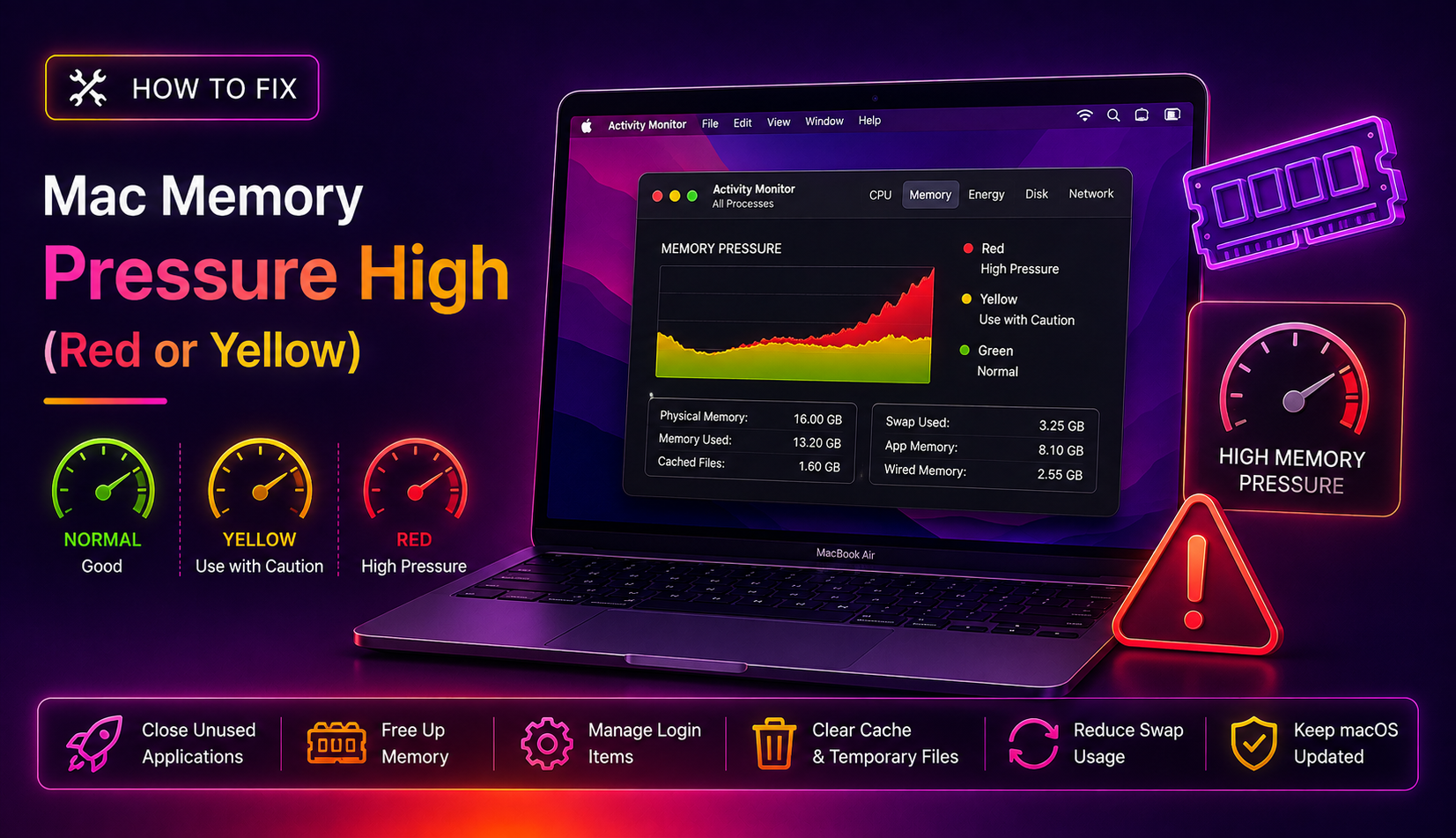
- Green — 50–100% free memory. RAM is plentiful, compression is minimal, swap is near zero. This is normal.
- Yellow — 30–50% free memory. macOS is actively compressing memory pages to stay off disk. Performance is usually fine but you are close to the edge. Swap may begin to appear.
- Red — Below 30% free memory. Compression is maxed out and swap is growing. Every disk write for virtual memory is a performance tax, especially on older or entry-level SSDs. You will feel this as lag, beachballs, and app freezes.
Key insight: A brief yellow spike during a heavy task (video export, compiling code, running a VM) is completely normal. A graph that stays yellow or red even at idle or light use is the problem you need to fix.
How to Check Memory Pressure in Activity Monitor
Activity Monitor is the built-in triage tool. Here is exactly how to read it like a pro:
- Press Command + Space, type Activity Monitor, and press Enter.
- Click the Memory tab at the top.
- At the bottom of the window, locate the Memory Pressure graph — this is your primary indicator.
- Look at the columns: Memory shows real RAM consumption per process. Compressed shows how many bytes macOS has squashed for that app.
- Click the Memory column header to sort by highest usage descending.
Below the graph you will also see:
- Physical Memory — total RAM installed
- Memory Used — RAM actively in use (App Memory + Wired Memory + Compressed)
- Swap Used — data currently living on your SSD instead of in RAM. Any number above 1–2 GB here means your Mac is actively slowing down due to disk I/O.
- Cached Files — memory holding recently used file data. macOS reclaims this first when an app needs more RAM — it is not wasted memory.
Triage workflow: Sort by Memory column. The top three to five processes are your suspects. Note the names — you will need them in the fix steps below.
Top Causes of High Memory Pressure on macOS
1. Chromium-Based Browsers
Google Chrome, Microsoft Edge, and Brave each isolate every tab and extension into its own process. Thirty tabs can mean 30+ processes, each holding its own copy of JavaScript, images, and DOM. It is common to see Chrome alone consuming 4–8 GB on a 16 GB Mac.
2. Electron Apps
Apps like Slack, VS Code, Discord, Notion, and Spotify are built on Electron — essentially a bundled Chromium browser. Each one can consume 500 MB to over 1 GB at idle.
3. Memory Leaks in Long-Running Apps
Some apps slowly consume more and more RAM over hours or days without releasing it. If you notice memory pressure creeping up gradually without opening new apps, a memory leak in a background process is the likely culprit.
4. Spotlight Re-indexing (mds_stores)
After a macOS update or when a new external drive is connected, the Spotlight indexer (mds_stores) can spike both CPU and RAM for minutes to hours until indexing completes.
5. WindowServer with Multiple Displays
On Apple Silicon Macs, connecting multiple 4K or 5K external displays dramatically increases the amount of unified memory consumed by WindowServer — the process that renders every pixel on screen. Each additional high-resolution display can add 1–3 GB of GPU memory demand from the shared pool.
6. Virtual Machines and Containerized Workloads
Parallels, VMware Fusion, UTM, and Docker all reserve large memory allocations. A Windows VM configured at 8 GB will hold 8 GB of your unified memory regardless of what Windows is actually doing inside it.
7. Too Little RAM for Your Workload (Apple Silicon Specifics)
Apple Silicon Macs come with 8 GB, 16 GB, 24 GB, or 36 GB of unified memory — and unlike Intel Macs, it cannot be upgraded post-purchase. If your workflow genuinely demands more RAM than you have, no amount of tweaking will make the red bar go green.
Step-by-Step Fixes to Reduce Memory Pressure (Green Up Your Mac)
Fix 1 — Identify and Quit the Offending Process
In Activity Monitor, sort by Memory. Find the top consumer that you do not need right now. Select it and click the X button (Force Quit) in the top-left of Activity Monitor, or switch to that app and press Command + Q to quit cleanly.
Fix 2 — Reduce Browser Tabs and Switch to Safari
Close all tabs you are not actively reading. Consider using Safari instead of Chrome for everyday browsing — Safari's tab suspension and tighter integration with macOS typically saves 1–2 GB of RAM compared to Chrome with the same number of tabs open.
In Chrome, you can also enable Memory Saver: Settings → Performance → Memory Saver. This suspends inactive tabs automatically.
Fix 3 — Quit Unused Background Apps
Many apps continue running in the background after you close their window (note the dot under their Dock icon). Right-click each icon in the Dock and choose Quit, not just close. Pay special attention to Slack, Discord, Spotify, Notion, and Teams.
Fix 4 — Audit and Trim Login Items
Apps that launch at startup consume RAM before you even open anything. Go to System Settings → General → Login Items & Extensions. Disable everything you do not need running constantly.
Fix 5 — Restart to Clear Swap and Compressed Memory
A full restart is the single fastest way to restore a green memory pressure graph. It empties RAM, resets all compression, and eliminates swap entirely. Schedule a restart at the end of each workday if you tend to keep your Mac running for days or weeks.
Fix 6 — Use the purge Command (Emergency Flush)
If you cannot restart right now but need to free inactive memory before a heavy task, open Terminal and run:
sudo purgeEnter your administrator password when prompted. This flushes the inactive memory cache — pages macOS is holding onto just in case but has not needed recently. On an Apple Silicon Mac expect to reclaim a few hundred MB to ~600 MB. It does not reduce swap (only a reboot does that), but it gives your next operation a slightly cleaner start.
Fix 7 — Fix mds_stores Spotlight Indexing
If Activity Monitor shows mds_stores or mdworker at the top of the Memory column, Spotlight is indexing. You can temporarily pause it:
sudo mdutil -a -i offWait 30 minutes, then re-enable it to allow indexing to complete properly:
sudo mdutil -a -i onTo rebuild the Spotlight index from scratch (fixes runaway indexing loops after updates):
sudo mdutil -E /Fix 8 — Reduce Display Load
If you have multiple external displays connected, try disconnecting one and check if memory pressure drops. On Apple Silicon, the GPU shares the unified memory pool — high-resolution displays eat directly into RAM available for your apps.
Fix 9 — Limit Virtual Machine Memory Allocation
Open your VM settings in Parallels or VMware and reduce the allocated RAM. For light Windows use, 4 GB is usually sufficient. In Docker Desktop, go to Settings → Resources and cap memory to what you actually need.
When High Memory Pressure Means You Need More RAM (Apple Silicon Limits)
Apple Silicon's unified memory architecture is more efficient than traditional RAM — the CPU, GPU, and Neural Engine all share the same high-bandwidth pool, eliminating the bottleneck of copying data between separate memory banks. This is why an 8 GB M-series Mac can feel snappier than a 16 GB Intel Mac for many tasks.
However, unified memory has a hard ceiling that cannot be changed after purchase. If you have exhausted all the software fixes above and your Activity Monitor still shows:
- Swap Used consistently above 2–3 GB
- Memory Pressure red at moderate workloads (browser + email + one creative app)
- Memory Pressure yellow even at idle with fewer than five apps open
...then your current Mac's RAM is genuinely insufficient for your workflow. The practical options are:
- Optimize your workflow — work in fewer apps simultaneously, process files in batches, use lighter alternatives (e.g., VS Code instead of Xcode for light editing)
- Plan for next purchase — Apple offers 16 GB as the entry point for M4 Pro and higher chips; for professional workloads, 24 GB or 36 GB is the future-proof choice
- Get a diagnostic — if you are unsure whether your symptoms indicate a RAM shortage or a software bug, get expert help from CloudHouse Technologies — our technicians can run a full memory diagnostic and identify whether an upgrade or a software fix is the right answer for your specific configuration
FAQ
Is yellow memory pressure on Mac bad?
Yellow memory pressure means macOS is compressing memory to avoid using swap, which is normal during demanding tasks like video editing, compiling code, or running multiple heavy apps simultaneously. If your Mac stays yellow even at idle or light use (browser + email), you should close background apps and audit your Login Items. Persistent yellow is a warning sign; it is not yet an emergency but warrants attention.
What does red memory pressure mean on Mac?
Red memory pressure means your Mac has exhausted available RAM and is actively writing data to your SSD as swap (virtual memory). Every swap read and write slows your Mac down because even fast NVMe SSDs are orders of magnitude slower than RAM. You will experience beachballs, stuttering app switches, and sluggish response. Quit your heaviest apps immediately or restart to clear the swap.
Does sudo purge fix high memory pressure on Mac?
The sudo purge command flushes inactive memory — pages macOS is caching but not actively using. It can temporarily lower memory pressure, particularly if a lot of inactive pages have built up. However, it does not reduce swap usage (only a restart does that), and on Apple Silicon it typically reclaims only a few hundred MB. It is a useful emergency measure before a heavy task, not a permanent solution.
Why is my Mac's memory pressure high after a macOS update?
After a major macOS update, Spotlight re-indexes your entire drive, which can drive both CPU and RAM usage high for 30 minutes to several hours. The process responsible is mds_stores in Activity Monitor. This resolves itself once indexing completes. If it persists beyond a few hours, rebuild the Spotlight index with sudo mdutil -E / in Terminal.
Can I upgrade RAM on an Apple Silicon Mac to fix memory pressure?
No. Apple Silicon Macs (M1, M2, M3, M4 and all their Pro/Max/Ultra variants) use unified memory that is soldered directly to the chip package. It cannot be upgraded after purchase. If your Mac consistently shows high memory pressure despite all software optimizations, your only path is either to streamline your workflow or plan an upgrade to a Mac with a higher unified memory configuration at the time of purchase.