
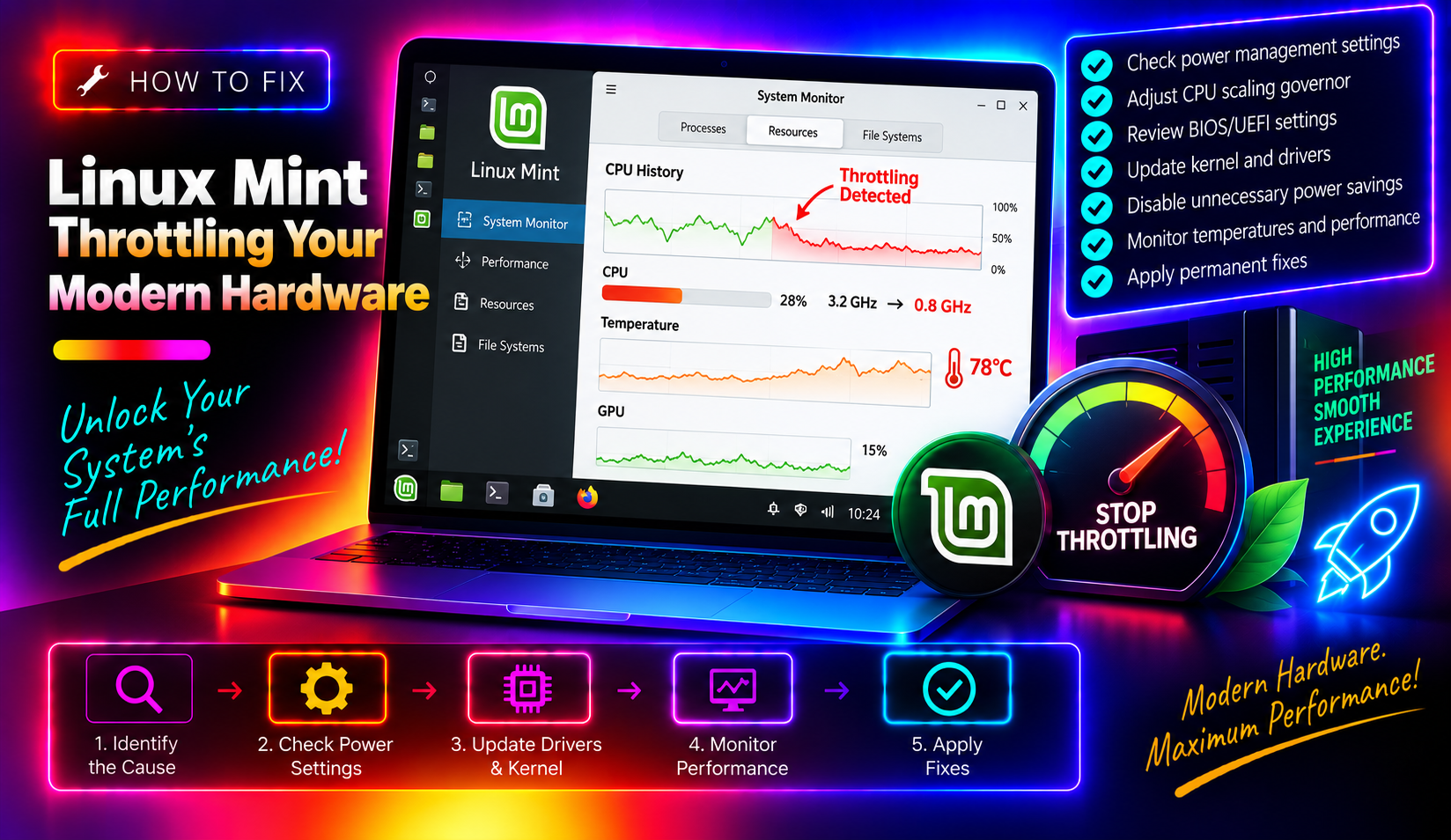
You've got a modern machine — a recent Intel Core or AMD Ryzen processor, 16GB of RAM, maybe an NVMe SSD — and yet Linux Mint feels sluggish. Apps hesitate to open. The desktop drags. Switching windows isn't as instant as you'd expect. You've probably blamed the desktop environment or wondered if something is broken.
Nothing is broken. The problem is that Linux Mint ships with kernel defaults designed for underpowered hardware, and those same defaults quietly throttle modern machines every single day. The three main culprits: a swappiness value of 60 that pushes RAM pages to disk before they need to go, a Balanced CPU governor that prevents your processor from hitting its performance states on demand, and no zRAM — meaning you're not getting any benefit from modern memory compression. This guide walks you through diagnosing and fixing all three, with real terminal commands and before/after verification steps.
Why Linux Mint Throttles Modern Hardware by Default
Linux Mint is built to run everywhere — aging laptops with 4GB of RAM, office desktops from 2014, and brand-new workstations alike. To achieve this breadth, the distribution ships with conservative kernel defaults that prioritise compatibility over performance. That's a reasonable design choice, but it creates a real problem for users on capable hardware.
Here's what's happening under the hood on a typical modern Linux Mint installation:
- Swappiness at 60: The kernel starts offloading RAM pages to swap when only 40% of RAM is still free. On a machine with 16GB RAM, that means swap activity can start when you still have over 6GB available — completely unnecessary, and it adds latency every time swapped pages need to be read back.
- Balanced CPU governor via power-profiles-daemon: Linux Mint 22 ships with power-profiles-daemon set to Balanced by default. On modern Intel and AMD processors with wide P-state ranges, this prevents the CPU from aggressively boosting to higher frequencies for short desktop workloads — exactly the kind of bursts that determine whether an app feels snappy or sluggish.
- No zRAM by default: zRAM creates a compressed swap device entirely in RAM, acting as a far faster alternative to disk swap. It ships enabled on Android and ChromeOS, but Linux Mint leaves it off by default.
Each of these issues is fixable in under five minutes. The key is doing them in the right order and verifying each one actually took effect.
Step 1: Check Your Current Performance Baseline (Before You Change Anything)
Before making changes, capture your current state so you can measure improvement. Open a terminal and run the following:
Check your current swappiness
cat /proc/sys/vm/swappinessOn a default Linux Mint install, this returns 60. Note it down.
Check current RAM and swap usage
free -hLook at the Swap line. If your system is actively using swap with gigabytes of RAM still free, that's a sign the default swappiness is already hurting you.
Check your current CPU governor
cat /sys/devices/system/cpu/cpu0/cpufreq/scaling_governorOn a default installation with power-profiles-daemon active, this typically returns powersave or schedutil. Your CPU's boost frequencies are being held back.
Run a quick CPU benchmark to establish a baseline
sudo apt install -y sysbench
sysbench cpu --threads=$(nproc) run
Note the events per second value. You'll compare this after changing the governor.
Step 2: Fix Swappiness — Stop Linux Mint Swapping RAM It Doesn't Need To
This is the highest-impact single change you can make on a machine with 8GB or more of RAM. Reducing swappiness from 60 to 10 tells the kernel: only touch swap as a genuine last resort, not as routine memory management.
Apply the fix permanently
echo "vm.swappiness=10" | sudo tee /etc/sysctl.d/99-swappiness.confApply it immediately without rebooting
sudo sysctl -p /etc/sysctl.d/99-swappiness.confVerify it took effect
cat /proc/sys/vm/swappinessThis should now return 10. The change persists across reboots because it's written to /etc/sysctl.d/.
What does this actually change in practice? Desktop use consists of thousands of short bursts — opening an app, switching a tab, spawning a file manager. Each of these requires reading pages back from RAM quickly. When swappiness is 60, the kernel quietly pages out background process memory to disk even while you have gigabytes free, so when you switch back to that app, there's a small but perceptible delay reading pages back in. At swappiness 10, those pages stay in RAM where they belong.
Step 3: Replace the Default CPU Governor for Full Turbo Boost on Demand
Linux Mint 22's power-profiles-daemon defaults to the Balanced profile, which maps to conservative CPU frequency scaling. Modern Intel and AMD chips have wide P-state ranges — your CPU might be capable of 4.8GHz boost but spending most of its time at 1.4GHz during desktop workloads. Setting the governor to performance allows the kernel to aggressively use boost frequencies when needed.
Install cpupower (if not already installed)
sudo apt install -y linux-tools-common linux-tools-$(uname -r)Set performance governor immediately
sudo cpupower frequency-set -g performanceVerify it's active
cat /sys/devices/system/cpu/cpu*/cpufreq/scaling_governorEvery CPU core should now report performance.
Make it persist across reboots
Create a systemd service so the governor is set at every boot:
sudo tee /etc/systemd/system/cpu-performance-governor.service << EOF
[Unit]
Description=Set CPU governor to performance
After=multi-user.target

[Service]
Type=oneshot
ExecStart=/usr/bin/cpupower frequency-set -g performance
RemainAfterExit=yes

[Install]
WantedBy=multi-user.target
EOF

sudo systemctl daemon-reload
sudo systemctl enable --now cpu-performance-governor.service
Note for laptop users: The performance governor consumes more power. If battery life matters, consider using schedutil instead — it's significantly better than powersave for desktop responsiveness while still scaling down when idle. Replace performance with schedutil in the commands above.
Step 4: Enable zRAM to Expand Effective RAM Without Buying New Hardware
zRAM creates a compressed swap device that lives entirely in your RAM. Instead of writing swap pages to disk (even a fast NVMe), it compresses them and stores them in a reserved region of RAM. The compression ratio typically runs around 3:1, so 4GB of zRAM can hold what would otherwise be 12GB of swap data — all served at RAM speeds.
Install zram-config
sudo apt install -y zram-configThis automatically creates and enables a zRAM swap device sized at half your total RAM. On a 16GB machine, that's 8GB of compressed swap in RAM.
Verify zRAM is active
zramctlYou should see a /dev/zram0 device listed with its algorithm (usually lzo-rle) and size.
swapon --showThis should now show your zRAM device with type partition and a /dev/zram0 path.
Optional: Set a higher compression ratio with zstd
echo "zstd" | sudo tee /sys/block/zram0/comp_algorithmThe zstd algorithm offers better compression than the default lzo-rle with minimal CPU overhead on modern processors.
Combined with the reduced swappiness from Step 2, zRAM ensures that if the kernel does need to page something out, it goes to a fast compressed RAM store instead of your SSD. The result is significantly smoother behaviour under high memory load.
Step 5: Disable Unnecessary Startup Services That Drain CPU at Boot
Linux Mint ships with a range of services enabled by default that many users don't need. Each one adds to boot time and consumes ongoing CPU and RAM. The key is identifying which services are safe to disable on your specific machine.
Find which services are taking longest at boot
systemd-analyze blame | head -20Services taking over 1 second are strong candidates for review. Services taking over 3 seconds on a modern NVMe system almost certainly warrant investigation.
View overall boot time breakdown
systemd-analyzeThis shows the split between firmware time, loader time, kernel time, and userspace time.
Common services safe to disable if you don't use them
- cups.service — printer support. Disable if you have no printer:
sudo systemctl disable cups.service - bluetooth.service — disable on desktops without Bluetooth hardware:
sudo systemctl disable bluetooth.service - ModemManager.service — for mobile broadband modems. Most desktop users don't need this:
sudo systemctl disable ModemManager.service - avahi-daemon.service — mDNS/Bonjour network discovery. Safe to disable if you don't use network printing or local service discovery:
sudo systemctl disable avahi-daemon.service
# Check the status of a service before disabling
systemctl status cups.service

# Disable it
sudo systemctl disable cups.service

# Stop it immediately without rebooting
sudo systemctl stop cups.service
Do not disable services you are unsure about. NetworkManager, systemd-udevd, and display manager services are essential. If in doubt, leave the service enabled — the performance gain from disabling one unknown service is not worth a broken boot.
Step 6: Verify Your Gains — Benchmarking Before and After
With all three fixes applied, it's time to confirm the improvements are real and measurable.
Re-run the CPU benchmark
sysbench cpu --threads=$(nproc) runCompare the events per second to your baseline from Step 1. With the performance governor active, you should see a noticeable increase, particularly on systems where the Balanced profile was holding the CPU at low base frequencies.
Check that swappiness stuck
cat /proc/sys/vm/swappinessShould return 10.
Stress test memory to confirm zRAM is being used
sudo apt install -y stress-ng
stress-ng --vm 4 --vm-bytes 75% --timeout 30 &
watch -n 1 "free -h && echo '---' && zramctl"
Under memory pressure, you should see zRAM being used before any disk swap appears. The compressed column in zramctl will show data being stored in the zRAM device.
Boot time comparison
systemd-analyzeAfter disabling unnecessary services, total userspace time should be reduced. A modern NVMe-based Linux Mint system that previously showed 12–15 seconds userspace time often drops to 6–8 seconds after service cleanup.
Still Struggling With a Slow Linux Mint System?
The fixes in this guide resolve the most common causes of Linux Mint throttling modern hardware — and they work on the vast majority of systems. But some performance problems run deeper: GPU driver mismatches, I/O scheduler misconfiguration, filesystem fragmentation, failing hardware, or software conflicts that require careful diagnosis.
If you've applied every step in this guide and your Linux Mint system is still underperforming, the problem likely needs hands-on investigation. Our team provides professional desktop support for exactly these situations — remote diagnosis, same-day resolution, no guesswork. Whether it's a persistent swappiness issue that keeps reverting, a CPU governor that won't stick, or performance degradation after a system update, we can identify and fix it.
Frequently Asked Questions
Q: Is it safe to set swappiness to 10 on a system with only 8GB of RAM?
A: Yes, swappiness 10 is safe and beneficial on 8GB systems. It means the kernel will only use swap when RAM usage is very high, not as a precaution. The only time this could be an issue is if you routinely run memory-intensive workloads that genuinely exhaust 8GB — in that case, pairing swappiness 10 with zRAM (Step 4) gives you the best of both worlds: RAM stays available longer and zRAM acts as a fast compressed buffer before any disk swap is touched.
Q: Will setting the CPU governor to performance damage my processor or reduce its lifespan?
A: No. Modern CPUs are designed to run at their rated boost frequencies. The performance governor simply tells the kernel to use those frequencies when demand exists, rather than waiting. The CPU's built-in thermal throttling and power management still operate — if the chip gets too hot, it will throttle itself regardless of the governor setting. The practical impact is higher average power draw and slightly more heat, which is why laptop users may prefer schedutil instead.
Q: How much RAM does zRAM use, and does it hurt performance if RAM is already scarce?
A: The zram-config package allocates a zRAM device sized at half your total RAM by default. However, zRAM only occupies that space when it's actually storing compressed pages — an empty zRAM device uses virtually no RAM. On a system with 8GB, a 4GB zRAM device might only actually use 200–400MB of real RAM when active, because compression ratios are typically 3:1 or better. It's a net positive in almost every scenario.
Q: My CPU governor reverts to powersave after every reboot. Why isn't the systemd service fixing it?
A: This usually means power-profiles-daemon is overriding your governor setting after the service runs. Check with systemctl status power-profiles-daemon. If it's active, you have two options: either disable power-profiles-daemon entirely with sudo systemctl disable --now power-profiles-daemon, or configure it to use the Performance profile by default using powerprofilesctl set performance and making that persistent through your service file.
Q: Do these fixes apply to Linux Mint 21 as well, or only Linux Mint 22?
A: All three fixes — swappiness, CPU governor, and zRAM — apply to Linux Mint 21.x and 22.x. The swappiness default of 60 and the absence of zRAM by default have been consistent across multiple Mint releases. The CPU governor situation is slightly different on Mint 21: power-profiles-daemon may not be installed by default, meaning the governor might already be set by the kernel directly. Run cat /sys/devices/system/cpu/cpu0/cpufreq/scaling_governor to confirm your current state before making changes.