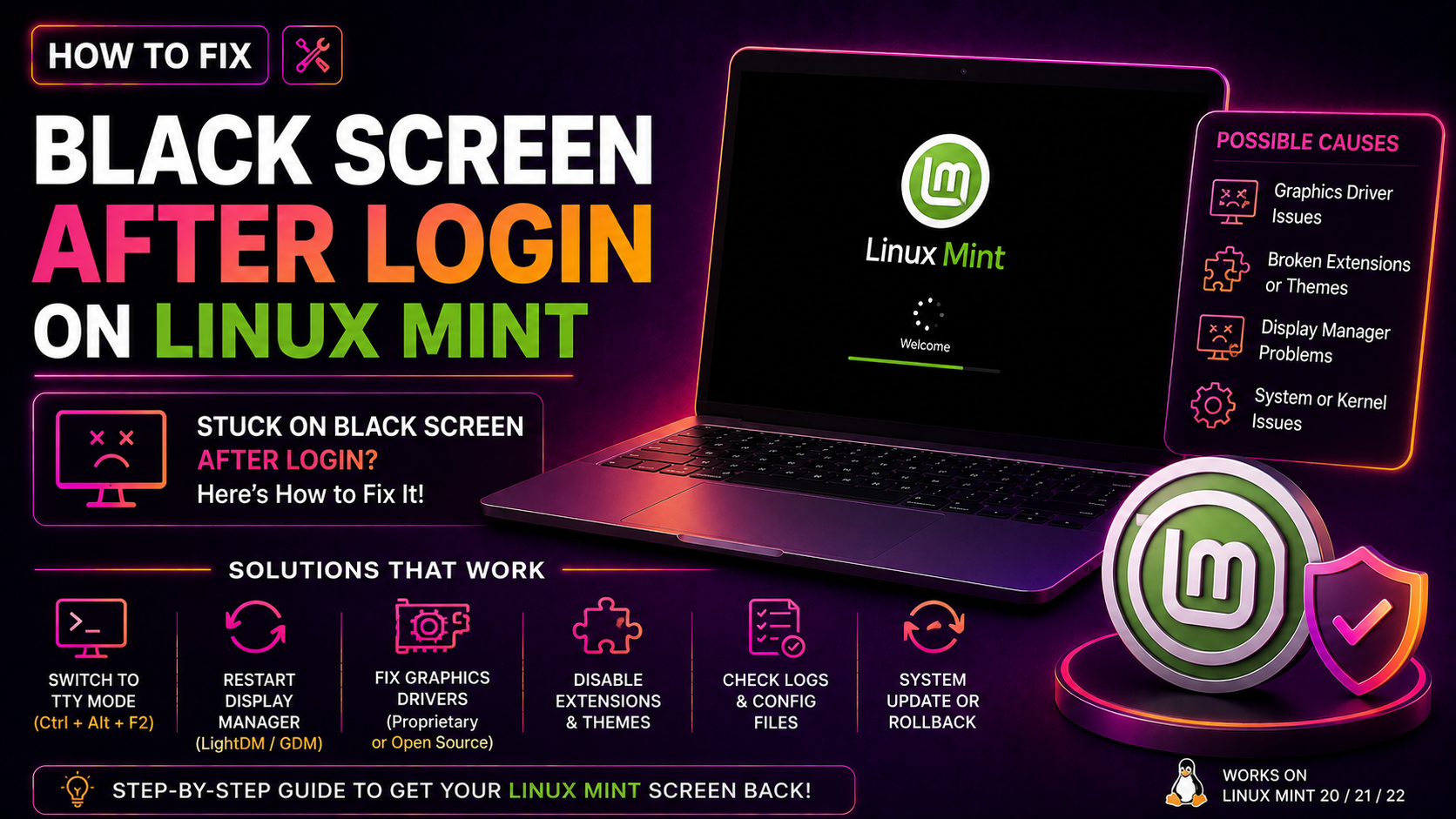
A black screen after logging into Linux Mint is one of the most frustrating problems a desktop user can face — you see the login screen, enter your password, and then nothing but a black screen (sometimes with a cursor). The good news is that every case of this problem is solvable, and this guide covers all the causes and fixes in order from simplest to most advanced for Linux Mint black screen after login.
Why Does Linux Mint Show a Black Screen After Login?
The black screen happens when the display manager successfully authenticates you, but the desktop environment (Cinnamon, MATE, XFCE) fails to start. Common causes:
- A graphics driver conflict — especially after a system update that changed the kernel
- The display manager (LightDM, SDDM, GDM) crashed or has a corrupt configuration
- The
.Xauthorityfile has wrong permissions or is corrupted - A broken session configuration in the user's home directory
- Full disk — the desktop environment can't write temporary files
- NVIDIA proprietary driver not matching the current kernel
Step 1 — Switch to a Virtual Terminal and Diagnose
When you see the black screen, press Ctrl + Alt + F2 (or F3, F4) to switch to a text terminal. Log in with your username and password. Now you have a working terminal to diagnose and fix the issue.
# Check available disk space — if /home or / is 100% full, that's your problem
df -h

# Check the Xorg log for errors
cat /var/log/Xorg.0.log | grep -E "EE|WW" | head -30

# Check display manager status
systemctl status lightdm
# or for SDDM:
systemctl status sddm
Step 2 — Fix .Xauthority Permissions (Most Common Fix)
A corrupt or wrong-ownership .Xauthority file is the most frequent cause of black screen after login in Linux Mint.
# From the virtual terminal (Ctrl+Alt+F2), logged in as your user:
ls -la ~/.Xauthority
# If it shows root as the owner instead of your username, that's the problem

# Fix ownership
sudo chown $USER:$USER ~/.Xauthority

# Or if the file is corrupt, just delete it (it's recreated automatically)
rm ~/.Xauthority

# Return to the login screen
sudo systemctl restart lightdm
Step 3 — Reinstall the Display Manager
LightDM (the default in Linux Mint) can develop configuration issues after updates.
# Purge and reinstall LightDM
sudo apt purge lightdm lightdm-gtk-greeter
sudo apt install lightdm lightdm-gtk-greeter

# Reconfigure it
sudo dpkg-reconfigure lightdm

# Restart the display manager
sudo systemctl restart lightdm
During dpkg-reconfigure, a dialog asks which display manager to use as default — select lightdm.
Step 4 — Reinstall the Desktop Environment
If Cinnamon or your desktop environment is broken, reinstall it:
# For Cinnamon edition
sudo apt install --reinstall cinnamon cinnamon-core

# For MATE edition
sudo apt install --reinstall mint-meta-mate

# For XFCE edition
sudo apt install --reinstall mint-meta-xfce

# After reinstall, restart the display manager
sudo systemctl restart lightdm
Step 5 — Fix NVIDIA Driver Issues
If you have an NVIDIA GPU, a kernel update may have broken the proprietary driver. The open-source Nouveau driver often doesn't load properly with the proprietary driver still partially installed.
# Check which driver is currently active
sudo lshw -C display | grep driver

# Remove and reinstall NVIDIA driver
sudo apt purge nvidia-*
sudo apt autoremove
sudo reboot

# After reboot, reinstall using Driver Manager
# Applications → Driver Manager → select recommended NVIDIA driver → Apply
# OR from terminal:
sudo ubuntu-drivers autoinstall
sudo reboot
💡 None of these worked? Skip the guesswork.
Get Expert Help →Step 6 — Boot in Recovery Mode and Fix
If you cannot reach a virtual terminal:
1. Restart the computer. Hold Shift during GRUB loading to open the GRUB menu.
2. Select Advanced options for Linux Mint → choose a recovery kernel entry.
3. Select root — Drop to root shell prompt.
4. Run the diagnostic and fix commands from Steps 1–5 above.
5. Type reboot when done.
Step 7 — Create a New User Account to Test
If the black screen only happens with your account but a guest login works, the issue is in your user profile.
# Create a test user
sudo adduser testuser
sudo usermod -aG sudo testuser

# Log out, log in as testuser
# If testuser works fine, your original user's config is broken
# Copy config files carefully:
cp /home/testuser/.bashrc /home/youruser/.bashrc
# Reset desktop settings:
rm -rf /home/youruser/.config/cinnamon
sudo systemctl restart lightdm
Linux Mint desktop environment issues after updates are usually solvable within 30 minutes, but if you're not comfortable working in a terminal, getting remote assistance can save hours of frustration. CloudHouse Technologies provides per-ticket Linux desktop support — we connect remotely, diagnose the issue, and get your desktop working again.