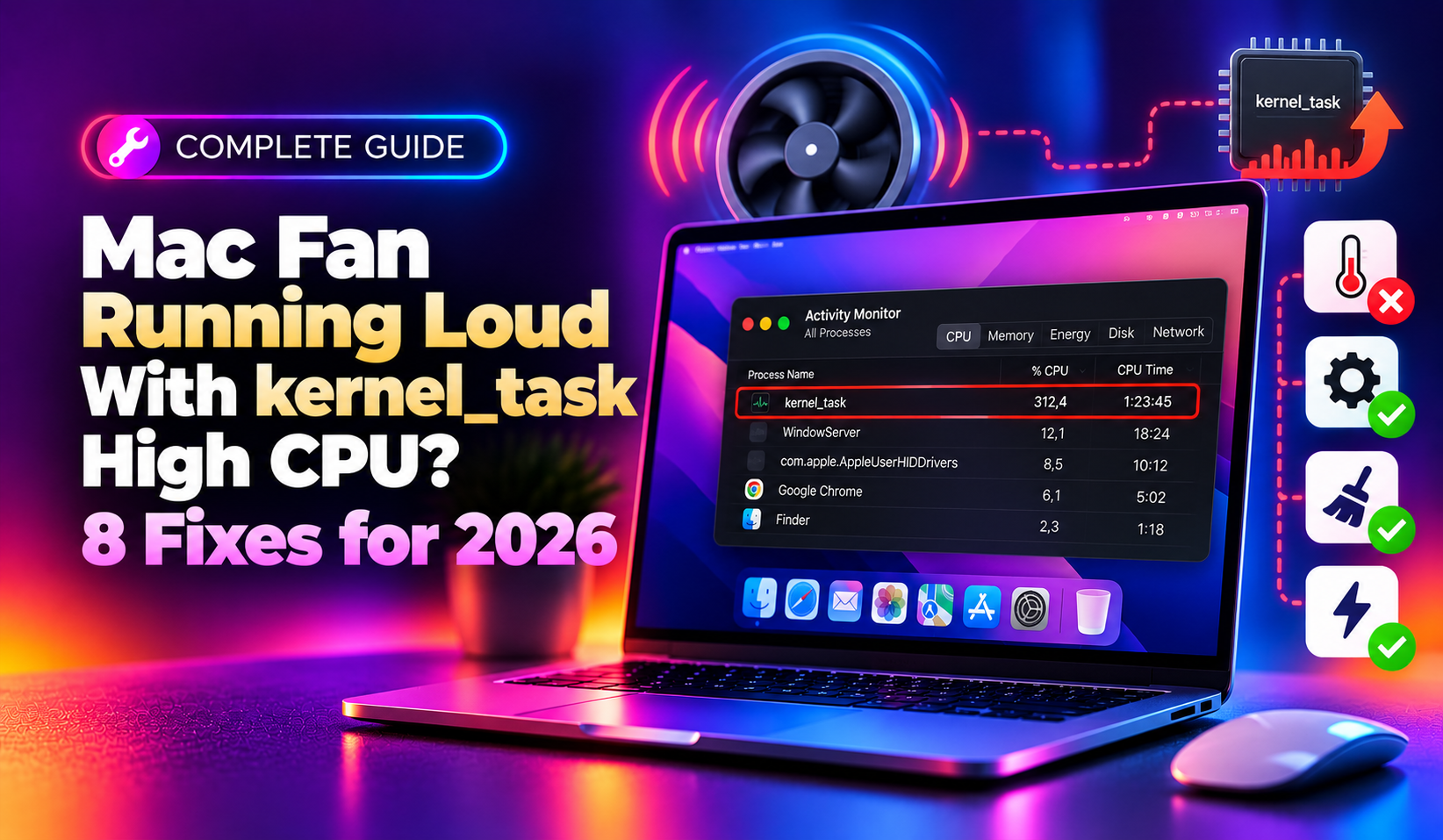
If your Mac's fan suddenly sounds like a jet engine and you open Activity Monitor to find kernel_task devouring 200%, 400%, or even 600% CPU, don't panic — and don't try to force-quit it (you can't, and you shouldn't want to). This is one of the most misunderstood processes in macOS, and understanding what it's actually doing is the first step to fixing the real problem underneath. This guide walks through exactly why kernel_task spikes, how to diagnose the true cause with Terminal, and eight fixes that resolve loud-fan-plus-high-kernel_task situations on macOS Sequoia, Sonoma, and Tahoe in 2026.
What Is kernel_task, and Why Is It Using So Much CPU?
kernel_task is not a runaway app or malware — it's a core macOS system process with no user interface, and it never actually does "real work" you can point to. Its main job is thermal management: when your Mac's internal temperature sensors detect the CPU is running too hot, kernel_task deliberately makes CPU cores less available to other processes. In effect, it's the opposite of a problem — it's the safety valve protecting your logic board and battery from heat damage.
The confusing part is how this shows up in Activity Monitor. A high kernel_task percentage doesn't mean the OS itself is doing heavy work; it means macOS is intentionally throttling everything else so the chip can cool down. The loud fan you hear is the Mac trying to solve the same problem from the hardware side — spinning up to pull heat away faster. When both symptoms appear together, the underlying cause is almost always heat, and the real question becomes: what's generating that heat in the first place?
Common Causes of kernel_task Spikes and Fan Noise
- Dust-clogged vents and fans — dust, pet hair, and pocket lint restrict airflow over time, especially on Macs that are a few years old and have never been cleaned
- Heavy sustained workloads — video export, 3D rendering, Xcode builds, or large Docker containers running back-to-back without a cooldown window
- Hot ambient environment or blocked airflow — using a laptop on a bed, couch cushion, or in direct sunlight blocks the intake vents underneath
- A misbehaving background process — a runaway helper (browser extension, sync client, or update daemon) pegging a core at 100% for hours
- Faulty or degraded thermal paste / aging hardware — more common on Macs older than 4-5 years where thermal paste has dried out
- Charging port heat on certain Intel MacBook Pro models — some 2016-2017 15" models run hotter when charging from the left Thunderbolt ports specifically
- Corrupted power management state — an SMC that's stuck reporting incorrect sensor data after a crash, kernel panic, or forced shutdown
💡 None of these worked? Skip the guesswork.
Get Expert Help →Step 1: Confirm It's Actually a Heat Problem
Before applying any fix, verify the diagnosis with real numbers instead of guessing. macOS does not show temperature in Activity Monitor by default, so you'll need Terminal for an accurate reading.
Open Terminal and run:
sudo powermetrics -n 1 -i 1 --samplers smc | grep -i "CPU die temperature"Enter your admin password when prompted. A reading consistently above 90-95°C under normal use strongly suggests a genuine thermal issue rather than a temporary spike.
Open Activity Monitor, click the % CPU column to sort, and look one level below kernel_task. If a specific process — a browser tab, mds_stores, a cloud sync client, or a third-party app — is sitting near 100%, that process is the root cause, and kernel_task is just reacting to the heat it generates.
For a quick fan RPM reading, run:
sudo powermetrics -n 1 --samplers smc | grep -i "fan"If fan speed climbs in lockstep with kernel_task CPU usage, you've confirmed the thermal-throttling loop rather than a software bug.
There is no manual SMC reset — simply shut down completely, wait 30 seconds, and power back on. Apple Silicon manages SMC-equivalent functions automatically on every full shutdown.
Shut down the Mac. Press and hold Control + Option + Shift for 10 seconds. While still holding those keys, also hold the Power button for another 10 seconds. Release everything, then power on normally.
Shut down, then hold Shift + Control + Option plus the Power button simultaneously for 10 seconds, release, and restart.
Step 6: Reset NVRAM/PRAM (Intel Macs Only)
NVRAM stores certain hardware and display settings that can occasionally cause the fan control curve to behave abnormally after a firmware update or kernel panic. On an Intel Mac, shut down, then power on while immediately holding Option + Command + P + R for about 20 seconds, until you hear the startup sound twice (or see the Apple logo appear and disappear twice on T2 Macs). Apple Silicon Macs handle this automatically and don't have a manual NVRAM reset.
Step 7: Update macOS and Check for Third-Party Kernel Extensions
Outdated macOS versions occasionally ship with power-management bugs that Apple patches in point releases specifically to fix reported fan and kernel_task complaints. Go to System Settings → General → Software Update and install any pending update. Separately, older kernel extensions (kexts) from security software, VPN clients, or virtualization tools like Parallels and VMware can interfere with power management — check System Settings → Privacy & Security for any legacy extensions and update or remove ones that haven't been updated by their developer recently.
Step 8: Improve Physical Cooling and Reduce Sustained Load
If you regularly run heavy workloads — video editing, machine learning training, large compiles — consider a laptop stand that lifts the chassis for better under-body airflow, and avoid working on soft surfaces like beds or couches that block intake vents entirely. Give the Mac short breaks between intensive tasks so accumulated heat can dissipate rather than compounding across hours of continuous full-load use. For fleets of Macs used for demanding creative or engineering work, proactive monitoring and maintenance schedules catch these issues before they become a daily productivity drain — this is exactly the kind of ongoing hardware and performance troubleshooting that CloudHouse Technologies' pay-per-ticket IT support is built to handle without requiring a full-time in-house technician.
When to Consider a Hardware Service Visit
If you've completed every software step above and the fan still spikes to maximum RPM within minutes of light use — web browsing, email, a video call — with kernel_task consistently above 300% at idle, this points toward a hardware-level issue: dried thermal paste, a failing fan bearing, a swelling battery pressing against internal components, or a temperature sensor reporting incorrect data. These require a physical inspection, and continuing to run a Mac in this state risks accelerated component wear. Booking a diagnostic with Apple Support or an authorized service provider at this stage is the right call rather than continuing to chase software fixes.
Preventing kernel_task Spikes Going Forward
- Keep Activity Monitor's CPU tab open during heavy work sessions so you catch runaway processes early
- Clean external vents every 6-12 months, more often in dusty environments
- Keep macOS and all kernel extensions updated to their latest compatible versions
- Avoid running laptops on soft, insulating surfaces during long work sessions
- Use a laptop stand or cooling pad for MacBooks used as a primary desktop replacement
Conclusion
A loud fan paired with high kernel_task usage in Activity Monitor is macOS actively protecting your Mac from heat damage, not a bug you can "kill" directly. The fix is always to address the heat source — whether that's a runaway app, dust-clogged vents, a stale SMC state, or genuinely aging hardware. Work through the steps above in order, starting with the free software fixes, and in the overwhelming majority of cases the fan noise and kernel_task spikes disappear well before you need a hardware appointment.