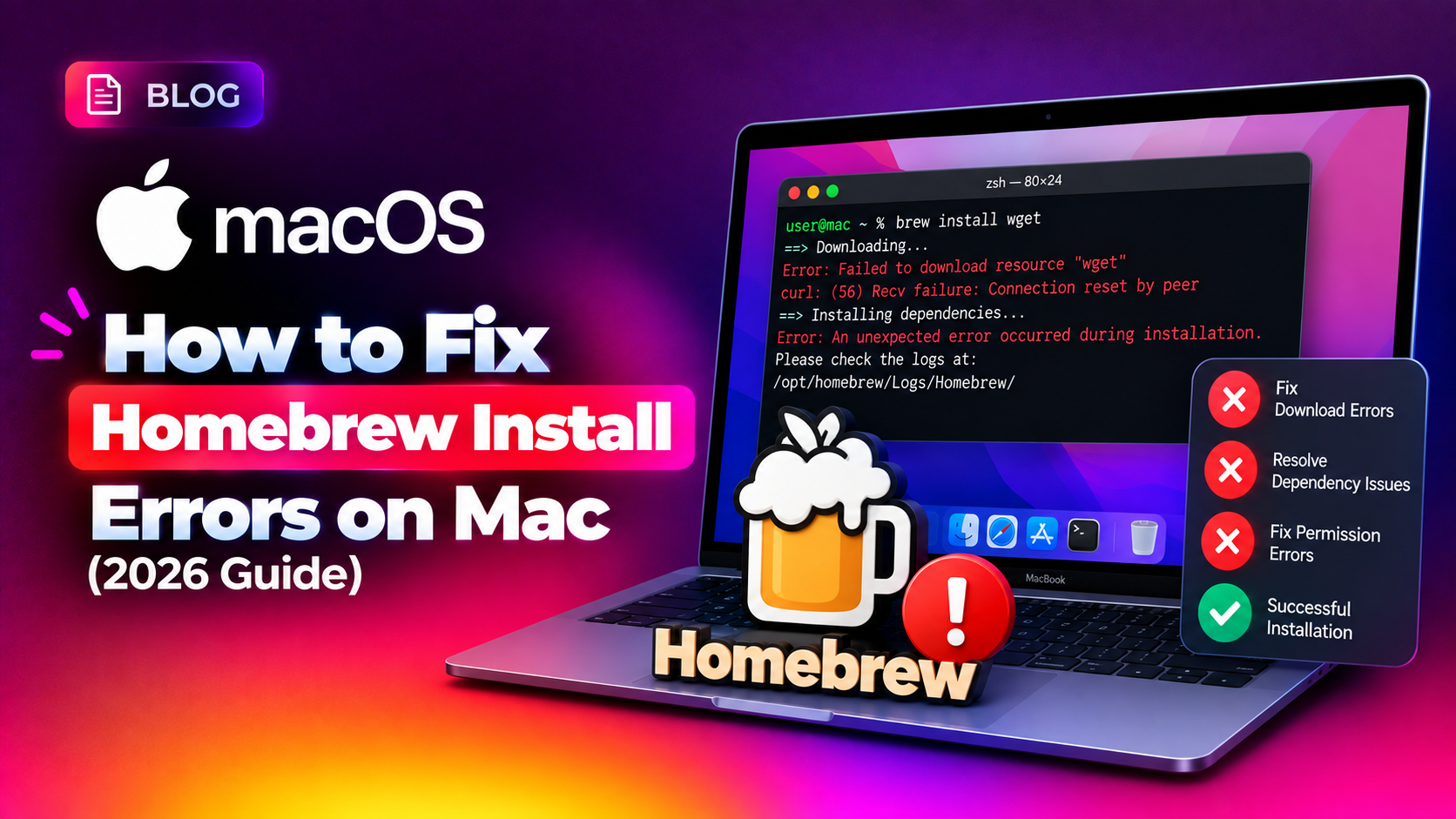
If you've just tried to install Homebrew on your Mac and hit a wall — whether it's zsh: command not found: brew, a checksum mismatch, or a permission denied error halfway through installation — you're not alone. Homebrew is the most popular package manager for macOS, but its install script depends on a chain of things (Xcode Command Line Tools, correct PATH configuration, file permissions, network access to GitHub) that can each break independently, especially after a macOS upgrade. This guide walks through the exact fixes for the most common Homebrew install errors on both Apple Silicon and Intel Macs in 2026.
What Causes Homebrew Install Errors on Mac?
Homebrew errors on macOS almost always trace back to one of five root causes:
- Missing or outdated Xcode Command Line Tools — Homebrew needs a working compiler toolchain to build some packages from source.
- Incorrect PATH configuration — Apple Silicon Macs install Homebrew to
/opt/homebrew, while Intel Macs use/usr/local. If your shell's PATH doesn't include the right directory, thebrewcommand won't be found even though it's installed. - Corrupted or interrupted downloads — network interruptions during
brew installcan cause a checksum (SHA256) mismatch against the expected bottle or source tarball. - Permission issues — if Homebrew's directories were ever created or modified using
sudo, later installs may fail with "Permission denied" errors. - Stale Homebrew installation after a macOS upgrade — major macOS updates can reset environment variables or break the link between Homebrew and Command Line Tools.
Let's fix each of these, starting with the most common error.
💡 None of these worked? Skip the guesswork.
Get Expert Help →Quick Fix: 'zsh: command not found: brew' (PATH Issue)
This is the single most common Homebrew error, and it almost always means Homebrew installed correctly but your shell doesn't know where to find it.
Run the following in Terminal:
ls -la /opt/homebrew/bin/brew   # Apple Silicon (M1/M2/M3/M4)
ls -la /usr/local/bin/brew      # Intel Macs
If one of these paths exists, Homebrew is installed — you just need to add it to your PATH.
For Apple Silicon Macs, run:
echo 'eval "$(/opt/homebrew/bin/brew shellenv)"' >> ~/.zprofile
eval "$(/opt/homebrew/bin/brew shellenv)"
For Intel Macs, run:
echo 'eval "$(/usr/local/bin/brew shellenv)"' >> ~/.zprofile
eval "$(/usr/local/bin/brew shellenv)"Quit and reopen Terminal, then run:
brew --versionIf you see a version number, the PATH issue is resolved. If you're still getting "command not found," check that you're editing the correct profile file — newer macOS versions default to zsh, so bash-specific files like ~/.bash_profile won't be read.
brew cleanup -s
rm -rf "$(brew --cache)"brew update-reset
brew updateupdate-reset forces Homebrew's core Git repositories (homebrew-core and homebrew-cask) back to a clean state, which resolves most checksum issues caused by a corrupted local repo.
brew install [package-name]If the checksum error persists, switch networks (disable VPN, avoid public Wi-Fi) — some networks silently modify downloaded files or block GitHub's CDN, causing repeated mismatches.
ls -ld /opt/homebrew
ls -ld /opt/homebrew/Cellar /opt/homebrew/Caskroomsudo chown -R $(whoami) /opt/homebrewFor Intel Macs, replace /opt/homebrew with /usr/local/Homebrew, /usr/local/Cellar, and /usr/local/Caskroom.
Homebrew is designed to run entirely as your standard user account. If any documentation or forum post tells you to run sudo brew install, ignore it — that's what caused the permission problem in the first place.
brew doctorA healthy install returns: Your system is ready to brew. Anything else will list specific warnings with suggested fixes.
If brew doctor mentions missing or outdated Command Line Tools:
sudo rm -rf /Library/Developer/CommandLineTools
xcode-select --install
This is especially common right after upgrading to a new macOS version — the old Command Line Tools version becomes incompatible until reinstalled.
brew update && brew upgrade && brew cleanupThis brings Homebrew itself, all installed formulae, and cached files up to date and removes anything orphaned or broken.
If you've worked through all four methods and Homebrew still won't cooperate — or you'd rather not spend an afternoon debugging Terminal output — CloudHouse Technologies' Pay-Per-Ticket IT Support team can remotely diagnose and fix Mac software issues like this in a single session, no subscription required.
Frequently Asked Questions
Why does brew say "command not found" right after I installed it?
Homebrew installs the brew binary to /opt/homebrew/bin on Apple Silicon Macs or /usr/local/bin on Intel Macs, but it doesn't automatically add that folder to your shell's PATH. You need to run the eval "$(brew shellenv)" command shown in the installer's final output, or add it manually to ~/.zprofile.
Do I need Xcode to install Homebrew?
You don't need the full Xcode app, but you do need the free Xcode Command Line Tools, which include compilers and build utilities Homebrew relies on for building some packages from source. Install them with xcode-select --install.
Is it safe to run brew doctor regularly?
Yes. brew doctor is a read-only diagnostic command — it identifies problems and suggests fixes but doesn't change anything on its own. Running it periodically, especially after a macOS update, is a good habit.
Why do I get a different Homebrew path on my M-series Mac vs an Intel Mac?
Homebrew moved its default install location to /opt/homebrew for Apple Silicon Macs to avoid conflicts with Rosetta-translated Intel binaries and to keep ARM and x86 package installations fully separate. Intel Macs continue to use the legacy /usr/local path.
Can a VPN or antivirus cause Homebrew install errors?
Yes. Corporate VPNs, proxy configurations, and some antivirus tools intercept or modify network traffic in ways that corrupt downloaded files, which shows up as SHA256 checksum mismatches. Temporarily disabling the VPN or adding an exception for github.com and ghcr.io often resolves this.