
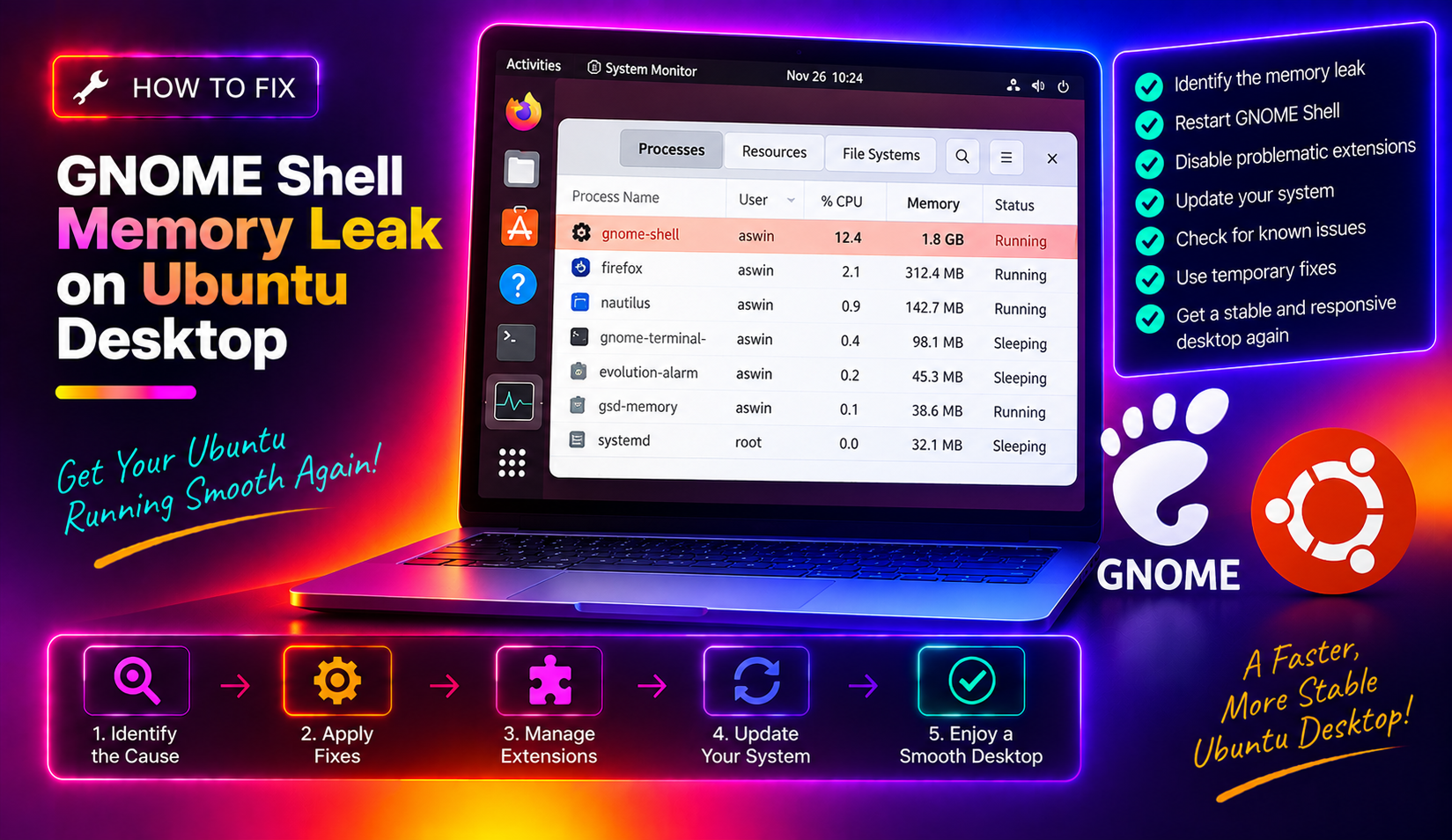
If your Ubuntu Desktop feels snappier right after a fresh boot but becomes sluggish and unresponsive after a few hours — or especially after several suspend/resume cycles — you are almost certainly dealing with a GNOME Shell memory leak. The gnome-shell process can silently balloon from a normal 300–400 MB footprint to 1–2 GB or more, causing laggy window animations, slow application switching, and an overall degraded desktop experience.
This guide walks you through diagnosing the problem, applying three targeted fixes, and preventing it from coming back — all without needing to reboot your machine.
Why GNOME Shell Leaks Memory: Extensions, Sleep Cycles, and JS Heap Bloat
GNOME Shell is not written in C alone — a large portion of its desktop logic, including extension support, runs in GJS (GNOME JavaScript), a JavaScript runtime built on Mozilla's SpiderMonkey engine. Like any JavaScript environment, GJS depends on garbage collection to reclaim objects that are no longer needed. When garbage collection doesn't fire at the right time, or when extension code holds references to objects that should have been freed, the JS heap grows unchecked.
Three root causes account for the vast majority of GNOME Shell memory leaks in 2026:
- Leaking GNOME extensions: Extensions such as GSConnect, vertical-overview, dash-to-panel, and appindicator have all had documented memory leak bugs. When these extensions register signal handlers or timers and fail to clean them up on disable or suspend, heap objects accumulate across every sleep cycle.
- Suspend/resume cycles: Each time the system wakes from suspend, GNOME Shell fires a batch of dbus signals and re-initialises extension state. If an extension does not properly disconnect its signal listeners before sleep, duplicate listeners pile up — and each duplicate holds its own chunk of memory.
- Uncollected JS heap: Even without explicit leaks, GNOME Shell's garbage collector can fall behind under normal desktop use. Long uptime sessions accumulate short-lived objects that are never compacted, steadily growing resident memory.
You can verify whether gnome-shell is the culprit with a single command:
ps -C gnome-shell -o pid,rss,vsz --no-headersThe rss column shows resident memory in kilobytes. If you see a value above 800,000 (roughly 800 MB) on a system that has been running for more than a day, gnome-shell is almost certainly leaking. Run the same command right after boot and compare — a healthy GNOME Shell session typically starts below 400 MB.
For a more detailed heap snapshot, install and use the GNOME memory monitor:
sudo apt install gnome-system-monitor
# Or for command-line detail:
smem -k -c "pid name rss pss uss" | grep gnome
Fix 1: Identify and Disable Leaking GNOME Extensions
Extensions are the single most common cause of GNOME Shell RAM bloat. The fastest approach is a binary-search strategy: disable all extensions, confirm memory stabilises, then re-enable them in batches to isolate the offender.
Step 1 — List all installed extensions and their status:
gnome-extensions list --enabledStep 2 — Disable every extension at once:
# Disable all enabled extensions in one loop
for ext in $(gnome-extensions list --enabled); do
    gnome-extensions disable "$ext"
    echo "Disabled: $ext"
done
Step 3 — Monitor gnome-shell memory for 30 minutes. Watch whether RSS growth slows or stops:
watch -n 60 'ps -C gnome-shell -o pid,rss --no-headers'If memory stabilises, re-enable extensions one at a time and wait 10–15 minutes between each:
gnome-extensions enable When memory starts climbing again after enabling a specific extension, that is your culprit. Known problematic extensions in 2026 include:
- GSConnect — leaks memory on suspend/resume via uncleaned signal handlers in
daemon.js. Check the project's GitHub for the latest patched release before disabling permanently. - vertical-overview — documented incompatibility with dash-to-panel that causes cascading JS errors and accumulating objects.
- Ubuntu AppIndicator — confirmed memory leak when rapidly enabling and disabling the extension or toggling tray icon visibility.
Once identified, either update the extension to its latest version via the GNOME Extensions website, or keep it disabled and look for an alternative.
Fix 2: Restart GNOME Shell to Reclaim RAM Without Rebooting
Many Ubuntu users know the Alt+F2 → r trick to "restart" GNOME Shell. In practice, this is a soft refresh that reloads extension JavaScript but does not release accumulated heap memory — it is effectively useless for fixing a RAM leak.
To properly restart gnome-shell and reclaim leaked RAM without rebooting, use one of the following methods.
Method A — For Wayland sessions (Ubuntu 22.04 and later default):
GNOME Shell cannot be restarted in-place under Wayland without ending your session. The cleanest approach is to log out and log back in, which restarts gnome-shell as a fresh process:
# Log out from the command line (saves open apps if supported)
gnome-session-quit --logout --no-prompt
To avoid losing work, use GNOME's built-in session save feature before logging out, or simply keep a terminal open and use the systemd approach below.
Method B — Using systemd to restart the user session (Wayland and X11):
# Restart the GNOME Shell process via systemd user scope
systemctl --user restart gnome-shell-wayland.service
# OR for X11 sessions:
systemctl --user restart gnome-shell-x11.service
Method C — For X11 sessions only (legacy or manually configured):
# Restart GNOME Shell in-place on X11 — safe, no data loss
busctl --user call org.gnome.Shell /org/gnome/Shell org.gnome.Shell Eval s 'Meta.restart("Restarting…", global.context)'
After restarting with any of these methods, verify memory has dropped back to baseline:
ps -C gnome-shell -o pid,rss --no-headersYou should see RSS back below 400,000 KB (400 MB). If not, and it climbs quickly again within minutes, an extension is actively leaking and you need Fix 1.
If you prefer professional help diagnosing persistent performance issues, CloudHouse offers professional PC support with certified Linux technicians available 24/7.
Fix 3: Limit GNOME Shell Memory Growth with Systemd Slice Constraints
Even after disabling leaking extensions, GNOME Shell can slowly grow its memory footprint over long uptime sessions. A practical containment strategy is to use systemd resource constraints to cap how much RAM the gnome-shell process can consume before the kernel sends it an OOM signal, forcing a clean restart.
Step 1 — Create a systemd drop-in override for the GNOME Shell service:
mkdir -p ~/.config/systemd/user/gnome-shell-wayland.service.d/
nano ~/.config/systemd/user/gnome-shell-wayland.service.d/memory-limit.conf
Step 2 — Add the following configuration:
[Service]
# Soft memory limit — GNOME Shell will attempt to free memory when it hits this
MemoryHigh=900M
# Hard limit — process is killed and restarted if it exceeds this
MemoryMax=1200M
# Restart the service automatically if it is killed
Restart=on-failure
RestartSec=3s
Step 3 — Reload the systemd user daemon and apply changes:
systemctl --user daemon-reload
systemctl --user restart gnome-shell-wayland.service
With this in place, if gnome-shell approaches 900 MB, the kernel will pressure it to release memory via its internal GC. If it breaches 1200 MB, the service is killed and automatically restarted within 3 seconds — users see a brief black screen before the desktop returns, but all running applications are preserved by the window manager.
Adjust the MemoryHigh and MemoryMax values based on your total system RAM. On a 16 GB machine, you can be more generous (e.g., 1500M / 2000M). On an 8 GB machine, the values above are appropriate.
To verify the limits are applied:
systemctl --user show gnome-shell-wayland.service | grep -E "Memory(High|Max)"How to Prevent GNOME Shell Memory Leaks Long-Term
Fixing the immediate problem is only half the battle. Follow these best practices to keep GNOME Shell lean over months of uptime:
- Keep GNOME Shell and extensions updated. Run
sudo apt update && sudo apt upgradeweekly. Many memory leak fixes are shipped as minor point releases. Extensions installed via the GNOME Extensions browser plugin update separately — openhttps://extensions.gnome.org/local/to check for updates. - Prefer extensions with active maintenance. Before installing any extension, check its last commit date on its GitHub repository. Extensions with no commits in 12+ months are unlikely to be patched for current GNOME versions and are a common source of leaks.
- Use GNOME's built-in Looking Glass debugger for early diagnosis. Press Alt+F2, type
lg, and open the "Memory" tab to inspect the live GC heap. A healthy heap should stay below 50 MB of live JS objects. - Schedule a weekly GNOME Shell memory check with a cron job:
# Add to crontab -e
0 9 * * 1 ps -C gnome-shell -o rss --no-headers >> ~/gnome_memory_log.txt
This logs gnome-shell RSS every Monday morning, giving you a trend line to catch leaks before they become performance problems.
- Use GNOME Tweaks to audit startup extensions. Install with
sudo apt install gnome-tweaksand navigate to Extensions → Startup Applications. Disable anything you do not actively use. - Consider a lighter GNOME session for low-RAM machines. On systems with 4 GB or less, switching to a minimal GNOME session without extensions significantly reduces baseline memory. Install
gnome-session-flashbackas a lighter alternative:sudo apt install gnome-session-flashback.
FAQ: GNOME Shell Memory Leak on Ubuntu Desktop
Q: How do I know if GNOME Shell is the cause of my slow Ubuntu desktop?
A: Run ps -C gnome-shell -o pid,rss --no-headers and check the RSS value. If it exceeds 600,000 KB (600 MB) and your system has been running for less than 24 hours, gnome-shell is almost certainly consuming excess memory. Compare with the value immediately after a fresh login to establish your baseline.
Q: Will disabling GNOME extensions break my desktop?
A: No. GNOME Shell works fully without any extensions — they are optional add-ons. Disabling an extension immediately stops it from running; your desktop may look slightly different (e.g., no dock or system tray icons), but all core functionality remains intact. You can re-enable extensions individually at any time.
Q: Why does GNOME Shell use more memory after every suspend cycle?
A: Extensions that register D-Bus signal listeners or GLib timer callbacks often fail to clean them up when the system enters suspend. When the system resumes, new listeners are registered on top of the old ones that were never removed. Over multiple sleep cycles, these orphaned listeners accumulate in the JS heap, consuming memory that is never freed until gnome-shell restarts.
Q: Is the Alt+F2 → r restart safe for fixing memory leaks?
A: Not effective. The Alt+F2 → r command performs a soft in-process refresh on X11 sessions that reloads extension JavaScript but does not terminate or restart the gnome-shell process. The existing heap, including all leaked objects, is preserved. For X11 sessions, use the busctl method described in Fix 2. For Wayland, log out and log back in.
Q: Can I automate GNOME Shell restarts to prevent RAM bloat?
A: Yes. On X11 you can set up a cron job or systemd timer to run the busctl restart command during off-hours (e.g., 3 AM while the system is idle). On Wayland, the systemd MemoryMax constraint in Fix 3 is a better approach — it triggers an automatic restart only when memory actually exceeds your threshold, rather than on a fixed schedule.