
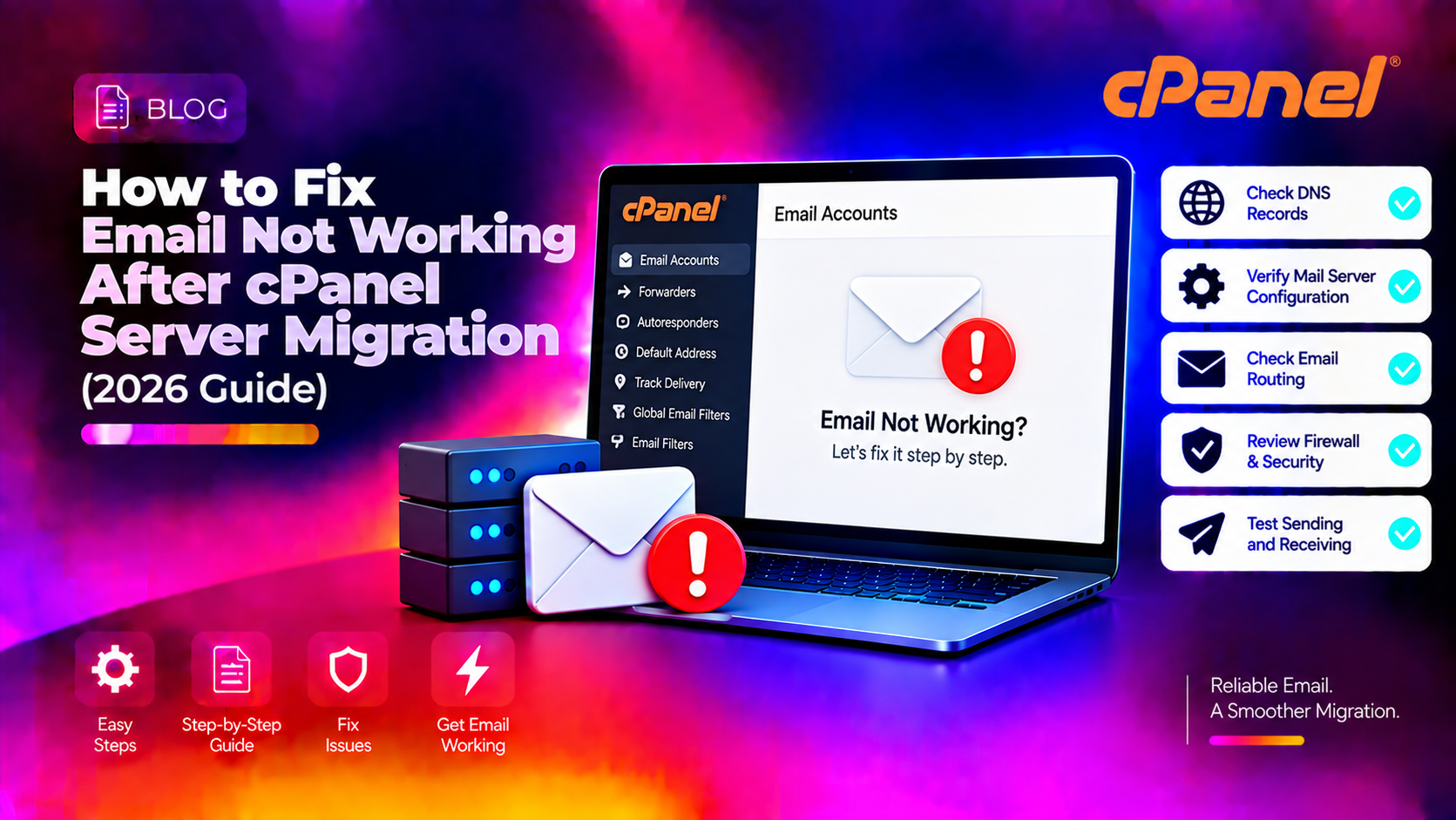
Email almost always breaks during a server migration — yet it's the last thing most migration guides cover in enough detail. Website files transfer cleanly, databases import correctly, the site loads fine on the new server, and then you discover that no one has been receiving emails for hours. By the time you notice, customers have already sent messages into a void.
This guide covers every reason email stops working after a cPanel server migration and the exact steps to diagnose and fix each one — including MX records, SPF/DKIM authentication, Exim configuration, and email client settings.
Why Email Breaks After a cPanel Server Migration
Email delivery depends on multiple independent systems working together. A migration touches all of them:
- MX records — still pointing to the old server's IP
- DNS propagation — nameservers not yet propagated to the new server
- SPF/DKIM/DMARC records — not recreated on the new server, causing delivery failures
- Exim configuration — the mail server isn't accepting mail for the domain on the new server
- Email client settings — still pointing to the old hostname
- SSL/TLS certificates — mail client can't connect due to certificate hostname mismatch
💡 None of these worked? Skip the guesswork.
Get Expert Help →Step 1: Verify MX Records Point to the New Server
MX records control where email is delivered. Even after you update your nameservers, the MX record itself must point to the correct hostname on the new server.
Run this from your terminal or use MXToolbox.com:
dig MX yourdomain.com +shortThe result should show your new server's hostname (e.g., mail.yournewserver.com). If it still shows the old server, the MX record has not propagated — or hasn't been updated at all.
Log into cPanel on the new server → Domains → Zone Editor → find your domain → Manage. Look for the MX record and update the destination to your new server's hostname. The standard cPanel MX record value is:
yourdomain.com. MX 0 mail.yourdomain.com.Also ensure the A record for mail.yourdomain.com points to the new server's IP address.
Go to cPanel → Email → Email Routing and confirm it is set to Local Mail Exchanger. If it's set to Remote Mail Exchanger, cPanel won't accept incoming email for that domain.
Go to cPanel → Email → Email Deliverability. This scans your domain's DNS for SPF, DKIM, and DMARC records and shows a green checkmark or a red warning for each. Click Repair to auto-generate the correct records for the new server.
dig TXT yourdomain.com +short | grep spfA correct cPanel SPF record looks like:
"v=spf1 +a +mx +ip4:YOUR_NEW_SERVER_IP ~all"dig TXT default._domainkey.yourdomain.com +shortThis should return a long public key string starting with v=DKIM1. If it returns nothing, DKIM was not set up on the new server. In cPanel, go to Email → Email Deliverability → click Install for DKIM.
grep yourdomain.com /etc/localdomainsIf the domain isn't listed, add it:
echo "yourdomain.com" >> /etc/localdomainsexim -bp | head -20Any messages stuck in the queue with ** yourdomain.com: Unrouteable address confirms Exim doesn't know about the domain.
/scripts/rebuildeximconf
/scripts/restartsrv_eximexim -bt user@yourdomain.comThis shows how Exim would route an email to that address. The output should say router = localuser, transport = local_delivery. Any other result indicates a routing problem.
Step 4: Fix Email Client Connection Issues
Users connecting via Outlook, Apple Mail, Thunderbird, or a mobile email app may be unable to send or receive after migration because their email client still points to the old server hostname.
Update incoming/outgoing server settings:
- Incoming (IMAP):
mail.yourdomain.com— Port 993 (SSL) or 143 (STARTTLS) - Outgoing (SMTP):
mail.yourdomain.com— Port 465 (SSL) or 587 (STARTTLS) - Username: full email address (e.g., user@yourdomain.com)
If users see SSL certificate errors, it means the SSL certificate for mail.yourdomain.com hasn't been issued on the new server yet. Go to cPanel → SSL/TLS → Let's Encrypt and issue a free SSL for the mail hostname, or use the server's shared hostname until the certificate is ready.
Step 5: Handle DNS Propagation During the Cutover Window
DNS changes take time to propagate. During this window (typically 1–4 hours if TTL was lowered in advance), some email will go to the old server and some to the new.
Best practice during migration:
- Lower TTL to 300 seconds at least 24 hours before the migration
- Keep the old server running for at least 72 hours after switching DNS
- Check the old server's Exim queue for any mail still arriving:
exim -bp - Forward any messages stuck on the old server to the new one manually if needed
Check propagation status:
dig @8.8.8.8 MX yourdomain.com +short   # Google DNS
dig @1.1.1.1 MX yourdomain.com +short   # Cloudflare DNS
When both return the new server's hostname, propagation is complete globally.
Checklist: Email After cPanel Migration
- MX record points to new server hostname
- A record for mail.yourdomain.com resolves to new server IP
- Email Routing in cPanel set to Local Mail Exchanger
- SPF record updated with new server IP
- DKIM key installed and TXT record propagated
- yourdomain.com present in /etc/localdomains
- Exim rebuilt and restarted
- Email client settings updated to new hostname
- SSL certificate issued for mail.yourdomain.com
- Old server kept running for 72 hours post-migration
Server migrations are complex, and email is the hardest part to get right. If you're running a business-critical migration and can't afford any email downtime, CloudHouse's server migration service handles the full cutover — including email verification — with zero-downtime processes.