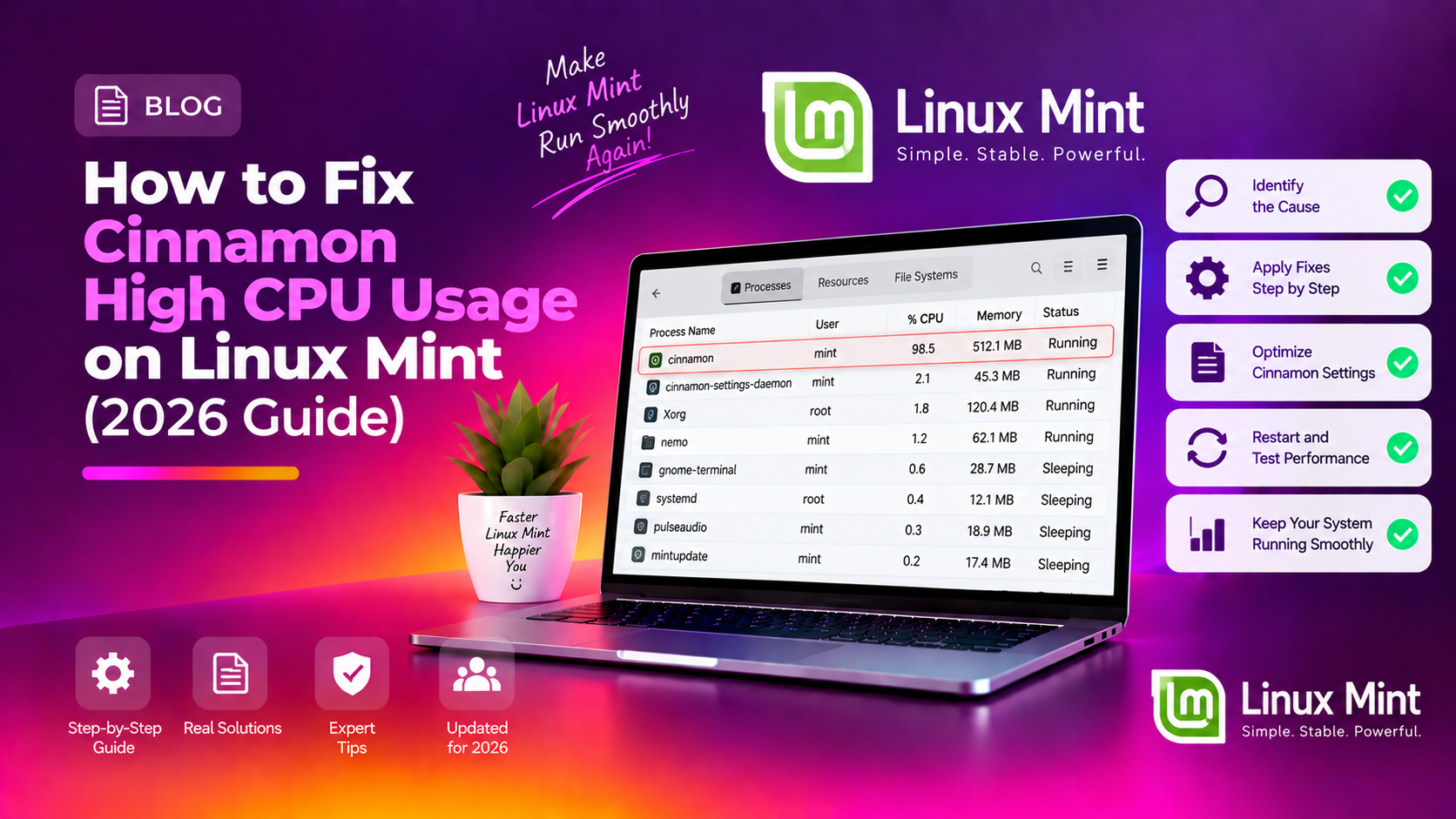
Why Is Cinnamon Using So Much CPU?
If you've opened System Monitor and found cinnamon or Xorg consuming 80–150% CPU on Linux Mint, you're dealing with one of the most reported desktop performance issues on the platform.
Cinnamon is a lightweight desktop environment — on healthy systems it uses under 2% CPU at idle. When it spikes, something specific has gone wrong: a misbehaving applet, a tracker process stuck in a loop, a corrupt session, or an incompatible xorg configuration.
The good news is that most cases are fixable in under 10 minutes without reinstalling anything.
Common Causes
- A third-party Cinnamon applet or desklet with a rendering loop bug
- tracker-miner-fs (file indexing daemon) thrashing on large directories
- Stale or incorrect
/etc/X11/xorg.confforcing Xorg into software rendering - A GPU driver issue causing Cinnamon to fall back to LLVMpipe (software compositing)
- Memory leak in an older version of Cinnamon — fixed by restarting the shell
- A corrupt Cinnamon session or corrupted dconf settings
Step 1 — Identify the Actual Offender
Before applying fixes, confirm whether it's actually Cinnamon or a related process:
- Open System Monitor (Menu → System Monitor) or press Ctrl+Alt+T and run:
top -o %CPU - Note the process name using the most CPU. Is it:
- cinnamon → the desktop shell itself
- Xorg → display server, often caused by Cinnamon's rendering
- tracker-miner-fs → file indexing daemon (separate fix below)
- cinnamon-killer-daemon or nemo → file manager or helper process
Fix 1 — Restart the Cinnamon Shell (Instant Relief)
This is the fastest fix if Cinnamon has entered a rendering loop or memory leak state. It restarts the desktop shell without closing any open windows or applications:
Press Ctrl + Alt + Escape
You'll see the screen briefly flicker as Cinnamon reloads. CPU usage should return to normal within 30 seconds. If the problem reappears within minutes, continue to the other fixes.
Fix 2 — Disable Third-Party Applets and Desklets
Non-default applets (added via the Applets Manager) are a very common cause of Cinnamon CPU spikes. Older applets that haven't been updated may have render loops that fire constantly.
- Right-click the Cinnamon panel and choose Applets
- In the Applets window, switch to the "Installed" tab
- Disable each non-default applet one by one, restarting Cinnamon (Ctrl+Alt+Esc) after each
- When CPU drops, you've found the culprit — either update it or remove it permanently
Same process for Desklets: right-click the desktop → Desklets → disable custom ones.
Fix 3 — Kill and Disable tracker-miner-fs
tracker-miner-fs is a file indexing daemon that scans your home directory to power Gnome/Cinnamon search. It can run at 100% CPU for hours when indexing a large folder.
# Check if tracker-miner is the real cause
ps aux | grep tracker

# Stop it immediately
tracker3 daemon --kill
# or on older systems:
tracker daemon --kill

# Reset and clear the tracker database
tracker3 reset --filesystem
# or:
tracker reset --hard
To permanently disable tracker indexing on Linux Mint Cinnamon:
# Disable tracker services from autostart
systemctl --user mask tracker-miner-fs-3.service
systemctl --user mask tracker-extract-3.service
systemctl --user mask tracker-writeback-3.service
Log out and log back in. Tracker will no longer run on startup.
Fix 4 — Remove or Rename xorg.conf
If you previously created an /etc/X11/xorg.conf file (for example, to configure a second monitor, override resolution, or use a specific GPU driver), it may now be conflicting with your current setup and forcing Xorg into unoptimised rendering.
# Check if xorg.conf exists
ls /etc/X11/xorg.conf

# Back it up and remove it
sudo mv /etc/X11/xorg.conf /etc/X11/xorg.conf.bak
Restart your display manager:
sudo systemctl restart lightdmLog back in and check CPU usage. If it's resolved, your old xorg.conf was the problem. You can rebuild it clean if needed with sudo X -configure.
Fix 5 — Check If Cinnamon Is Using Software Rendering (LLVMpipe)
If Cinnamon can't access hardware graphics acceleration (due to a missing or broken GPU driver), it falls back to CPU-based software rendering via LLVMpipe. This causes permanently high CPU even at idle.
# Check if LLVMpipe is active
DISPLAY=:0 glxinfo | grep "OpenGL renderer"
If the output contains llvmpipe or softpipe, you're running on software rendering. Fix by installing the correct GPU driver:
# For NVIDIA
sudo ubuntu-drivers install

# For AMD (open source driver, usually auto-detected)
sudo apt install xserver-xorg-video-amdgpu

# For Intel
sudo apt install xserver-xorg-video-intel
Reboot after installing the driver.
Fix 6 — Reset Cinnamon Settings to Default
A corrupted dconf configuration can cause Cinnamon to thrash. Resetting it removes all customisations (wallpaper, panel config, themes) but often resolves persistent CPU issues:
# Reset all Cinnamon settings
dconf reset -f /org/cinnamon/
Then restart Cinnamon with Ctrl+Alt+Esc. Your desktop will revert to the default layout — you can re-apply your preferences afterwards.
Fix 7 — Reinstall Cinnamon
If all else fails, a reinstall of the Cinnamon shell packages often resolves deep corruption issues:
sudo apt install --reinstall cinnamon cinnamon-desktop-data cinnamon-commonNo data is deleted. This simply replaces the installed package files with fresh copies from the repo.
Fix 8 — Check for Runaway Background Processes
Sometimes what looks like Cinnamon CPU usage is actually a background process that Cinnamon is waiting on. Run a full check:
# Sort all processes by CPU usage
ps aux --sort=-%cpu | head -20
Look for anything unexpected in the top 5 — things like evolution-data-server, gvfsd, zeitgeist-daemon, or update-related processes. You can stop individual services with:
systemctl --user stop evolution-data-server.serviceStill Getting High CPU? Get Expert Help
If Cinnamon continues using high CPU after trying all of the above, the root cause may be a hardware-specific driver incompatibility or a deeper session corruption that requires a fresh look. CloudHouse support can diagnose and resolve Linux desktop performance issues remotely — fast and affordable.
FAQ
Why does Cinnamon suddenly start using high CPU for no reason?
The most common triggers are: a Cinnamon update that introduced a regression, adding a new applet, connecting a new monitor, or a background daemon (tracker, evolution) beginning a scheduled scan. Check System Monitor immediately to identify the specific process.
Is it safe to disable tracker-miner-fs permanently?
Yes, for most users. Disabling tracker only affects file search within Cinnamon's search bar. Nemo file manager, LibreOffice, and all applications work normally. If you use GNOME-based apps that depend on tracker, they may have reduced search functionality.
Why is Xorg also using high CPU alongside Cinnamon?
Xorg mirrors Cinnamon's rendering workload — when Cinnamon redraws constantly (due to an applet loop or software rendering fallback), Xorg also spikes. Fixing the Cinnamon issue typically resolves Xorg CPU usage simultaneously.
Does Ctrl+Alt+Escape close my open windows?
No. The Ctrl+Alt+Escape shortcut restarts only the Cinnamon shell process — all open applications, browser windows, and documents remain open and unaffected.
My CPU usage is high only when I move windows — is that Cinnamon?
Yes. If dragging windows causes CPU spikes, Cinnamon is likely using software compositing. Disable effects: right-click Desktop → Effects → turn off all effects. Or install the correct GPU driver so hardware compositing works properly.