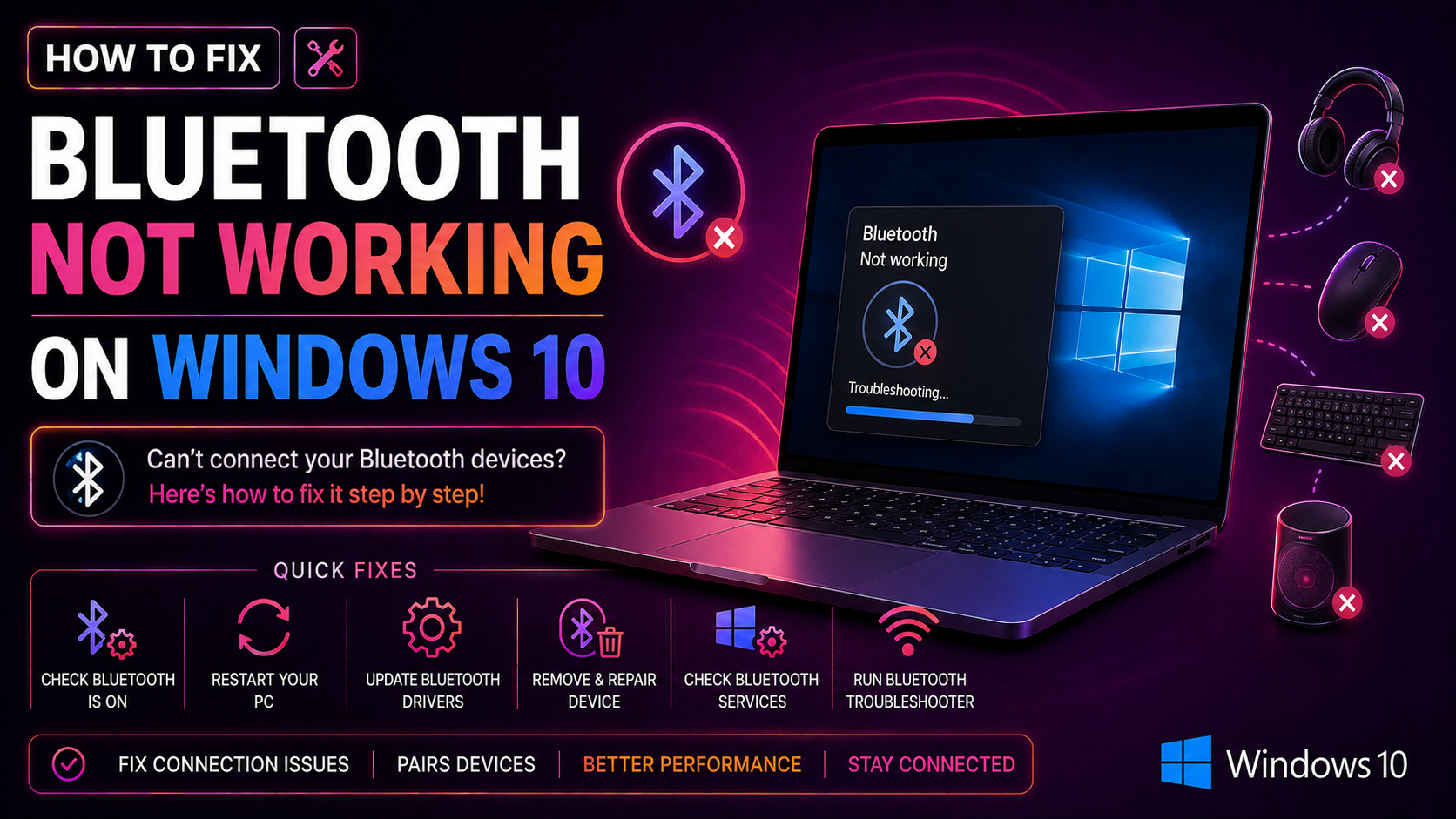
Why Bluetooth Stops Working on Windows 10
Bluetooth problems on Windows 10 are more common than you might think. One day your wireless headphones, keyboard, or mouse work perfectly — then after a Windows Update or a driver conflict, Bluetooth simply vanishes. The toggle disappears from Settings, Device Manager shows a yellow exclamation mark, or your PC refuses to detect any nearby devices.
Understanding the root cause helps you apply the right fix. Here are the most frequent reasons Bluetooth breaks on Windows 10:
- Outdated or corrupted Bluetooth drivers — Windows Update sometimes installs incompatible driver versions that conflict with your hardware.
- Bluetooth Support Service stopped — Windows relies on a background service to manage Bluetooth. If it stops or is set to Manual, Bluetooth disappears entirely.
- Windows Update side effects — A cumulative update can overwrite a working driver with a generic one, causing error codes 10, 28, or 43 in Device Manager.
- Disabled Bluetooth adapter — The adapter can be accidentally disabled in Device Manager or via a keyboard shortcut (Fn key).
- Corrupted system files — Missing or damaged Windows system files can prevent the Bluetooth stack from loading.
- Hardware switch off — Some laptops have a physical Bluetooth toggle or an Airplane Mode key that disables all wireless hardware.
Whatever the cause, the step-by-step fixes below will get you back up and running. Work through them in order — most users resolve the problem within the first two or three methods.
Check Bluetooth Settings and Quick Actions
Before diving into advanced fixes, confirm that Bluetooth is not simply toggled off at the software level. This takes less than two minutes.
Step 1 — Check the Action Center
- Click the speech bubble icon in the bottom-right corner of your taskbar (or press
Windows + A) to open the Action Center. - Look for the Bluetooth tile. If it appears greyed out, click it once to enable it.
- If the tile is missing entirely, click Expand to reveal all quick-action tiles.
Step 2 — Check Settings
- Press
Windows + Ito open Settings. - Go to Devices > Bluetooth & other devices.
- Confirm the Bluetooth toggle is set to On.
- If the toggle is missing entirely from this page, your driver is likely the culprit — skip ahead to the driver section.
Step 3 — Disable Airplane Mode
- Open the Action Center (
Windows + A). - Make sure the Airplane mode tile is not highlighted. Airplane mode disables all wireless hardware including Bluetooth.
- On laptops, also check for a physical Wi-Fi/Bluetooth switch on the chassis or an Fn key combination that controls wireless hardware.
Step 4 — Restart Bluetooth
A simple toggle-off and toggle-on often clears temporary glitches:
- Turn Bluetooth Off in Settings.
- Wait 10 seconds.
- Turn Bluetooth back On.
- Try pairing your device again.
Update or Reinstall Bluetooth Drivers in Device Manager
Driver problems are the single most common reason Bluetooth stops working after a Windows Update. Device Manager lets you update, roll back, or completely reinstall the driver.
Open Device Manager
- Right-click the Start button and select Device Manager, or press
Windows + Xand choose Device Manager from the menu. - Expand the Bluetooth category. You should see your Bluetooth adapter listed (for example, Intel Wireless Bluetooth or Realtek Bluetooth 5.0).
- If you see a yellow exclamation mark next to the adapter, right-click it and choose Properties. Note the error code — common ones are Code 10 (device failed to start), Code 28 (driver not installed), and Code 43 (device reported a problem).
Update the Bluetooth Driver
- Right-click the Bluetooth adapter and select Update driver.
- Choose Search automatically for updated driver software.
- If Windows finds an update, let it install, then restart your PC.
- If Windows says the best driver is already installed, visit your PC manufacturer website (Dell, HP, Lenovo, ASUS) and download the latest Bluetooth driver manually.
Roll Back the Driver
If Bluetooth stopped working immediately after a Windows Update, rolling back to the previous driver often resolves it instantly:
- Right-click the Bluetooth adapter in Device Manager and choose Properties.
- Click the Driver tab.
- Click Roll Back Driver (if the button is greyed out, no previous driver is saved).
- Restart your PC when prompted.
Uninstall and Reinstall the Driver
If updating or rolling back does not help, a clean reinstall often resolves corrupted driver files:
- Right-click the Bluetooth adapter in Device Manager and choose Uninstall device.
- Check the box that says Delete the driver software for this device if it appears.
- Click Uninstall.
- Restart your PC. Windows 10 will automatically detect the hardware and reinstall a generic Bluetooth driver on reboot.
- Once back on the desktop, check whether Bluetooth is now visible in Settings. For the best performance, install the manufacturer-specific driver afterward.
Pro tip: If the Bluetooth category does not appear in Device Manager at all, go to View > Show hidden devices. If it still does not appear, the adapter may be physically disabled or the driver files are completely missing — download the driver directly from the manufacturer and run the installer.
Run the Windows Bluetooth Troubleshooter
Windows 10 includes a built-in automated troubleshooter that can detect and fix common Bluetooth issues without any manual driver work.
Run via Settings
- Press
Windows + Ito open Settings. - Go to Update & Security > Troubleshoot.
- Click Additional troubleshooters.
- Scroll down and select Bluetooth, then click Run the troubleshooter.
- Follow the on-screen prompts. The troubleshooter will automatically detect problems and attempt repairs — this includes resetting the Bluetooth stack and restarting related services.
Run via Get Help App (Windows 10 22H2 and later)
- Click Start and type Get Help, then open the app.
- In the search bar, type Fix Bluetooth and press Enter.
- Follow the guided steps presented by the automated assistant.
The troubleshooter resolves issues such as the Bluetooth service being stopped, incorrect adapter settings, or conflicting software. If it reports that it cannot fix the problem, note the exact error message — it will help guide the next steps.
Fix Bluetooth Support Service Not Running
The Bluetooth Support Service is a Windows background process that must be running for Bluetooth to function. After certain updates or software conflicts, this service can stop or be reset to manual startup — causing Bluetooth to vanish from Settings entirely.
Restart the Bluetooth Support Service
- Press
Windows + Rto open the Run dialog. - Type
services.mscand press Enter. - Scroll down the list and find Bluetooth Support Service.
- Right-click it and choose Restart. If the service is not running, choose Start instead.
- Check whether Bluetooth reappears in Settings.
Set the Service to Start Automatically
To prevent this from happening after every reboot:
- Double-click Bluetooth Support Service to open its Properties.
- Change the Startup type dropdown to Automatic.
- Click Apply, then OK.
- Restart your PC.
Fix Bluetooth Support Service Error 1079
If you see Error 1079 when trying to start the service, it may be configured to run under the wrong account:
- Open Bluetooth Support Service Properties as described above.
- Click the Log On tab.
- Select This account, click Browse, and type
NT AUTHORITY\LocalService. - Clear both password fields and click OK.
- Start the service again.
Run an SFC Scan to Repair System Files
If the service still fails to start, corrupted Windows system files may be the cause. Run the System File Checker from an elevated Command Prompt:
- Press
Windows + S, type cmd, right-click Command Prompt, and choose Run as administrator. - Type the following command and press Enter:
sfc /scannow - Wait for the scan to complete — this can take 10 to 15 minutes.
- Restart your PC when the scan finishes.
- If SFC reports it could not fix all errors, run the following command as well:
DISM /Online /Cleanup-Image /RestoreHealth
Still stuck after working through all of these steps? Some Bluetooth failures are caused by deeper hardware conflicts or post-update registry corruption that goes beyond standard troubleshooting. Reaching out to professional desktop support can save hours of frustration — a certified technician can remotely diagnose hardware-level issues, apply OEM-specific fixes, and restore full Bluetooth functionality.
Frequently Asked Questions
Why did my Bluetooth disappear from Windows 10 Settings after an update?
Windows Updates can sometimes overwrite a working Bluetooth driver with an incompatible generic version, causing the toggle to vanish from Settings entirely. The fastest fix is to open Device Manager, uninstall the Bluetooth adapter driver, restart your PC to let Windows reinstall it, and then check Settings again. If the toggle is still missing, download and install the latest driver directly from your laptop or motherboard manufacturer website.
How do I reinstall the Bluetooth driver on Windows 10?
Open Device Manager by pressing Windows + X and selecting it from the menu. Expand the Bluetooth category, right-click your Bluetooth adapter, and choose Uninstall device. Check the box to delete the current driver files, confirm, and restart your PC. Windows 10 will automatically detect the hardware and install a driver on reboot. For best results, follow up by installing the official driver from your manufacturer website.
What does a yellow exclamation mark on the Bluetooth driver in Device Manager mean?
A yellow exclamation mark indicates Windows has detected a problem with the device — most commonly a corrupted, outdated, or missing driver. Right-click the adapter and select Properties to see the specific error code. Code 10 means the device failed to start, Code 28 means no driver is installed, and Code 43 means the device reported an error. In most cases, updating or reinstalling the driver resolves the issue. If the error persists, run sfc /scannow from an elevated Command Prompt.
Why won't my Bluetooth device show up even though Bluetooth is turned on?
Make sure the device is in pairing mode — most devices require holding a button for 3 to 5 seconds to become discoverable. Also confirm the device is within 10 metres and not already paired to a different computer. If it still does not appear, remove all paired devices from Settings, restart the Bluetooth Support Service via services.msc, toggle Bluetooth off and on, and attempt to pair again.
Can a Windows Update permanently break Bluetooth on Windows 10?
A Windows Update can break Bluetooth, but it is almost always fixable. The most reliable recovery steps are: (1) roll back the Bluetooth driver in Device Manager using the Roll Back Driver button on the Driver tab, (2) uninstall and reinstall the driver, or (3) use Windows Update history under Settings > Update & Security > View update history > Uninstall updates to remove the problematic update. Microsoft typically releases a corrected driver within days to weeks.