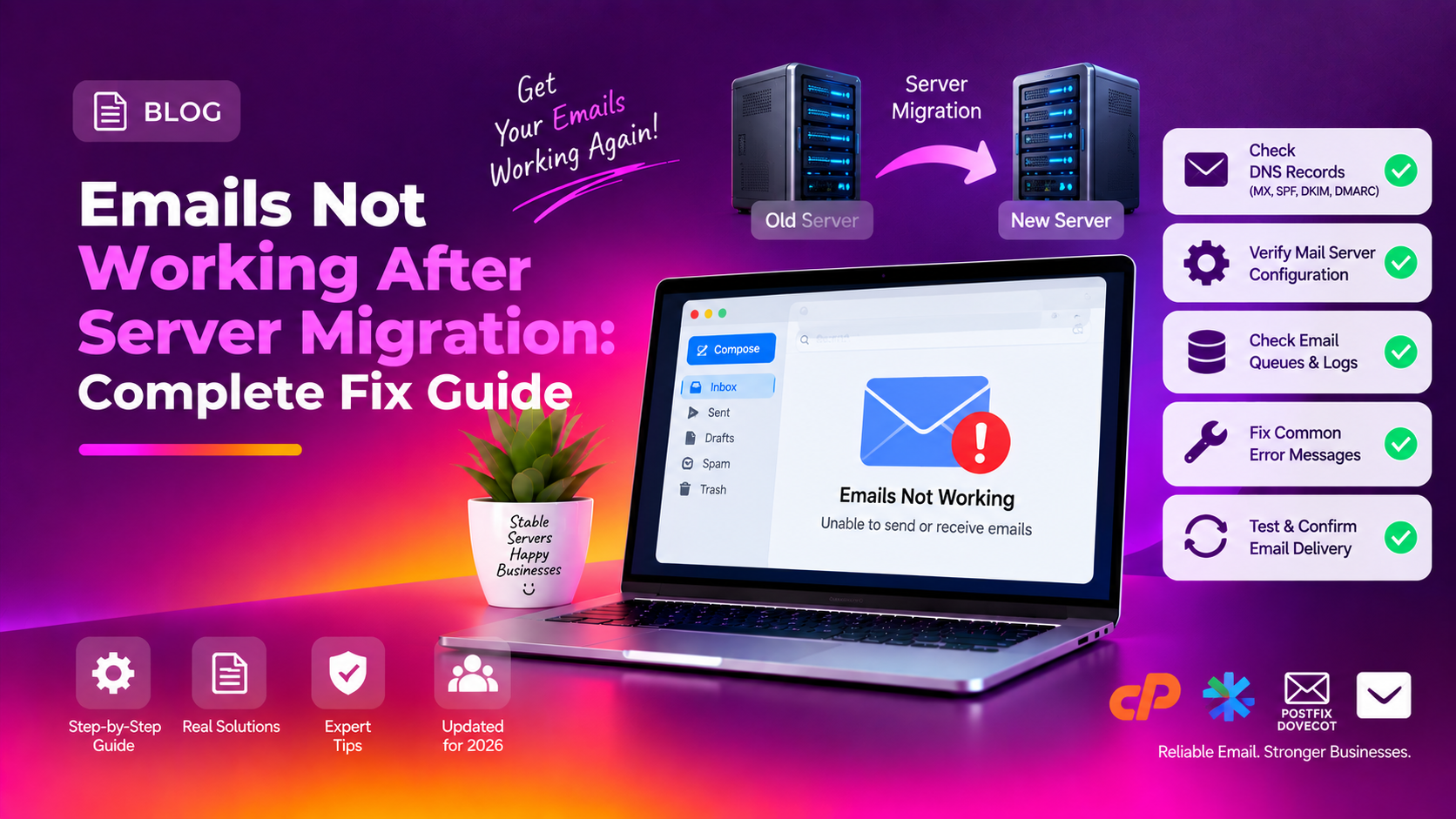
You've just finished migrating your server. The website loads perfectly on the new host. Then your client calls: "My emails aren't working." This scenario plays out dozens of times every day, and it almost always comes down to a predictable set of DNS and configuration issues that are entirely fixable — once you know where to look.
This guide covers every reason emails stop working after a server migration and gives you the exact commands and DNS settings to restore full email functionality fast.
Step 1: Understand Why Email Breaks After Migration
Email and website hosting use completely separate DNS records. When you move a site to a new server and update the A record, that only affects web traffic. Email delivery relies on different records:
- MX records — tell the internet which server receives inbound email
- A record for mail. — resolves the mail server hostname
- SPF record (TXT) — authorises which servers can send email for your domain
- DKIM record (TXT) — adds a cryptographic signature so recipients trust your mail
- DMARC record (TXT) — policy for handling authentication failures
Any of these missing or pointing to the wrong server will break email in a different way. The symptoms help narrow it down quickly.
Step 2: Diagnose the Problem — Read the Symptoms
Before changing anything, identify which failure mode you're dealing with:
- Inbound email not arriving at all → MX record missing or pointing to old server
- Outbound email going to spam → SPF or DKIM missing/broken
- Mail client can't connect → A record for mail hostname not updated, or ports blocked on new server
- Bounce messages saying "550 relay denied" → SMTP relay settings not configured on new server
- Emails bouncing with "550 SPF check failed" → SPF record authorises old server IP, not new IP
- Old emails lost → mailbox files not included in migration
💡 None of these worked? Skip the guesswork.
Get Expert Help →Step 3: Check and Fix MX Records
MX records are the most common cause of inbound email failure after migration. They do not migrate automatically — you must manually recreate them in the DNS zone at the new nameservers.
dig MX yourdomain.com +short
# or use:
nslookup -type=MX yourdomain.com 8.8.8.8
The output should show MX records pointing to a valid mail server hostname (e.g., mail.yourdomain.com). If the output is empty or shows the old server's hostname, the record is missing or stale.
In your DNS provider's zone editor, add:
Type: MX
Host: @  (or yourdomain.com)
Points to: mail.yourdomain.com
Priority: 10
TTL: 3600dig A mail.yourdomain.com +shortThis must return the new server's IP address. If it returns the old IP, add or update the A record for mail to point to the new server.
dig TXT yourdomain.com +short | grep spfA typical SPF record looks like: v=spf1 ip4:192.0.2.1 include:_spf.example.com ~all
Replace the old server IP with the new server's IP:
v=spf1 ip4:NEW_SERVER_IP include:_spf.example.com ~allIf you're using cPanel on the new server, cPanel automatically generates an SPF record. Check in cPanel → Email Deliverability and click "Repair" if any issues are flagged.
mxtoolbox.com/spf after the DNS record propagates.
Step 5: Restore DKIM Records
DKIM records don't transfer during server migration — each mail server generates its own DKIM keys. The old DKIM TXT record in DNS will be invalid for the new server.
1. Get the new DKIM key from cPanel
In cPanel → Email Deliverability, find the domain and click Manage. The page shows the exact DKIM TXT record value that needs to be added to DNS.
Go to Plesk → Domains → Mail Settings and enable DKIM signing. Copy the TXT record shown.
Type: TXT
Host: default._domainkey.yourdomain.com
Value: v=DKIM1; k=rsa; p=MIGfMA0G....(your key)
TTL: 3600dig TXT default._domainkey.yourdomain.com +shortStep 6: Check Mail Server Port Access
Even with correct DNS records, mail clients can't connect if the new server's firewall blocks mail ports. This is a common oversight when setting up a fresh server.
Test port connectivity from your machine:
telnet mail.yourdomain.com 25    # SMTP
telnet mail.yourdomain.com 587   # Submission (TLS)
telnet mail.yourdomain.com 993   # IMAP SSL
telnet mail.yourdomain.com 465   # SMTPS
If any of these time out or refuse, open the ports in the server firewall:
# CSF (cPanel servers)
csf -a TCP_IN 25,587,465,993,995,143,110

# UFW (Ubuntu/Debian)
ufw allow 25/tcp
ufw allow 587/tcp
ufw allow 465/tcp
ufw allow 993/tcp
ufw allow 995/tcp
Step 7: Migrate Existing Mailbox Data
If users are missing old emails after migration, the mailbox files were not included in the transfer. Mailboxes are stored on the filesystem separate from website files.
cPanel mailbox location: /home/USERNAME/mail/
Transfer mailboxes via rsync:
rsync -avz --progress /home/USERNAME/mail/ root@NEW_SERVER_IP:/home/USERNAME/mail/After copying, fix ownership:
chown -R USERNAME:USERNAME /home/USERNAME/mail/For Plesk servers, mailboxes are at /var/qmail/mailnames/DOMAIN/USER/ or /var/vmail/ depending on the mail server (Postfix/Qmail).
Step 8: Check the Mail Queue and Logs
If some emails are sending but others aren't arriving, check the mail queue for deferred or bounced messages:
Exim (cPanel):
# Check queue
exim -bpc    # count of queued messages
exim -bp     # full queue listing

# View mail logs
tail -100 /var/log/exim_mainlog
grep "DKIM\|SPF\|rejected\|failed" /var/log/exim_mainlog | tail -30
Postfix (Plesk/DirectAdmin):
postqueue -p         # show queue
mailq               # alias for postqueue
tail -100 /var/log/maillog
grep "status=bounced\|reject" /var/log/maillog | tail -30
Step 9: Wait for DNS Propagation
After making DNS changes, global propagation can take up to 48 hours — though most resolvers pick up changes within 1–4 hours for low TTL records. During this window, some users may see the fix while others don't.
Check propagation progress using:
dig MX yourdomain.com @8.8.8.8    # Google DNS
dig MX yourdomain.com @1.1.1.1    # Cloudflare DNS
dig MX yourdomain.com @208.67.222.222  # OpenDNS
If the records look correct on multiple resolvers, the fix is in place — clients just need to wait for their local resolver to update.
Step 10: Post-Migration Email Checklist
Run through this checklist after every server migration to prevent email issues before clients notice them:
- MX record points to
mail.domain.comat the new server - A record for
mail.domain.comreturns the new server IP - SPF record includes the new server's IP address
- DKIM TXT record matches the key generated by the new mail server
- DMARC policy record present
- Ports 25, 587, 465, 993, 995 open in firewall
- Mailbox files transferred and ownership corrected
- Email deliverability tool (cPanel/Plesk) shows green
- Send a test email in both directions and check headers
For larger migrations involving dozens of domains and mailboxes, a managed server migration service handles DNS coordination, mailbox transfer, and email deliverability verification as part of the process — reducing the risk of client-facing email outages to near zero.