
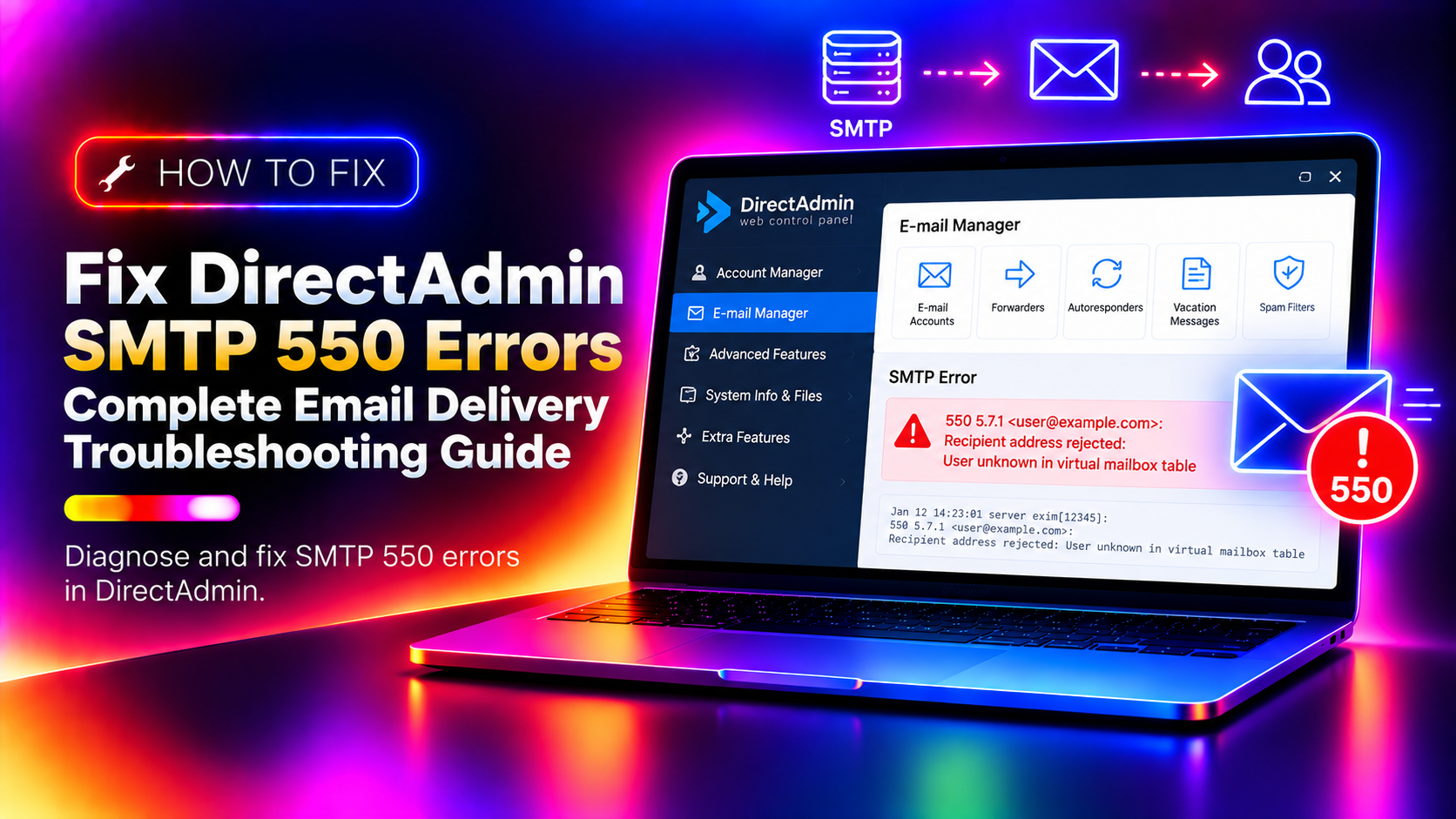
SMTP error 550 is one of the most common — and most misunderstood — email problems on DirectAdmin servers. Unlike temporary delivery failures (4xx errors), a 550 response means the receiving mail server has permanently rejected the message. The exact rejection message tells you where to look: "No such recipient here," "Relay not permitted," "Sender verify failed," and "Authentication required" each point to a different root cause. This guide covers every DirectAdmin 550 error variant, with specific configuration fixes for each.
What SMTP Error 550 Means in DirectAdmin
A 550 error is a permanent failure response at the SMTP protocol level. When your server or a client's mail server sends an email and receives a 550 response, the message is not retried — the sender receives a bounce notification immediately.
The 550 error is sent by the receiving mail server, not the sending server. This means the fix is almost always on the destination side — unless your DirectAdmin server is the one sending the 550 (rejecting inbound mail), in which case the configuration issue is on your server.
The most common DirectAdmin 550 error variants and their root causes:
- 550 No such recipient here — The destination mailbox doesn't exist on your server. The email address was typed incorrectly, the account was deleted, or a forwarder is pointing to a non-existent address.
- 550 Relay not permitted — Your server is refusing to relay email for a domain it doesn't host, or a client is trying to send through your server without authentication.
- 550 Sender verify failed — Your server is running sender callout verification and the sending domain's mail server is rejecting verification attempts.
- 550 Authentication required — SMTP AUTH is required but the client is not authenticating, or authentication credentials are incorrect.
- 550 User over quota — The recipient's mailbox has exceeded its disk quota.
Diagnosing the 550 Error: Read the Mail Log First
Before applying any fix, check the DirectAdmin mail log to see the exact 550 message being generated:
# Exim mail log (most DirectAdmin servers use Exim)
tail -100 /var/log/exim/mainlog | grep "550\|rejected\|failed"

# Filter by specific recipient or sender
grep "recipient@yourdomain.com" /var/log/exim/mainlog | grep "550" | tail -20

# Real-time monitoring
tail -f /var/log/exim/mainlog
The exact error message in the log tells you which fix to apply. Do not skip this step — applying the wrong fix wastes time and can introduce new problems.
Fix: "No Such Recipient Here" — Mailbox Does Not Exist
This error means the email address being contacted does not exist on your DirectAdmin server. The most common causes are:
1. Verify the email account exists in DirectAdmin
Log in to DirectAdmin, go to Email > Email Accounts, and confirm the exact address exists. Email addresses are case-insensitive but domain-sensitive — confirm the domain part matches exactly.
2. Check for catch-all configuration
If the domain previously had a catch-all mailbox configured, removing the catch-all without creating explicit mailboxes causes 550 errors for addresses that relied on it.
In DirectAdmin, navigate to Email > Catch-All Email and confirm the setting is correct for the domain.
3. Check and fix broken forwarders
A forwarder pointing to a deleted address causes 550 errors for the forwarded address. Check all forwarders:
DirectAdmin: Email > Forwarders — review each forwarder's destination. Delete or update forwarders that point to non-existent addresses.
4. Verify email routing via CLI
# Test whether Exim can route mail to the address
exim -bt recipient@yourdomain.com

# Check if address is in a virtual mailbox list
grep "recipient" /etc/virtual/yourdomain.com/passwd
If exim -bt returns "unrouteable address," the mailbox configuration is missing. Recreate the account in DirectAdmin.
Fix: "Relay Not Permitted" — Open Relay or Auth Issue
This error occurs when an email client tries to send mail through your server for a domain your server doesn't host, without authenticating first.
1. Confirm SMTP AUTH is required
In DirectAdmin, go to Admin Level > Exim Configuration and verify that auth_advertise_hosts is set to require authentication from external connections. Most DirectAdmin Exim configurations have this correct by default.
2. Check if the client is authenticating
In the Exim main log, a successful SMTP AUTH session shows:
Authenticated as: username@yourdomain.comA relay error with no auth line means the client is sending without credentials. Reconfigure the mail client to use SMTP AUTH (port 587 with STARTTLS, or port 465 with SSL/TLS). Confirm username and password are correct.
3. Verify relay domains in Exim
# Check relay domains file
cat /etc/virtual/relays

# Check local domains list
cat /etc/virtual/domains
If the sending domain should be local but isn't in /etc/virtual/domains, add it and reload Exim:
echo "yourdomain.com" >> /etc/virtual/domains
service exim restart
Fix: "Sender Verify Failed" — Callout Verification
DirectAdmin servers with sender callout verification enabled attempt to verify that the sender's address actually exists before accepting a message. If the sending server rejects the verification probe (which many servers do by design), Exim returns 550 Sender verify failed.
1. Disable sender callout verification
In DirectAdmin, go to Admin Level > Exim Configuration Manager. Look for the Sender Verification or Callout Verification setting and disable it.
Via CLI, edit /etc/exim.conf and find the verify = sender/callout line in the ACL section. Comment it out:
nano /etc/exim.conf
# Find and comment out:
# verify = sender/callout

# After editing, test the config and restart:
exim -bV
service exim restart
2. Whitelist specific senders instead
If you want to keep callout verification but whitelist specific senders:
nano /etc/exim.conf
# In the appropriate ACL, add before the verify line:
# accept hosts = +relay_from_hosts
# accept senders = : sender@example.com
Fix: "Authentication Required" — SMTP AUTH Configuration
This error means a client is attempting to send email through your server without authenticating. Modern Exim configurations on DirectAdmin require SMTP AUTH for all outbound mail from non-local IPs.
Mail client configuration checklist:
- Outgoing server: your domain or server hostname (not
localhost) - Port: 587 (STARTTLS) or 465 (SSL/TLS) — not port 25
- Authentication: Login or Plain (not None)
- Username: full email address (e.g.,
user@yourdomain.com) - Password: the email account password (not the DirectAdmin account password)
If the settings are correct but authentication still fails, reset the email account password in DirectAdmin under Email > Email Accounts > Change Password and update it in the mail client.
Fix: "User Over Quota" — Mailbox Full
When a mailbox hits its disk quota, Exim returns a 550 error for all incoming messages. Fix:
# Check mailbox size
du -sh /home/username/imap/yourdomain.com/username/

# Check DirectAdmin quota settings
grep "username" /etc/virtual/yourdomain.com/quota
Increase the quota in DirectAdmin under Email > Email Accounts > Quota, or ask the user to delete old messages via webmail.
DNS and MX Record Verification
Some 550 errors originate from incorrect MX records — the sending server is delivering to the wrong destination.
# Check MX records for the domain
dig MX yourdomain.com +short

# Confirm MX resolves to this server
dig A mail.yourdomain.com +short

# Compare to this server's IP
curl -s ifconfig.me
If the MX record points to the old server after a migration, update it in your DNS provider and wait for propagation. A mismatched MX record causes all inbound email to go to the wrong server, generating 550 errors for non-existent addresses there.
DirectAdmin SMTP 550 errors have a finite list of root causes — and each one has a specific fix. The key is reading the exact error message from the Exim log before attempting anything. If your DirectAdmin server has persistent email delivery issues beyond what's covered here, the team at CloudHouse Technologies provides managed DirectAdmin support including full email stack diagnosis and Exim configuration review.