
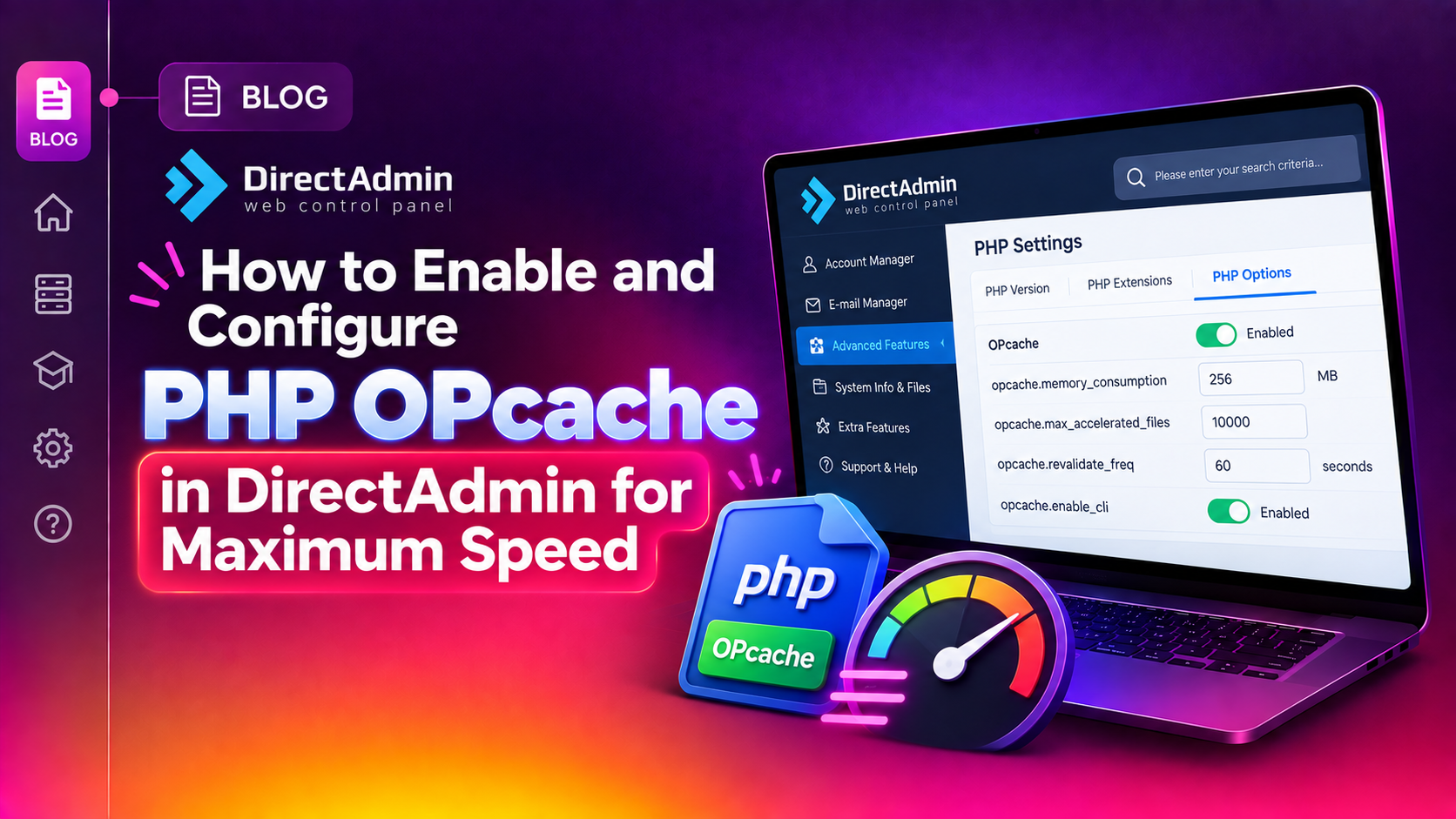
Every time a visitor loads a PHP-powered page on your DirectAdmin server, PHP must read the source file from disk, parse it into tokens, compile those tokens into bytecode, and execute that bytecode. On a busy shared or VPS hosting server, this process repeats thousands of times per minute — even when the underlying PHP files have not changed at all.
PHP OPcache (Opcode Cache) eliminates this redundancy. It compiles PHP scripts into bytecode once and stores that bytecode in shared memory. On every subsequent request, PHP skips the parse-and-compile steps entirely. Most WordPress sites and Laravel applications see 50–80% reductions in PHP execution time after OPcache is properly tuned.
What Is PHP OPcache and Why It Matters on DirectAdmin
OPcache ships bundled with PHP 5.5 and later — no external extension installation is required. However, on DirectAdmin servers managed via CustomBuild 2.0, OPcache must be explicitly enabled and configured, otherwise it sits dormant. This guide covers the complete process: enabling OPcache via CustomBuild, tuning key directives for production workloads, configuring it under PHP-FPM, and selectively disabling it per domain when needed.
Key benefits on DirectAdmin hosting servers:
- Eliminates repeated PHP file parsing — scripts compile once and cache for the TTL duration
- Reduces CPU usage significantly on servers running multiple WordPress, Joomla, or Laravel sites
- Lowers TTFB (Time to First Byte) — often the most impactful single change for PHP performance
- Shared memory cache is available to all PHP-FPM worker processes in the same pool
How to Enable OPcache via CustomBuild 2.0 (GUI and CLI)
DirectAdmin's CustomBuild 2.0 manages PHP versions and extensions. OPcache is a first-class feature with a dedicated build target.
Method 1: Enable OPcache via SSH (Recommended)
# Navigate to the CustomBuild directory
cd /usr/local/directadmin/custombuild

# Set the opcache flag to yes
./build set opcache yes

# Build and install OPcache for all installed PHP versions
./build opcache
CustomBuild compiles OPcache for every PHP version on the server (typically 2–5 minutes). Verify installation:
php -m | grep -i opcache
# Should output: Zend OPcache

# Verify for a specific version (e.g., PHP 8.1)
/usr/local/php81/bin/php -m | grep -i opcache
Method 2: Enable via the DirectAdmin GUI
Log in as admin → Extra Features → CustomBuild 2.0. In Options, set opcache to Yes, save, then click Build next to OPcache.
Default Configuration File Locations
# PHP 7.4
/usr/local/php74/lib/php.conf.d/10-opcache.ini

# PHP 8.1
/usr/local/php81/lib/php.conf.d/10-opcache.ini

# PHP 8.2
/usr/local/php82/lib/php.conf.d/10-opcache.ini

# System-wide DirectAdmin config
/usr/local/lib/php.conf.d/10-directadmin.ini
Do not edit these files directly — CustomBuild overwrites them during PHP rebuilds. Use the custom override method described below.
Key OPcache Settings to Tune for Production Hosting
Default CustomBuild OPcache settings are conservative. For production hosting environments, tune these directives for maximum impact.
Creating a Safe Custom Configuration
# Create the custom opcache directory
mkdir -p /usr/local/directadmin/custombuild/custom/opcache

# Copy default template as starting point
cp -p /usr/local/directadmin/custombuild/configure/opcache/opcache.ini       /usr/local/directadmin/custombuild/custom/opcache/opcache.ini
Edit the custom file, then apply by rebuilding: ./build opcache
Recommended Production Settings
[opcache]
opcache.enable=1
opcache.enable_cli=0

; Shared memory size in MB — 128MB baseline, 256MB for 10+ WordPress sites
opcache.memory_consumption=128

; Memory for interned strings (class/function/variable names)
opcache.interned_strings_buffer=16

; Maximum number of files OPcache can store
opcache.max_accelerated_files=10000

; How often (seconds) PHP checks file timestamps for changes
; Set to 2 for shared hosting where customers deploy their own code
opcache.revalidate_freq=2

; Keep validate_timestamps=1 for shared hosting
opcache.validate_timestamps=1

; Required by Doctrine, PHPUnit, and some frameworks
opcache.save_comments=1

; Protect against cache poisoning in shared environments
opcache.validate_permission=1
opcache.validate_root=1
Sizing Memory Correctly
Run this PHP snippet to check current memory usage:
<?php
$status = opcache_get_status(false);
echo 'Used: ' . round($status['memory_usage']['used_memory'] / 1024 / 1024, 2) . ' MB' . PHP_EOL;
echo 'Free: ' . round($status['memory_usage']['free_memory'] / 1024 / 1024, 2) . ' MB' . PHP_EOL;
echo 'Wasted: ' . round($status['memory_usage']['wasted_memory'] / 1024 / 1024, 2) . ' MB' . PHP_EOL;
If used memory consistently exceeds 80% of your allocation, increase opcache.memory_consumption and rebuild.
PHP-FPM-Specific OPcache Configuration and Common Pitfalls
Modern DirectAdmin setups use PHP-FPM (FastCGI Process Manager). OPcache operates at the PHP-FPM master process level — the bytecode cache is shared across all worker processes within the same pool.
Setting OPcache Directives Per PHP Version
# Create a custom override for PHP 8.1
nano /usr/local/php81/lib/php.conf.d/99-custom.ini
Add your directives:
[opcache]
opcache.memory_consumption=256
opcache.max_accelerated_files=20000
opcache.revalidate_freq=2
Restart the PHP-FPM service:
systemctl restart php-fpm81Common PHP-FPM + OPcache Pitfalls
- Wrong PHP version in use — Confirm which version a domain uses under Admin Level > User Management > [User] > PHP Version. Verify OPcache is active for that specific version:
/usr/local/php81/bin/php -i | grep opcache.enable - Memory exhaustion causing silent fallbacks — When OPcache runs out of memory, PHP silently falls back to compile-on-request without errors. Monitor
oom_restartsinopcache_get_status(). - Stale cache after deployments — With
validate_timestamps=1, PHP checks timestamps everyrevalidate_freqseconds. For immediate effect:systemctl restart php-fpm81 - validate_permission not set in shared hosting — Without
opcache.validate_permission=1on multi-user servers, one user could read another user's cached bytecode. Always enable this on shared hosting.
How to Disable OPcache Per Domain Without Breaking Others
WHMCS, some legacy Joomla extensions, and obfuscated PHP scripts can misbehave with bytecode caching. DirectAdmin provides clean ways to disable OPcache for a single domain.
Method 1: PHP-FPM Pool Custom Configuration (Recommended)
Log in as admin → Server Manager → Custom HTTPD Configurations. Select the target domain and in the php-fpm.conf field, add:
php_admin_value[opcache.enable] = 0Save and rebuild. This disables OPcache exclusively for that domain's PHP-FPM pool.
Method 2: Per-Domain php.ini Override
# Place in the domain's document root
echo "opcache.enable=0" > /home/username/domains/example.com/public_html/php.ini
Verify the Disable Worked
<?php
$status = opcache_get_status();
var_dump($status['opcache_enabled']);
Output should be bool(false) for the disabled domain.
Monitoring and Ongoing Maintenance
As your server's PHP application portfolio grows, re-tune OPcache to stay effective. Key metrics from opcache_get_status():
- memory_usage.used_memory — above 85% means increase
memory_consumption - opcache_statistics.oom_restarts — non-zero means cache ran out of memory
- opcache_statistics.hash_restarts — non-zero means
max_accelerated_fileswas hit - hit ratio — healthy cache shows above 90%; low ratios indicate rapid eviction
After every PHP version upgrade via CustomBuild, re-run ./build opcache to compile against the new binary. For expert-level tuning and managed DirectAdmin performance optimization, CloudHouse Technologies' server management service provides hands-on OPcache, PHP-FPM, and Redis caching configuration.
FAQs
Does OPcache work with all PHP versions on DirectAdmin?
Yes. OPcache is bundled with PHP 5.5 and all later versions. Running ./build opcache via CustomBuild 2.0 installs and enables OPcache for every PHP version compiled on your DirectAdmin server, including PHP 7.4, 8.0, 8.1, 8.2, and 8.3.
How do I clear the OPcache without restarting the entire server?
Restart the specific PHP-FPM service: systemctl restart php-fpm81 (adjust version number). This clears OPcache for that version's pools without affecting other services. You can also call opcache_reset() from a trusted PHP script on the server.
What memory_consumption value should I use for 30 WordPress sites?
Start with 256 MB and monitor after 24–48 hours of traffic using opcache_get_status(). If used_memory exceeds 85% of your allocation or oom_restarts is non-zero, increase to 512 MB and rebuild.
Will enabling OPcache break any PHP applications?
Most modern PHP applications including WordPress, Joomla, Drupal, and Laravel are fully compatible with OPcache. A small number of applications — notably WHMCS and some obfuscated PHP scripts — may behave unexpectedly. For those domains, add php_admin_value[opcache.enable] = 0 to their PHP-FPM pool configuration.
How do I verify OPcache is actually working?
Create a temporary PHP file with <?php phpinfo(); ?> and load it in a browser. Search the output for Opcode Caching — if it shows Up and Running, OPcache is active. Or run /usr/local/php81/bin/php -m | grep -i opcache via SSH. Remove the phpinfo file immediately after testing.
Conclusion
PHP OPcache is one of the highest-leverage performance improvements available on any DirectAdmin server. Enabling it via CustomBuild takes minutes, and tuning memory_consumption, max_accelerated_files, and revalidate_freq to match your workload delivers sustained performance gains for every PHP site on the server. Monitor cache hit ratios and memory usage monthly and adjust as your hosting environment grows. For hands-on DirectAdmin performance tuning, CloudHouse Technologies provides full-stack optimization including OPcache, PHP-FPM pool configuration, and Redis object caching.