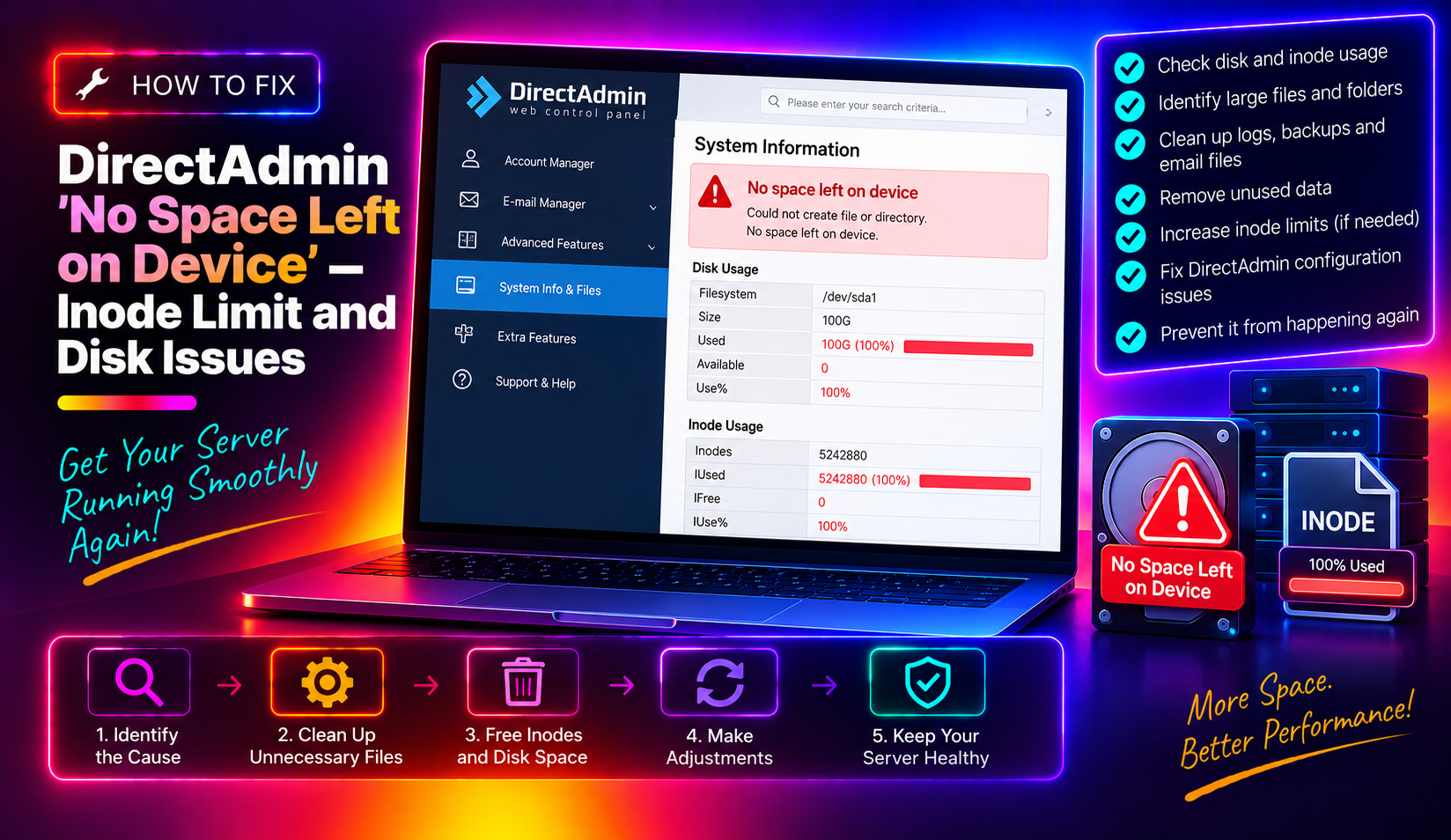
One of the most confusing errors on a DirectAdmin server is seeing "No space left on device" in email logs, application errors, or when trying to create files — while df -h shows plenty of free disk space. The real culprit is almost always the inode limit. This guide explains what inodes are, how to diagnose inode exhaustion on a DirectAdmin server, and how to clean up and prevent this performance-killing problem.
What Are Inodes and Why Do They Matter?
An inode is a data structure in the Linux filesystem that stores metadata about a file or directory — its size, permissions, ownership, and the pointers to the actual data blocks on disk. Every file, directory, symlink, and socket on the system uses exactly one inode.
When a filesystem is created, the total number of inodes is fixed based on the filesystem size and the bytes-per-inode ratio set at creation time. On a typical ext4 filesystem, one inode is created for approximately every 16 KB of disk space. This means a 100 GB partition might have around 6.5 million inodes.
If your server creates millions of small files — PHP session files, email queue entries, cached thumbnails, temporary upload chunks, or application log files — you can exhaust all available inodes while still having gigabytes of free disk space. Once inodes are exhausted, the system cannot create any new files and throws "No space left on device."
On DirectAdmin servers, the most common inode hogs are:
- PHP session files in
/tmpor/var/lib/php/session - Exim mail queue files in
/var/spool/exim - WordPress cache plugins generating thousands of cache files per site
- Softaculous backup files with per-file exports
- cron-generated temporary files that never clean up
- Email spam in mailbox folders (thousands of tiny spam messages)
Step 1 — Diagnose: Disk Space vs. Inode Usage
First, confirm whether the issue is disk space or inode exhaustion.
Check disk space
df -hOutput shows used/available space in human-readable format. If Use% is not at 100%, the problem is inodes, not disk space.
Check inode usage
df -iLook at the IUse% column. If any filesystem shows 100% (or IFree=0), that partition is out of inodes — even if it has free disk space. This is the root cause of your "no space left on device" errors.
Example output showing the problem:
Filesystem       Inodes   IUsed   IFree IUse% Mounted on
/dev/sda1      6553600  6553600       0  100% /
Also check DirectAdmin's own disk usage display: Login → Admin Level → Show All Users → Inode usage per user account.
Step 2 — Find Which Directories Are Consuming Inodes
Once you've confirmed inode exhaustion, find the directory trees responsible. This command counts the number of files (inodes used) in each subdirectory and sorts by count:
# Top-level directories sorted by file count
for dir in /*; do echo $(find "$dir" -maxdepth 5 2>/dev/null | wc -l) "$dir"; done | sort -rn | head -20
For more targeted investigation of common problem locations:
# Check PHP session files
find /tmp -name "sess_*" 2>/dev/null | wc -l
find /var/lib/php -name "sess_*" 2>/dev/null | wc -l

# Check Exim mail queue
find /var/spool/exim/input -type f 2>/dev/null | wc -l

# Check per-user mail directories
for user in /home/*/domains/*/mail; do echo $(find "$user" -type f 2>/dev/null | wc -l) $user; done | sort -rn | head -10

# Check tmp directories
find /tmp -type f 2>/dev/null | wc -l
Step 3 — Clean Up PHP Session Files
PHP session files are the #1 inode hog on shared hosting servers. They accumulate in /tmp or /var/lib/php/session when session cleanup (garbage collection) is not running properly.
# Count session files
find /tmp -maxdepth 1 -name "sess_*" | wc -l

# Remove PHP session files older than 1 day
find /tmp -maxdepth 1 -name "sess_*" -mtime +1 -delete

# For PHP-FPM per-user session directories
find /var/lib/php -name "sess_*" -mtime +1 -delete
To prevent future accumulation, ensure PHP garbage collection is enabled in /usr/local/lib/php.ini:
session.gc_probability = 1
session.gc_divisor = 100
session.gc_maxlifetime = 1440
This tells PHP to run garbage collection on 1% of session starts and clean up sessions older than 24 minutes (1440 seconds). Restart PHP-FPM after changing php.ini:
systemctl restart php-fpm   # or the specific version
service php83-fpm restart
Step 4 — Clear the Exim Mail Queue
A backed-up Exim mail queue can contain tens of thousands of files in /var/spool/exim. Each queued message creates multiple files (envelope, data, journal).
# Check queue size
exim -bpc

# View the queue
exim -bp | head -50

# Remove all frozen messages (undeliverable spam/bounces)
exim -bpu | grep frozen | awk '{print $3}' | xargs exim -Mrm

# Remove all messages older than 1 day
exiqgrep -o 86400 -i | xargs exim -Mrm

# Nuclear option — clear entire queue (use only if all mail is spam/bounced)
exim -bp | exiqgrep -i | xargs exim -Mrm
Warning: Before clearing the queue, check if legitimate emails are waiting. If the queue contains real customer emails, resolve the delivery issue first rather than deleting them.
Step 5 — Clean Up WordPress and Application Cache Files
WordPress caching plugins (W3 Total Cache, WP Super Cache, WP Rocket) can generate tens of thousands of cache files per site. On a server hosting 50+ WordPress sites, this easily becomes millions of files.
# Find WordPress cache directories by inode count
for cache in /home/*/domains/*/public_html/wp-content/cache; do
  count=$(find "$cache" -type f 2>/dev/null | wc -l)
  if [ "$count" -gt 10000 ]; then
    echo "$count files: $cache"
  fi
done

# Clear W3 Total Cache
find /home/*/domains/*/public_html/wp-content/cache -type f -name "*.html" -mtime +1 -delete
find /home/*/domains/*/public_html/wp-content/cache -type f -name "*.php" -mtime +1 -delete
Consider switching high-traffic WordPress sites to Redis or Memcached object caching instead of file-based page caching — a single Redis in-memory cache replaces millions of individual cache files.
Step 6 — Clean Up Other Common Inode Sources
# Find and remove old Softaculous backup files
find /home/*/softaculous_backups -mtime +30 -delete 2>/dev/null

# Clean up old log files
find /var/log -name "*.log.*" -mtime +30 -delete
journalctl --vacuum-time=7d

# Clean up old core dump files
find / -name "core" -type f -mtime +7 -delete 2>/dev/null

# Thumbnail cache from image processing
find /home -name "thumb_*" -mtime +7 -delete 2>/dev/null

# Old session data in user tmp directories
find /home/*/tmp -name "sess_*" -mtime +1 -delete 2>/dev/null
💡 None of these worked? Skip the guesswork.
Get Expert Help →Step 7 — Set Per-Account Inode Limits in DirectAdmin
After cleaning up, prevent any single account from monopolizing inodes again by setting inode limits per user or reseller plan.
In DirectAdmin as admin:
1. Go to Admin Level → Manage Resellers → click the reseller → set Inode Limit
2. Go to Reseller Level → User List → click a user → set Inode Limit
Or set limits via the command line using the DirectAdmin API:
# Set 500,000 inode limit for a user
echo "action=modify&user=USERNAME&inode=500000" | /usr/local/directadmin/directadmin task.queue
A typical shared hosting account should be limited to 250,000–500,000 inodes. High-traffic sites may legitimately need more.
Step 8 — Add an Automated Cleanup Cron Job
Prevent future inode exhaustion by scheduling a regular cleanup. Add to root's crontab (crontab -e):
# Run at 3am daily — clean up PHP sessions, Exim frozen mail, and old logs
0 3 * * * find /tmp -maxdepth 1 -name "sess_*" -mtime +1 -delete 2>/dev/null
0 3 * * * exim -bpu 2>/dev/null | grep frozen | awk '{print $3}' | xargs exim -Mrm 2>/dev/null
0 3 * * * find /var/log -name "*.log.*" -mtime +30 -delete 2>/dev/null
Monitoring Inode Usage Over Time
Add an inode alert to your monitoring. A simple bash one-liner to alert when inode usage exceeds 80%:
df -i / | awk 'NR==2 {gsub(/%/,"",$5); if ($5 > 80) print "WARNING: " $5 "% inodes used on /"}'Tools like Munin, Netdata, or Zabbix all have inode monitoring plugins that can send alerts before exhaustion is reached.
Managing disk and inode resources across dozens of DirectAdmin accounts — setting per-account limits, automating cleanup, and monitoring usage before it causes service interruptions — is exactly the kind of proactive server administration work that CloudHouse Technologies' server management service handles 24/7. Get in touch before a full inode partition takes your entire server down.