
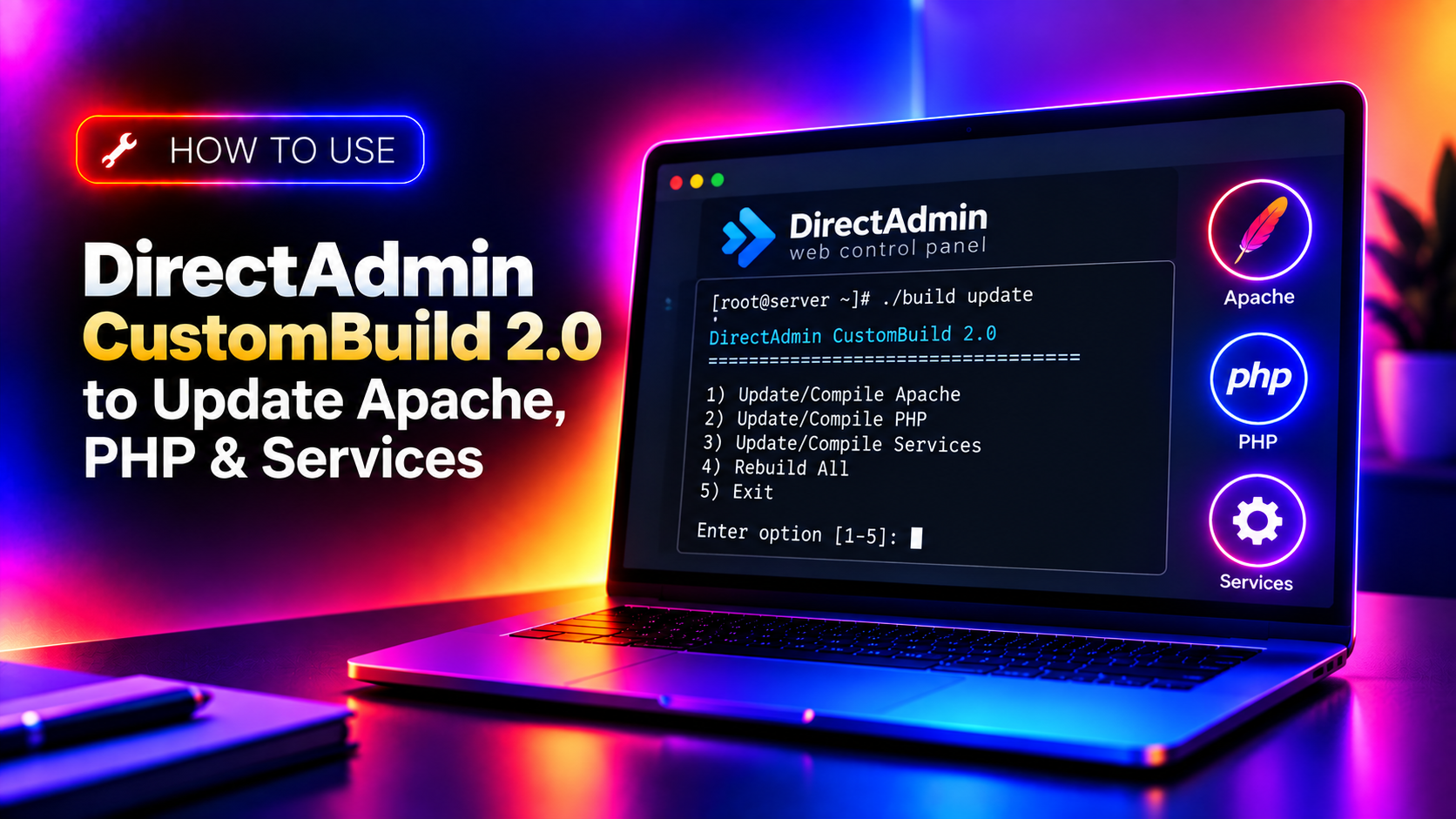
DirectAdmin's CustomBuild 2.0 is the tool that controls your entire server software stack — Apache, PHP, MySQL, Nginx, and more. Running updates through CustomBuild incorrectly can take an entire hosting server offline. Done correctly, it keeps your stack current, secure, and running the latest stable versions. This guide covers the full CustomBuild 2.0 workflow: verifying your current build state, running updates safely, switching PHP versions, and recovering from a failed build.
What Is DirectAdmin CustomBuild 2.0?
CustomBuild 2.0 is a command-line tool located at /usr/local/directadmin/custombuild/build. It compiles and installs web server components from source or from pre-compiled binaries. Unlike package managers like yum or apt, CustomBuild manages the entire LAMP stack in a way that integrates with DirectAdmin's configuration — so Apache virtual hosts, PHP handlers, and SSL settings all stay consistent after updates.
CustomBuild 2.0 improvements over 1.x:
- Per-user PHP version support via PHP-FPM
- Faster builds using pre-compiled binaries where available
- More granular control over what gets updated
- Better dependency management between components
Step 1: Check the Current Build State Before Any Updates
Never run a CustomBuild update without first reviewing what is currently installed and what options are configured. A mismatch between the build options and the running configuration causes broken virtual hosts and PHP handlers after an update.
cd /usr/local/directadmin/custombuild

# Check current installed versions
./build versions

# Check current build options (PHP version, web server type, etc.)
cat options.conf

# Check for available updates
./build update
./build versions_compare
Key settings to review in options.conf before updating:
php1_ver— primary PHP version (e.g., 8.2)php2_ver— secondary PHP versionwebserver— apache, nginx, or litespeedphp1_mode— php-fpm, fastcgi, or suphpapache_ver— Apache version (2.4)mysql_inst— mysql or mariadb and version
Step 2: Update CustomBuild Itself First
Before updating any software components, update CustomBuild itself to get the latest build scripts and binary lists:
cd /usr/local/directadmin/custombuild
./build update
This downloads updated build scripts from DirectAdmin's servers. It does not install or update any server software — it only updates the build tool itself. This step is safe to run at any time.
Step 3: Update Apache Safely
Apache updates are low-risk in CustomBuild because the update process compiles the new version and switches to it atomically. However, a syntax error in a virtualhost configuration can prevent Apache from restarting after the update — always test configuration before updating.
# Test Apache configuration BEFORE updating
httpd -t
# or
apachectl configtest
If the test shows any syntax errors, fix them before proceeding. Then run the Apache update:
cd /usr/local/directadmin/custombuild

# Update Apache only
./build apache

# Monitor the build output for errors
# Build takes 5-15 minutes depending on server speed
After the build completes, verify Apache is running:
systemctl status httpd
# Check that the new version is active
httpd -v
If Apache fails to restart after the build, check the error log:
tail -50 /usr/local/apache/logs/error_log💡 None of these worked? Skip the guesswork.
Get Expert Help →Step 4: Update PHP
PHP updates are the most impactful CustomBuild operation for shared hosting servers because they affect every website on the server simultaneously. A PHP major version jump (7.4 → 8.1) can break older applications that use deprecated functions.
To update PHP within the same major version (e.g., 8.1.x to 8.1.y), the existing php1_ver setting in options.conf stays the same:
./build php nThe n flag means "no recompile from scratch" — it uses pre-compiled binaries where available, making this significantly faster.
To switch from PHP 8.1 to PHP 8.2, edit options.conf first:
# Edit the PHP version setting
nano /usr/local/directadmin/custombuild/options.conf
# Change: php1_ver=8.1 → php1_ver=8.2

# Then rebuild PHP
./build php
For multi-PHP setups (different PHP versions per domain), configure php1_ver and php2_ver and rebuild both:
./build php n
./build php2 n# Check that PHP-FPM restarted correctly
systemctl status php-fpm
php -v
# Check a website's PHP version in DirectAdmin
# (Admin Level > User Management > Domain > PHP Version)Step 5: Update MySQL or MariaDB
Database updates carry the highest risk in CustomBuild. A failed MySQL update can corrupt the data directory or prevent the database service from starting. Always take a full mysqldump backup before updating MySQL or MariaDB.
# Full database backup before updating
mysqldump --all-databases --single-transaction > /root/all_databases_$(date +%Y%m%d).sql
gzip /root/all_databases_$(date +%Y%m%d).sql

# Then run the MySQL update
./build mysql
After the update:
systemctl status mysql
mysql -V
# Run mysql_upgrade to update grant tables
mysql_upgrade -u root -p
Step 6: Update All Components at Once
CustomBuild can update all installed components in sequence with a single command. Use this only during a maintenance window, not on a live production server mid-day:
./build all dThe d flag skips recompilation for components that support pre-compiled binaries, significantly reducing build time. Monitor the output carefully for errors — the build will continue past individual component failures.
A safer alternative is to update components individually in order of risk:
- Update CustomBuild scripts:
./build update - Update Apache:
./build apache - Update PHP:
./build php n - Update other services:
./build phpmyadmin,./build roundcube - Update MySQL/MariaDB last (after backup):
./build mysql
Recovering from a Failed CustomBuild Update
If Apache or PHP fails to start after a CustomBuild update, check the build log for compilation errors:
tail -200 /usr/local/directadmin/custombuild/build.logCommon recovery steps:
- Apache won't start: Run
httpd -tto identify configuration syntax errors, then fix and restart withsystemctl start httpd - PHP-FPM won't start: Check
systemctl status php-fpmandjournalctl -u php-fpm -n 50for the startup error - Roll back to previous version: Edit
options.confto specify the older version number and re-run the build command for that component
For complex build failures or large fleets of DirectAdmin servers, CloudHouse's server management service handles CustomBuild updates during scheduled maintenance windows with rollback procedures in place.