
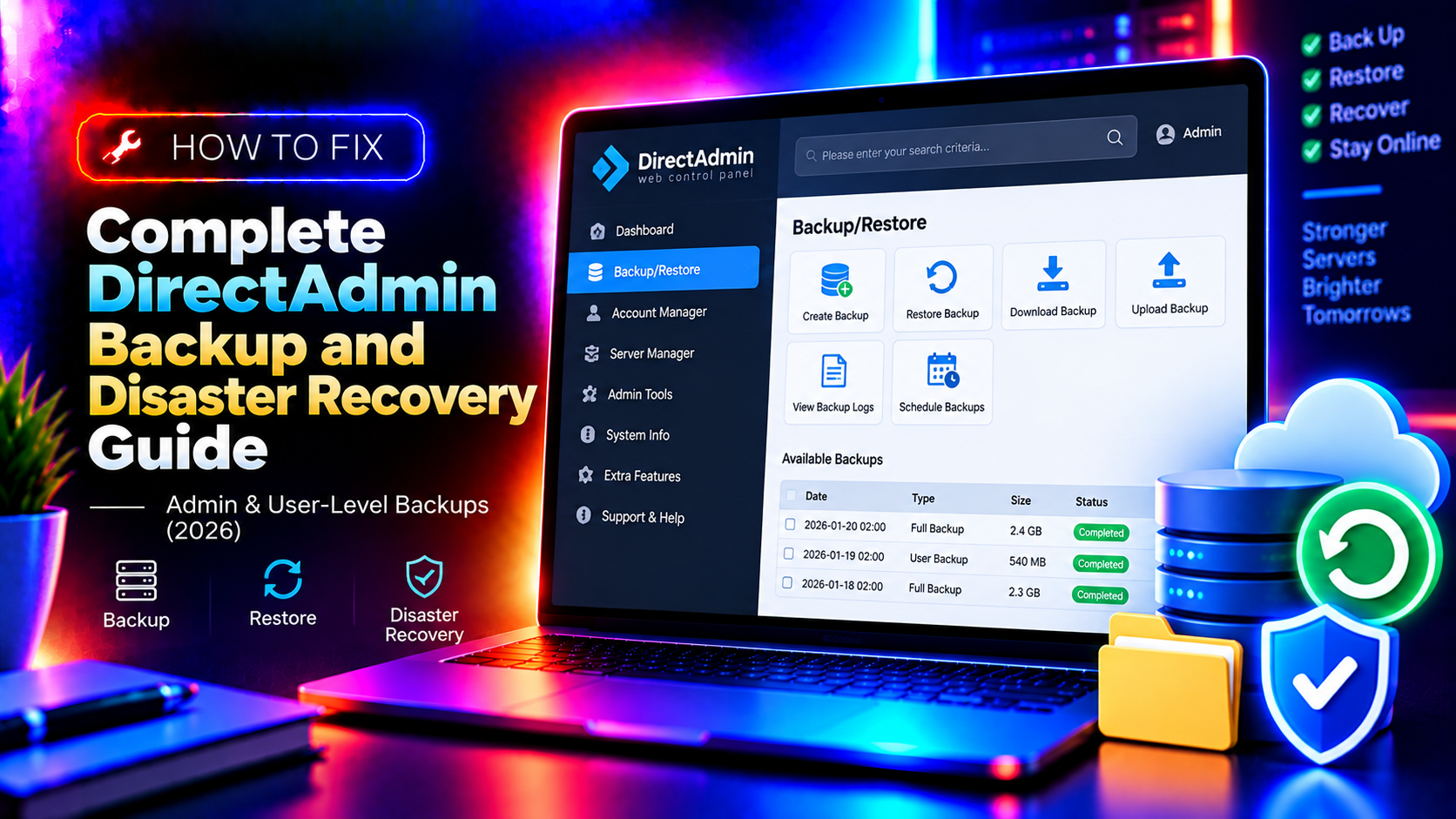
A reliable directadmin backup restore guide is the single most important resource a sysadmin can have — because when disaster strikes, every minute of downtime costs real money and real trust. DirectAdmin ships with both admin-level and user-level backup tools that, when configured correctly, can protect every account, database, and configuration file on your server. This guide covers the complete picture: automated daily backups, remote FTP/SFTP storage, granular restoration procedures, and the industry-standard 3-2-1 disaster recovery rule — so you are ready before the emergency, not scrambling during it.
Understanding DirectAdmin Backup Architecture
DirectAdmin organises backups into two distinct tiers, each serving a different operational need. Understanding which tier to use — and when — is the foundation of any solid disaster recovery plan.
Admin-Level Backups
Admin-level backups are created from the DirectAdmin admin panel or via the command line. They can cover one account, multiple accounts, or every account on the server simultaneously. The backup engine writes compressed .tar.gz archives to /home/admin/admin_backups/ by default, and each archive contains:
- All public_html and public_ftp file trees
- MySQL/MariaDB databases and users
- Email accounts, forwarders, and autoresponders
- DNS zone files
- Cron jobs and FTP accounts
- SSL certificates and keys
- DirectAdmin user configuration files
User-Level Backups
User-level backups are initiated by the hosting account owner from within their DirectAdmin user panel at Advanced Features → Create/Restore Backups. These backups follow the same archive format but are stored under /home/username/backups/ and are scoped strictly to that user's data. Users cannot access other accounts' files — making this the recommended self-service restore path for shared hosting clients.
Backup File Naming Convention
DirectAdmin backup archives follow a predictable naming pattern:
backup-MM.DD.YYYY_HH-MM-SS_username.tar.gzFor example: backup-06.30.2026_03-00-01_example.tar.gz. This timestamp format makes it straightforward to identify and sort archives by date when performing a point-in-time restore.
💡 None of these worked? Skip the guesswork.
Get Expert Help →Setting Up Automated Daily Backups
Manual backups are better than nothing, but automation eliminates human error and ensures you always have a recent restore point. DirectAdmin includes a built-in cron-driven backup scheduler accessible at Admin Level → System Backup.
Log in as admin, go to Admin Level → System Backup. Here you will find options to select which users to include, set the backup schedule, and choose the destination directory.
You can choose All Users, a specific reseller's accounts, or individual users. For a production server, always select All Users to ensure complete coverage. If disk space is limited, exclude demo or suspended accounts.
Set the cron time under Cron Time. A daily 3:00 AM run is a safe default — low-traffic window, no interference with business-hours MySQL writes. The underlying cron entry is written to /etc/cron.d/directadmin automatically.
Under Number of Backups to Keep, set a value that matches your disk budget. A common production pattern is:
- Daily backups — keep 7 (one week rolling)
- Weekly backups — keep 4 (one month rolling)
Enable Gzip Compression to reduce archive sizes by 60-75% for typical web content.
Click Save. DirectAdmin writes the cron schedule and sets permissions on the backup directory. Trigger a manual test run immediately:
echo "action=backup&value=all" >> /usr/local/directadmin/data/task.queue.cb
/usr/local/directadmin/dataskq d500
Check /home/admin/admin_backups/ for the resulting archives within a few minutes.
Select the backup archive from the dropdown. DirectAdmin automatically lists all archives in the configured backup directory.
Select which components to restore: Files, Databases, Email, DNS, or All. Partial restores are useful when only a MySQL database was corrupted but the website files are intact.
Click Restore. DirectAdmin extracts the archive to a temporary location, then populates the user's home directory and recreates MySQL databases and grants. For large accounts over 10 GB, the restore may take 5-20 minutes.
Command-Line Restore
For scripted or automated restores, use the DirectAdmin restore script:
/usr/local/directadmin/scripts/restore_admin.sh \
  /home/admin/admin_backups/backup-06.30.2026_03-00-01_example.tar.gz \
  example
Database-Specific Recovery
If only a database needs recovery after a botched migration, extract the SQL dump directly from the archive without touching the filesystem:
tar -xzf backup-06.30.2026_03-00-01_example.tar.gz \
  --wildcards "*/mysql/*.sql" -C /tmp/da_restore/

mysql -u root -p example_dbname < /tmp/da_restore/home/example/mysql/example_dbname.sqlThe user navigates to https://yourdomain.com:2222 and logs in with their hosting credentials.
This page shows a list of available backup archives under /home/username/backups/. If the backups were created at admin level, the admin must first move or symlink the relevant archive into the user's backup directory.
The user selects which items to restore — files, databases, email, or DNS — and clicks Restore Selected Backups. DirectAdmin handles extraction, database recreation, and permission fixes automatically.
Always test the restored site immediately. Check the error log at /home/username/logs/error.log and confirm MySQL connectivity with:
mysql -u username_dbuser -p username_dbname -e "SHOW TABLES;"Implementing the 3-2-1 Disaster Recovery Rule
The 3-2-1 rule is the gold standard framework for directadmin disaster recovery and applies equally whether you manage a single VPS or a data centre rack.
What 3-2-1 Means
- 3 copies of your data at all times (production + 2 backups)
- 2 different storage media or locations (local disk + remote object storage)
- 1 copy offsite (geographically separate from your primary server)
Applying 3-2-1 to DirectAdmin
A practical 3-2-1 configuration for a DirectAdmin server looks like this:
- Copy 1 (Production): Live data on the server's primary storage volume
- Copy 2 (Local Backup): Daily
.tar.gzarchives in/home/admin/admin_backups/— keep 7 days - Copy 3 (Offsite Backup): Rclone/SFTP sync to S3 or a remote VPS in a different data centre — keep 30 days
Recovery Time Objective and Recovery Point Objective
Define your targets explicitly before an incident occurs:
- RTO (how long to restore service): For a full server rebuild, target under 2 hours with a tested restore runbook.
- RPO (maximum acceptable data loss): Daily backups give you an RPO of 24 hours. For critical databases, add a MySQL binary log backup or run
mysqldump --single-transactionevery 6 hours.
If your current backup strategy does not meet these targets, consider CloudHouse server management — our team configures, monitors, and tests backup pipelines as part of every managed server engagement.
Troubleshooting Backup and Restore Issues
Even a well-configured backup system will occasionally surface errors. Here are the most common issues and their fixes.
Backup Job Silently Fails (No Archive Created)
Check the DirectAdmin error log:
tail -100 /usr/local/directadmin/logs/error.log | grep -i backupCommon causes: insufficient disk space in /home/admin/admin_backups/, incorrect permissions on the backup directory (must be diradmin:diradmin 750), or a locked MySQL table preventing mysqldump from completing. Disk space check: df -h /home.
Restore Fails with Archive Corrupt Error
Test archive integrity before restoring:
tar -tzf /home/admin/admin_backups/backup-06.30.2026_03-00-01_example.tar.gz > /dev/null
echo "Exit code: $?"
A non-zero exit code confirms corruption. Restore from the previous day's archive and investigate why the corrupt archive was created — common causes are disk write errors or an NFS mount dropping mid-backup.
MySQL Database Missing After Restore
Verify the MySQL dump exists in the archive:
tar -tzf backup-*.tar.gz | grep "\.sql"If the SQL file is present but the database was not recreated, restore it manually using the extraction method in the Admin-Level Restore section. Also confirm the MySQL user has GRANT ALL privileges on the recreated database.
FTP Remote Backup Failing
Test FTP connectivity manually from the server:
ftp -n backup.yourserver.com << EOF
user backupuser yourpassword
ls
bye
EOF
Check for firewall rules blocking outbound port 21, passive mode FTP port ranges, or FTP server disk quotas rejecting new uploads.
Permissions Errors After File Restore
If the UID/GID mapping differs after a server migration, fix ownership and permissions with:
chown -R username:username /home/username/public_html/
find /home/username/public_html/ -type d -exec chmod 755 {} \;
find /home/username/public_html/ -type f -exec chmod 644 {} \;
Conclusion
A well-implemented DirectAdmin backup strategy — automated daily archives, remote off-server storage, the 3-2-1 rule, and tested restore procedures — transforms a potential catastrophe into a manageable incident. The key is to build and test the system before you need it: schedule a quarterly restore drill, verify archive integrity monthly, and document your RTO and RPO targets. If you want an experienced team to configure, monitor, and test your entire backup pipeline, get in touch with CloudHouse — we handle everything from initial setup to 24/7 backup health monitoring.