
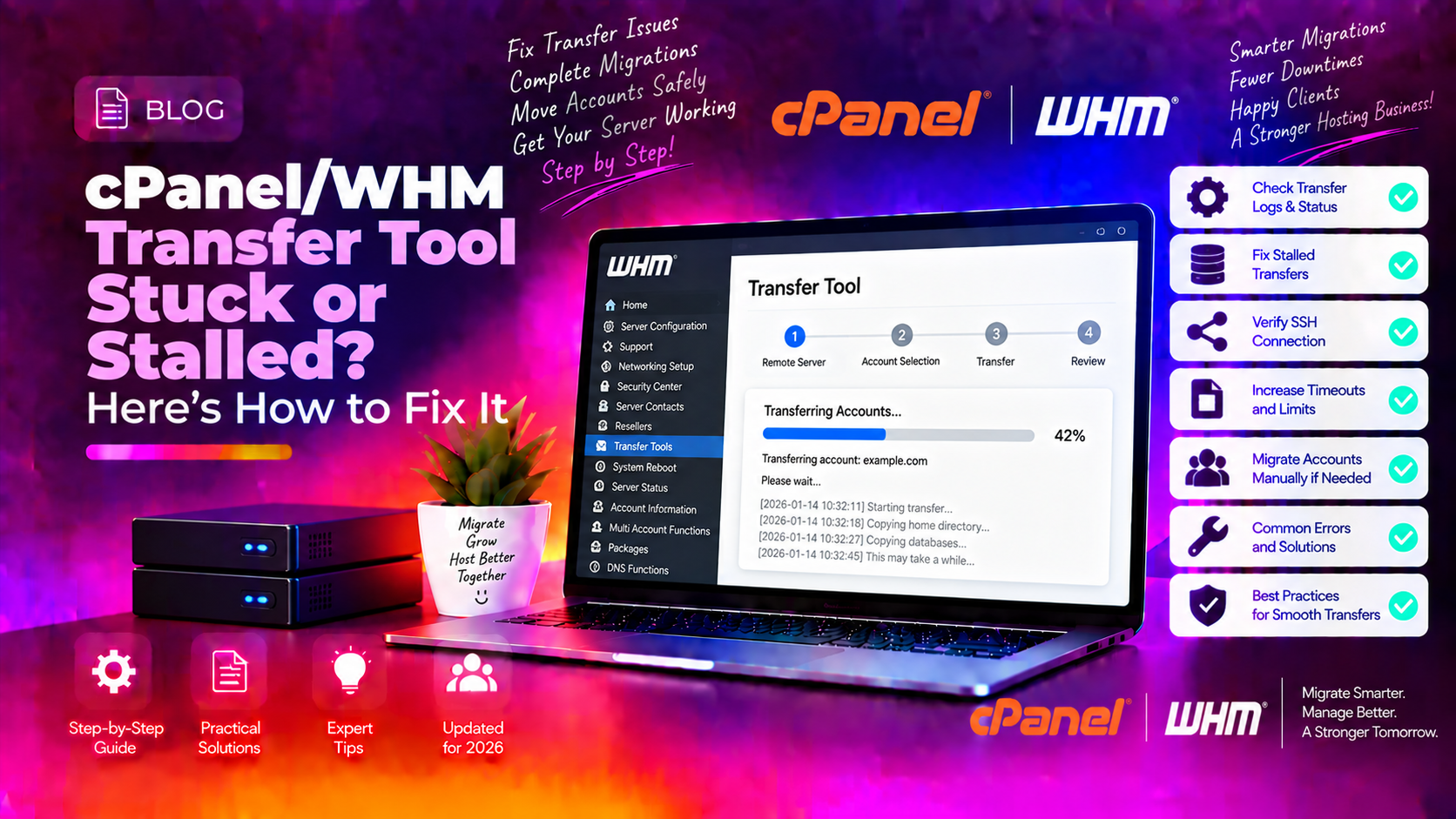
You launched a cPanel account transfer between servers using WHM's Transfer Accounts tool. For a while it looked like it was working — then the progress bar stopped moving, the log showed "Waiting for cPanel Backup" or the last line stopped updating, and nothing happened for 30 minutes. Or the transfer appeared to complete, but accounts are missing, files are incomplete, or databases did not migrate.
The WHM Transfer Tool is convenient for small account migrations, but it hits a predictable set of failure modes on larger accounts and slower networks that the interface does not explain clearly. This guide walks through how to diagnose and fix a stalled WHM transfer, and when to switch to a manual migration method.
Why the WHM Transfer Tool Stalls
Understanding the three most common causes prevents wasted time restarting a transfer that will stall again:
- Account size too large — The Transfer Tool creates a full cPanel backup of the account on the source server before sending it. Accounts larger than 5-10 GB over a normal connection can take hours, and if the source server's backup system is under load, the process appears frozen.
- SSH connection timeout — The tool communicates over SSH port 22. If a firewall on either server has an idle connection timeout (common on cloud servers — typically 60-300 seconds), the SSH channel drops and the transfer hangs silently.
- Source server backup already running — If a nightly cPanel backup is running on the source server while you attempt a transfer, the backup system queues or blocks the transfer backup, creating an indefinite wait.
- Insufficient disk space — The transfer requires free space equal to the account's compressed backup size on both the source (to create the archive) and the destination (to receive and extract it). Low disk on either side causes a silent stall.
💡 None of these worked? Skip the guesswork.
Get Expert Help →Step 1: Check If the Transfer Is Actually Progress
Before killing a transfer, confirm whether it is stalled or simply slow.
watch -n 5 'du -sh /home/ACCOUNT_USERNAME'Replace ACCOUNT_USERNAME with the account being transferred. Run this on the destination server. If the number increases every 5-10 seconds, the transfer is progressing — just slowly. If the number is static for more than 5 minutes, it is truly stalled.
ps aux | grep -E 'cpanel|backup|pkgacct'Look for a pkgacct process — this is the cPanel backup packaging tool that the Transfer Tool invokes. If pkgacct is running but its CPU usage is at 0% and the process has not changed for several minutes, it may be blocked waiting for the backup system.
Navigate to WHM → Transfers → Review Transfers and Restores. Click the active transfer to see its real-time log. The last line tells you the exact step where it stopped — for example:
Waiting for cPanel Backup...
Backup: Creating archive of /home/username...
If the log is not advancing and disk usage on the destination is not growing, the transfer is stalled.
Go to WHM → Transfers → Review Transfers and Restores. Find the stalled transfer and click Abort. This stops the current attempt cleanly without leaving partial data.
After aborting, check whether the backup packaging process is still running on the source:
ps aux | grep pkgacctIf a pkgacct process is still running from the aborted transfer, kill it:
kill -9 PID_OF_PKGACCTps aux | grep cpbackupIf a cpbackup process is running, wait for it to finish before retrying the transfer. You can also temporarily disable scheduled backups on the source server from WHM → Backup → Backup Configuration → Disable Backups, run the transfer, then re-enable them.
# Source server
df -h /home

# Destination server
df -h /home
The rule of thumb: each server needs free space equal to 60% of the account's uncompressed size. A 10 GB account requires roughly 6 GB free on both servers during the transfer.
# On destination server
du -sh /home/username/
ls -la /home/username/public_html/
Compare the total size against the source server's account disk usage from WHM → List Accounts on the source.
mysql -u root -p -e "SHOW DATABASES;" | grep usernameAll databases prefixed with the cPanel username should be present.
Run the following on the destination server to confirm the account's DNS zone loaded correctly:
/scripts/fixresolv && /scripts/rebuildhttpdconf && /scripts/restartsrv_httpdFor complex server migrations with multiple large accounts, CloudHouse Technologies provides managed server migration services that handle the complete transfer, verification, and DNS cutover with minimal downtime.