
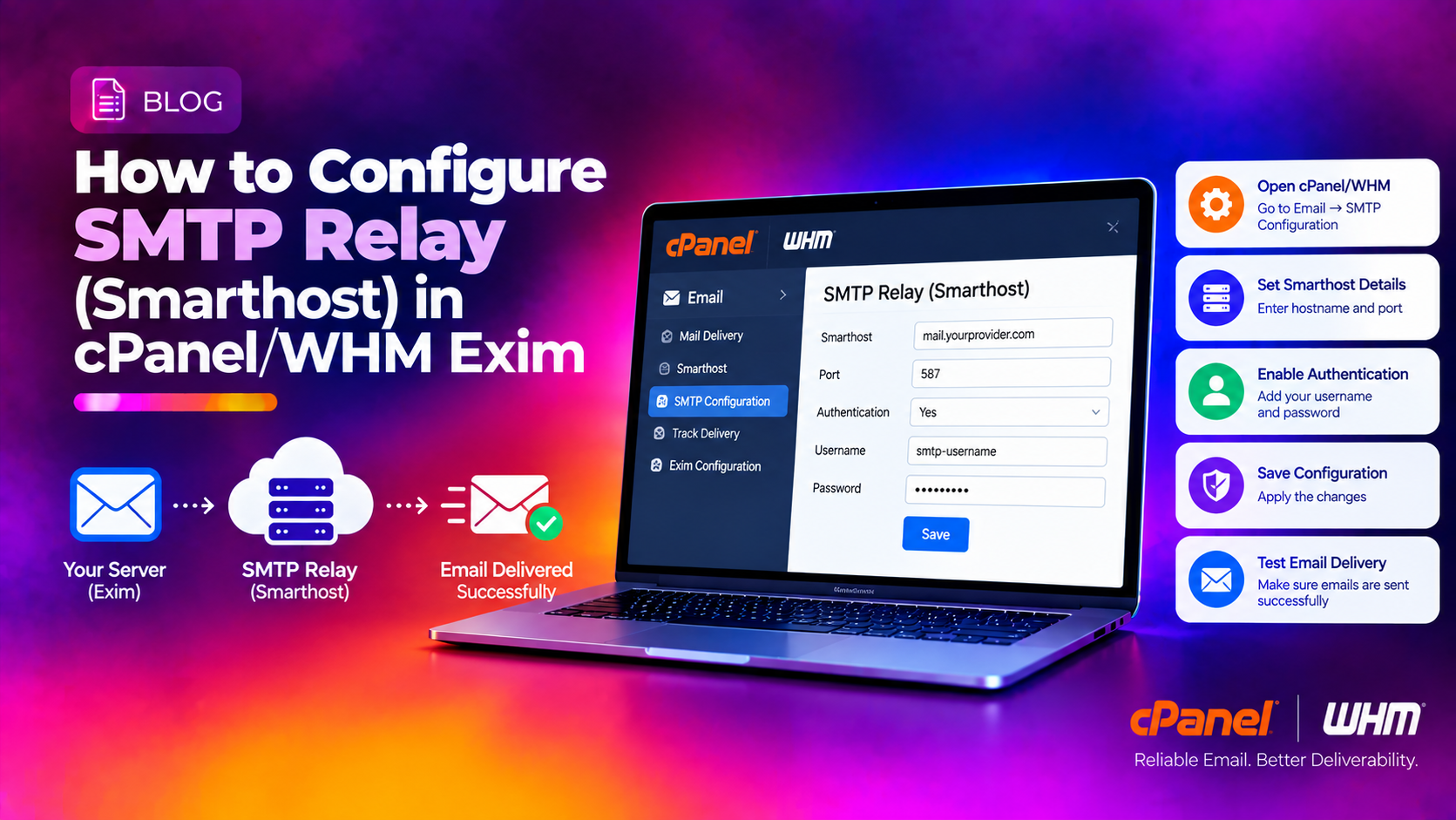
If your cPanel/WHM server's IP address has been blacklisted, you're sharing an IP with high-volume senders, or your hosting provider has restricted outbound port 25, routing all outgoing mail through a trusted SMTP relay — also called a smarthost — is the most reliable fix. This guide shows you exactly how to configure a global smarthost and domain-specific SMTP relay in cPanel/WHM using the Exim Configuration Manager, including authenticated setups for SendGrid and Amazon SES.
Why Route Outgoing Mail Through an SMTP Relay?
Shared hosting servers send email from a single IP address. If any account on that server sends spam or gets reported, the entire IP can be blacklisted by services like Spamhaus, Barracuda, or SORBS. Once blacklisted, all mail from every account on the server starts bouncing or landing in spam folders.
Routing through a dedicated SMTP relay solves this by:
- Sending outgoing mail from the relay provider's clean, trusted IP pool
- Bypassing ISP blocks on outbound port 25
- Providing detailed delivery reports and bounce tracking
- Enabling authentication with SPF, DKIM, and DMARC at the relay level
Popular relay services include SendGrid, Amazon SES, Mailgun, SMTP2GO, and MailRoute. The WHM Exim Configuration Manager supports all of them.
Prerequisites: What You Need Before Starting
Before touching Exim configuration, gather:
- Root SSH access to the WHM server
- SMTP relay credentials — hostname, port (usually 587 or 465), username, and API key/password from your relay provider
- A backup of your current Exim config — see Step 1
- Access to DNS — you will need to update SPF records after setup
All configuration below is done through WHM, not direct file editing. WHM validates Exim config before saving, which prevents syntax errors from breaking mail entirely.
💡 None of these worked? Skip the guesswork.
Get Expert Help →Step 1: Back Up Your Exim Configuration
Always back up before changing Exim. In WHM:
Go to WHM > Service Configuration > Exim Configuration Manager.
Click Backup to download the current exim.conf. Store this file somewhere safe — if the new relay config breaks mail, you can restore it from WHM > Exim Configuration Manager > Backup tab > Restore.
You can also back up from the command line:
cp /etc/exim.conf /etc/exim.conf.bak.$(date +%Y%m%d)In Exim Configuration Manager, click Basic Editor.
Scroll to the Mail section. Look for the field labelled Relay host for outgoing mail (or similar). Enter your relay hostname and port:
smtp.sendgrid.net::587The double colon (::) separates the hostname from the port in Exim syntax. Port 587 is the standard submission port — use 465 for SMTPS if your provider requires it.
Scroll to the bottom and click Save. WHM will validate the configuration and restart Exim automatically.
Note: The Basic Editor relay field routes all mail through the smarthost with no authentication. For authenticated relays (SendGrid, SES, Mailgun), use the Advanced Editor in Step 3.
In Exim Configuration Manager, click Advanced Editor.
SendGrid Configuration
Use Ctrl+F (or your browser's page search) to find ##### AUTH #####. Add the following block immediately after the section header:
sendgrid_login:
  driver = plaintext
  public_name = LOGIN
  client_send = : apikey : YOUR_SENDGRID_API_KEY
Replace YOUR_SENDGRID_API_KEY with the API key from your SendGrid account (Settings > API Keys). The literal string apikey is the SMTP username SendGrid requires.
Search for ##### ROUTERSTART #####. Add the smarthost router immediately after the header:
sendgrid_route:
  driver = manualroute
  domains = !+local_domains
  transport = sendgrid_transport
route_list = * smtp.sendgrid.net::587Search for ##### TRANSPORTSTART #####. Add the transport block:
sendgrid_transport:
  driver = smtp
  port = 587
  hosts_require_auth = smtp.sendgrid.net
  hosts_require_tls = smtp.sendgrid.net
Amazon SES Configuration
For Amazon SES, the auth block uses your SES SMTP credentials (generated in AWS Console > SES > SMTP Settings — these are separate from your IAM credentials):
ses_login:
  driver = plaintext
  public_name = LOGIN
  client_send = : YOUR_SES_SMTP_USERNAME : YOUR_SES_SMTP_PASSWORD
The SES SMTP endpoint varies by region. For us-east-1:
ses_route:
  driver = manualroute
  domains = !+local_domains
  transport = ses_transport
  route_list = * email-smtp.us-east-1.amazonaws.com::587

ses_transport:
  driver = smtp
  port = 587
  hosts_require_auth = email-smtp.us-east-1.amazonaws.com
  hosts_require_tls = email-smtp.us-east-1.amazonaws.com
Replace the endpoint with your region's SES SMTP hostname from the AWS SES console.
Scroll to the bottom and click Save. WHM validates the config before applying it. If validation fails, the error will be shown on screen — do not leave WHM until you see the success confirmation.
Step 4: Configure Domain-Specific Smarthosts
If you host multiple clients and want to route only certain domains through a specific relay (while other domains go out directly), use domain-specific smarthost routing.
Create the smarthost map file:
nano /etc/exim_smarthostsAdd one domain-to-relay mapping per line:
client1.com: smtp.sendgrid.net::587
client2.com: email-smtp.us-east-1.amazonaws.com::587
*.example.net: smtp.mailgun.org::587
Then in the Exim Advanced Editor, add this router in the ROUTERSTART section (before any global smarthost router):
domain_smarthost_route:
  driver = manualroute
  domains = !+local_domains
  transport = remote_smtp
  route_data = ${lookup{$sender_address_domain}lsearch{/etc/exim_smarthosts}}
  no_more
The lsearch lookup checks the domain against the map file. If a match is found, the mail is routed to that smarthost. If no match exists, Exim falls through to the next router (your global smarthost or direct delivery).
Changes to /etc/exim_smarthosts are picked up by Exim immediately — no restart required.
Step 5: Update SPF Records After Relay Setup
Once outgoing mail routes through a relay, your original SPF record is invalid. The relay's IP addresses are now sending mail on your behalf, so they must be included in SPF.
In WHM > DNS Zone Manager, update the SPF record for each domain. For SendGrid:
v=spf1 include:sendgrid.net ~allFor Amazon SES:
v=spf1 include:amazonses.com ~allFor Mailgun:
v=spf1 include:mailgun.org ~allIf you already have an SPF record with your server IP, merge it:
v=spf1 ip4:YOUR_SERVER_IP include:sendgrid.net ~allAfter updating DNS, allow 30–60 minutes for propagation, then verify with:
dig TXT yourdomain.com +shortTesting and Verifying Your Relay Configuration
After saving the config and updating SPF, test the relay immediately:
Send a test email from the command line:
echo "Test body" | mail -s "Relay test" test@gmail.comWatch the Exim mail queue and logs in real time:
exim -bp          # Show current queue
tail -f /var/log/exim_mainlog    # Watch live log output
A successful relay delivery shows lines like:
2026-06-18 08:40:12 1lX... => test@gmail.com R=sendgrid_route T=sendgrid_transport
2026-06-18 08:40:13 1lX... Completed
If you see AUTH failed or 535 errors, double-check your API key and that SMTP access is enabled in your relay provider's dashboard. SendGrid requires SMTP Auth to be explicitly enabled under Settings > Mail Settings.
Check delivery headers in Gmail — click the three-dot menu > Show Original. You should see the relay server's IP in the Received: headers, not your cPanel server's IP.
If you need professional help configuring your cPanel/WHM mail server or diagnosing persistent delivery problems, CloudHouse's server management team can audit your Exim configuration and relay setup remotely.