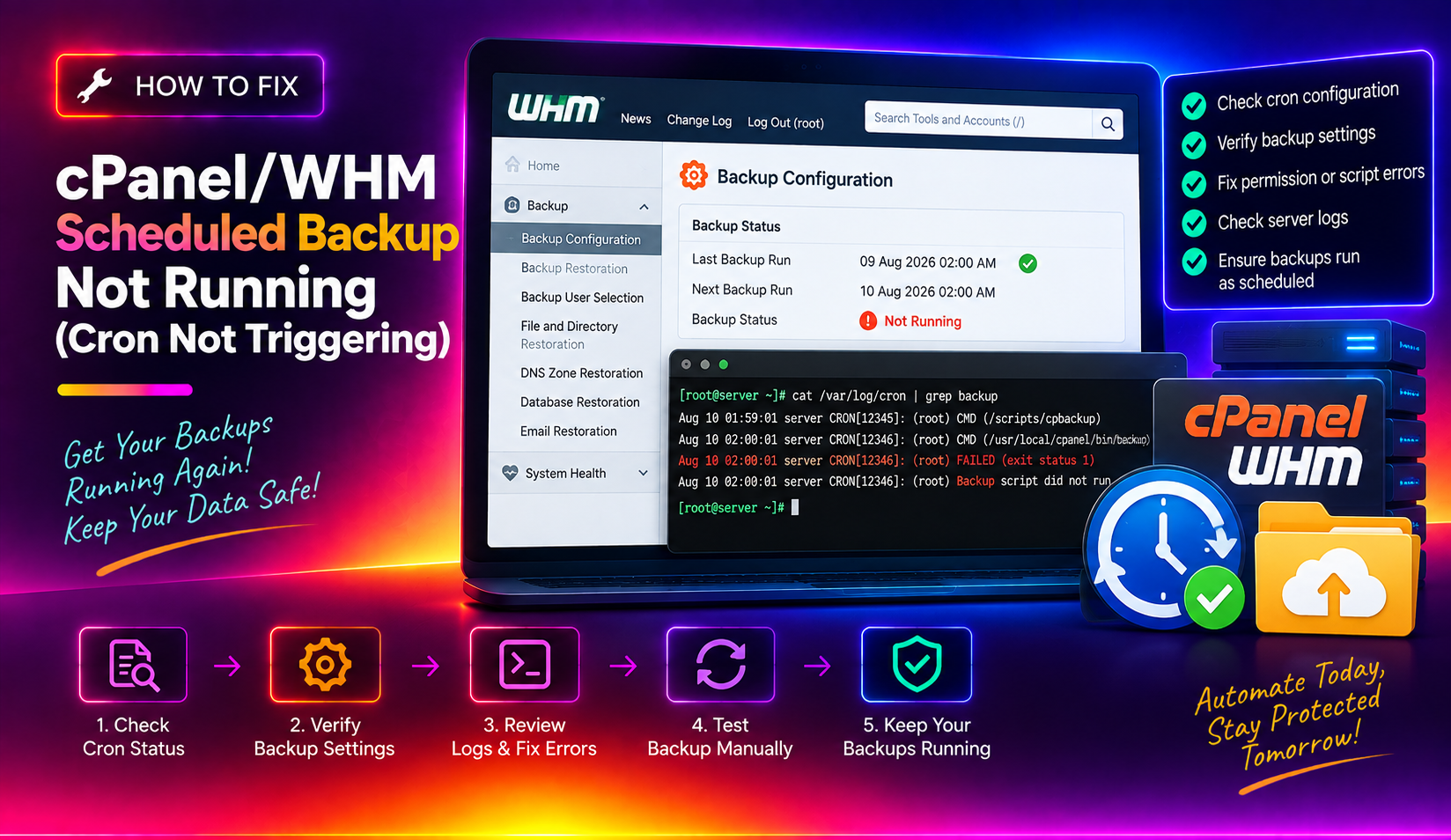
If your cPanel/WHM server stopped creating scheduled backups, you are not alone. This is one of the most dangerous silent failures in web hosting — the backup job quietly stops running, and admins only discover it weeks later when they desperately need to restore a site. This guide walks through every root cause for cPanel/WHM scheduled backups not running and gives you the exact commands to diagnose and fix each one.
💡 None of these worked? Skip the guesswork.
Get Expert Help →1. Check If Backups Are Actually Enabled in WHM
The most common reason WHM scheduled backups stop running is that the backup system is simply disabled. After a cPanel update or server migration, the backup toggle can silently revert to off.
Navigate to WHM > Backup > Backup Configuration.
At the top of the page you will see a Backup Status section. Confirm it is set to Enabled. If it says Disabled, enable it and click Save Configuration.
grep -i "BACKUPENABLE" /var/cpanel/backups/configIf the output is BACKUPENABLE=no, backups are disabled. Set it to yes directly or use the WHM UI to re-enable.
In WHM > Backup Configuration > Scheduling and Retention, look at the Backup Days row. If no days are ticked, the cron will never trigger a backup run.
The Backup Type field controls what kind of backup runs (Compressed, Uncompressed, or Incremental). If this was changed to Disabled, the system will skip the job even though Status is Enabled.
cat /var/cpanel/backups/config | grep -E "BACKUPDAYS|BACKUPTYPE"A correctly configured server should show something like:
BACKUPDAYS=1,2,3,4,5
BACKUPTYPE=compressed
If BACKUPDAYS is empty or BACKUPTYPE=disabled, fix these values in the WHM UI and save.
df -hLook at the partition where your backup destination lives (often /home or a mounted drive).
In WHM > Backup Configuration > Additional Destinations (or the main config section), find the Minimum Free Space option. The default is 1024 MB. If your available disk space is below this value, WHM will skip the backup.
grep "MINFREE" /var/cpanel/backups/configEither remove old backup archives manually:
ls -lhS /backup/ | head -20
rm -f /backup/cpbackup/weekly/old-archive.tar.gz
Or increase your disk capacity. Lowering the MINFREE threshold without addressing the underlying disk space issue is a short-term workaround only.
ls -lt /usr/local/cpanel/logs/cpbackup/ | head -10tail -100 /usr/local/cpanel/logs/cpbackup/$(ls -t /usr/local/cpanel/logs/cpbackup/ | head -1)Insufficient disk space— confirms the disk threshold issue from Section 3Backup is disabled— confirms the toggle issue from Section 1Transport failed— points to a remote destination connectivity problem (see Section 7)Lock file exists— indicates a stuck backup process (see Section 5)Permission denied— backup directory has wrong ownership
Fix the directory permission issue with:
chown -R root:root /backup
chmod 711 /backupps aux | grep cpbackup | grep -v grepIf this returns nothing but backups are still not running, a stale lock file is likely the culprit.
ls -la /var/cpanel/backups/*.lock 2>/dev/null
ls -la /tmp/.cpbackup* 2>/dev/nullrm -f /var/cpanel/backups/*.lock/usr/local/cpanel/bin/backup --forceWatch the log file in real time to confirm the job starts:
tail -f /usr/local/cpanel/logs/cpbackup/$(date +%Y-%m-%d).loggrep -i "cpbackup\|backup" /etc/crontab
grep -i "cpbackup\|backup" /var/spool/cron/rootYou should see a line similar to:
0 2 * * 1,2,3,4,5 root /usr/local/cpanel/bin/backupsystemctl status crond
# or on some distros:
systemctl status cronIf cron is stopped, start it:
systemctl start crond && systemctl enable crondIf the cron entry is missing, saving any change in WHM > Backup Configuration will regenerate it. Alternatively, run:
/usr/local/cpanel/scripts/rebuildhttpdconf
/usr/local/cpanel/bin/backup --forceGo to WHM > Backup Configuration > Additional Destinations, click your destination, then click Save and Validate Destination. WHM will test the connection and report any errors.
ls /var/cpanel/backups/*.backup_destination
cat /var/cpanel/backups/your_destination.backup_destinationIf backups time out before completing, increase the transport timeout. Edit the relevant transport module or use WHM to adjust the Maximum Destination Timeout setting (default: 7200 seconds).
curl -v https://s3.amazonaws.com/your-bucket-name/ 2>&1 | head -20iptables -L OUTPUT -n | grep -E "DROP|REJECT"An outbound firewall rule blocking the FTP or SFTP port will silently kill all remote backup transfers.
If you need expert help diagnosing complex backup failures or setting up a reliable backup architecture, CloudHouse's managed server support team can audit your entire backup configuration and ensure your data is protected 24/7.
Preventing Future Backup Failures
Once you have fixed the immediate issue, add these safeguards to prevent silent backup failures in future:
- Enable backup notifications — WHM > Backup Configuration > Notification Settings. Set it to email you when backups fail.
- Monitor disk space proactively — Set up a low-disk-space alert at 20% full, well before WHM's backup threshold is hit.
- Test restores monthly — A backup you have never tested is not a backup. Restore a random account each month using WHM > Restore a Full Backup/cpmove File.
- Keep at least 7 daily backups — Configure retention to keep a full week so you can recover from ransomware or accidental deletions.