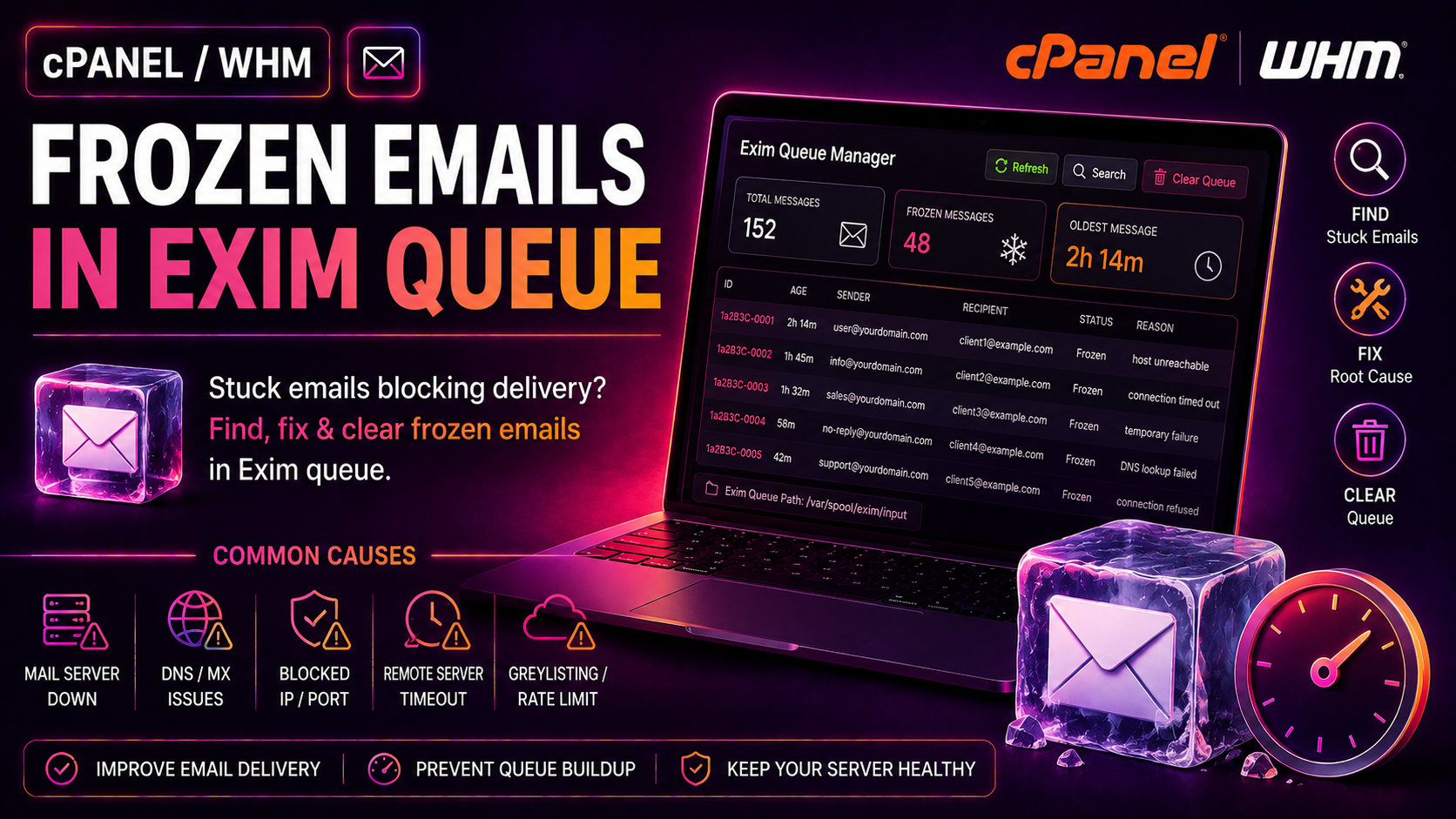
If you manage a cPanel/WHM server, you've likely encountered the silent killer of email deliverability: cpanel exim frozen emails fix searches that lead you down rabbit holes of one-liners that delete the queue without ever explaining why messages froze in the first place. Frozen messages pile up, clients complain about missing emails, and the standard advice — "just delete them" — leaves the root cause untouched. This guide takes a different approach: diagnose first, fix intelligently, then tune Exim so freezing stops happening.
What Are Frozen Emails in Exim and Why Do They Happen
Exim marks a message as frozen when it has exhausted all retry attempts and the message delivery agent (MDA) has given up trying to deliver it — but Exim hasn't discarded it yet. A frozen message sits inert in the queue, consuming disk space, occupying a queue slot, and — critically — never triggering another delivery attempt unless you manually intervene.
Common Root Causes
- Recipient domain DNS failures — MX records missing, expired domain, or DNS resolution timeouts cause Exim to retry until freeze_time_limit is reached.
- Remote server rejections — The destination SMTP server returns a 5xx permanent error (bad address, blacklisted IP, policy rejection). Exim freezes rather than bouncing immediately in some configurations.
- Local delivery failures — Malformed
.forwardfiles, over-quota mailboxes, or a broken pipe to a local filter program. - Authentication mismatches — SMTP AUTH failures on smarthost-relayed mail.
- Spam/virus scanner holds — ClamAV or SpamAssassin returning a non-standard exit code that Exim interprets as a temporary failure.
- Script-generated mail storms — A PHP contact form or WordPress plugin sending thousands of messages per hour; Exim freezes messages it can't queue fast enough.
The key insight most guides miss: a frozen queue entry contains the exact error that caused the freeze in its message headers. Reading those headers before bulk-deleting the queue tells you whether you have a DNS problem, a blacklisting problem, or a broken application.
💡 None of these worked? Skip the guesswork.
Get Expert Help →How to Identify Frozen Messages in WHM Mail Queue Manager
WHM ships with a built-in Mail Queue Manager that gives you a GUI view of the Exim queue without needing root SSH access.
Log in to WHM, then navigate to Email > Mail Queue Manager. You will see a table listing every message currently in the queue with columns for Message ID, Time, From, Recipients, and Status.
In the Message Status dropdown, select Frozen and click Search. The list now shows only frozen messages. Take note of the sender domains — a cluster of frozen messages from a single domain often signals a compromised account or a broken script on one cPanel user's account.
Click any Message ID to open its detail view. WHM displays the full message headers, recipients, retry log, and the Exim error that triggered the freeze. This is where you get the actual error — a line like SMTP error from remote mail server after RCPT TO or all retry time limits exceeded.
If 90% of your frozen messages share the same sender domain or recipient domain, you have an isolated problem — either a single misbehaving cPanel account (sender clustering) or a single destination that is rejecting your mail (recipient clustering). Isolating this now prevents you from deleting legitimate mail when you do a bulk action.
Command-Line Diagnosis: Reading Exim Logs and Message Headers
For servers with hundreds or thousands of frozen messages, the WHM GUI is too slow. Command-line tools give you the speed and precision you need.
Count and list frozen messages
# Count total frozen messages
exim -bpu | grep "frozen" | wc -l

# List frozen message IDs with sender, recipient and time
exim -bpu | grep "frozen"

# Show just the message IDs of all frozen messages
exim -bpu | grep "frozen" | awk '{print $3}'
The -bp flag prints the queue; -u shows the unfrozen flag. Each line includes the Message ID (a string like 1tPkQZ-000BXm-Rn), the queue age, the sender envelope address, and the frozen status.
Read the full delivery log for a single message
# Replace MESSAGE_ID with an actual ID from the list above
exim -Mvl MESSAGE_ID
This outputs the complete retry/delivery log for that specific message — every SMTP conversation Exim attempted, including the exact server response that caused the freeze. Look for lines like:
2026-06-01 03:14:22 1tPkQZ-000BXm-Rn == recipient@example.com R=dnslookup T=remote_smtp defer (-44): SMTP error from remote mail server after RCPT TO:: 550 5.1.1 The email account that you tried to reach does not exist A 5xx error here means the address is permanently invalid — these messages should be deleted. A 4xx error means a temporary failure — these are candidates for a forced retry after you fix the underlying issue.
Read the message headers
exim -Mvh MESSAGE_IDThis shows the raw RFC 5322 headers. Look for the X-PHP-Originating-Script header (added by PHP's mail() function on cPanel) — it tells you exactly which PHP script on which cPanel account generated the message. This is invaluable for tracking down a compromised WordPress site or a form-spam attack.
Scan the main Exim log for error patterns
# Last 200 lines of the main log
tail -200 /var/log/exim_mainlog

# Filter for frozen-related entries
grep "frozen" /var/log/exim_mainlog | tail -50

# Find which sender accounts are generating the most failed mail
grep "frozen" /var/log/exim_mainlog | grep -oP "from=<[^>]+" | sort | uniq -c | sort -rn | head -20
The last command surfaces your top "freeze generators" — accounts whose mail is failing most often. If a single cPanel username appears in dozens of entries, that account needs immediate attention (password reset, malware scan, script audit).
How to Unfreeze, Retry, or Safely Delete Frozen Messages
Now that you know why messages are frozen, you can take the right action for each category instead of blindly deleting everything.
Option A: Force a delivery retry on a single message
exim -M MESSAGE_IDThis unfreezes the message and immediately attempts delivery. Use this after you've fixed the underlying issue (for example, after updating DNS records or removing an IP from a blacklist).
Option B: Thaw (unfreeze) without immediate retry
exim -Mt MESSAGE_IDThawing returns the message to the active queue so Exim will retry it on the next queue runner cycle (typically every 30 minutes on a default cPanel install).
Option C: Bulk thaw all frozen messages
exiqgrep -z -i | xargs exim -MtUse this only after you've confirmed the root cause is fixed — for example, after your IP was removed from a blacklist and your SPF record was corrected. Thawing without fixing the root cause just re-freezes everything in 30 minutes.
Option D: Delete a single frozen message
exim -Mrm MESSAGE_IDOption E: Bulk-delete frozen messages matching a pattern
# Delete all frozen messages older than 2 days (safe — they're already failed delivery)
exiqgrep -z -i | xargs exim -Mrm

# Delete frozen messages from a specific sender domain
exiqgrep -z -f "@badactor.example.com" -i | xargs exim -Mrm

# Delete frozen messages TO a dead recipient domain
exiqgrep -z -r "@defunct-company.com" -i | xargs exim -Mrm
exiqgrep is Exim's built-in queue grep tool. The -z flag selects only frozen messages; -f and -r filter by sender and recipient respectively; -i outputs Message IDs only (suitable for piping to xargs).
Isolating one domain's queue without affecting other senders
This is the per-domain queue isolation step that most guides skip entirely. If a single bad-actor account is generating most of your frozen mail, suspend that account first:
# Suspend the cPanel account
/scripts/suspendacct username

# Then delete only their frozen queue entries
exiqgrep -z -f "@their-domain.com" -i | xargs exim -Mrm

# Unsuspend once mail storm is cleared
/scripts/unsuspendacct username
This prevents the deletion of legitimate mail from other senders while you clean up. For a deeper look at keeping your server's mail infrastructure healthy, CloudHouse server management provides ongoing Exim queue monitoring and proactive deliverability tuning.
Preventing Frozen Email Buildup: Exim Timeout and Retry Configuration
Fixing today's frozen queue is only half the job. Without configuration changes, the same conditions will re-freeze mail tomorrow. The following settings are applied via WHM's Exim Configuration Manager (WHM > Service Configuration > Exim Configuration Manager > Advanced Editor) or directly in /etc/exim.conf.
Shorten the freeze time limit
The default freeze_time_limit on cPanel is 7 days. Most mail that can't be delivered in 24 hours will never be deliverable. Reduce the limit:
# In the Retry section of /etc/exim.conf
# WHM Advanced Editor → "freeze_time_limit"
freeze_time_limit = 24h
With a 24-hour limit, frozen messages auto-expire and are bounced with an NDR to the sender, keeping your queue clean without manual intervention.
Tune the retry schedule
The default retry rule retries aggressively for the first few hours then backs off. For servers with high outbound volume, consider a more conservative schedule that reduces queue growth during DNS outages:
begin retry
*  *  F,1h,15m; F,4h,1h; F,24h,6h; G,4d,6h,1.5; F,14d,1d
This translates to: retry every 15 minutes for the first hour, every hour for the next 4 hours, every 6 hours for the next 24 hours, then geometrically increasing intervals up to daily retries for up to 14 days, after which Exim gives up with a bounce.
Set a message delivery timeout
# Maximum time for a single SMTP connection attempt
smtp_connect_timeout = 30s

# Maximum time to wait for a response to a command
command_timeout = 60s
These prevent Exim from hanging on unresponsive remote servers, which can cause the queue runner process to stall and messages to appear "stuck" even without being formally frozen.
Enable queue runner logging
# Add to log_selector in exim.conf
log_selector = +queue_run +deliver_time +retry_defer
With +retry_defer enabled, every retry attempt — including the final one that leads to a freeze — is logged with the reason. This makes future diagnosis significantly faster because you can search the log for the error string rather than inspecting individual messages.
Rate-limit per-account outbound mail to prevent mail storms
# In the ACL (acl_smtp_mail) section of exim.conf
# Via WHM: Exim Configuration Manager → ACL Options
ratelimit = 100 / 1h / strict / $sender_address_domain
This limits any single sending domain to 100 messages per hour. A compromised WordPress site sending thousands of spam messages per hour will hit this limit and receive a 451 temporary rejection rather than flooding the queue with messages that all freeze simultaneously.
FAQs
How do I check how many frozen emails are in my Exim queue?
Run exim -bpu | grep "frozen" | wc -l from root SSH. This counts all frozen messages currently in the queue. You can also see the total via WHM > Email > Mail Queue Manager, filtering by Status = Frozen.
Is it safe to delete all frozen Exim messages at once?
It depends. Frozen messages that are older than your retry period (e.g., older than 2 days) are almost certainly undeliverable and safe to delete. However, recently-frozen messages may be retryable once you fix the root cause. Always check the freeze reason in exim -Mvl MESSAGE_ID for a sample before bulk-deleting.
Why do Exim messages keep freezing after I delete them?
New messages are freezing for the same root cause you haven't addressed yet — typically a blacklisted sending IP, a broken SPF/DKIM record, a compromised cPanel account still sending spam, or a remote MX that is permanently rejecting your mail. Use grep "frozen" /var/log/exim_mainlog | grep -oP "from=<[^>]+" | sort | uniq -c | sort -rn | head -10 to find the repeat offender.
How do I unfreeze all Exim messages and force a retry?
Run exiqgrep -z -i | xargs exim -Mt to thaw all frozen messages (returns them to the active queue for retry on the next queue runner cycle), or exiqgrep -z -i | xargs exim -M to thaw and immediately attempt delivery. Only do this after the root cause is fixed, or everything will re-freeze within 30 minutes.
What Exim log file should I check for email delivery errors on cPanel?
The primary log is /var/log/exim_mainlog for all delivery activity. For rejected inbound mail, check /var/log/exim_rejectlog. For panic-level Exim errors (configuration errors, process crashes), check /var/log/exim_paniclog — if this file is non-empty, something is seriously wrong with your Exim configuration.
Frozen emails in Exim are never just a queue-management inconvenience — they are a symptom of an underlying delivery problem. By reading the error that caused each freeze, isolating problem senders with per-domain queue tools, and tuning retry/timeout values to match your server's actual traffic patterns, you can keep your Exim queue healthy without ever reaching for the bulk-delete sledgehammer. If frozen queues are a recurring issue on your server, CloudHouse server management can implement proactive queue monitoring and automated alerting so delivery failures surface before your clients notice them.