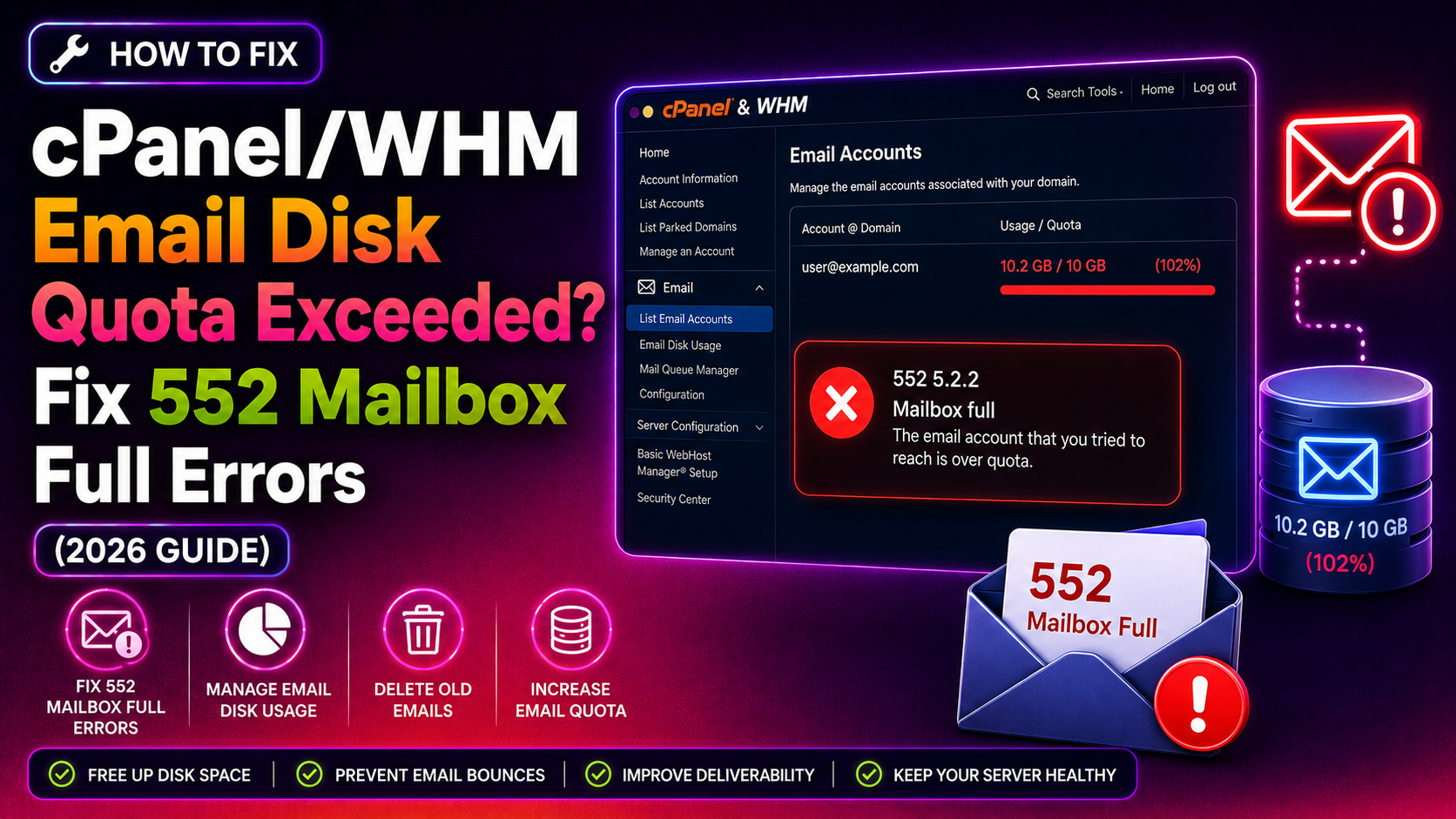
When email stops arriving and senders start getting bounce messages like 552 5.2.2 Mailbox Full or Disk quota exceeded, the clock is ticking. Every new email that bounces is a missed communication — and on shared hosting servers managed with cPanel and WHM, this is one of the most common support tickets. This guide walks you through every layer of the problem: from the maildirsize corruption that causes false quota readings to the WHM disk allocation settings that cap the entire cPanel account.
Understanding the 552 5.2.2 Error Code
The SMTP error code 552 5.2.2 means the destination mailbox has exceeded its storage quota. The sending mail server receives this response and returns a non-delivery report (NDR) to the original sender. The email is not delivered and will not be retried unless the recipient frees space.
On cPanel servers, the 552 error can have three distinct root causes, each requiring a different fix:
- Email account quota exceeded — the individual mailbox (e.g., john@example.com) is at or over its configured limit
- cPanel account disk quota exceeded — the hosting account's total disk allocation is full, affecting all mailboxes under it
- Corrupted maildirsize file — the quota tracking file is stale or corrupted, making Dovecot report incorrect usage and reject email unnecessarily
💡 None of these worked? Skip the guesswork.
Get Expert Help →Step 1: Diagnose the Actual Cause via WHM
Before making any changes, determine which layer is causing the problem. Log in to WHM as root.
Navigate to Account Information → List Accounts and look at the Disk column for the affected account. If the usage equals the limit (e.g., 5000 MB / 5000 MB), the entire cPanel account is out of space and no email can be received.
Navigate to Email → Email Disk Usage in cPanel (not WHM) for the affected user. This shows each mailbox and its current usage vs. its configured quota.
Connect to the server over SSH as root and run the quota check for the specific user:
repquota -ua /home | grep usernameAlso check the raw disk space available:
df -h /homeThe file is in the user's mail directory. For the account john@example.com on cPanel user exampleuser:
ls -lh /home/exampleuser/mail/example.com/john/maildirsizecat /home/exampleuser/mail/example.com/john/maildirsizeThe first line is the quota definition (e.g., 1073741824S = 1 GB). Subsequent lines are incremental usage counts that Dovecot sums up. If the sum is wrong compared to actual disk usage, the file is stale.
rm -f /home/exampleuser/mail/example.com/john/maildirsizeDovecot will automatically recalculate and recreate this file on the next connection or inbox activity. This is safe — no email is deleted or lost.
If multiple mailboxes are affected, run the cPanel quota recalculation script:
/scripts/generate_maildirsize --confirm --allOr for a specific account:
/scripts/generate_maildirsize --confirm --user=exampleuserIf you prefer a GUI approach: log in to cPanel → File Manager → navigate to mail/example.com/john/ → find and delete the maildirsize file. Show hidden files if needed (Settings → Show Hidden Files).
Log in to cPanel → Email Accounts → find the affected address → click Manage → scroll to Storage → update the Allotted Storage Space value → click Update Email Settings.
You can also set it to Unlimited if the hosting plan allows it, but this is not recommended on shared servers as a single account can fill the entire disk.
For bulk operations or automation, use the cPanel API or WHM's command line:
uapi --user=exampleuser Email edit_pop_quota email=john@example.com quota=2048The quota value is in megabytes. Set to 0 for unlimited.
Log in to WHM → Account Information → List Accounts → find the account → click the pencil/edit icon next to the account → change the Disk Space Quota → save.
whmapi1 modifyacct user=exampleuser QUOTA=10240The quota is in megabytes.
For servers where you control the hardware, setting quotas to unlimited is acceptable. However, always monitor with df -h and set up disk usage alerts.
Log in to Webmail → sort by size → delete the largest emails → empty Trash and Spam folders. Roundcube: Settings → Display → Sort by Size.
# Check actual disk usage of the mailbox
du -sh /home/exampleuser/mail/example.com/john/

# List large files in the mailbox
find /home/exampleuser/mail/example.com/john/ -type f -size +1M -exec ls -lh {} \; | sort -k5 -rh | head -20rm -rf /home/exampleuser/mail/example.com/john/.Trash/cur/*
rm -rf /home/exampleuser/mail/example.com/john/.Spam/cur/*After deleting files manually, always delete or regenerate the maildirsize file so Dovecot recalculates usage correctly.
In WHM → Server Configuration → Tweak Settings → search for "quota" → enable Send disk space usage notifications to cPanel users and set the threshold percentage (e.g., 85%).
WHM → Account Information → Quota Modification → configure notification thresholds per account.
Add a cron job to alert when any account exceeds 90% disk usage:
*/30 * * * * /scripts/quota_warn --threshold=90 2>/dev/nullFor hosting environments where disk and quota management must be proactive, consider a managed server management service that monitors cPanel account quotas, Exim queue length, and Dovecot health 24/7.
Step 7: Restart Dovecot After Quota Changes
After making quota changes or deleting maildirsize files on a busy server, restart Dovecot to apply changes immediately:
# Check Dovecot status
/scripts/restartsrv_dovecot

# Or via systemd
systemctl restart dovecot
Then verify email delivery is restored:
# Send a test message via Exim
echo "Test body" | exim -v -f sender@example.com recipient@example.com
FAQs
Conclusion
The 552 5.2.2 mailbox full error in cPanel/WHM almost always comes down to one of three problems: a corrupted maildirsize file, a mailbox quota that's genuinely too low, or an entire cPanel account that's run out of disk space. Work through each layer — delete and regenerate maildirsize, adjust quota via cPanel Email Accounts or WHM, and set up disk usage alerts so the problem doesn't silently recur. For environments where quota incidents happen repeatedly, a managed cPanel server service with proactive disk monitoring is the most reliable long-term solution.